💡 Try before you buy: The installer is free to download. Without a license key, the app installs and the menu bar icon appears, but the active modes (Plugged-In Awake / Never Sleep / Quiet Hours) stay locked. This lets you verify your macOS version is supported and the install flow works on your system before paying $3.99.
What it does
Mac Awake Guard is a tiny macOS menu bar utility that automatically manages your Mac’s sleep policy. The status bar always shows your current state at a glance:
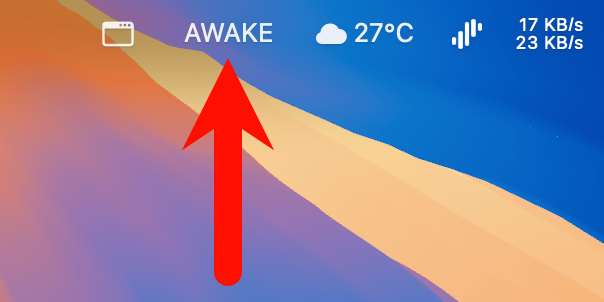
AWAKE— on AC power, sleep prevention activeSLEEP— on battery, sleeping normallyOFF— license not yet activated
The default mode is Plugged-In Awake:
- When connected to power: Mac stays awake (good for downloads, renders, AI workloads, remote access)
- When unplugged: Mac sleeps normally (no battery drain)
- When you quit the app: it restores normal sleep, never leaves the system in awake mode
- Start at Login: enabled by default after install, and can be turned off from the menu at any time
It also offers Never Sleep mode: keeps Mac awake regardless of power source.
v1.2 adds Quiet Hours: set a window (e.g. 23:00–07:00) so your Mac sleeps even on AC during the window, then automatically wakes up at the end (system-level scheduled wake — works even with the lid closed).
Who it’s for
- People who don’t want their long-running tasks interrupted when on AC
- People who SSH/Screens back to a home or office Mac
- People who want downloads, syncs, renders, or automation scripts to keep running
- People who want their Mac to follow their sleep schedule (awake during day, asleep overnight, awake again in the morning)
- People who don’t want to manually toggle a sleep utility every time
If you only need occasional “prevent display from sleeping,” macOS’s built-in setting or a free utility like Caffeine or Amphetamine may already be enough.
Buy
Software download is included with purchase.
- Price: $3.99
- Buy: Gumroad
- After purchase: I’ll deliver your license key via Gumroad message within 24 hours
- 1 license key = 1 Mac (free transfer if you switch machines, just message me)
Until activated, Plugged-In Awake and Never Sleep modes are locked. The app installs and runs without a license — you can verify compatibility (macOS version, install flow, “(null)” warning click-through) before paying.
Install guide
The full visual walkthrough below has 9 steps and uses real screenshots from the English UI.
Step 1: Download and unzip
After purchase, download MacAwakeGuard-Installer.zip from Gumroad and double-click it to unzip. You’ll see 3 files in Finder:

⚠️ Double-click file 1 (Double-click to install.command), NOT file 2 (the .app) — otherwise macOS will hard-block with the ugliest possible dialog.
Step 2: Run the install script
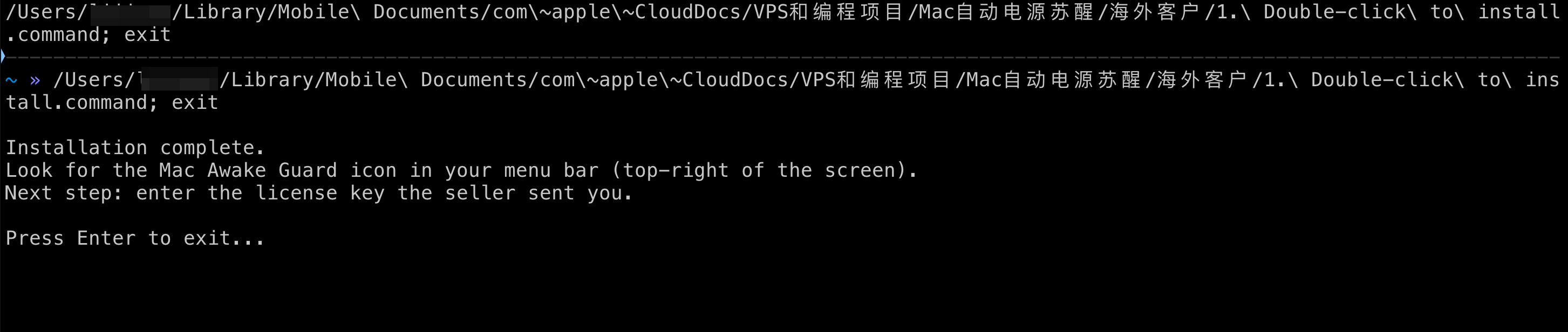
Double-click 1. Double-click to install.command. It copies the app to ~/Applications/, clears the security flag, and registers it for auto-launch at login. When done, Terminal shows “Installation complete”:
If you do not want auto-launch at login, open the menu after installation and uncheck Start at Login. Future upgrades remember this choice and will not silently turn auto-launch back on.
⚠️ macOS 14 (Sonoma) and later: the very first double-click of
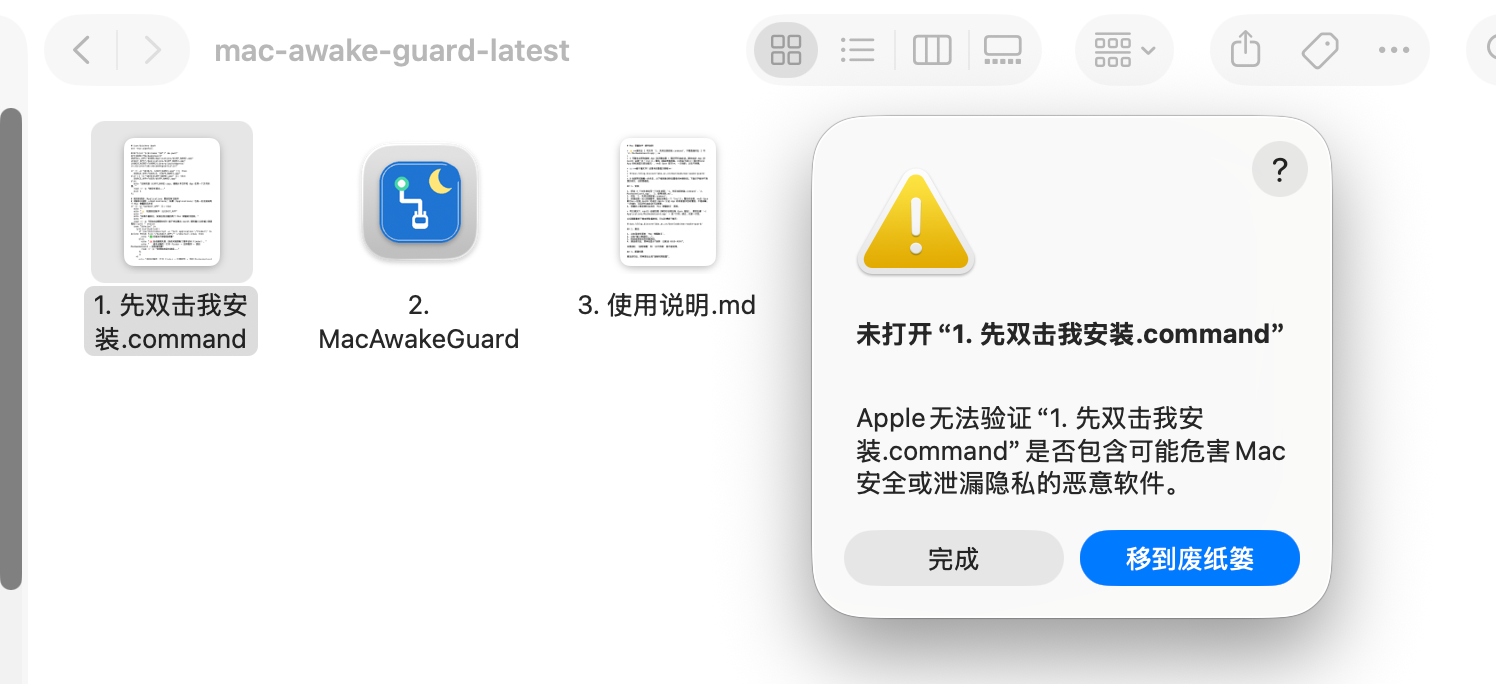
.commandmay be blocked by Gatekeeper (dialog says “Apple could not verify ‘1. Double-click to install.command’ is free of malware…”, with only Done and Move to Bin buttons — no Open). This is macOS 14+ tightening checks on un-notarized.commandscripts. Follow Step 2.5 to approve in System Settings, then double-click1. Double-click to install.commandagain — it’ll run the full install.
Step 2.5: One-time Gatekeeper approval (when blocked)
macOS may block at one of two moments — both use the same approval flow, only the blocked target differs (.command script vs .app file):
- Scenario A (most common on macOS 14+): blocked the moment you double-click
1. Double-click to install.command. Dialog title: "‘1. Double-click to install.command’ can’t be opened"; description: “Apple could not verify ‘1. Double-click to install.command’ is free of malware that may harm your Mac”. - Scenario B: script runs, but the
.appis blocked when launched. On legacy macOS 13 the dialog says “MacAwakeGuard is an app created by the app (null)…” with an Open button — just click Open and skip the rest of this section. Some macOS 14+ configurations may also re-block here (with the Apple-could-not-verify wording); use the same flow below.
macOS 14 (Sonoma) and later: System Settings approval
Whether the blocked target is the .command script or the .app, the three steps are identical:
Step 1: Click Done in the warning dialog. Do NOT click “Move to Bin” — that permanently deletes the script/app.
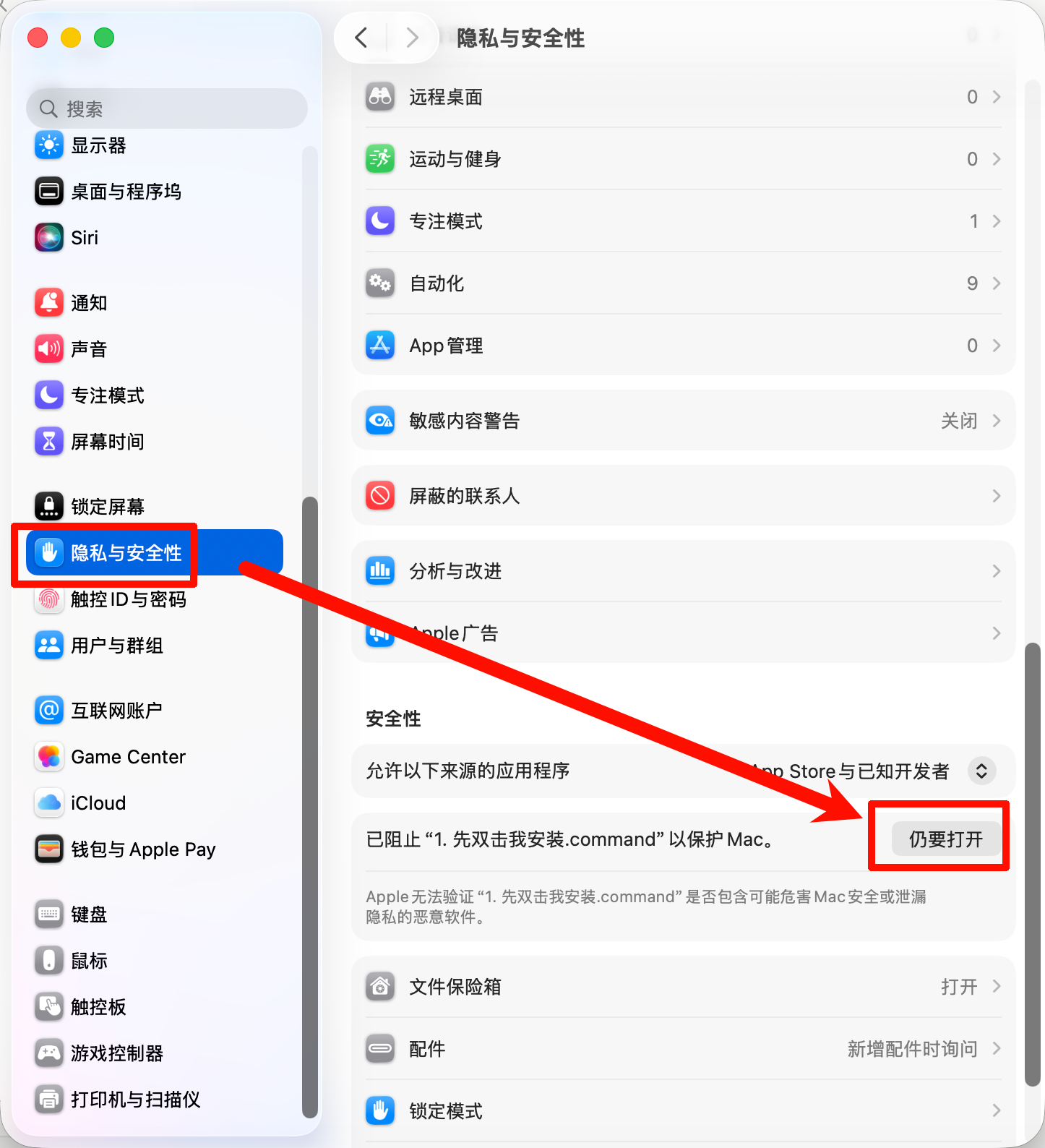
Step 2: Open System Settings → Privacy & Security, scroll down to the Security section, find the line "‘1. Double-click to install.command’ (or ‘MacAwakeGuard’) was blocked to protect your Mac", and click Open Anyway to the right.
Step 3: A confirmation dialog appears: “Open ‘1. Double-click to install.command’?” with three buttons (Move to Bin / Open Anyway / Done) — click Open Anyway in the middle, then enter your Mac login password.
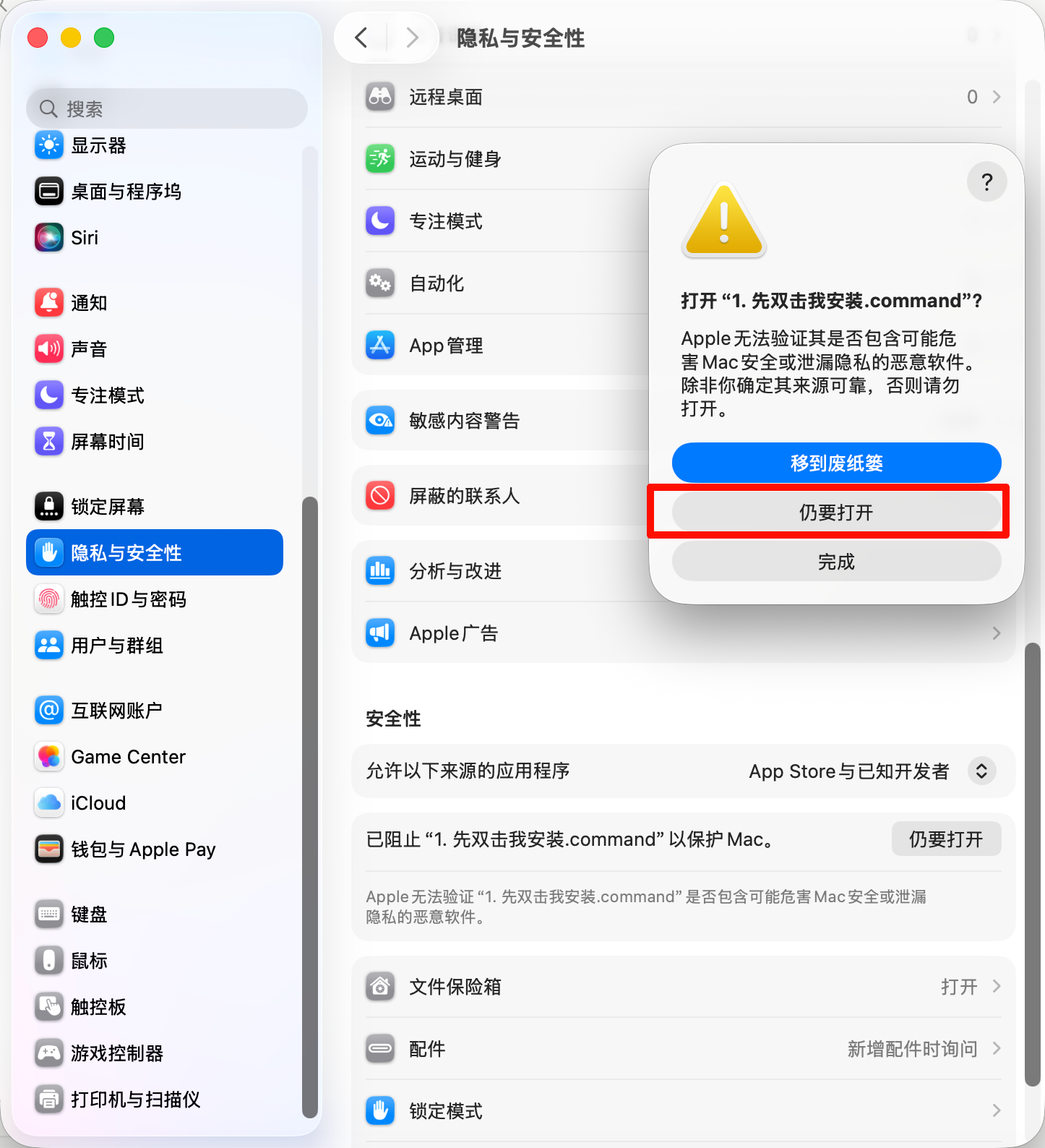
The screenshots above are from a Chinese system; on an English system, the layout is identical and the wording is the English equivalents shown in this guide.
After approval:
- Scenario A (.command blocked): double-click
1. Double-click to install.commandagain — this time it runs the full install. The script then launches the .app, which usually opens silently. - Scenario B (.app blocked): the Mac Awake Guard icon appears in the menu bar — you’re done.
macOS 13 and earlier: just click Open
On legacy macOS, the .app launch dialog reads “MacAwakeGuard is an app created by the app (null)…” and includes an Open button — just click Open. One-time only. The .command is rarely blocked on macOS 13.
Why these prompts at all: Apple’s Developer Program costs $99/year. To keep this app affordable we skipped Notarization. The trade-off is one-time manual approval. macOS remembers your approval and won’t ask again on auto-launches at login.
Rare edge case (any macOS version): if all paths above fail, right-click
~/Applications/MacAwakeGuard.appin Finder → choose Open from the context menu. This bypasses Gatekeeper for that single launch.
Step 3: Menu bar shows “Not Activated”
After clicking Open, the Mac Awake Guard icon appears in the menu bar (top-right of screen). Click it — the status bar shows OFF and the menu shows “Not Activated”:
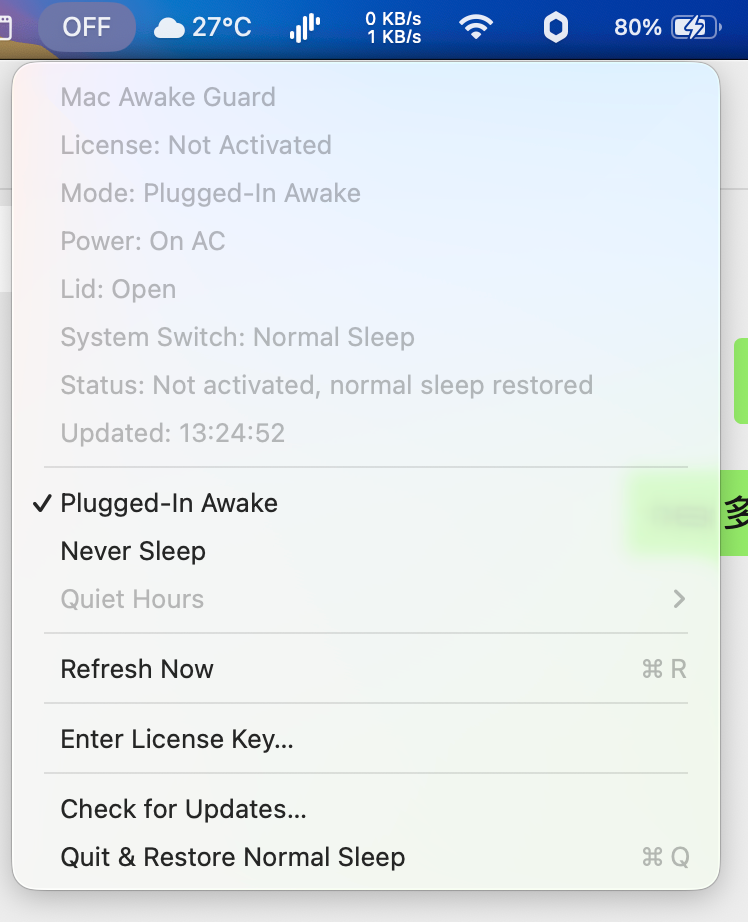
The Plugged-In Awake and Never Sleep modes are grayed out — you need to activate first.
Step 4: Enter your license key
Click the menu → “Enter License Key…”, paste the key the seller sent you (starts with HSGD-):
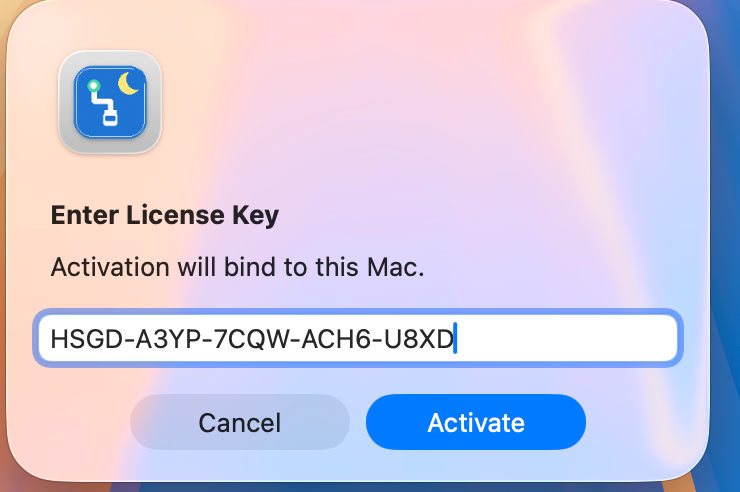
Click “Activate”.
Step 5: Activation success → copy permission setup
After successful activation, you’ll see this dialog:
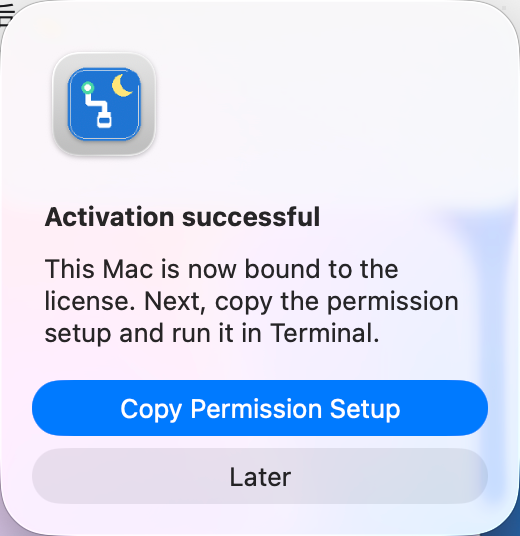
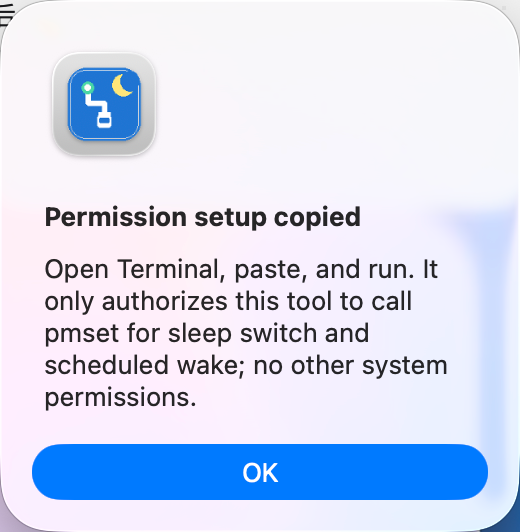
Click “Copy Permission Setup”. A sudoers command is copied to your clipboard, and you’ll see a confirmation:
Step 6: Open Terminal
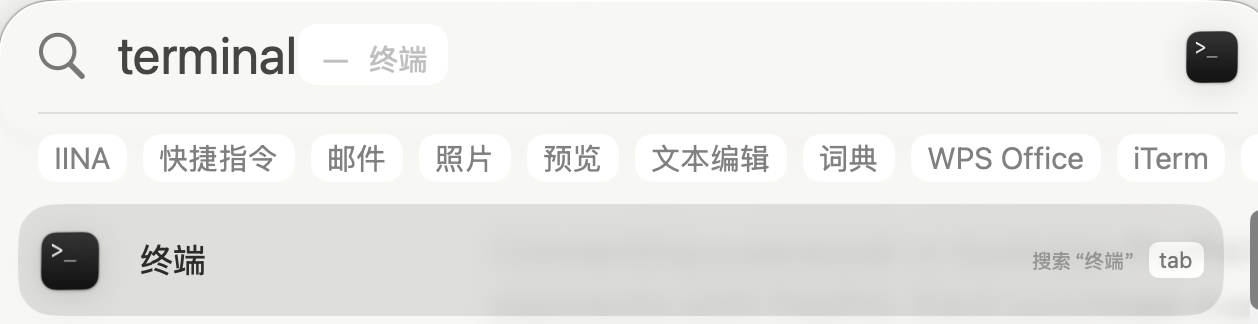
Press ⌘ Space to open Spotlight, type terminal, press Enter:
Step 7: Paste permission setup
In Terminal, press ⌘V to paste the command, then Enter. macOS will ask for your login password (no characters appear on screen — that’s normal). On success, you’ll see parsed OK:
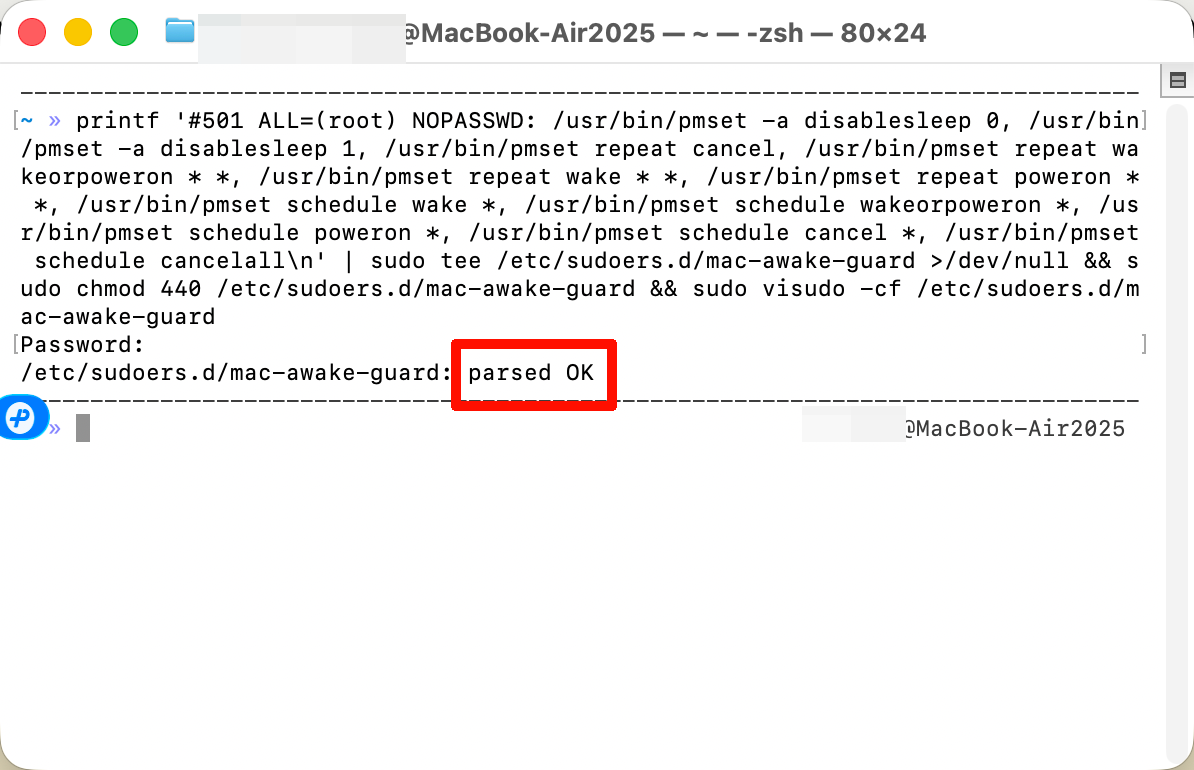
This command only authorizes Mac Awake Guard to call pmset for the sleep switch and scheduled wake. No other system permissions are granted. One-time setup.
Step 8: Click “Refresh Now” → status bar shows “AWAKE”
Back in the Mac Awake Guard menu, click “Refresh Now” so it picks up the new permission. The status bar will switch from OFF to AWAKE (if currently on AC):
You’re done — install and forget. The menu bar will auto-switch based on power source: AWAKE on AC, SLEEP on battery.
The Start at Login menu item can be toggled anytime: checked means the app starts automatically on your next login; unchecked means it will not auto-start. No Terminal command is needed.
Step 9 (optional): Configure Quiet Hours
If you want your Mac to follow your sleep schedule (sleep when you sleep, save power), open the menu and hover over “Quiet Hours” to expand the submenu:
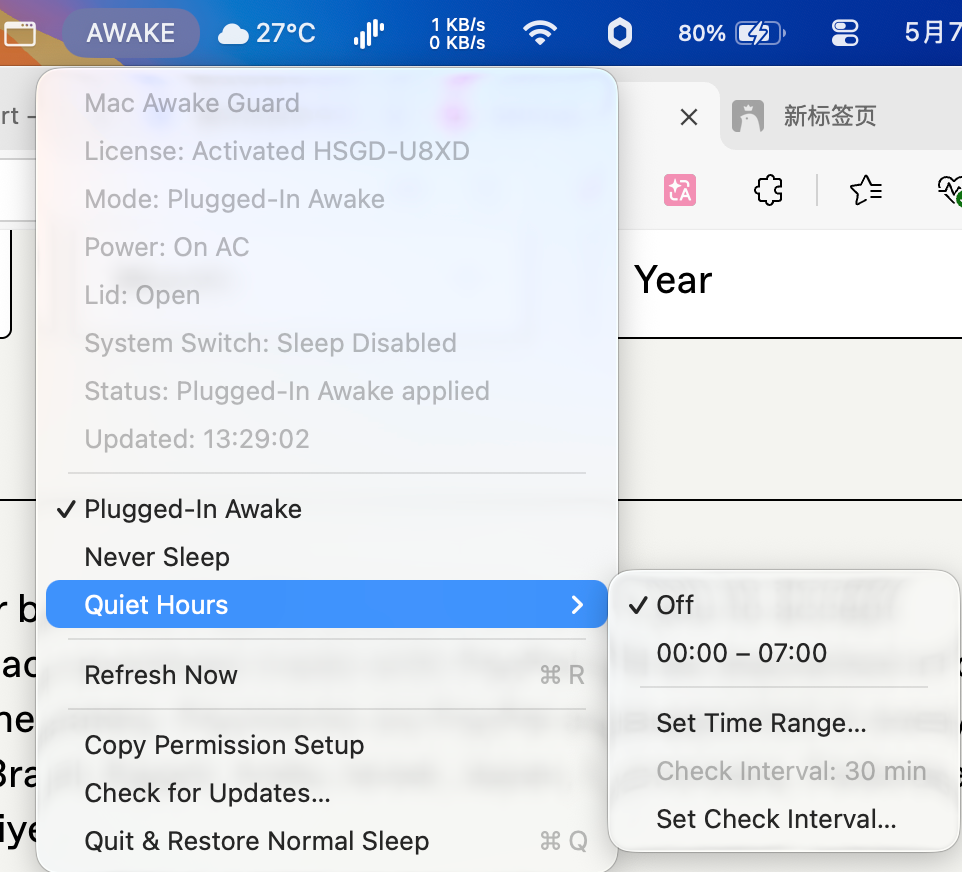
Click “Set Time Range…” and enter start/end times in HH:MM format (cross-midnight supported, e.g. 23:00–07:00). After saving:
- At the start time: Mac immediately sleeps, even if plugged in
- During the window: stays asleep
- At the end time: Mac auto-wakes and resumes Plugged-In Awake (system-level scheduled wake; works with the lid closed)
Quiet Hours only takes effect in Plugged-In Awake mode. Never Sleep mode overrides it.
Privacy Policy
Last updated: 2026-06-05
Mac Awake Guard is designed to collect as little data as possible.
Data collected during license activation
The app makes one HTTP request when you activate your license:
- License key
- A device hash, generated from your Mac’s
IOPlatformUUIDwith SHA-256 - Your Mac’s device name, such as “John’s MacBook Pro”
- App version
The license key is hashed before storage on the license server. The device hash is used to bind one license key to one Mac. It is not your serial number, and it is not used for advertising, analytics, or tracking.
Data collected after activation
After activation, the app does not send usage analytics, telemetry, crash reports, sleep history, browsing activity, file contents, or personal documents.
Starting in v1.2, the app checks a public JSON file at https://blog.discoverlabs.ac.cn/api/mac-awake-guard-version.json when the app starts and then about once every 24 hours. This request is used only to show update availability. It does not include your license key, device hash, Mac name, or personal data.
Payment data
Payments are processed by the payment platform linked from this page. I do not receive or store your full card number or payment credentials. I may receive purchase-related information needed to deliver and support your license, such as your email address, order ID, product purchased, and purchase status.
Support data
If you contact support by email or through the payment platform, I will use the information you send, such as screenshots, logs, license key fragments, and device details, only to troubleshoot your issue and provide support.
Contact
For privacy questions, email [email protected].
Terms of Service
Last updated: 2026-06-05
By buying, downloading, installing, or using Mac Awake Guard, you agree to these terms.
License
Mac Awake Guard is sold as a one-time purchase for a lifetime license for the current product. One license key is valid for one Mac at a time. If you switch to a new Mac, contact support and I can transfer or reset your license in good faith.
You may not resell, share, publish, reverse engineer, or redistribute the license key or the app package as your own product.
Delivery
The installer is available from this page and/or the payment platform. A license key is delivered manually after purchase, normally within 24 hours. If you do not receive it, contact [email protected] with your order email or order ID.
Compatibility and setup
Mac Awake Guard supports macOS 13 and later on Apple Silicon and Intel Macs. The app requires a one-time local permission setup so it can call Apple’s pmset command for sleep control and scheduled wake. The setup command is shown inside the app after activation.
The app is not Apple-notarized. macOS may show a one-time Gatekeeper warning during first launch or installation. The installation guide on this page explains the approval flow.
Refunds
You can download and install the app before buying to verify that it opens on your Mac. Without a license key, the paid modes remain locked.
If the app does not work for you after purchase, contact support within 30 days with your order email or order ID. Refunds may be handled through the payment platform used for your purchase.
Updates
Your purchase includes access to future updates of Mac Awake Guard. When a new version is available, download the latest installer from this page or the payment platform and run the installer again. Your existing license is preserved.
Limitations
Mac Awake Guard changes macOS sleep behavior by calling documented Apple system commands. It is provided as a lightweight utility for personal productivity and automation workflows. I cannot guarantee that it will prevent every sleep, wake, network, battery, or remote-access issue on every Mac configuration.
Do not rely on the app for safety-critical, medical, emergency, financial trading, industrial, or legally required availability workflows.
Support
For support, email [email protected]. Include your macOS version, Mac model, app version, and screenshots or logs if available.
FAQ
Apple Notarization?
Not done. Apple’s Developer Program costs $99/year. To keep this app affordable, I skipped it. The trade-off is the one-time (null) warning on first launch. After clicking Open once, macOS remembers your approval and the warning never reappears on auto-launches.
Compared to Caffeine / Amphetamine?
Caffeine and Amphetamine are excellent free utilities for manual sleep prevention. Mac Awake Guard adds:
- Auto-switching by power source (no manual on/off)
- Quiet Hours with auto-wake (no other utility I know has this)
- Status bar shows current mode (
AWAKE/SLEEP/OFF)
If you only need manual control, Caffeine is great and free. If you want automatic + Quiet Hours, that’s what you’re paying for.
How is data privacy handled?
See the Privacy Policy. Short version: the app uses a one-time license activation request, checks a public update JSON about once every 24 hours, and does not include analytics, telemetry, or usage tracking.
How does scheduled wake actually work?
The app calls pmset repeat wakeorpoweron MTWRFSU HH:MM:SS. This writes to your motherboard’s RTC (real-time clock), which fires the wake even if your Mac is in deep sleep with the lid closed. Apple’s standard mechanism — we just call it on your behalf.
Apple Silicon support?
Yes. The binary is Universal — both arm64 and x86_64 are baked in. macOS picks the right one automatically.
Languages?
Auto-detected from your macOS system language. Supported: English, 简体中文, 繁體中文, 日本語, Español, 한국어, Deutsch, Français, Português (BR), Русский. If your language isn’t in the list, the app falls back to English.
Updates?
When a new version is available, come back to this page, redownload the latest zip from Gumroad (your purchase grants lifetime access to updates), and re-run 1. Double-click to install.command. Your existing license key is preserved.
Refund policy?
Gumroad provides a 30-day money-back guarantee on every purchase. If the app doesn’t work for you, just request a refund within 30 days through Gumroad.
If you want to verify compatibility before buying, the installer is free to download right here on this blog page. Without a license key, the menu bar icon appears and you can run the install flow end-to-end — this lets you confirm:
- macOS 13+ compatibility
- Install script runs cleanly
- macOS first-launch approval flow works on your system (Open button on macOS 13; Open Anyway flow via System Settings on macOS 14+)
The active modes themselves (Plugged-In Awake / Never Sleep / Quiet Hours) require a license key — that’s what you’re paying for.
If you have a legitimate concern (compatibility issue I missed, weird permission setup), email me at [email protected] — I’ll work with you in good faith.
Support
Two channels:
- Email: [email protected] (preferred — easier to attach screenshots / logs)
- Gumroad message: reply to your purchase email
I run this as a side project alongside my day job (stock trading), so replies aren’t instant — but I respond within 24 hours.
When the app updates, come back here and re-download. The latest version is always at the Gumroad button above.
Source code is currently closed (might open-source in the future once stable). The protocol used (
pmset) is fully documented by Apple.
Changelog
v1.8 · 2026-05-08
- Small update (2026-05-30): added a Start at Login menu toggle. Users can enable or disable login auto-launch directly from the app menu, without manually deleting the LaunchAgent. Upgrade installers now respect that choice: if the user turned auto-launch off, reinstalling a newer build will not silently turn it back on.
- Fix (med-high): Stay awake after Quiet Hours ends. Pre-v1.8, with the lid closed and AC plugged in, the RTC scheduled wake fired correctly at the Quiet Hours end time, but the app didn’t restore
disablesleep=1in time — macOS forced the system back to sleep ~10 seconds later via Clamshell Sleep, breaking local cron / agent jobs that rely on the Mac being awake at that moment. v1.8 registersNSWorkspaceDidWakeNotification(AppKit layer) +IORegisterForSystemPower(IOKit kernel-level) for dual-channel sleep/wake event monitoring. - New (med-high): Wake handler now uses a “fast-recovery” path — at wake, eagerly call
applySleepDisabled:1first to block macOS Clamshell Sleep, then run a full state refresh. Conditions: activated + Power-Adapter mode + not in Quiet Hours + AC power. Always-Awake mode, in-Quiet-Hours wakes, and battery-power wakes do NOT take this path, preserving user intent. - Unchanged: Default check interval still 30 minutes (no added background scanning). Other modes (Always-Awake, Quiet Hours disabled) behave identically to v1.7.
v1.7 · 2026-05-07
- Fix (med-high): Quiet Hours state machine hardened across the board — apply / cancel / launch / activate paths all now treat any
syncRepeatWakeSchedulefailure as a hard error: forcequietHoursEnabled=NO, persist, and surface a clear dialog. No more “enabled but no auto-wake” half-broken state where Mac sleeps at night but never wakes back up. - Fix (high): License activation is now fully async. The previous
sendLicenseRequest:used a semaphore on the main thread and blocked the UI for 15 seconds on slow networks; the timeout path also wrote into a stack-local__blockvariable that could be a dangling-pointer write if the URLSession callback fired late. v1.7 switches to a completion-handler model with all state mutations dispatched back to the main queue. The menu status row now shows “Activating…” while the request is in flight, and a newisActivationInProgressflag prevents concurrent requests from rapid clicks. - Fix (med):
HSGRunCommandnow reads stdout and stderr concurrently viadispatch_group_async, thenwaitUntilExit. The previous “read stdout first, then stderr, then wait” order could still deadlock if a subprocess wrote heavy stderr while parent was blocked reading stdout. The new model eliminates deadlock for any relative output sizes. - Fix (med): Both
applicationWillTerminateandrestoreAndQuitnow run a best-effortcancelRepeatWake. The previous code only restoreddisablesleep, leaving the app-installedpmset repeatschedule alive — meaning the system would still wake at night even after the menu-bar app was gone, until the user manually ransudo pmset repeat cancel. - Fix (med): Installer script switched to
osascriptpolite quit + pkill fallback. CodeX empirically confirmed thatpkill -TERMandlaunchctl bootout’s default SIGTERM do not triggerapplicationWillTerminate(test exit_code 143 with no willTerminate log). The previous installer relied on pkill to trigger cleanup, which was unsafe. v1.7 first sendstell application "MacAwakeGuard" to quitvia osascript (which goes through NSApp’s standard terminate flow → willTerminate runs cleanly), waits up to 5s, then falls back to pkill if the app is unresponsive. - Fix (med): Update-check version comparison now strips
vprefix and-rc1-style suffixes via NSRegularExpression before comparing — previously a server-side typo ofv1.4or1.4-rc1would makeNSNumericSearchpermanently flag a new version available. - Fix (med): Installer no longer naively
rm -rfs the old bundle — first kills the running instance (osascript polite quit + pkill fallback) and waits 1s soapplicationWillTerminatecan restoredisablesleepcleanly, avoiding two MacAwakeGuard processes coexisting and fighting overpmsetafter re-launch. - Fix (low):
applyRepeatWakeAtHournow treats “pmset write succeeded but canonical readback failed” as overall failure — no more leavingclaimed=YES + canonical=emptyunverifiable state. - i18n: New keys
status.activating,dialog.quiet_hours_auto_disabled.{title,body_format},dialog.quiet_hours_off_partial.{title,body_format}synced across all 10 languages.
v1.6 · 2026-05-07
- Fix: pmset ownership verification is now enforced on both the apply path and the cancel path. v1.5 only checked canonical strictness on cancel; with
wakeScheduleClaimed=YESthe apply path still skipped the “existing schedule” confirmation dialog and could silently overwrite a user-modified schedule. v1.6 verifies ownership at apply entry — on mismatch, it clears claimed state so the flow falls through to the confirmation dialog naturally. - Fix: when the user clicks Cancel on the “existing schedule” confirmation dialog, Quiet Hours no longer persists as enabled. v1.5 had a half-broken state here: Mac would still sleep at the configured nightly time, but no scheduled wake was set up, so it slept and never auto-woke. v1.6 reverts all in-memory state on sync failure and skips the NSUserDefaults write.
- Fix:
pmset -g schedreads now use three-state semantics (success-with-events / success-empty / command-failed). If the user has manually runpmset repeat cancel, the app’s cancel path now recognizes “empty” and clears claimed state cleanly, instead of falsely flagging it as “external schedule detected”. - Cleanup: removed the legacy migration logic that forced
wakeScheduleClaimed=YESwhenever Quiet Hours was on without a recorded canonical — it created an inconsistent state that the new ownership check would always need to scrub. - i18n: new key
error.read_wake_schedule_failed(synced across 10 languages) for the case wherepmset -g scheditself fails to execute.
v1.5 · 2026-05-07
- Fix:
pmset repeatanti-overwrite logic hardened — v1.4 only compared hour/minute (potentially false-positive on unrelated events at the same time). v1.5 now snapshotspmset -g sched’s raw output immediately afterwakeorpoweronsucceeds, then compares that canonical string byte-for-byte before cancellation. If multiple repeating events are present, cancellation is conservatively skipped. - Fix: when cancellation was skipped (user-modified schedule), v1.4 left
wakeScheduleClaimed=YES, which made the next Quiet Hours toggle silently overwrite the user’s schedule (skipping the “existing schedule” confirmation dialog). v1.5 now clearswakeScheduleClaimedandappOwnedWakeScheduleon ownership loss, so the next toggle re-prompts for confirmation. - Docs: English try-before-buy checklist no longer says “(null) Gatekeeper warning is clickable” (macOS 14+ users don’t have an Open button — wording could mislead). Replaced with “macOS first-launch approval flow works on your system (Open button on macOS 13; Open Anyway flow via System Settings on macOS 14+)”.
- Docs: Permission Setup Failed customer-email template’s manual sudoers fallback now matches App’s
copyPermissionCommandverbatim (was missing 4 of the 11 rules). - Repo cleanup:
.claude/added to.gitignore.
v1.4 · 2026-05-07
- Fix: Quit & Restore Normal Sleep failure dialog now uses precise button labels — “Copy Permission Setup / Retry / Quit anyway” — instead of reusing “Later” for the third button (which was misread as “defer the decision” rather than “exit knowing sleep may not be restored”)
- Fix: scheduled-wake errors now surface in the menu status row (previously
wakeScheduleErrorwas stored separately but missing from the menu display priority, so the message could be hidden after routine refreshes) - Fix:
pmset repeat cancelnow compares the current system schedule (pmset -g sched) against the schedule the app itself set; if they don’t match (user manually changed the schedule), the app skips cancellation and warns the user instead of overwriting their custom schedule - Docs: macOS 14+ (Sonoma) first-launch Gatekeeper handling fully rewritten — covers both blocked-target scenarios (
.commandscript blocked /.appblocked) with the unified System Settings → Privacy & Security → Open Anyway flow, plus three Chinese-system screenshots for visual reference - Docs: International README sudoers scope now explicitly mentions Quiet Hours scheduled-wake permissions, plus per-language one-line summaries of the macOS 14+ flow with the “double-click .command again after approval” detail
v1.3 · 2026-05-07
- Fix: license activation now uses a conditional UPDATE on the server, eliminating a race condition where two machines activating the same key nearly simultaneously could overwrite each other’s binding
- Fix: scheduled-wake setup errors are now stored separately and not cleared by routine refreshes; if pmset permissions are insufficient, the app now alerts you to re-copy the permission setup
- Fix: switching from Never Sleep back to Plugged-In Awake during the quiet-hours window now triggers immediate sleep (previously stayed awake until the next window start)
- Fix: Quit & Restore Normal Sleep no longer silently exits if sudoers is broken — it now prompts with “Copy Permission Setup / Retry / Quit anyway”
- Fix: German
.stringsfile unescaped double quotes broke the whole file, causing German users to see English fallback. Strings file now lints clean - Wording: the “existing pmset schedule” warning dialog is now described more accurately as “warns before overwriting, reducing risk of accidental loss” (previous “preserves your own scheduled wake events” was overpromising)
v1.2 · 2026-05-07
- 10-language UI: auto-detects macOS system language (English / 简体中文 / 繁體中文 / 日本語 / Español / 한국어 / Deutsch / Français / Português / Русский)
- New: automatic update check (silent every 24 hours; manual trigger via menu)
- Fix: before enabling Quiet Hours, the app now detects existing
pmset repeatschedules and prompts for confirmation before overwriting - Fix: bundle code signature now actually verifies on extraction (previous
codesignfailures were silently swallowed, causing Gatekeeper hard-blocks for some users) - Fix: license server now reports configuration errors directly instead of disguising them as “license key not found”
v1.1 · 2026-05-06
- New: Quiet Hours feature — set a sleep window, Mac auto-sleeps in window + auto-wakes at end (system-level scheduled wake via
pmset repeat wakeorpoweron, works even with the lid closed) - Submenu lets you configure window (cross-midnight supported) and check interval
v1.0 · 2026-05-04
- Initial release: Plugged-In Awake + Never Sleep modes
- Menu bar icon shows current state at a glance
- License key + 1-Mac binding