In previous chapters, we covered several new features from Anthropic. Meanwhile, OpenAI, though yet to release a new model (long teased), has also been active. One notable update is that Codex now supports controlling your computer, and it does so in a different way.
I tried both Codex and Claude Code’s computer-use features. I asked the AI to send a WeChat message for me. Codex succeeded, while Claude not only failed but also logged me out of my WeChat account.
I’ll first describe the setup and testing process for both, and then explain why there’s such a difference.
Codex Setup and Usage Experience
I used the Codex desktop app. The entry is in its “Settings”. First, click “Computer Use” in the left menu, then check the Computer Use plugin on the right.
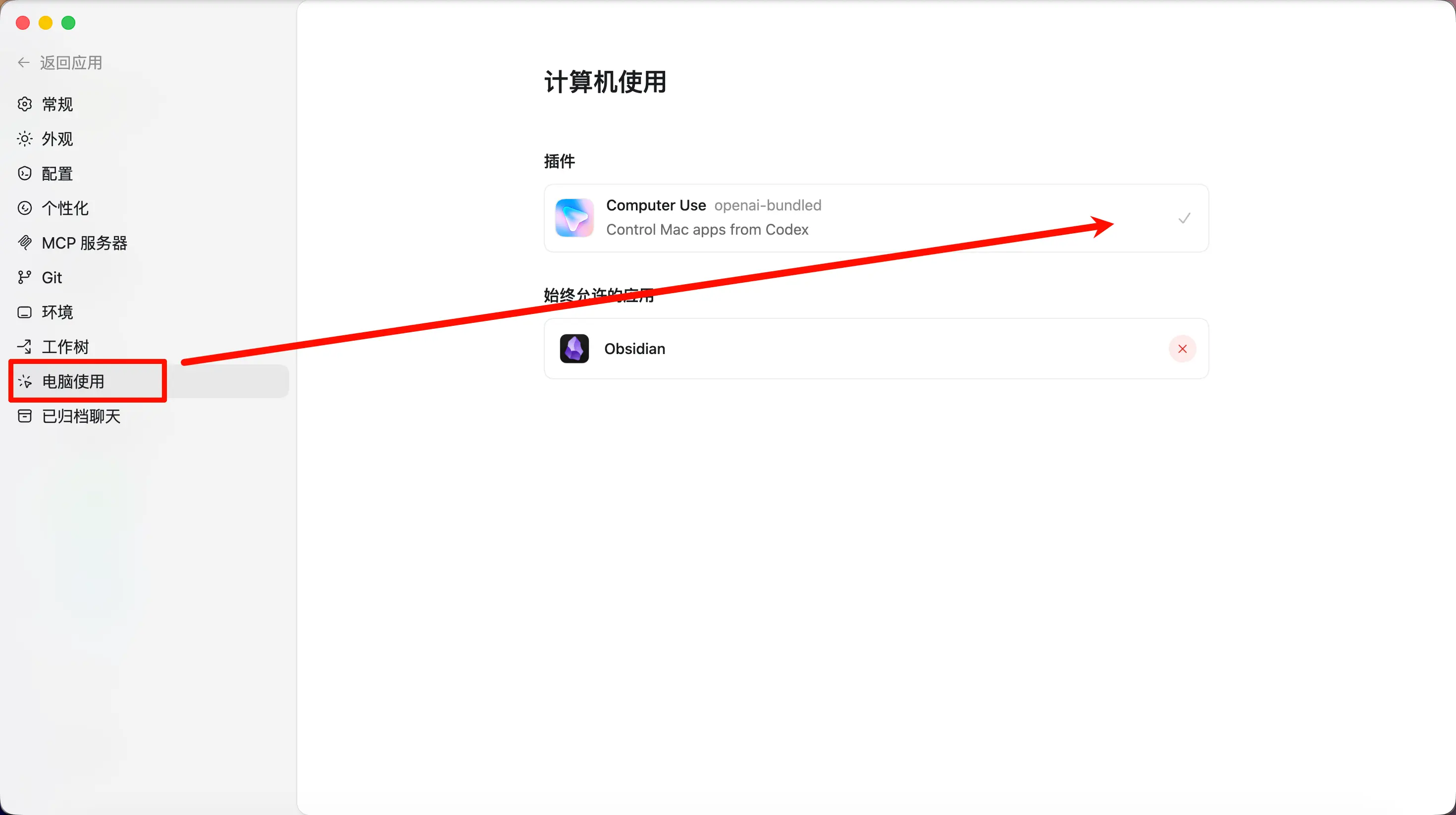
Then go back to the chat interface and give Codex a task, like “Open Obsidian, create a new file, and set the title to ‘This was done by Codex app auto-control’.”

After pressing Enter, Codex will first pop up a permission request asking if you want to allow it to control Obsidian. Click “Allow”. If the software is low-risk, you can also check “Always Allow” on the left.

If you’re enabling Computer Use for the first time, a Mac system-level authorization dialog will appear, requesting Accessibility and Screenshots permissions. Click Allow for both.
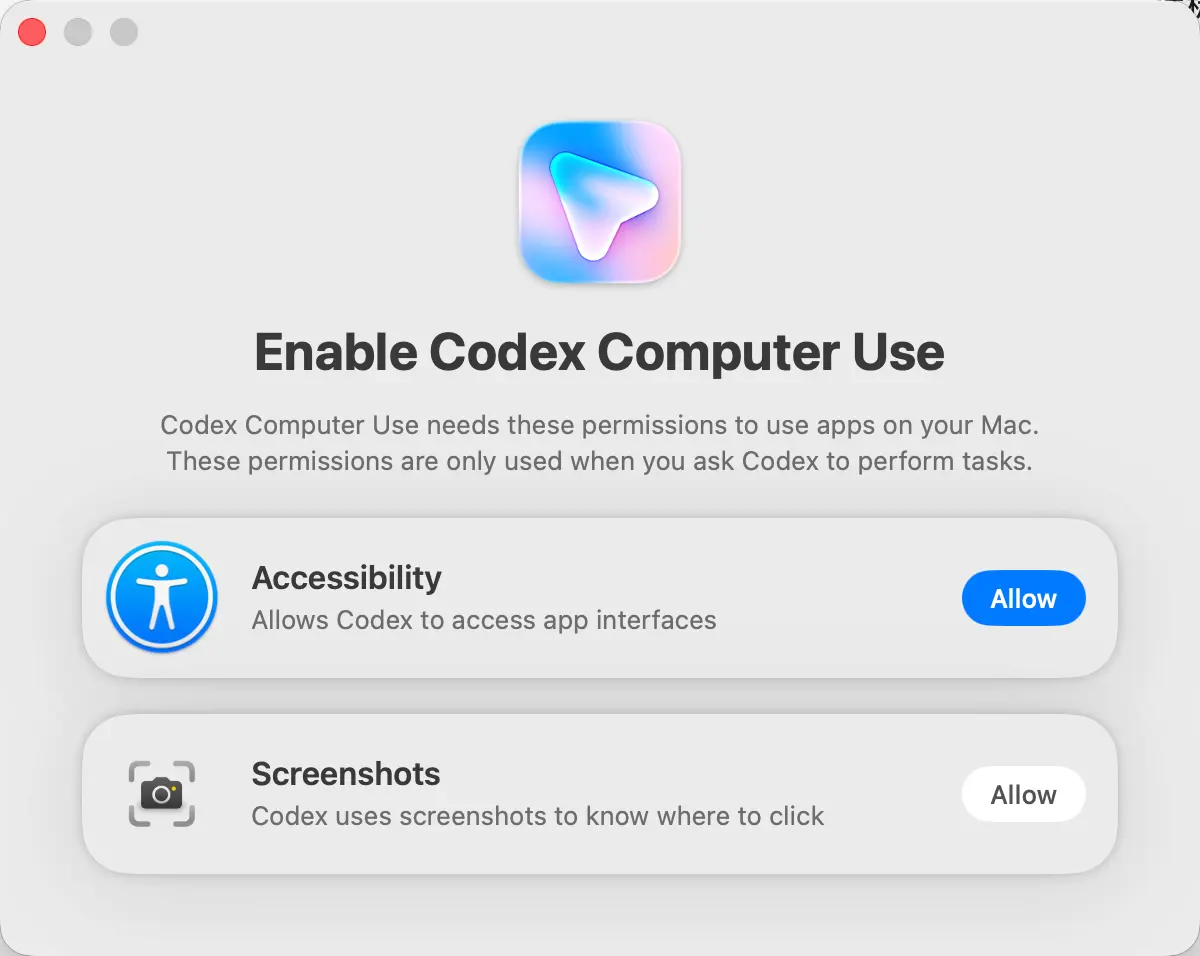
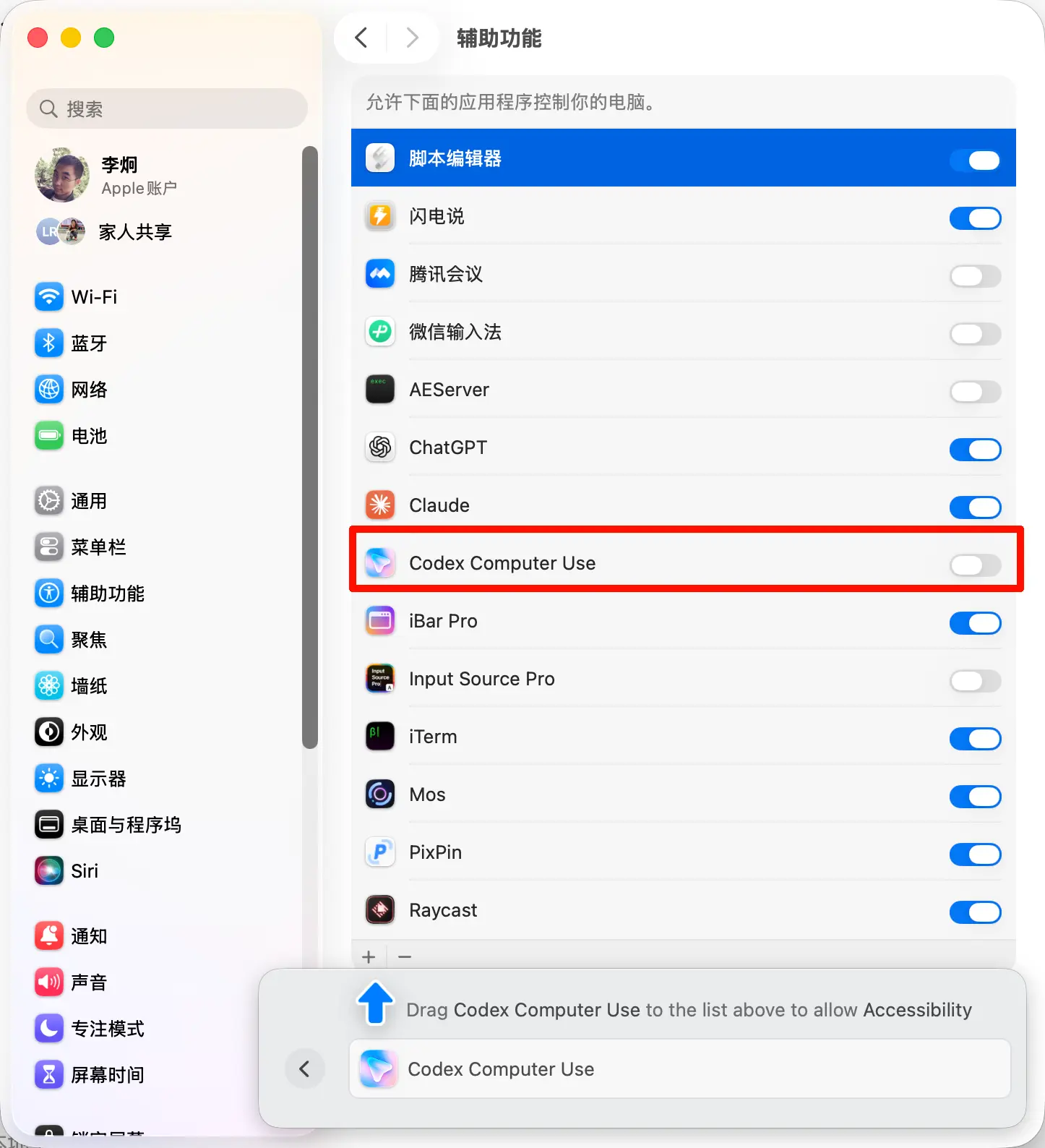
After clicking “Allow”, the page will redirect. If “Codex Computer Use” is not in System Settings, drag the icon from the banner below the popup to the list above. If it’s already there, just toggle it on. Remember to Allow both.
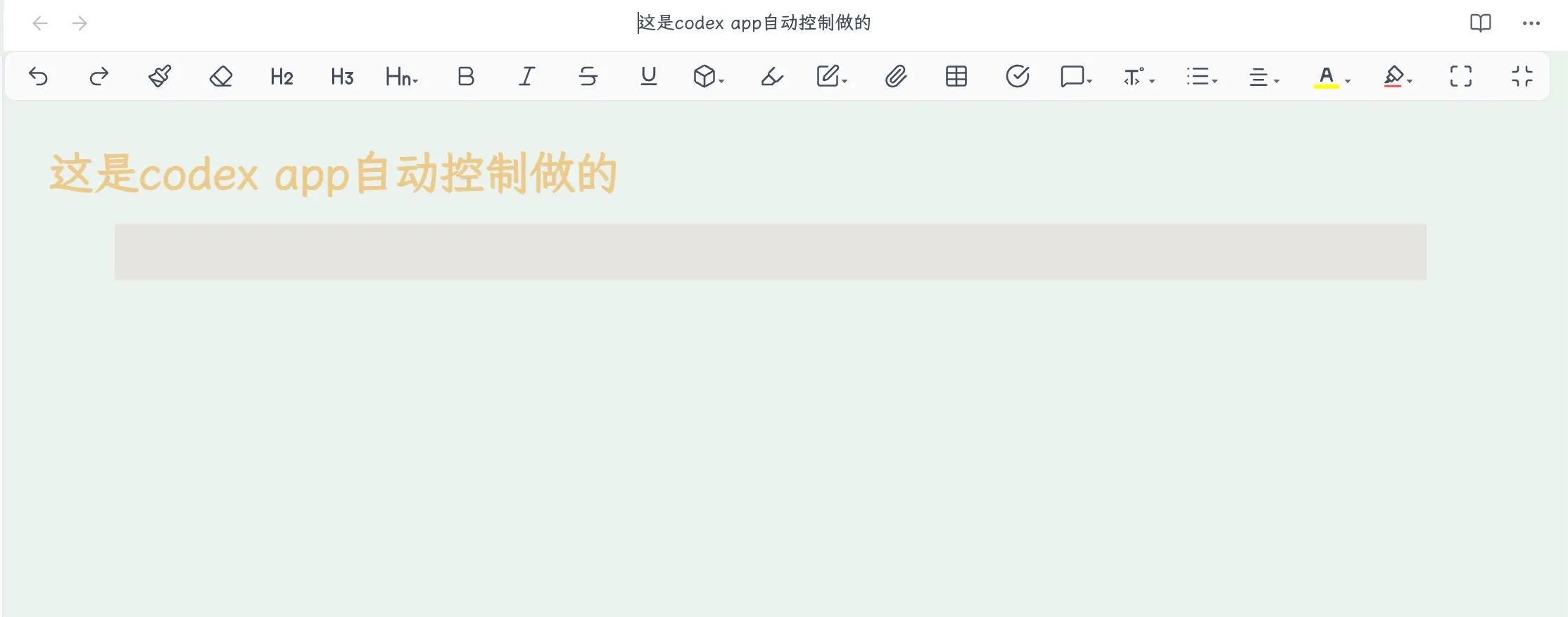
Once permissions are set, Codex will open Obsidian, create a new file, and write the title. It finishes quickly, and the title is exactly as requested.
Next, let’s step it up: ask Codex to operate WeChat and send a message to a contact.

After starting, you can see a small blue mouse cursor with a shadow moving slowly on the screen — that’s Codex in action. This detail will be useful later, so keep it in mind.
After composing the message, it pauses for me to confirm. I reply “Send”, press Enter, and the message goes out.

The entire process had no errors. WeChat worked normally during Codex’s operation, and the account didn’t get logged out.
Claude Setup and Usage Experience
For Claude, I used the Claude Code terminal version. In the terminal, type /mcp and enable the built-in computer-use option.
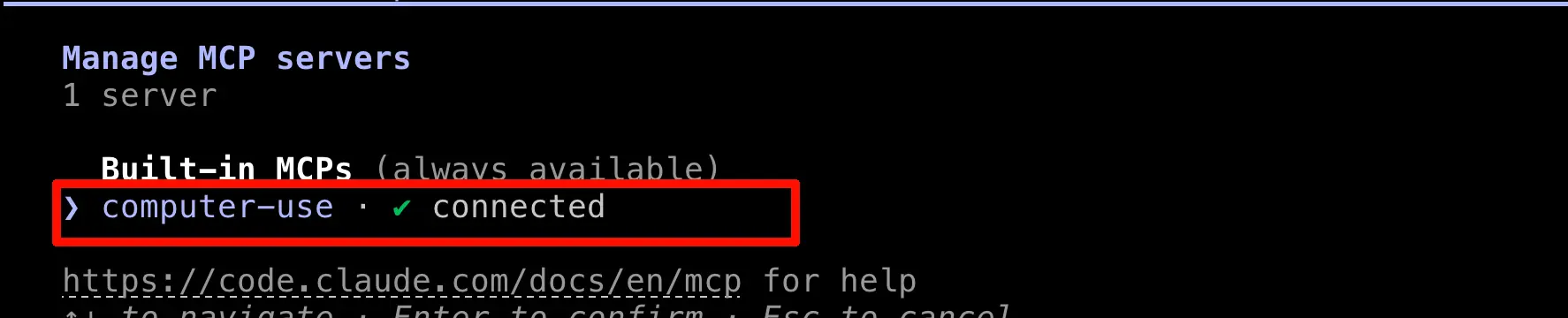
Ask Claude to do the same thing. First, try Obsidian to write a file — this test passed, just like Codex, so I won’t include a screenshot.
Then try WeChat.
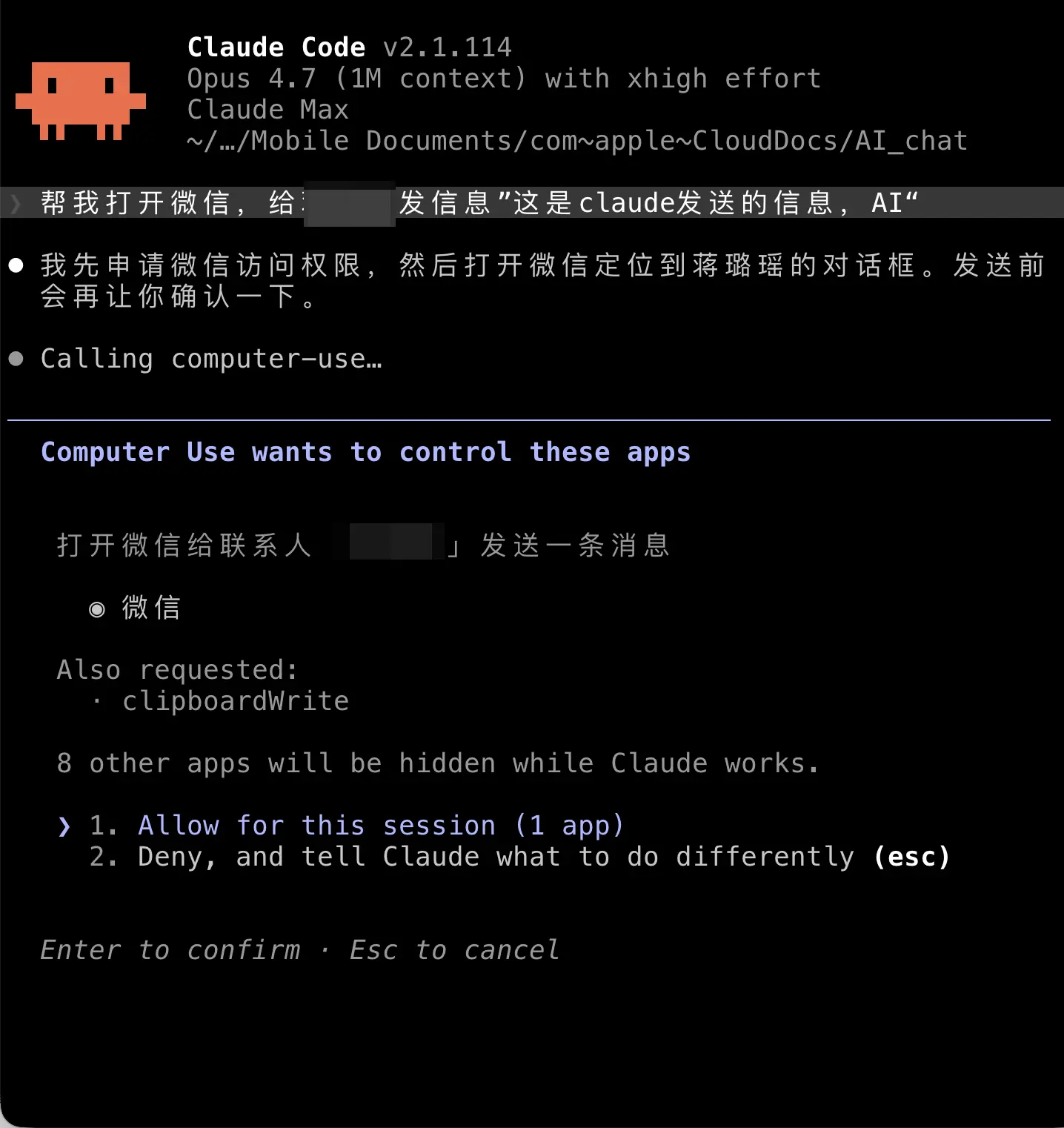
Seconds after sending the task, problems arose. Claude failed to operate WeChat; several clicks didn’t work, and WeChat detected it, logging me out!

It wasn’t just a task failure. WeChat detected abnormal operation, triggered risk control, and forced me to re-login.
Why Codex Works and Claude Doesn’t
I initially thought Claude’s computer-use was unstable. Then I looked back at the Codex screenshot — remember that small blue mouse cursor with a shadow? The answer is right there.
The implementation mechanisms are different.
When Codex operates, it actually moves the mouse cursor to the target position and then clicks. You can see the cursor’s movement trajectory on the screen — move over, pause, then click — which is essentially the same event sequence as a human using a mouse.
Claude takes a different approach. It directly synthesizes a “click at coordinates” event and sends it to the target window. The cursor doesn’t move at all; it clicks instantly. This method is fast and doesn’t require waiting for the cursor to move, but it has a very distinct signature for applications — a “mouse click” with no movement trajectory that teleports to coordinates, which a human hand cannot produce.
Codex: Simulates real mouse movement, so applications can’t tell it’s AI. Claude: Directly synthesizes click events, which apps with anti-cheat like WeChat can easily detect.
Regular desktop applications don’t mind either method, so Claude works fine with Obsidian. But apps like WeChat, which have account security systems, actively scan for automation characteristics. Once detected, they trigger risk control — which is what my “For your account security, please re-login” screenshot showed.
Anthropic’s current computer-use implementation follows the synthetic event route. The advantage is speed; the disadvantage is that it can’t fool applications that actively detect automation.
Usage Recommendations
Let’s break it down by use case:
Use Codex for: Operating software with built-in anti-automation detection, such as WeChat, QQ, online banking, enterprise IM, and games. Codex’s real mouse approach is the only choice here.
Use Claude for: Operating regular desktop applications — Obsidian, Notepad, Finder, design software, etc. These apps don’t care if you’re using a real mouse, and Claude is faster since it doesn’t need to wait for cursor movement, making it more efficient.
I’ve tried it for you. The result is your account gets forcibly logged out, requiring a re-scan to log in. The cost is small but annoying.
Overall, my personal feeling is that the computer control feature is a bit of a show-off. I haven’t actually found a real reason to use it yet. It’s promising for the future, though.
So this chapter is just a brief introduction to the feature.