Anthropic recently rolled out several Claude-related updates:
- Claude Code desktop redesign—manage multiple Claude sessions side by side in one window, with a new sidebar for switching.
- Routines feature launch (research preview)—Claude Code tasks can now run on Anthropic’s own cloud, no need to keep your computer on.
- Minor changes to desktop and web, like multi-session management and session sharing.
The one that caught my attention most is the second: Routines.
The reason is simple. I have both OpenClaw and Claude Desktop, but for a light user like me, cloud-based needs are limited—mostly clipping videos or text. Using OpenClaw for that feels like using a sledgehammer to crack a nut. As for Claude Desktop? It has a “scheduled tasks” feature that runs locally, but it requires the computer to be on and the Desktop app to be running. I don’t want my MacBook Air running 24/7. It was a dead end either way!
Routines perfectly fills that gap.
Here’s a comparison of the three approaches:
| Dimension | Routines | Claude Desktop Scheduled Tasks | OpenClaw |
|---|---|---|---|
| Where it runs | Anthropic managed cloud | Your computer | Your computer or VPS |
| Need computer on? | No | Yes, must be on | Depends on deployment |
| Need app always running? | No | Claude Desktop must be running | No |
| Calls Claude AI | First-party full suite | Built into Desktop | Unofficial support, prone to restrictions |
| Setup effort | Just need a subscription | Install Desktop | Rent VPS + self-deploy |
Desktop scheduled tasks are a transitional solution, OpenClaw is a community-driven solution, and Routines is the official new cloud solution. Anthropic is making it increasingly unfriendly for third-party frameworks to call their API while promoting Routines—the intention is clear: they want to build their own OpenClaw.
What Can Routines Do?
The official use cases are mostly developer scenarios—scanning the issue tracker nightly to add labels, automatically reviewing code on every new PR, running smoke tests after CD deployment to check error logs, weekly scanning of merged PRs to update documentation, and so on. These are a bit far removed for non-coders.
For everyday users, the scenarios look more like this:
- Automatically fetch a daily financial briefing every morning (sector movements, top gainers/losers, etc.), commit it to a repository, so you can read it when you wake up.
- Automatically transcribe Bilibili/YouTube videos into text notes (what this article does)—share a link, and minutes later a Markdown file appears in your repository.
- Generate a weekly industry research report or weekly review by automatically compiling public information.
- Monitor your starred GitHub repositories; when an open-source project updates, the Routine automatically pulls the diff and gives you a Chinese summary.
Today I tried the second one: Bilibili video to text.
Setting Up the Environment
Setting up the environment is a bit involved, but you only need to do it once. After that, you can reuse it for any new Routines.
You’ll need to prepare the following four things:
- A GitHub account, and you’ll use a private repository (I’ll explain why it’s necessary below).
- A Max or Pro subscription; free accounts can’t use Routines yet.
- Claude Code CLI installed locally; I’ll let Claude handle most of the steps later.
- No coding skills required. If you’re not used to the command line, just tell Claude Code “help me set up a Routine” and it will guide you step by step.
Let’s start the setup.
Checking Quota and Entry Point
First, open the usage page on claude.ai. You’ll see a new line for routine in your subscription usage. I have a Max account, so I get 15 runs per day:
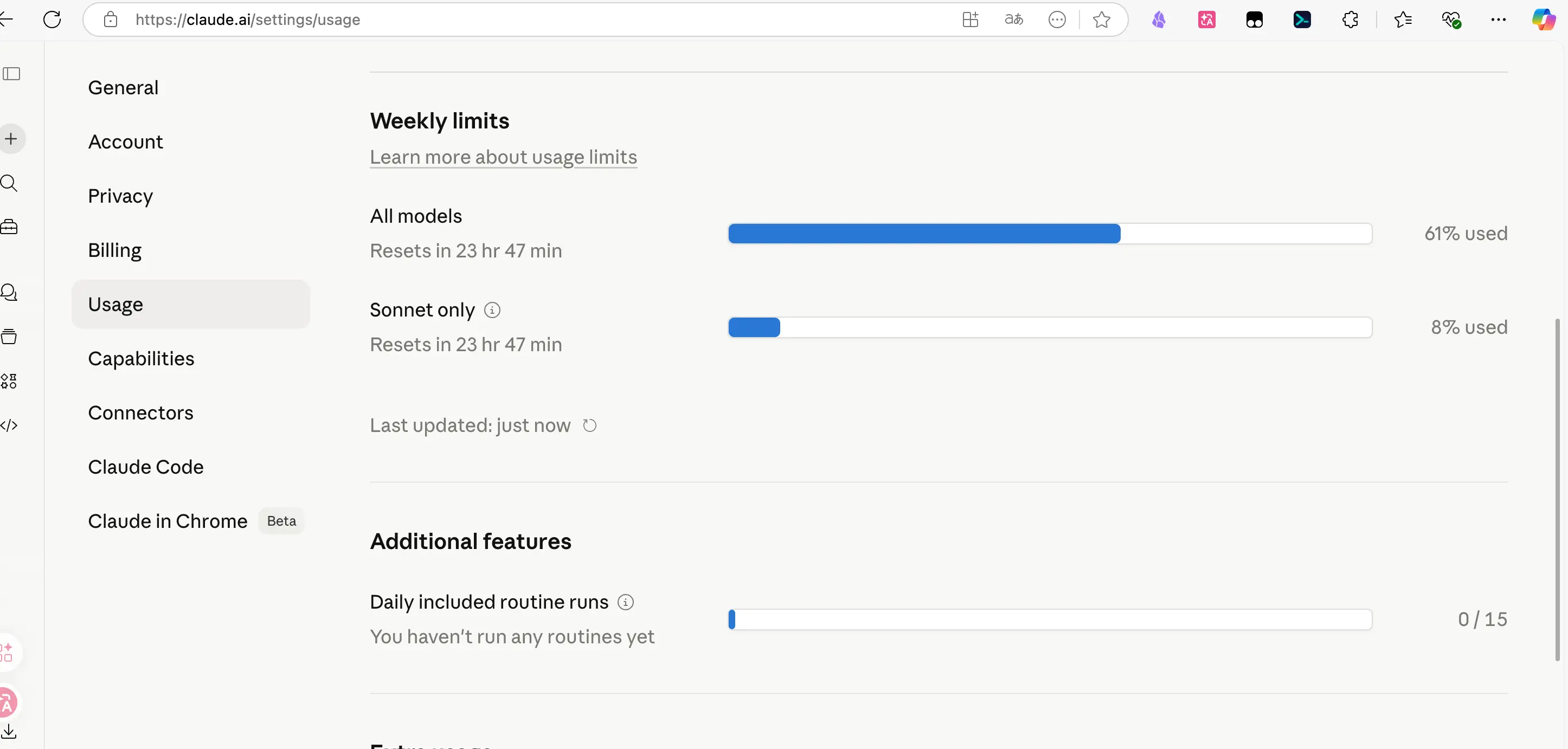
Specific quotas:
- Pro: 5 runs/day
- Max: 15 runs/day
- Team/Enterprise: 25 runs/day
- You can enable extra usage for pay-as-you-go beyond that.
Note that the 15 runs are trigger counts, not the total number of Routines. You can create multiple Routines sharing this quota.
The entry point is at claude.ai/code/routines:
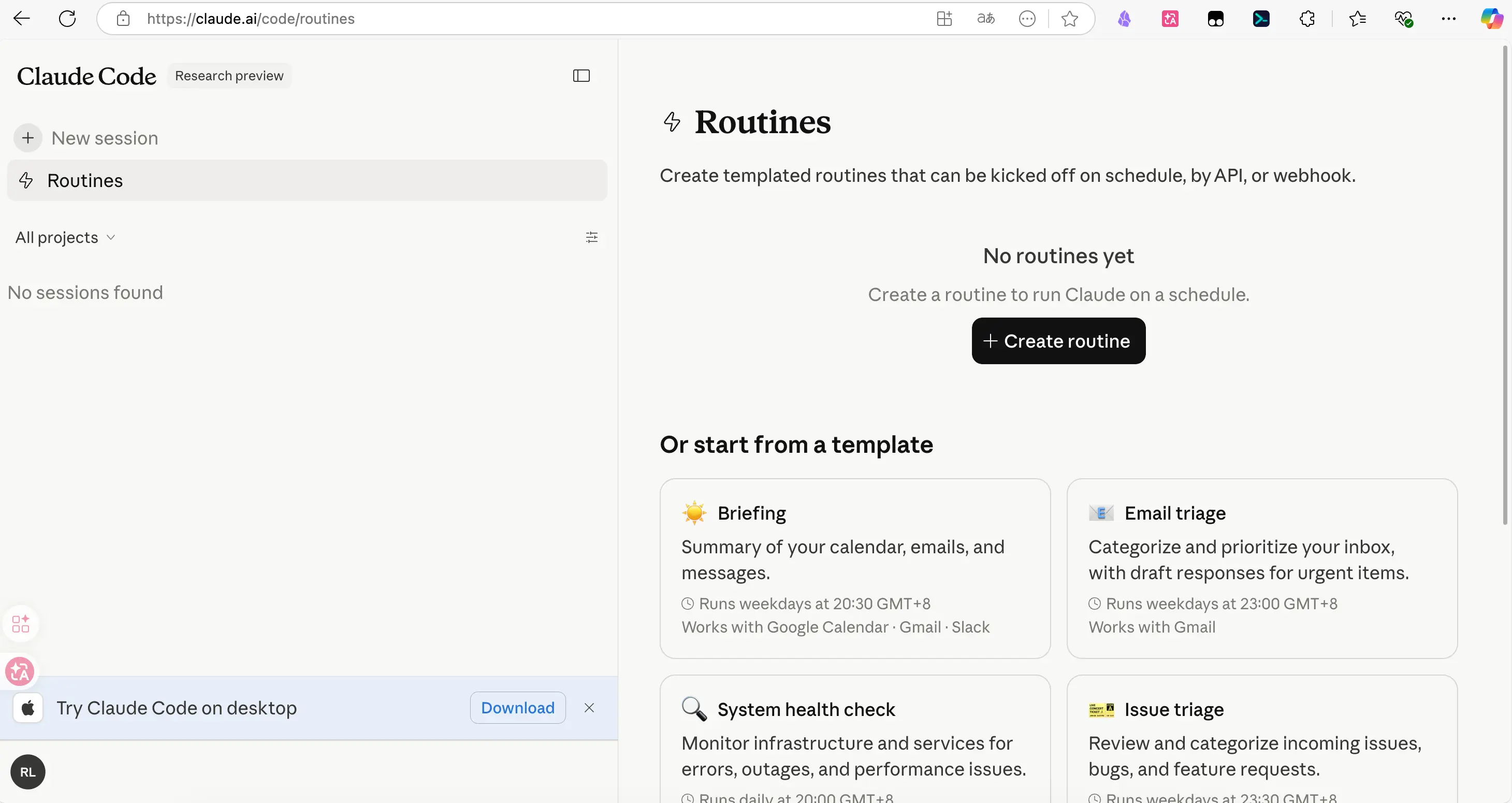
The web, Desktop, and CLI all share the same task pool. Tasks created in the CLI are also visible on the web.
Must Link a GitHub Private Repository
Routines must be linked to a GitHub repository. This is a hard requirement; you can’t create one without it.
Why is this designed this way? Because each time a task starts, the cloud allocates a working directory for Claude—specifically, it clones your specified GitHub repository to use as a “desktop”. Claude then modifies files, runs commands, commits, and pushes within this desktop. When the task ends, the desktop is cleared, and only the artifacts remain in your repository.
So you need to prepare a GitHub repository first.
GitHub is the most popular “code storage + version control + collaboration platform” among programmers, hosting most of the world’s open-source code. For non-coders, it can also serve as a free, versioned cloud-based private folder.
Creating an account is simple: go to github.com to sign up, then click “+” in the top right → New repository, give it any name (e.g., claude-routines):
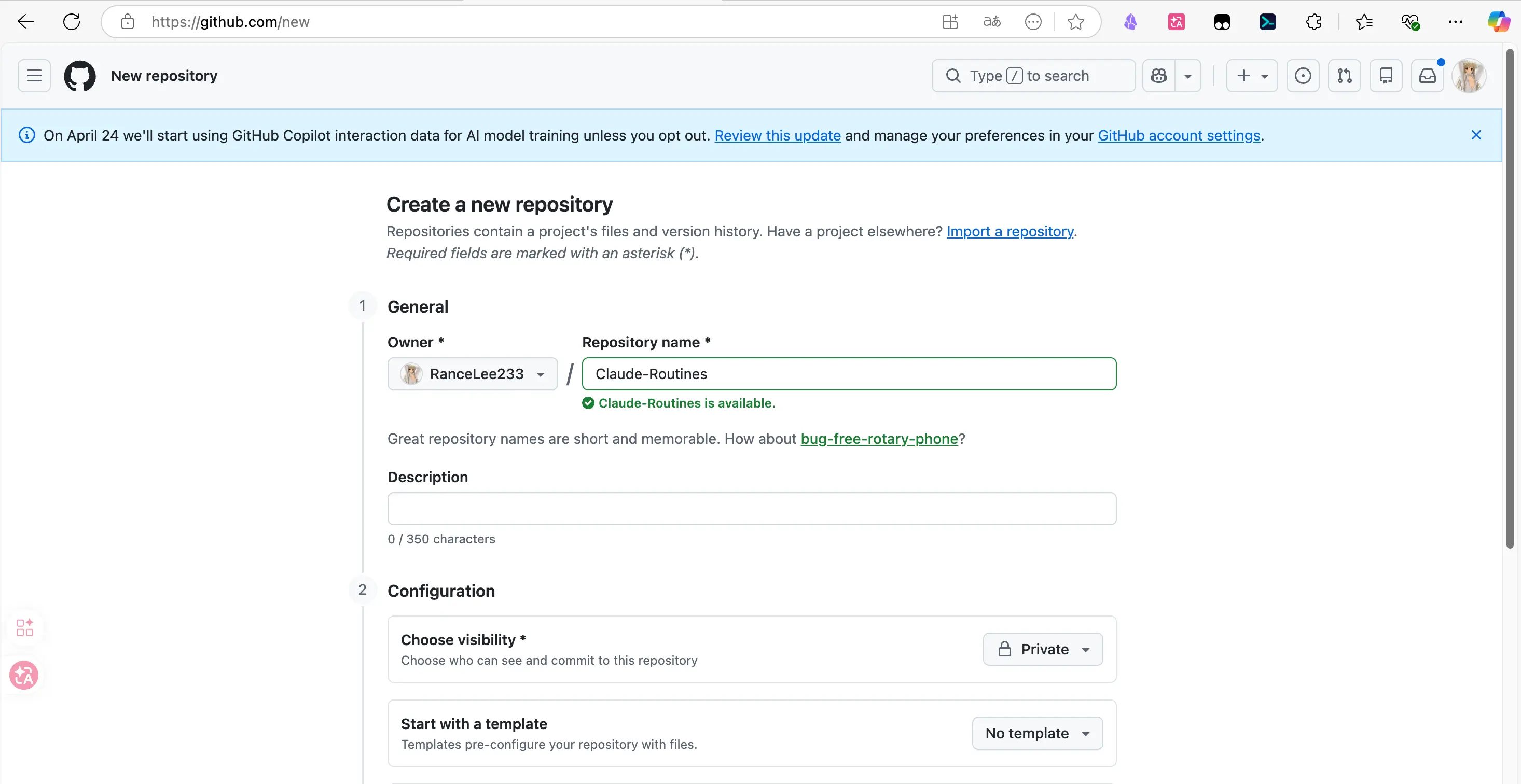
When creating the repository, make sure to check Private (set it to private) and also check Add a README. Otherwise, the repository will be completely empty with no default branch, and the Routine will fail on its first clone. I’ve already stepped in this trap for you.
If these steps seem unfamiliar, just throw it to Claude Code: “Help me create a GitHub repository for Routines”—it will guide you through registration, repository creation, and authorization step by step.
Creating a Cloud Environment
The following assumes you’ve already created a private repository.
Each Routine runs on an Anthropic sandbox machine. This machine comes with basic tools like Python, Node, and git pre-installed, but it won’t have your custom dependencies (like yt-dlp, ffmpeg). So you need to create a custom Environment, specifying what to install before each run and which API keys to load. Here, click the Add environment button at the bottom right.
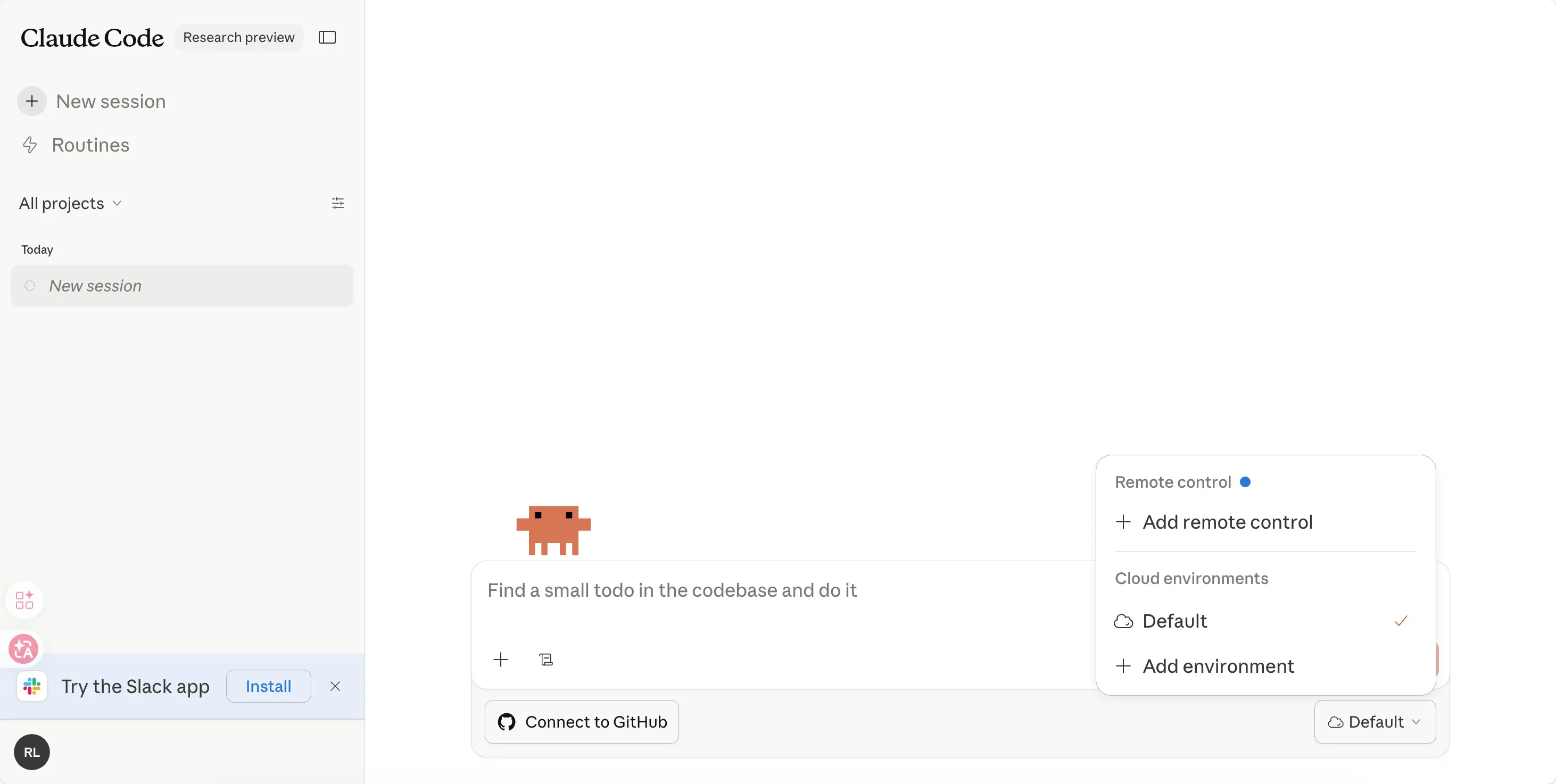
In the environment configuration, there’s a field called Network access with three options: None, Trusted, Full. There’s a common pitfall here:
The default is Trusted, which only allows access to websites on the official whitelist, mainly package repositories like GitHub, PyPI, npm. bilibili.com and youtube.com are not on the whitelist. So we select Full here:
Then, in the Setup script field, enter the commands to run before each start (installing ffmpeg, yt-dlp, etc.), and in Environment variables, enter the required API keys (GEMINI_API_KEY, etc.):
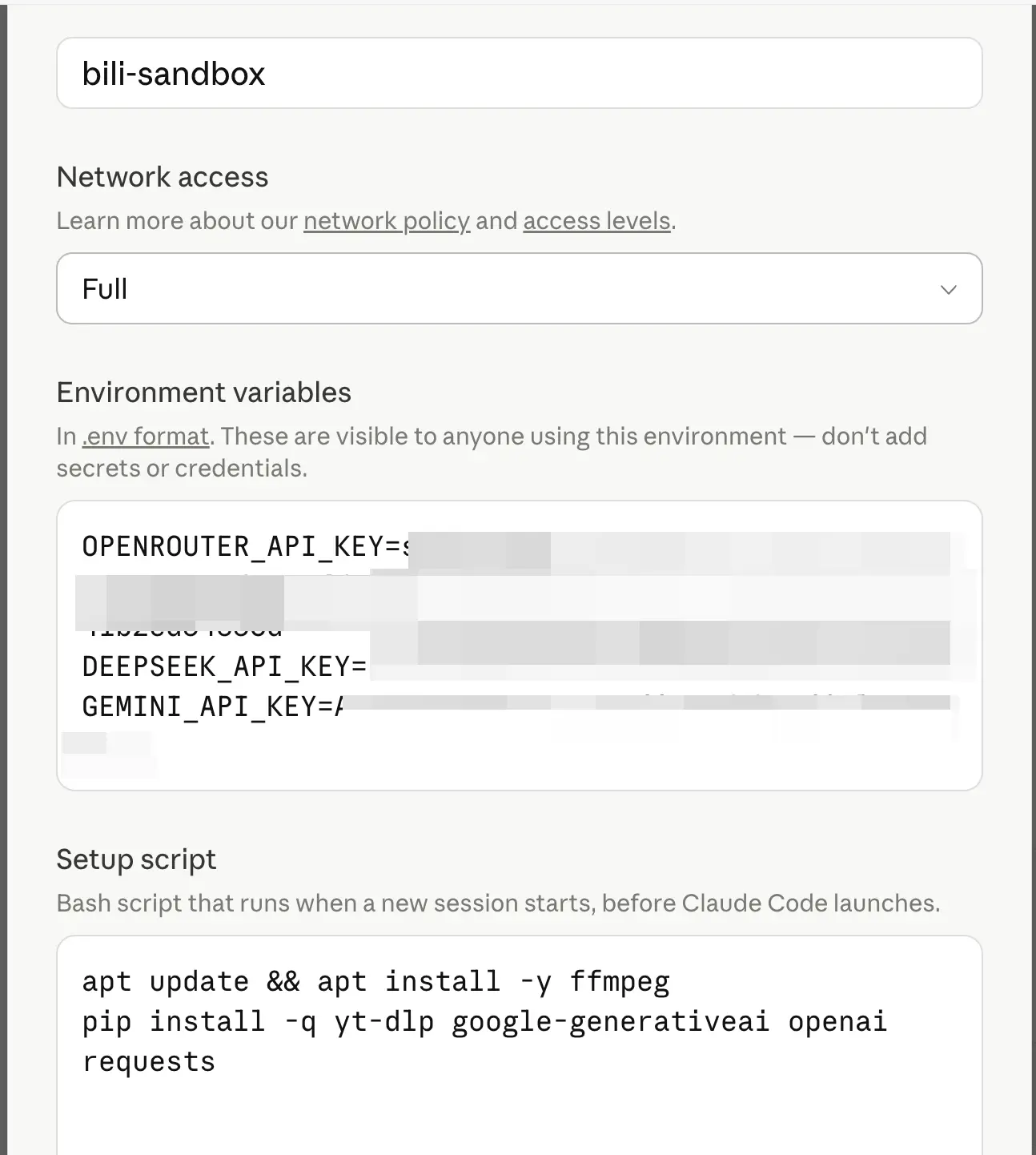
You might not understand the content here—that’s fine. I’m just demonstrating what to fill in. In practice, just tell your AI what you want to do, and ask it to provide a copy-paste-ready script. You just copy and paste.
Environment variables are stored in Anthropic’s environment configuration database. The official documentation says they are “visible to anyone who can edit that environment”. We’ll discuss this in more detail in the “Caveats” section.
Getting the Environment ID and Authorizing GitHub
After creating the environment, go back to your local Claude Code and enter:
/remote-env
It will list all the environments you’ve created in the cloud along with their IDs:
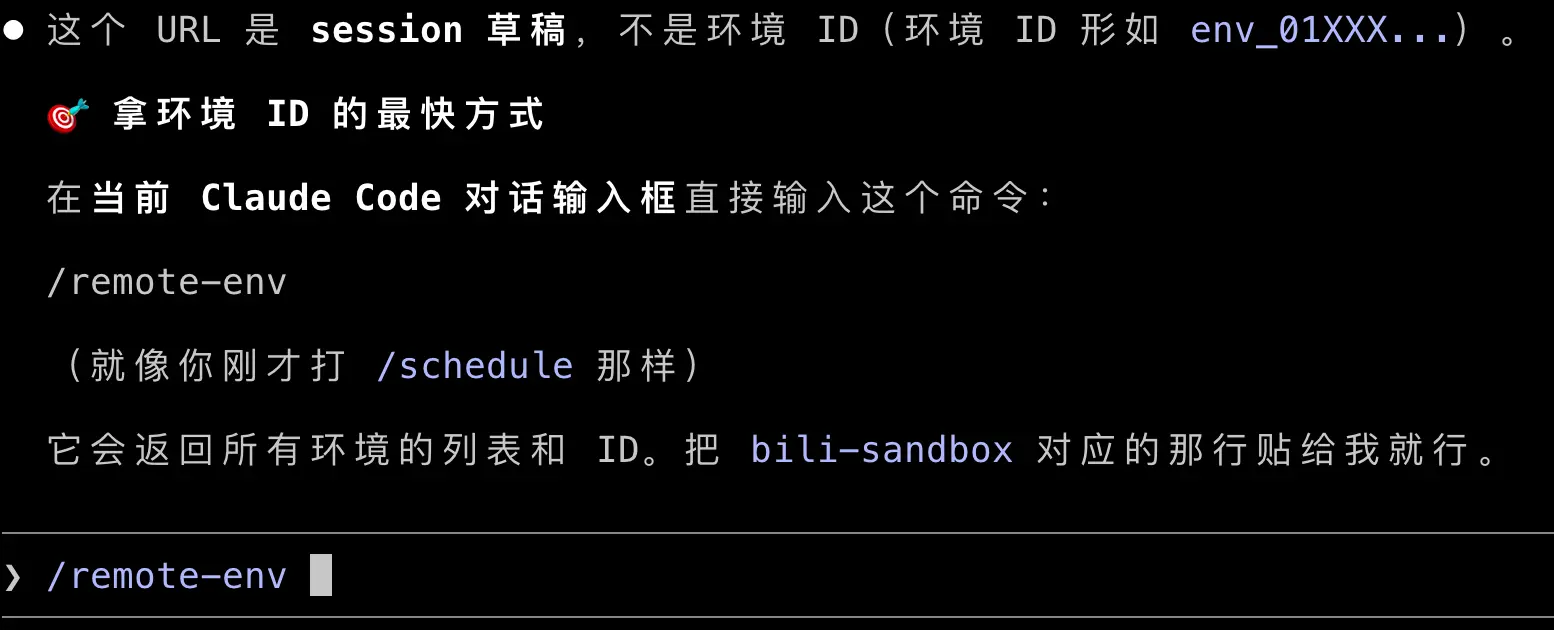
Copy the line corresponding to bili-sandbox and give it to Claude. Next, it will know which environment to use for the task.
Then Claude will say: “I need access to your GitHub” and present authorization options:
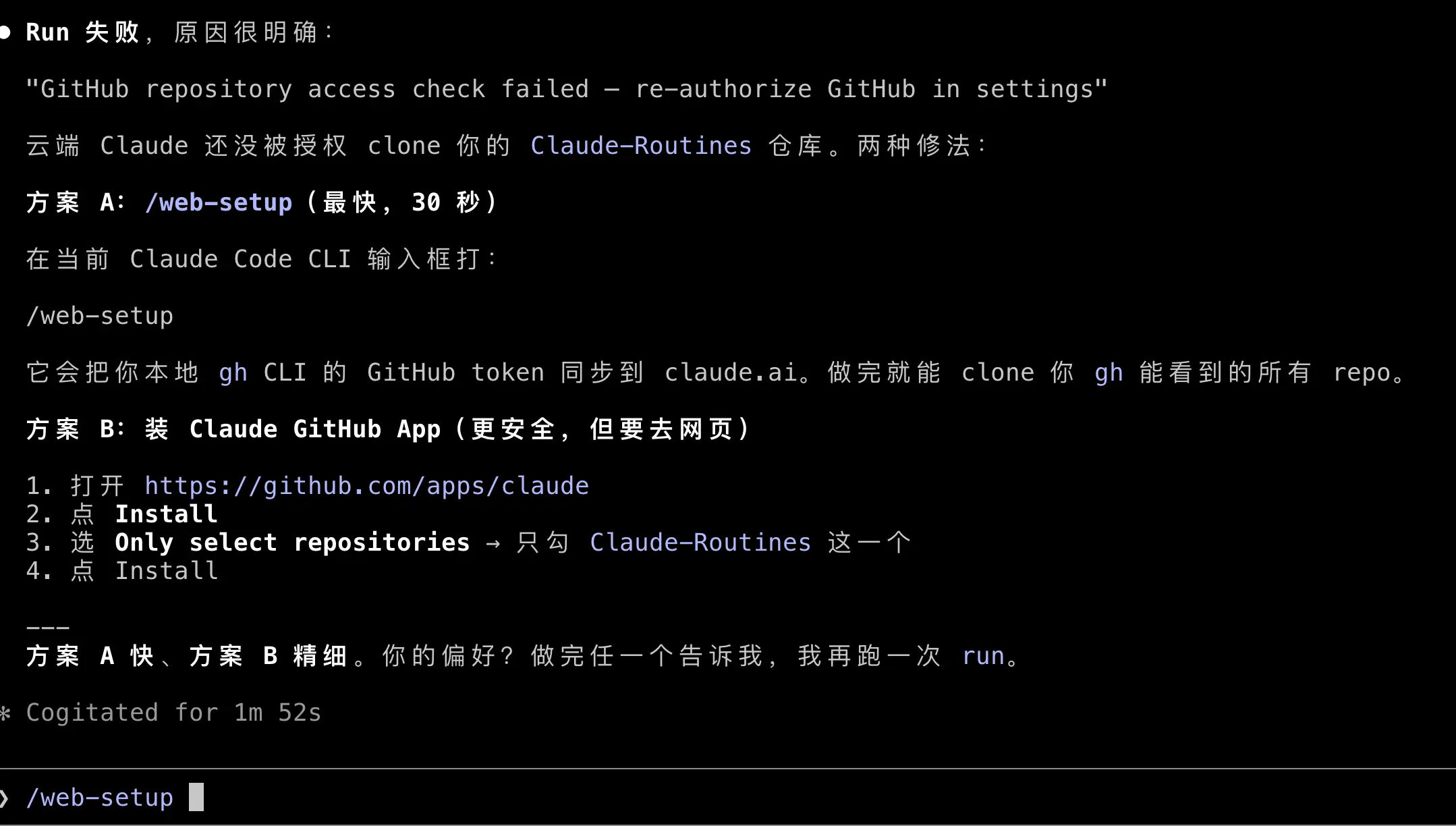
- A:
/web-setup—syncs your local gh CLI token to claude.ai, takes 30 seconds. - B: Install the Claude GitHub App—go to the GitHub web page, select specific repositories to install, more granular control.
I chose A since this was a sandbox test. After selecting, a web page will pop up again, and you’ll see your GitHub repository there, indicating the authorization is active:
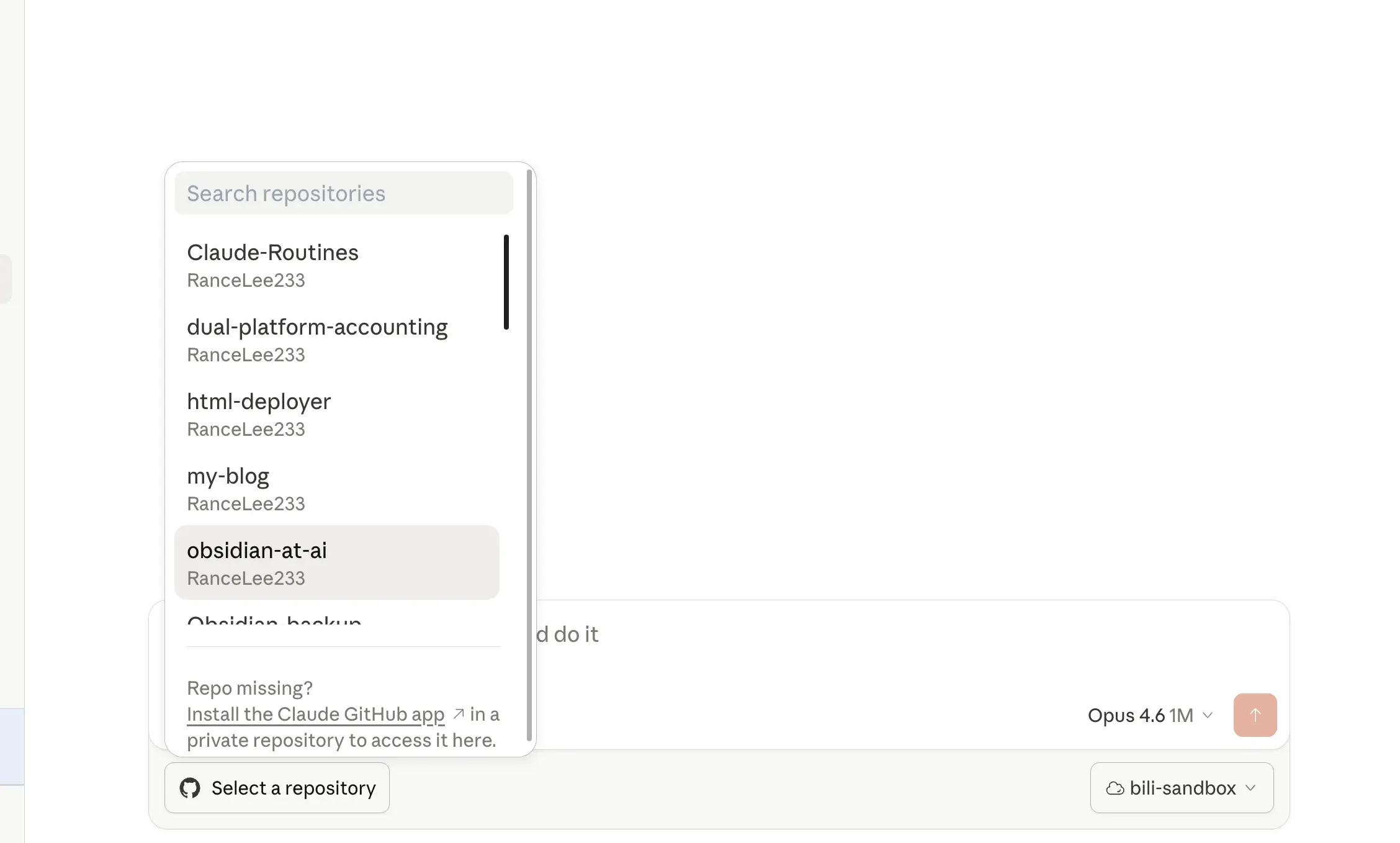
After authorization, return to the local environment. At this point, the environment setup is complete.
When creating a new Routine later, you can reuse this entire configuration without going through the setup again.
AI Sets Up the Task
Here, we tell Claude: “Help me move that local Bilibili-to-text skill to a Routine and test it with a video.”
It calls the RemoteTrigger API to create the task and trigger it, all by itself. When it finishes, you open the web page and see a task already there:
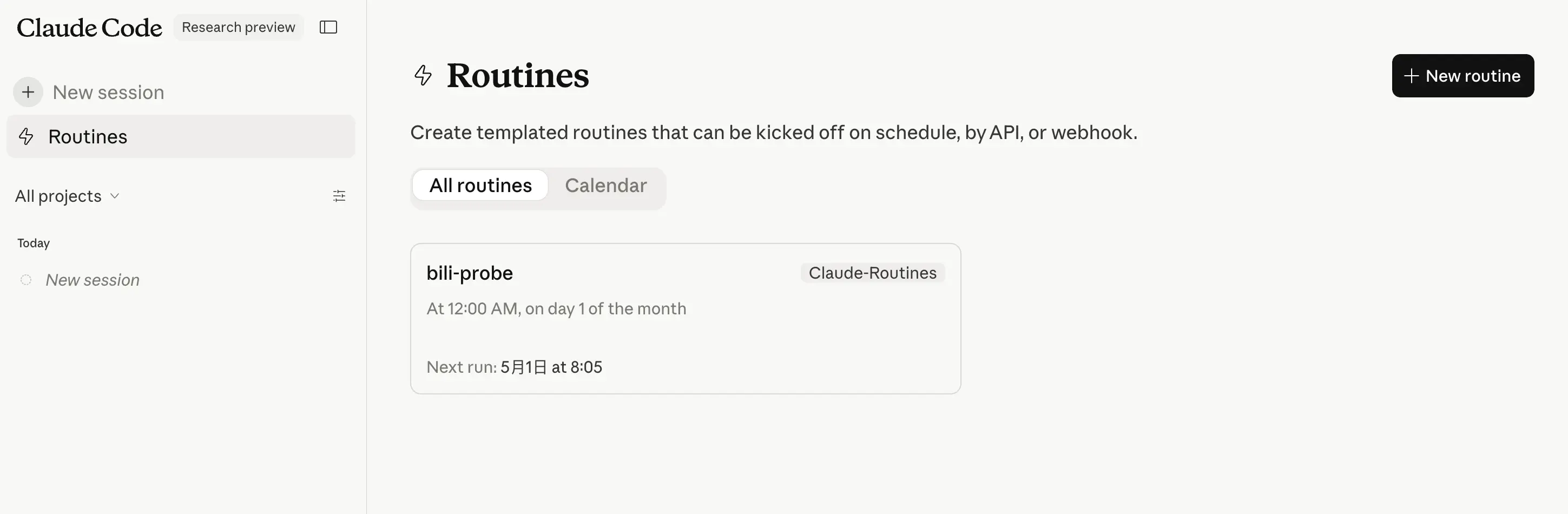
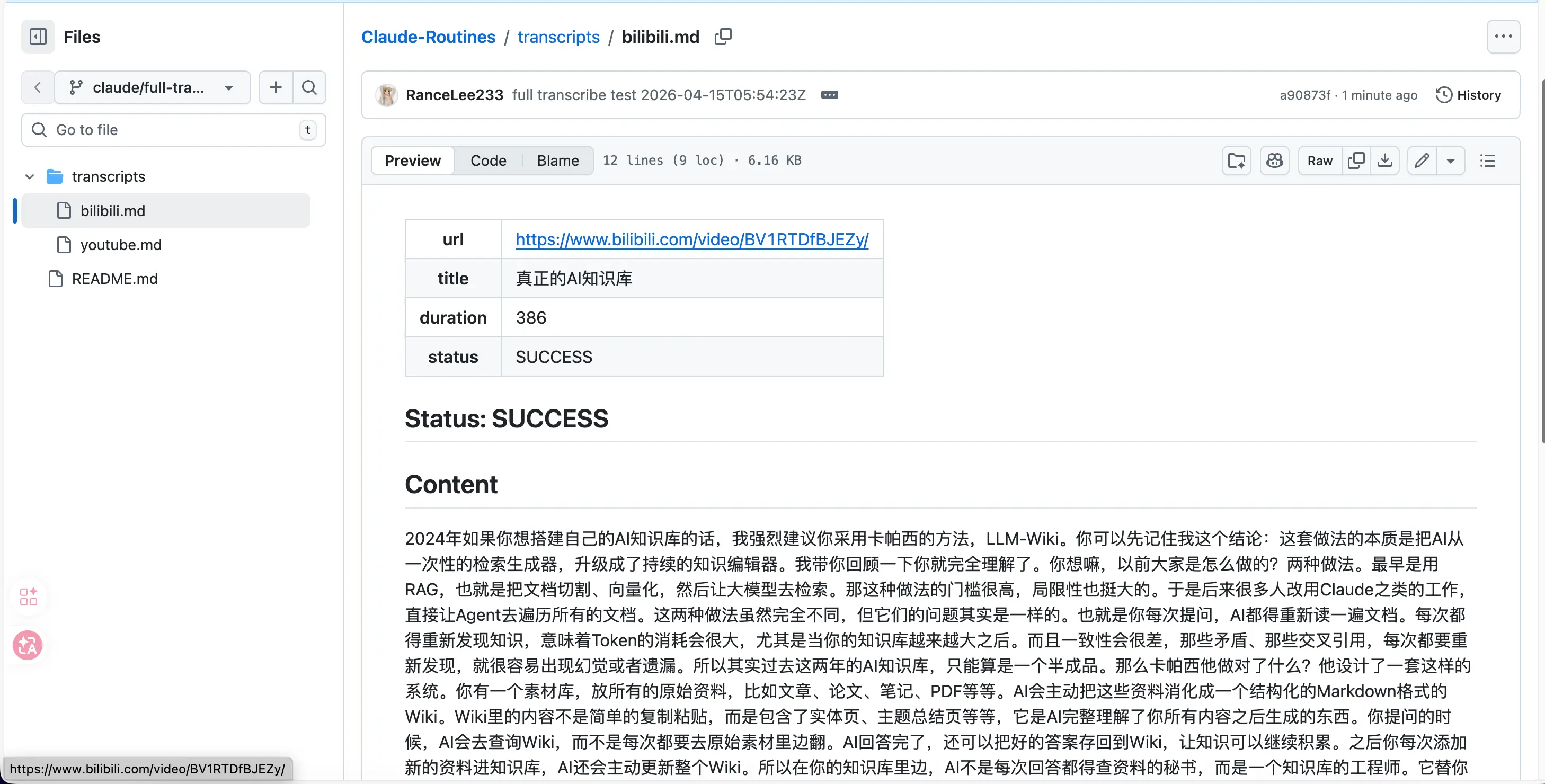
Then you just find a Bilibili video link and send it to the AI to test if it works. I picked a 6-minute video about “AI Knowledge Base” on Bilibili. The cloud Claude first uses yt-dlp to download the audio, then calls Gemini to transcribe it, writes the result as Markdown, and finally commits it to my Claude-Routines repository.
The final result was an accurate Chinese transcription of about 3,000 characters. Mixed Chinese-English terms (LLM-Wiki, RAG, Karpathy, NewType OS, etc.) were all accurately preserved, with complete paragraphs. Throughout this process, all I did was type in the Claude Code dialog. I didn’t open a terminal, run any commands, or open the GitHub web page.
Trigger Methods
The run above was done by having Claude Code directly call Anthropic’s management API to create a Routine and trigger it once—for convenience in testing, letting the AI do all the work.
For daily use, Routines support three official trigger methods:
1. Scheduled trigger—supports hourly/daily/weekly presets, and custom cron expressions with a minimum interval of 1 hour. Typical scenario: automatically summarize yesterday’s fund flows and news at 9 AM every day.
2. API trigger—each Routine can generate a dedicated HTTP endpoint + Bearer token. Sending a POST request to this endpoint triggers the task immediately, and you can pass temporary parameters (like a URL) in the request body.
3. GitHub event trigger—automatically runs the Routine when events like PR, push, issue, release occur in your repository, mainly for developer scenarios.
The three trigger methods can be mixed: the same Routine can run on a schedule, accept API calls, and listen for GitHub events simultaneously.
Even Trigger with iPhone Shortcuts
The most interesting thing about API triggering is that it doesn’t care about the client. Anything that can send an HTTP POST can trigger a Routine.
Imagine this scenario: I come across a great video on Bilibili, tap the share button → iPhone Shortcut → automatically POST the URL to the Routine’s endpoint. Half a minute later, I open GitHub and the transcription is already there. I don’t need to turn on my Mac, open Claude Code, or even type a single word.
The setup is straightforward:
- Generate an API token on the Routine configuration page.
- Create a Shortcut on iPhone that accepts a shared URL as input.
- Use the “Get Contents of URL” action to send a POST request, passing the URL in the body to the Routine.
- In the Routine’s prompt, read the URL from the request body, then call yt-dlp + Gemini for transcription.
This combination bridges “cloud AI workflow” and “mobile trigger”. For the first time, ordinary people can have AI do a specific task for them without turning on a computer.
Getting Results
The transcription results are saved as a commit on a new branch in your GitHub repository, visible directly on the GitHub web page. But for everyday users, you’ll want to get them locally. Here are three ways:
- Read directly on the GitHub web page or click to download.
- Pull to any local directory with a single command (e.g., sync directly to your Obsidian inbox).
- Set up a sync script, like a launchd scheduled git pull, or create an Obsidian plugin that pulls with a click.
Caveats
Routines are great, but there are a few things to keep in mind.
GitHub Authorization Granularity
Using the Claude GitHub App is more secure than using /web-setup. The former only allows Claude to access the specific repository you select; the latter effectively hands over all repositories visible to the gh CLI. For sandbox testing, option A is fine, but for daily tasks, it’s recommended to use the App.
Your API Key is Visible in the Cloud
The contents of Environment variables are stored in Anthropic’s environment configuration database. The official wording is “visible to anyone who can edit that environment”, meaning anyone who can edit the environment can see them. For a personal account, that’s only you by default, but authorized Anthropic internal employees could theoretically access them.
Therefore, don’t put high-quota production API keys in there; use low-quota or revocable sub-keys instead.
Keep the Repository Private
Each Routine commit uses your GitHub identity. If the repository is public, the transcription results will be picked up by GitHub’s search and indexing. When creating a sandbox repository, just check Private without thinking.
Summary
Routines are Anthropic’s first step in officially moving automation tasks to the cloud. For ordinary users, it solves the old problem of “scheduled tasks requiring the computer to be on”; for Anthropic, it’s a key part of building their own ecosystem and tightening third-party API access.
What we learned today:
- Routines is Claude Code’s cloud task scheduling system, launched as a research preview on 2026-04-14.
- Requirements: Max/Pro subscription + GitHub repository + Claude Code CLI.
- Three official trigger methods: schedule, API, GitHub events, can be mixed. Combined with iPhone Shortcuts, you can achieve a complete chain: “share URL on phone → cloud runs automatically → receive results on GitHub”.
- Mandatory GitHub repository linking and restricted network by default are constraints to get used to.
Key takeaways:
- When creating a GitHub repository, you must check Private and Add a README.
- In the cloud environment, set Network access to Full, otherwise many common websites will be unreachable.
- API keys are stored in Anthropic’s environment configuration; don’t put production keys there.
- The first environment setup is a bit cumbersome, but once configured, it can be reused indefinitely, making subsequent Routine creation much easier.