Why This Chapter Exists: The ¥50 That Almost Gave Me a Heart Attack
The reason for writing this chapter is simple: a friend spent 50 yuan to have someone make a simple lottery wheel webpage.
When I heard this, I almost had a heart attack.
It’s not that 50 yuan is expensive, but this thing can be made in 5 minutes with free AI!
Seriously, if you have this need, even if you directly tipped me 50 yuan and let me teach you step by step, it’s better than paying those services. At least my tutorials are free, and I’ll explain every step clearly.
So this chapter is a special addition, specifically teaching you: how to use free AI to make a simple but practical HTML page.
Important Reminder: Get Comfortable with the Free Web Version First
Before we dive in, I want to emphasize one thing:
The current AI web versions are already very powerful. No programming knowledge needed, no software installation, just open a browser and use.
What can the AI web version do?
- Chat with you and answer questions
- Recognize images and analyze content
- Write code and build webpages
- Create PPTs and reports
- Translate and summarize documents
- And much more…
My suggestion: beginners should first get proficient with the free web-based AI before considering advanced tools like APIs.
Why? Because the web version:
- Is completely free (or has generous free quotas)
- Is simple to use with no learning curve
- Is already powerful enough
- Lets you ask the AI directly if you run into problems
Now let’s start the main topic: Use AI to Make a Lottery Wheel Webpage.
Use AI Studio to Make an HTML Webpage
Step 1: Enter Google AI Studio
We are using Google AI Studio, Google’s official free AI platform.
Why choose it?
- Completely free
- Gemini 3 Pro is powerful
- Suitable for complex tasks like building webpages
Steps:
- Open https://aistudio.google.com
- Log in with your Google account (requires a VPN/proxy)
- Enter the main interface
Step 2: Select Playground and Model
After logging in, you’ll see the main interface of AI Studio.
Steps:
- Click “Playground” in the left menu
- In the model selector at the top right, choose Gemini 3 Pro
- Don’t choose Flash; Pro is more capable
- Especially for complex tasks like writing code
- Confirm that the left side is the chat interface with an input box at the bottom
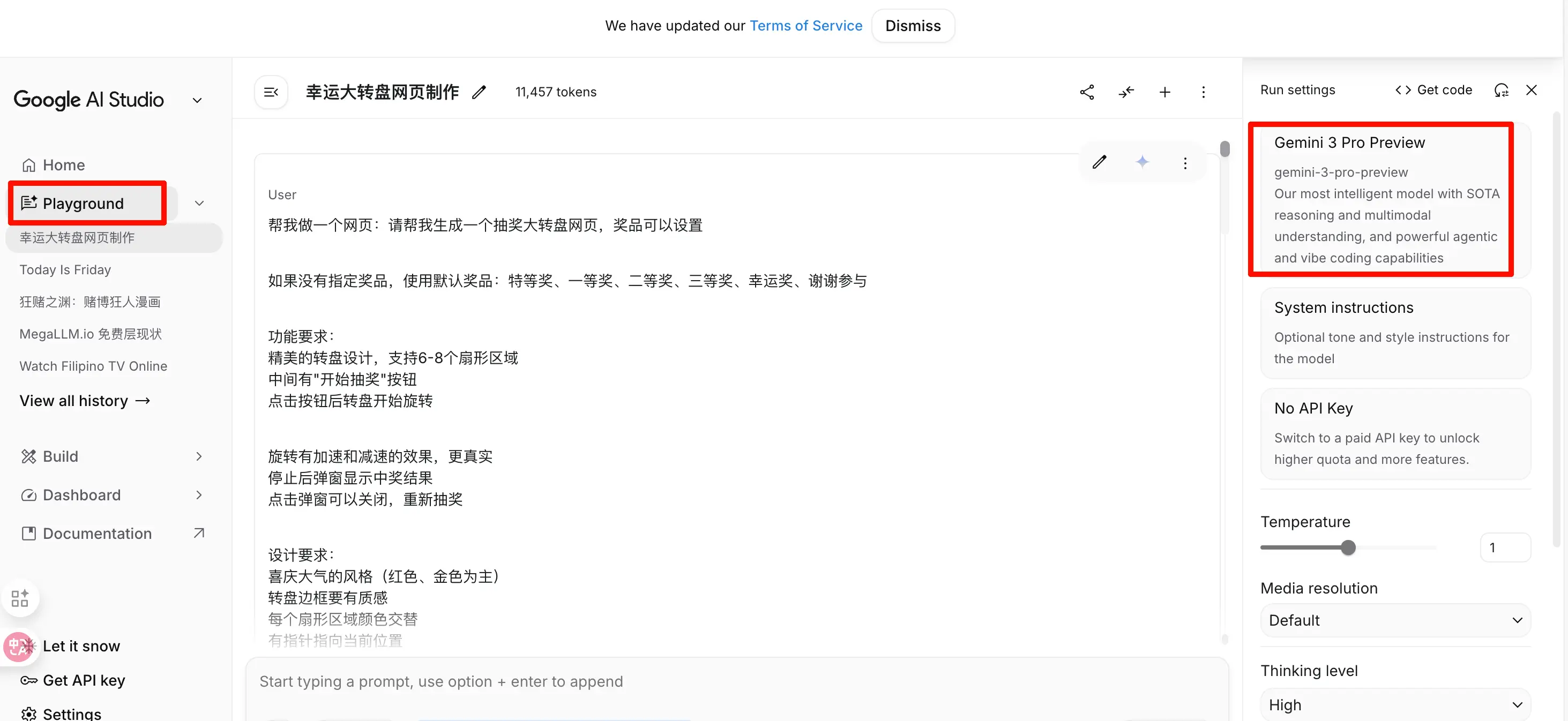 Now you’re ready to chat with the AI.
Step 3: Enter a Prompt to Let the AI Generate the Webpage
This step is key: you need to clearly tell the AI what you want.
The more detailed, the better! Don’t just say “Help me make a lottery webpage”; be specific about:
- What it looks like
- What features it has
- How to use it
- What style
Complete Prompt Example
Copy the text below and paste it into the input box of AI Studio:
Please help me generate a lottery wheel webpage.

If no prizes are specified, use default prizes: Grand Prize, First Prize, Second Prize, Third Prize, Lucky Prize, Try Again.

Functional requirements:
- Beautiful wheel design, supporting 6-8 sectors
- A "Start Lottery" button in the center
- Click the button to spin the wheel
- The spin should have acceleration and deceleration effects for realism
- After stopping, a popup shows the result
- Click the popup to close and spin again

Design requirements:
- Festive and grand style (mainly red and gold)
- The wheel border should have texture
- Each sector should have alternating colors
- A pointer indicating the current position
- Responsive for mobile and desktop

After completion, please explain:
1. How to open and use it
2. How to modify the prize names
3. How to adjust the winning probability

Use example prizes: iPhone 16, AirPods, 100 yuan red envelope, 50 yuan red envelope, Try Again
Steps:
- Copy and paste the above prompt into the input box
- Click the “Run” button or press Enter
- Wait for the AI to generate (usually 10-30 seconds)
Step 4: The AI Will Return Complete HTML Code
After the AI finishes generating, you’ll see a large block of code.
The AI’s response usually includes:
- HTML code: a complete webpage file
- Usage instructions: how to open and modify
- Customization guide: how to change prizes and adjust probabilities
The code looks like this:
<!DOCTYPE html>
<html lang="en">
<head>
    <meta charset="UTF-8">
    <title>Lottery Wheel</title>
    <style>
        /* Style code here */
    </style>
</head>
<body>
    <!-- Webpage content here -->
    <script>
        // Function code here
    </script>
</body>
</html>
Don’t be scared! The webpage can run directly now! Just follow the screenshots and click.
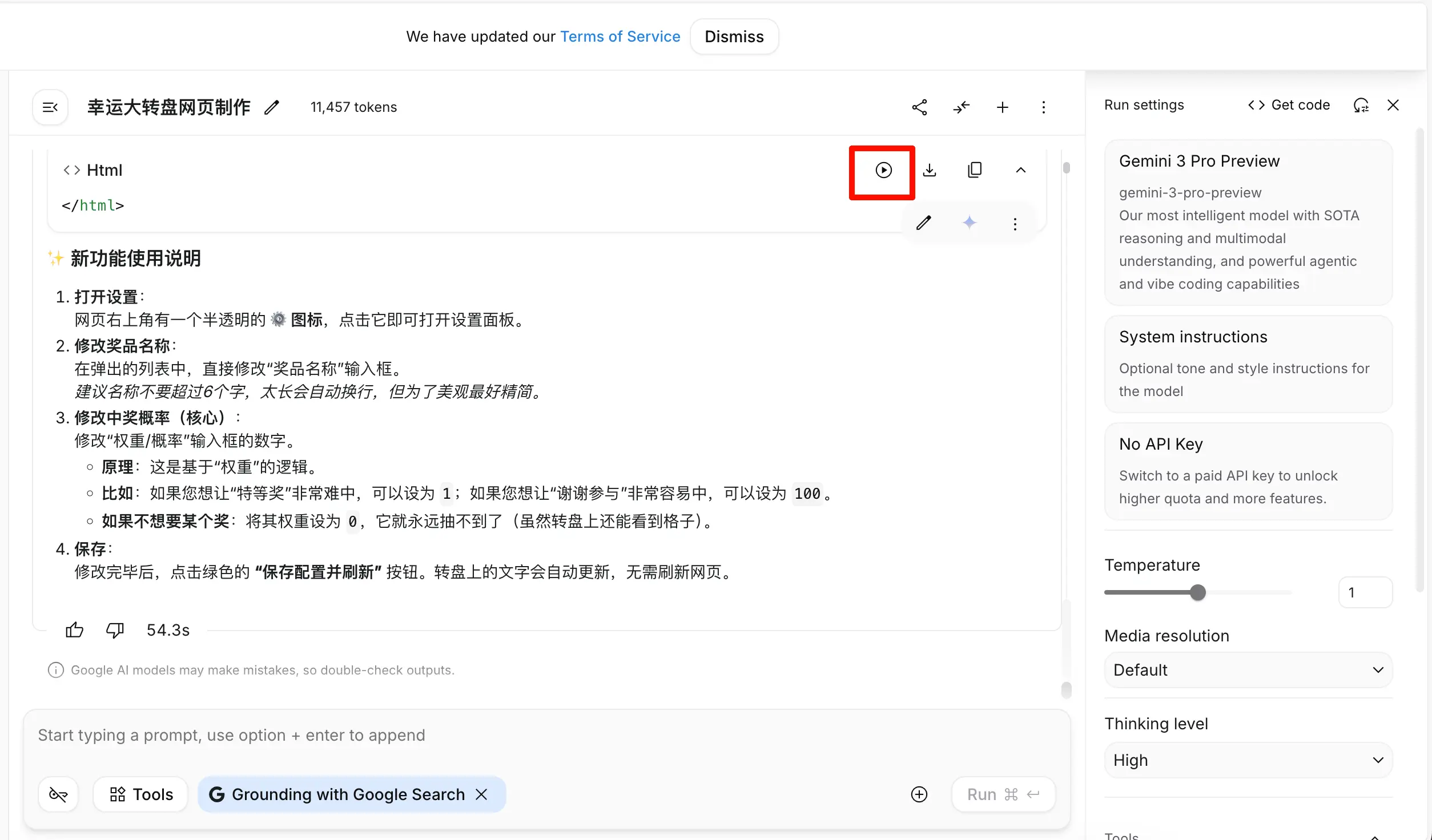
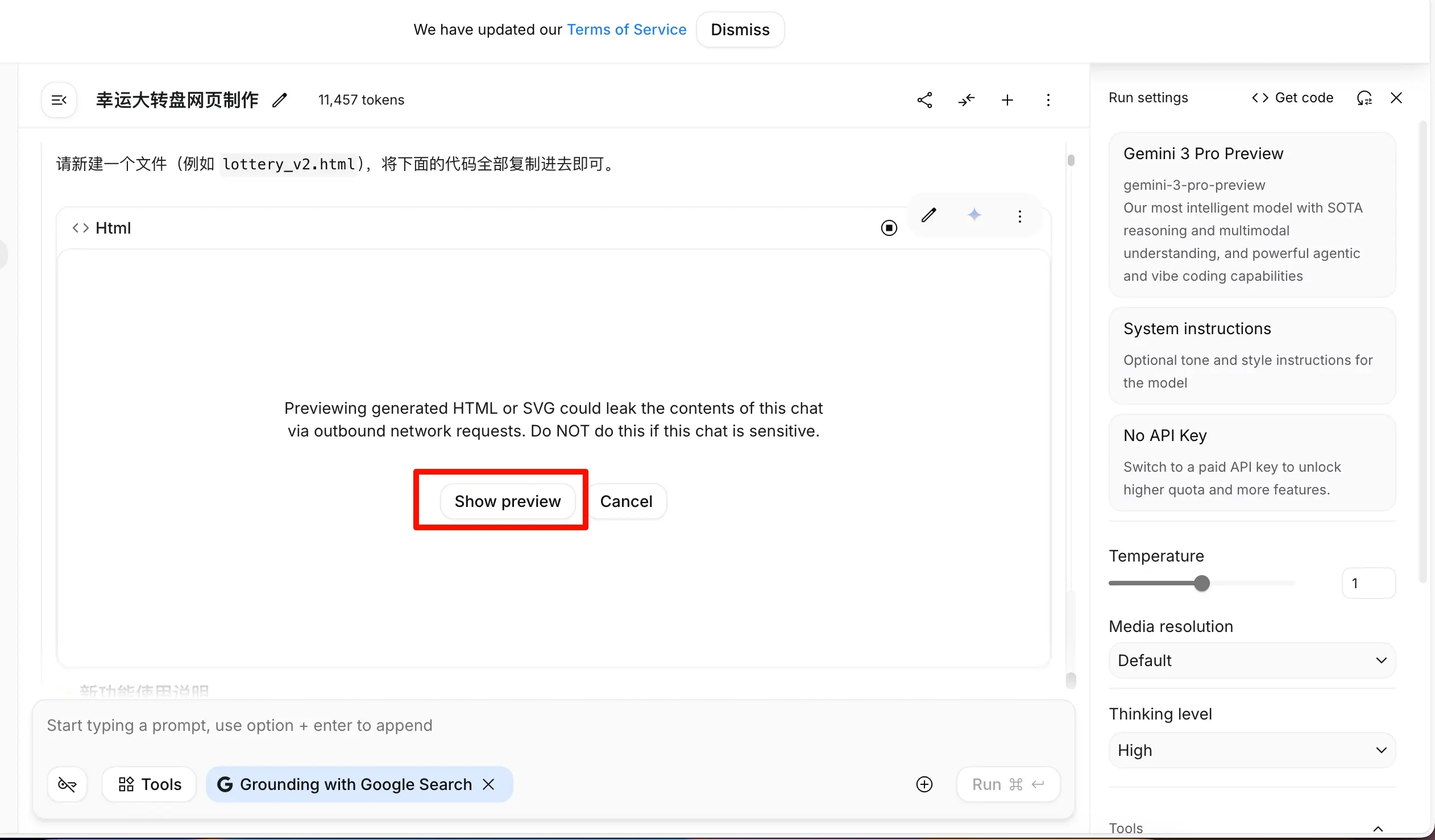

Step 5: Modify the Webpage Content (Change Prizes, Adjust Probabilities)
The AI-generated webpage is usually quite complete, but you might want to:
- Change prize names
- Adjust winning probabilities
- Change colors
Don’t worry, you don’t need to understand code. Just keep asking the AI!
Continue the Conversation, Let the AI Help You Modify
Steps:
- Don’t close the AI Studio chat window
- The AI remembers your previous conversation
- You can continue asking questions below
- Enter your modification request
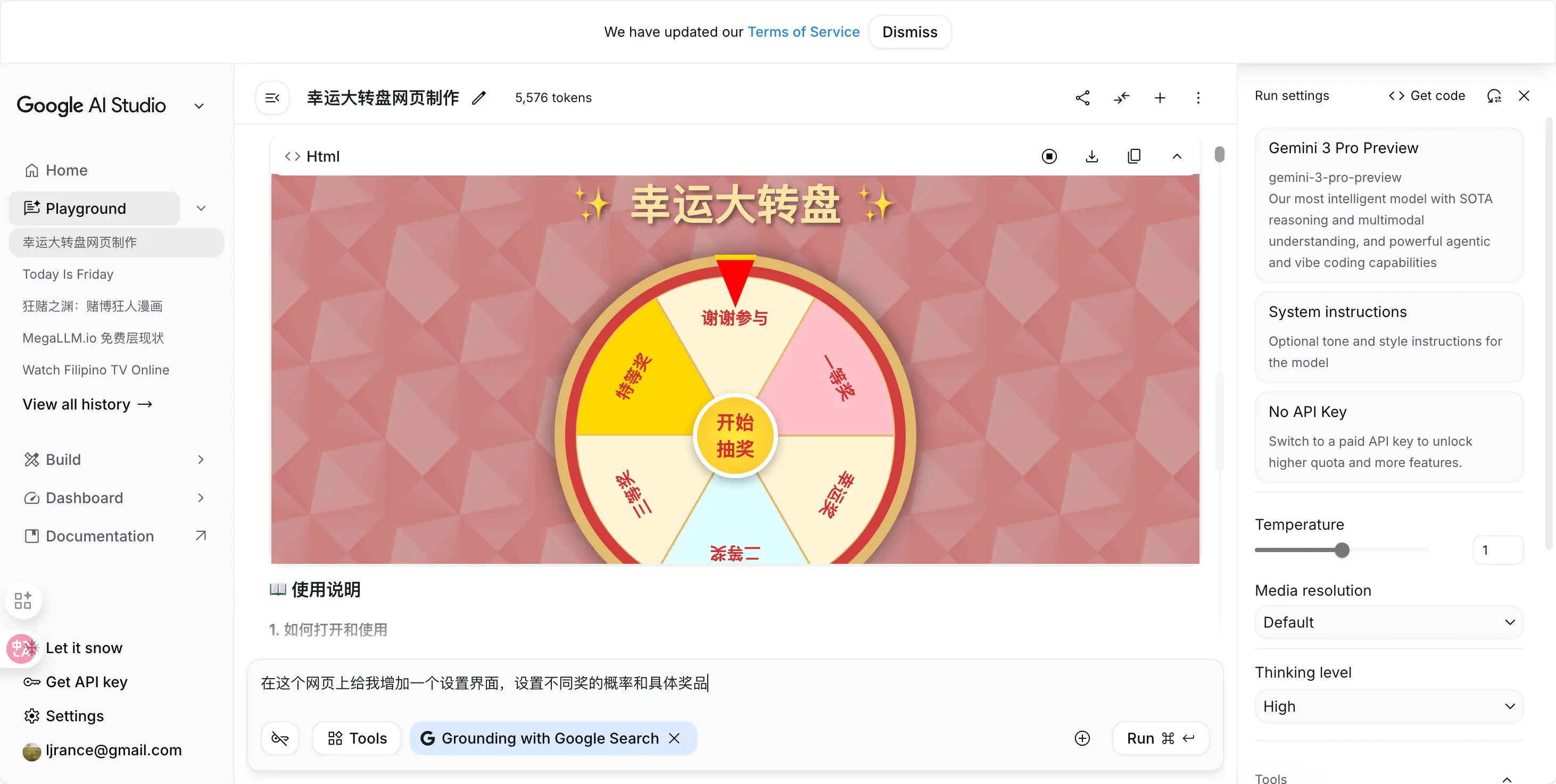
Example 1: Change Prize Names
Enter in the input box:
Add a settings interface to this webpage to set the probabilities and specific prizes for different awards.
Iterate Until You’re Satisfied
This is the core process of making things with AI:
- Clearly state what you want
- AI generates the first version
- Try it out, find issues
- Tell the AI the problem, let it fix
- Repeat steps 3-4 until perfect
Key points:
- Don’t be afraid of trouble, try multiple times
- Change only one thing at a time for easy control
- If the AI changes something wrong, say “No, revert to the previous version”
Step 6: Download the Final Webpage
Now you have a perfect lottery webpage, how to download it?
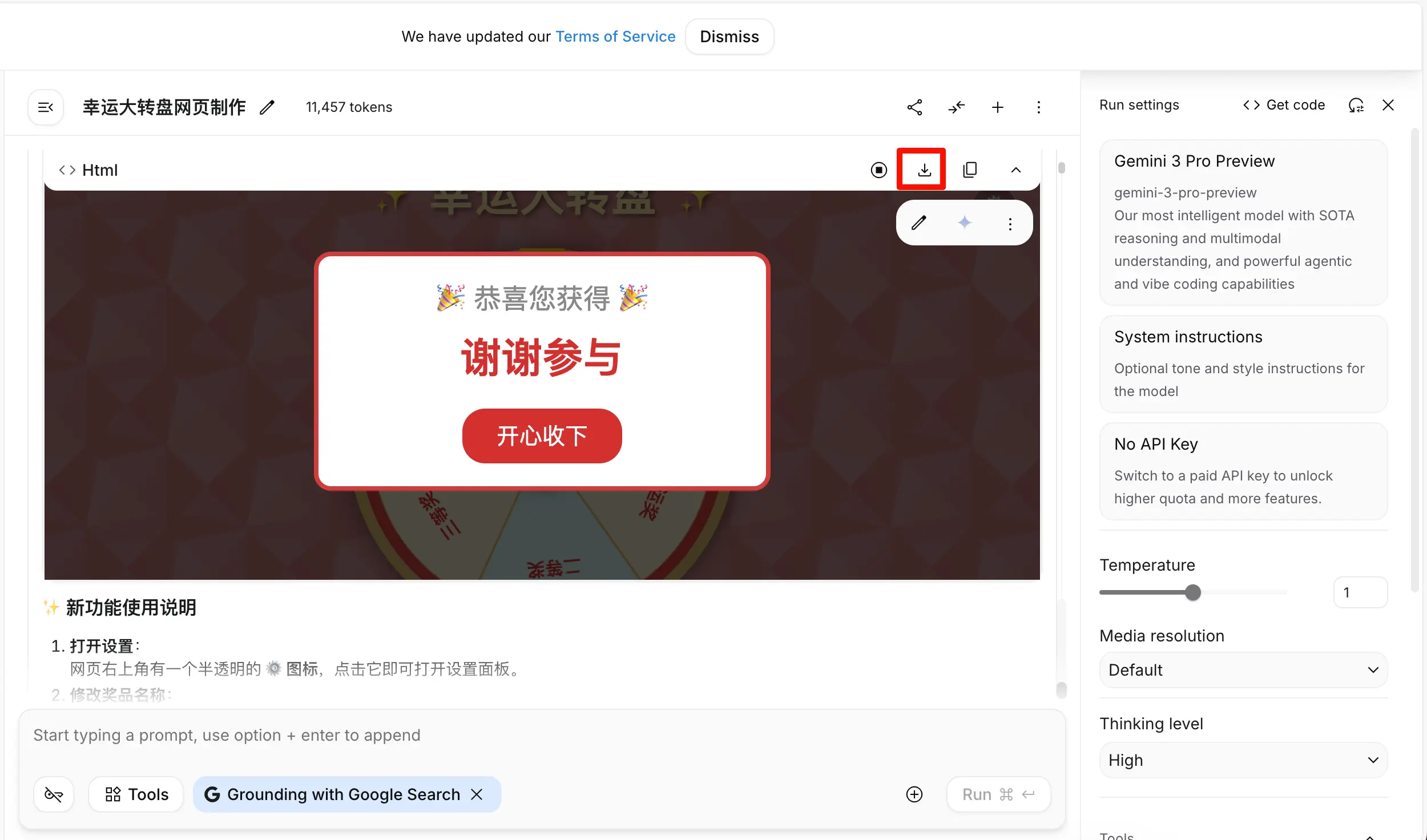
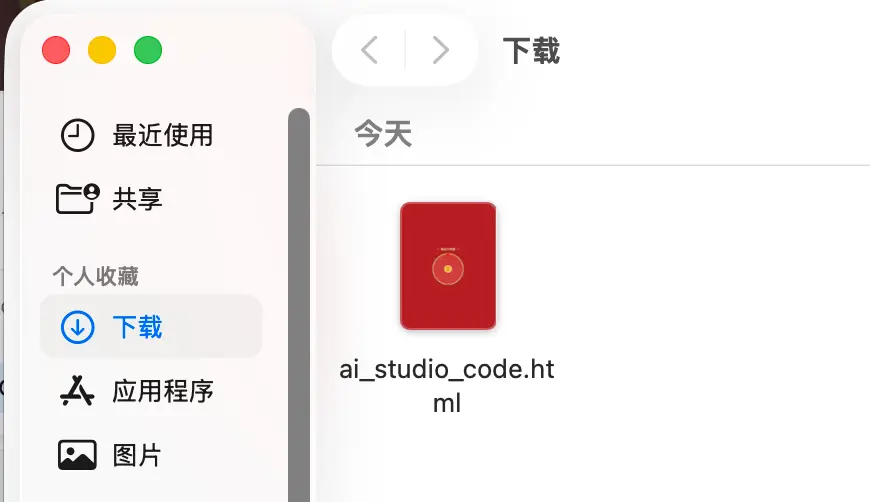
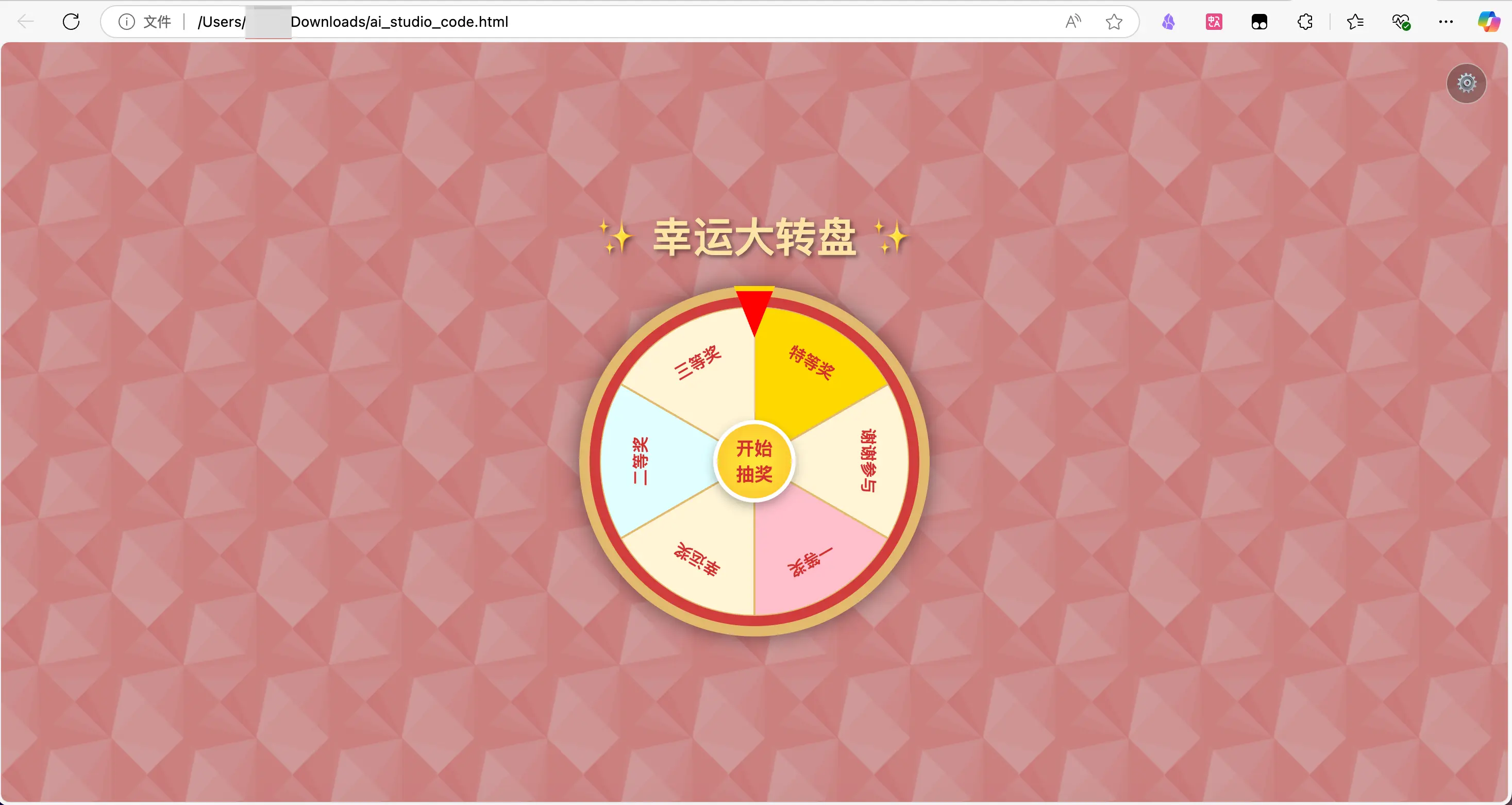
Just click the download button, it will download to your local machine, and you can open it to use!
What Can HTML Webpages Do? 10 Practical Mini-Tool Recommendations
By now, you might be thinking: besides lottery, what other webpages can I make with AI?
The answer is: almost any simple mini-tool!
Here are 10 practical examples you can directly ask the AI to make:
1. Online Translation Tool
Prompt:
Make an online translation webpage that supports Chinese-English translation with a clean interface.
2. Image Text Recognition (OCR)
Prompt:
Make a webpage that can upload an image, recognize text in the image, and allow copying.
3. To-Do List
Prompt:
Make a to-do list webpage that can add, delete, and mark tasks as complete, with data saved in the browser.
4. Countdown/Timer
Prompt:
Make a multi-functional timer webpage: countdown, Pomodoro timer, stopwatch.
5. Random Password Generator
Prompt:
Make a password generator that can set length and complexity, with one-click copy.
6. BMI Calculator
Prompt:
Make a BMI health calculator that inputs height and weight and displays health advice.
7. QR Code Generator
Prompt:
Make a QR code generation webpage that inputs text or URL, generates a QR code, and allows download.
8. Color Picker
Prompt:
Make a color tool that can select colors, display RGB/HEX values, and provide color scheme suggestions.
9. Markdown Editor
Prompt:
Make a simple Markdown editor with input on the left and real-time preview on the right.
10. Expense Tracker
Prompt:
Make a simple expense tracking webpage that can record income and expenses and display statistical charts.
Common features of these tools:
- All are single HTML files
- No server required
- Just open in a browser
- Completely free
Frequently Asked Questions
Q1: I don’t understand code at all, can I really do this?
A: Yes, you can! All you need to know is:
- Copy and paste
- Save a file
- Open a file with a browser
Just these three steps, even a child can do it.
Q2: What if the AI-generated code is not perfect?
A: That’s normal! Continue the conversation with the AI:
- “There’s a bug here, clicking the button does nothing”
- “This color is ugly, change it to something nice”
- “Can you add a sound effect?”
The AI will keep improving based on your feedback.
Q3: Can I use AI-made webpages commercially?
A: Technically yes, but note:
- AI-generated code usually has no copyright restrictions
- But if it’s for a client project, test thoroughly
- For complex commercial projects, it’s still recommended to hire a professional developer
Q4: Why won’t my HTML file open?
A: Common reasons:
- Incorrect file extension: make sure it’s
.html, not.html.txt - Incomplete code: make sure you copied all the code
- Browser issue: try a different browser
Q5: Can I use it on mobile?
A: Yes! Two methods:
- Transfer the HTML file to your phone and open it with a mobile browser
- Upload to platforms like Netlify and access via URL (recommended)
Q6: I want to modify the code but don’t know how?
A: Don’t modify it yourself! Ask the AI:
- “I want to change the background color to blue”
- “I want to make the title font bigger”
- “I want to add background music”
Let the AI modify it for you, then copy the new code.
Summary
Today you learned:
- How to use Google AI Studio to generate an HTML webpage
- How to write clear prompts to tell the AI your needs
- How to save the HTML file and open it in a browser
- How to continuously improve the webpage through conversation
- How to share or deploy your webpage
Core idea:
- No programming knowledge needed
- No money needed
- Just need to know how to communicate with AI
- Make a practical tool in 5 minutes
Next time someone asks you to make a simple webpage, you can:
- Use AI to do it in 5 minutes
- Charge that 50 yuan (just kidding)
- Or teach them to do it themselves
Seriously, stop wasting money!