In the previous chapter, we learned about Skills—turning common operations into one‑click shortcuts. But have you ever wondered:
Can AI directly operate my browser? Can it read and write my notes? Can it query my database?
The answer is: Yes, but you need to equip AI with “plugins”.
This “plugin system” is what we call MCP.
A Quick Look at the Trend
Many of MCP’s features are being natively absorbed by Claude Code and Codex CLI.
For example, in the early days you needed to install a Web Search MCP to let AI search the web; now both Claude Code and Codex have built‑in web search. File read/write, Git operations, and many other capabilities are also built‑in. The Skills we covered earlier also replace some MCP scenarios—many standardized tasks that previously required MCP can now be done with Skills.
But that doesn’t mean MCP is useless. On the contrary, MCP still has irreplaceable value:
- Connecting proprietary systems: Your company’s internal databases, private APIs—these can never be built‑in and can only be accessed via MCP.
- Operating third‑party software: Controlling a browser, managing Obsidian, handling Notion notes—scenarios that require deep interaction with external software are where MCP is the only choice.
- Community ecosystem: The MCP marketplace has thousands of community‑contributed servers covering all kinds of scenarios you might not have imagined.
- Customizability: You can write your own MCP server to let AI access any system you want.
Simply put: built‑in features cover 80% of common needs, while MCP handles the remaining 20% of personalized needs—and that 20% is often where the real difference is made.
What is MCP?
In a Nutshell
MCP = Model Context Protocol = AI’s plugin system
MCP is an open protocol introduced by Anthropic (the creator of Claude) that allows AI tools to connect to external systems.
Why Do We Need MCP?
Consider this scenario:
Without MCP:
You: Open Baidu and search for "today's weather"
AI: Sorry, I can't access the browser. I can only process text…
With MCP:
You: Open Baidu and search for "today's weather"
AI: Sure, I've opened the browser, searched for "today's weather", and here are the results…
What’s the difference? AI goes from “can only talk” to “can take action”.
An Analogy
AI itself = a brilliant brain
- It knows everything, but has no hands or feet.
- It can tell you how to do something, but can’t do it for you.
MCP = connecting hands and feet to that brain
- Connect the “browser hand”: AI can automatically operate web pages.
- Connect the “file system hand”: AI can read and write your files.
- Connect the “database hand”: AI can query and modify data.
- Connect the “Obsidian hand”: AI can directly manage your notes.
Another analogy:
- AI = a super‑smart chef
- MCP = equipping the chef with a full kitchen (pots, pans, oven, blender…)
- Without MCP: the chef can only recite recipes.
- With MCP: the chef can actually cook for you.
Comparison from Earlier
In the previous chapter we compared prompts, Skills, and MCP:
Prompts → The most basic interaction method (verbal instructions)
    ↓
Skills → Encapsulate prompts + simple logic (shortcuts)
    ↓
MCP → Skills + the ability to connect to external systems (connecting the world)
MCP is the most powerful of the three because it breaks down AI’s “walls” and allows it to reach the outside world.
How MCP Works
You don’t need to dive into technical details—just understand this diagram:
You ←→ Claude Code/Codex ←→ MCP Server ←→ External System
         (AI Tool)           (Bridge)      (Browser/Database/Notes, etc.)
Three roles:
| Role | Description | Example |
|---|---|---|
| AI Tool (Client) | The coding assistant you use | Claude Code, Codex CLI |
| MCP Server | The bridge between AI and external systems | Playwright MCP, GitHub MCP |
| External System | The target AI operates on | Browser, GitHub, Obsidian |
All you need to do is install an MCP server in your AI tool, and then the AI can operate the corresponding external system.
It’s as simple as installing an app on your phone.
Where to Find MCP Servers
There are many MCP servers out there. How do you find the one you need? Here are the main “MCP marketplaces”:
1. mcp.so (Recommended)
URL: https://mcp.so
This is currently the most comprehensive directory of MCP servers, like the “App Store for MCP”.
Features:
- Thousands of MCP servers listed
- Detailed descriptions and installation guides
- Search and category browsing
- Chinese‑friendly
How to use:
- Open the website.
- Search for the functionality you want (e.g., “playwright” or “browser”).
- Find the corresponding MCP server.
- Follow the installation instructions on the page.
2. Smithery
URL: https://smithery.ai
Features:
- Try some MCP servers online directly.
- One‑click installation commands.
- API Key hosting.
3. GitHub awesome-mcp-servers
URL: https://github.com/punkpeye/awesome-mcp-servers
Features:
- Community‑maintained list of MCP servers.
- Open source and free.
- Frequently updated.
4. Official MCP Servers
Major companies like Anthropic and Microsoft have also released official MCP servers:
| MCP Server | Function | Maintainer |
|---|---|---|
| Playwright MCP | Browser automation | Microsoft |
| GitHub MCP | GitHub operations | GitHub |
| Context7 MCP | Get latest documentation | Community |
| Notion MCP | Note management | Notion |
Recommendation: Beginners should start with mcp.so, search for the functionality you need, and follow the installation guide.
How to Install MCP
The installation method differs slightly between Claude Code and Codex CLI. Here’s how to do it for each.
Installing MCP in Claude Code
Method 1: Command Line (Recommended)
Claude Code provides a dedicated MCP management command—one line does it all:
claude mcp add playwright npx '@playwright/mcp@latest'
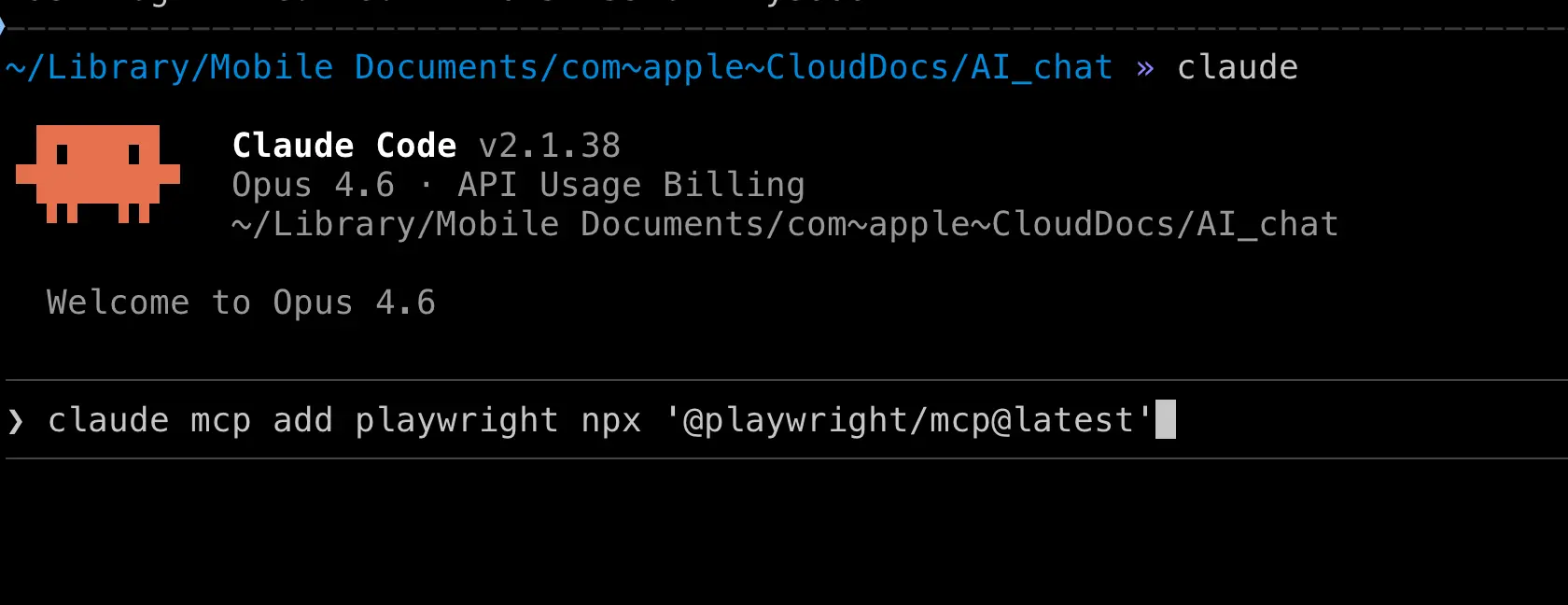
This command means:
claude mcp add: Add an MCP server.playwright: The name you give this MCP (you can choose any name).npx '@playwright/mcp@latest': The command to start the MCP server.
Verify the installation:
In Claude Code, type /mcp to see the list of installed MCP servers.
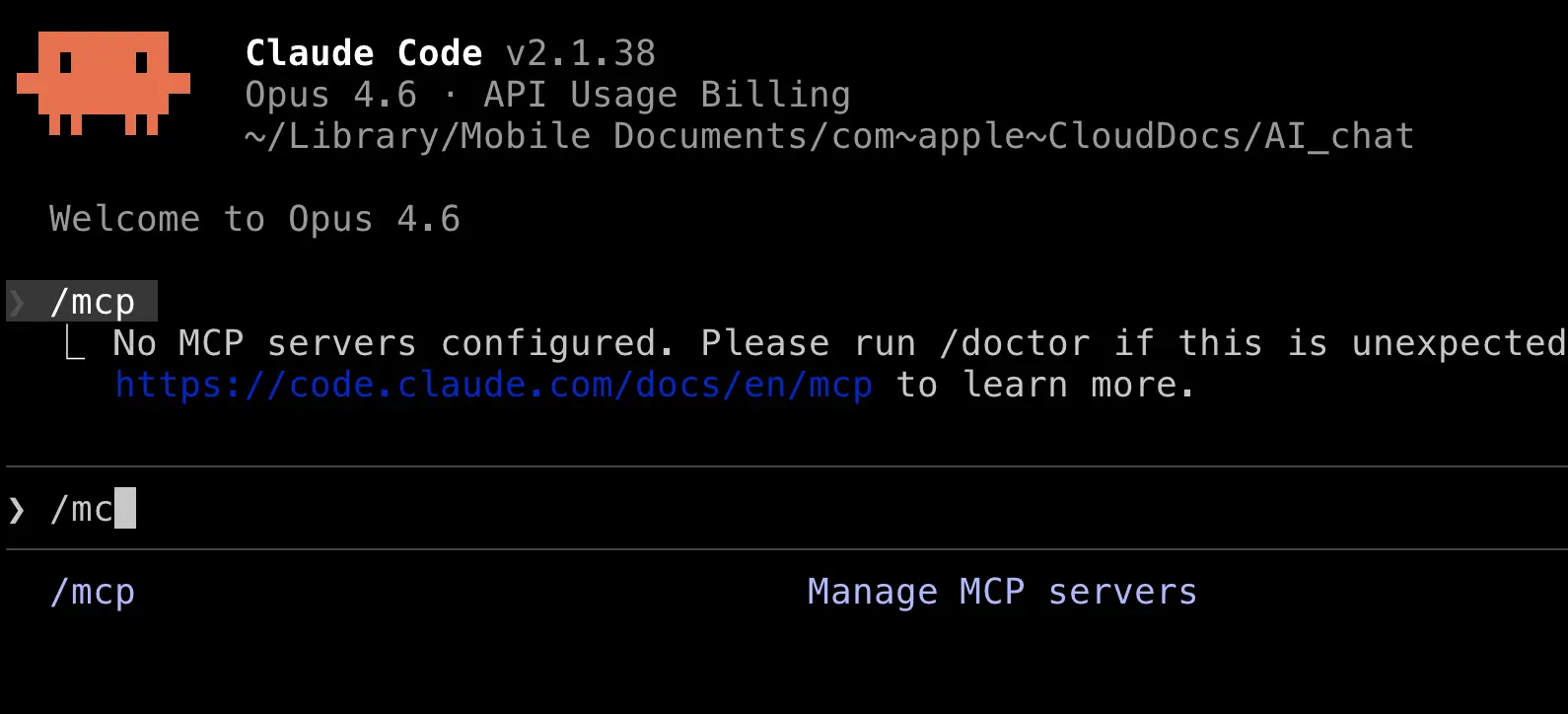
Method 2: Edit the Configuration File
You can also directly edit Claude Code’s configuration file to add MCP.
Configuration file path: ~/.claude.json
Add the mcpServers section:
{
  "mcpServers": {
    "playwright": {
      "command": "npx",
      "args": ["@playwright/mcp@latest"]
    }
  }
}
Save and restart Claude Code.
Installing MCP in Codex CLI
Codex CLI’s MCP configuration is in the ~/.codex/config.toml file.
Edit config.toml
Add the following at the end of the file:
[mcp_servers.playwright]
command = "npx"
args = ["@playwright/mcp@latest"]
startup_timeout_sec = 60.0
Parameter explanation:
| Parameter | Description |
|---|---|
command |
The command to start the MCP server |
args |
Command arguments |
startup_timeout_sec |
Startup timeout in seconds; some MCP servers start slowly, so 60 is recommended |
MCP with Environment Variables
Some MCP servers require API keys or other configuration. You can pass them using the env section:
[mcp_servers.context7]
command = "npx"
args = ["-y", "mcp-remote", "https://mcp.context7.com/mcp", "--header", "Authorization:${CTX7_AUTH_HEADER}"]
startup_timeout_sec = 60.0

[mcp_servers.context7.env]
CTX7_AUTH_HEADER = "Bearer your_token"
Save and restart Codex.
Hands‑On: Install Playwright MCP and Control a Browser
Let’s try it out! We’ll use Playwright MCP as an example to let AI automatically control a browser.
What is Playwright MCP?
Playwright = Microsoft’s browser automation tool
Playwright MCP = Lets AI control Playwright through the MCP protocol
After installation, AI can:
- Open web pages
- Click buttons
- Fill in forms
- Take screenshots
- Read page content
- Automatically log in to websites
Step 1: Install Playwright MCP
In Claude Code
Open a terminal and run:
claude mcp add playwright npx '@playwright/mcp@latest'
If you want to specify a browser (e.g., Edge), add parameters:
claude mcp add playwright npx '@playwright/mcp@latest' -- --browser msedge
In Codex CLI
Edit ~/.codex/config.toml and add:
[mcp_servers.playwright]
command = "npx"
args = ["@playwright/mcp@latest"]
startup_timeout_sec = 60.0
If you want to use Edge and keep your login session, you can configure it like this:
[mcp_servers.playwright]
command = "mcp-server-playwright"
args = ["--browser", "msedge", "--executable-path", "/Applications/Microsoft Edge.app/Contents/MacOS/Microsoft Edge", "--user-data-dir", "/Users/your_username/Library/Application Support/Microsoft Edge", "--isolated"]
startup_timeout_sec = 60.0
Tip: Using --user-data-dir lets the browser retain your login state, so AI doesn’t need to log in again when opening pages.
Step 2: Verify the Installation
Start Claude Code:
claude
Type /mcp and you should see playwright in the list with a status of “connected”.
Step 3: Let AI Operate the Browser
Now try it out! In Claude Code, enter:
Open Baidu, search for "What is MCP", and save a screenshot of the search results.
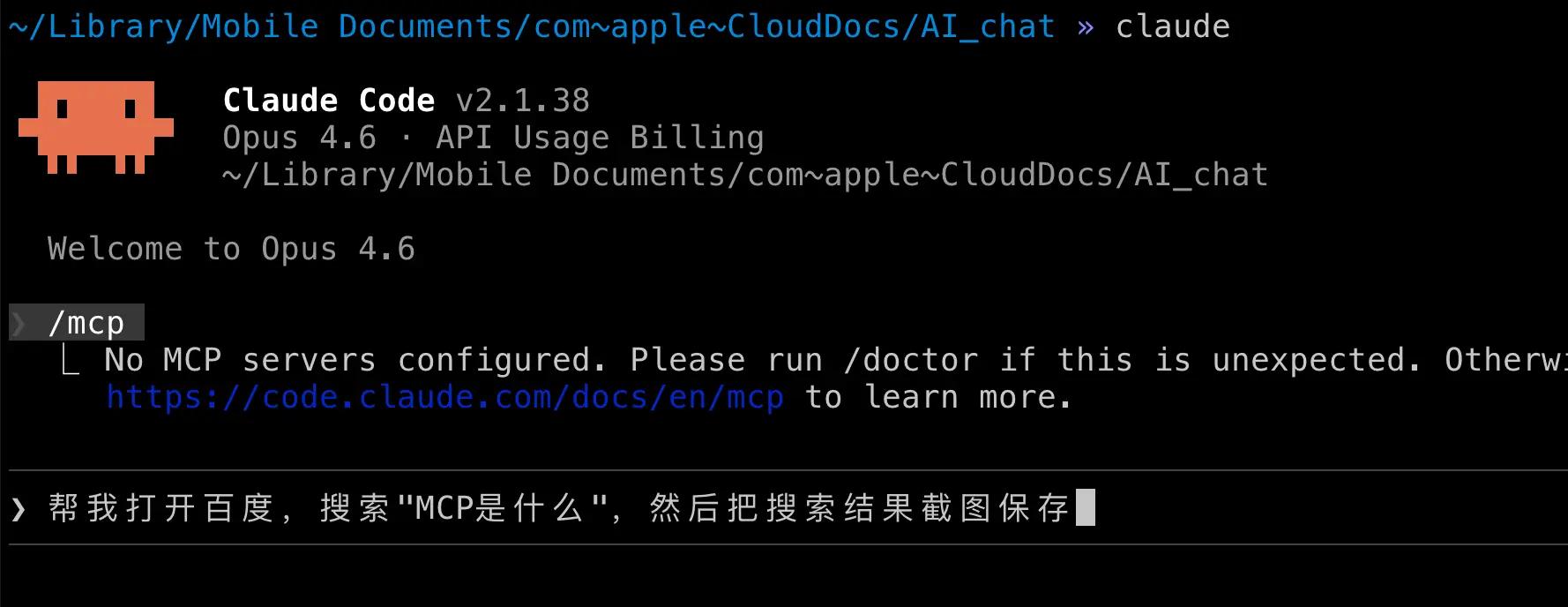
The AI will automatically:
- Launch the browser
- Open the Baidu homepage
- Type “What is MCP” in the search box
- Click the search button
- Take a screenshot of the search results page
- Save the screenshot to your project folder
You don’t need to do anything—the AI completes all the steps automatically!
More Use Cases
With Playwright MCP installed, you can ask AI to do many things:
Example 1: Auto‑fill a form
Open https://example.com/register and fill in the registration form with the following info:
Username: testuser
Email: [email protected]
Then click submit.
Example 2: Extract web content
Open https://news.ycombinator.com and extract the titles and links of the top 10 stories on the front page. Organize them into a Markdown table.
Example 3: Automated testing
Open the translation page I just made (translate.html) and test the following:
1. Enter "Hello World", click translate, and check if a result appears.
2. Click the clear button and check if the input box is cleared.
3. Toggle dark mode and check if the interface looks correct.
Compile the test results into a report.
Recommended MCP Servers
Here are some practical MCP servers, categorized by use case:
Browser & Web
| MCP Server | Function | Installation Command (Claude Code) |
|---|---|---|
| Playwright | Browser automation | claude mcp add playwright npx '@playwright/mcp@latest' |
| Chrome DevTools | Chrome debugging | claude mcp add chrome-devtools npx 'chrome-devtools-mcp@latest' |
Development Tools
| MCP Server | Function | Installation Command (Claude Code) |
|---|---|---|
| GitHub | GitHub operations | claude mcp add github npx '@anthropic-ai/github-mcp' |
| Context7 | Get latest technical docs | Requires token configuration (see config) |
Notes & Documentation
| MCP Server | Function | Notes |
|---|---|---|
| Notion | Read/write Notion notes | Requires Notion API Key |
| Obsidian | Read/write Obsidian notes | Community‑developed |
Databases
| MCP Server | Function | Notes |
|---|---|---|
| Supabase | Operate Supabase database | Requires Access Token |
| PostgreSQL | Operate PostgreSQL | Community‑developed |
Go to mcp.so or smithery.ai to find even more MCP servers.
Important Notes
Safety Reminders
MCP gives AI the ability to operate external systems, which also introduces some risks:
- Grant permissions cautiously: Don’t give AI full system access without thought.
- Review actions: Before important operations, ask AI to tell you what it’s about to do.
- Back up data: Before letting AI handle important data, make a backup.
- API Key security: Never share your API keys with others.
Frequently Asked Questions
Q: What if the MCP server fails to start?
A: Check the following:
- Is Node.js version 18 or higher? (
node -v) - Is the network working?
- Is
startup_timeout_secset high enough? (60 seconds is recommended)
Q: After installing a browser MCP, I don’t see a browser window.
A: Playwright runs in headless mode by default (no visible window). If you want to see the browser in action, add the parameter --headless false:
claude mcp add playwright npx '@playwright/mcp@latest' -- --headless false
Q: Can MCP servers be shared between Claude Code and Codex CLI?
A: The MCP server itself is universal (e.g., Playwright MCP can be used by both tools), but the configuration method differs:
- Claude Code:
~/.claude.jsonor theclaude mcp addcommand - Codex CLI:
~/.codex/config.toml
Summary
What you learned today:
- What MCP is: AI’s plugin system that lets AI connect to external tools and services.
- MCP marketplaces: mcp.so, Smithery, awesome-mcp-servers—find plugins like an App Store.
- How to install MCP: Use the
claude mcp addcommand for Claude Code, or edit config.toml for Codex CLI. - Hands‑on: Installed Playwright MCP and let AI automatically control a browser.
- Recommended MCP servers: Browser, GitHub, notes, databases, and more.
Key takeaways:
- MCP transforms AI from “can only talk” to “can take action”.
- Installing MCP is as simple as installing an app on your phone.
- Beginners are encouraged to start with Playwright MCP for the most intuitive experience.