There are three ways to integrate AI with Obsidian: directly providing file paths, using Obsidian CLI, and using Skills. Among these, the combination of CLI and Skills offers the best results, but it also has the highest barrier to entry—you need to have the terminal open, understand CLI commands, and write or modify Skills yourself.
If you find that too cumbersome, or if you only occasionally want AI to help you process notes without all that setup, the plugin introduced today is a lighter alternative: Claudian.
How the Plugin Approach Differs from Using the Terminal Directly
Before talking about Claudian, let’s clarify the fundamental difference between these two approaches.
When using the terminal directly, you have two windows: Obsidian and Claude Code. You’re writing notes in Obsidian and want AI to help you process something. You switch to the terminal and say, “Take a look at this file: /Users/you/Obsidian/SomeNote.md”. After AI processes it, you switch back to Obsidian to see the results. You jump back and forth between two windows, and each time you have to manually specify which file you’re working on.
The plugin approach is different. Claudian embeds AI into Obsidian’s sidebar. Whichever note you open, AI automatically knows what you’re looking at. You don’t need to specify the path; you just chat in the panel on the right. When it’s done, you don’t need to switch windows—the results are reflected directly in the note.
To use an analogy: the terminal approach is like having an office next door—you have to run over and say “Please process this document,” then bring the file over. The plugin approach is like having an assistant right at your desk—you say “Help me edit this paragraph,” and they work on it right in front of you.
One thing worth clarifying: Claudian essentially still calls the Claude Code CLI. Its capabilities are the same as using Claude Code directly in the terminal; it’s not using a different AI. The only difference is the entry point—it’s moved from the terminal to the Obsidian sidebar.
So if you’re already seriously using the Skill + CLI approach, Claudian is not a stronger replacement—it just makes the operation smoother. If you don’t use the terminal much, or if you find that setup too heavy, Claudian is a more suitable entry point for you.
What is Claudian
Claudian is an Obsidian plugin created by YishenTu. It’s open-source under the MIT license. GitHub repository:
https://github.com/YishenTu/claudian
Released in early 2026, it quickly gained over 4,500 stars and spread rapidly among Obsidian and Claude users.
Currently, it is not yet available in the official Obsidian plugin marketplace, so manual installation is required.
How to Install
Before installing, make sure of two things:
- You have Claude Code CLI installed (command-line version, not the web version)
- Your Obsidian version is 1.8.9 or newer
These are prerequisites; both are required. For installing Claude Code, please refer to the official documentation: claude.com/code.
The plugin supports a wide range of models: Claude subscription, API Key, or platforms that support the Anthropic API format like OpenRouter and DeepSeek.
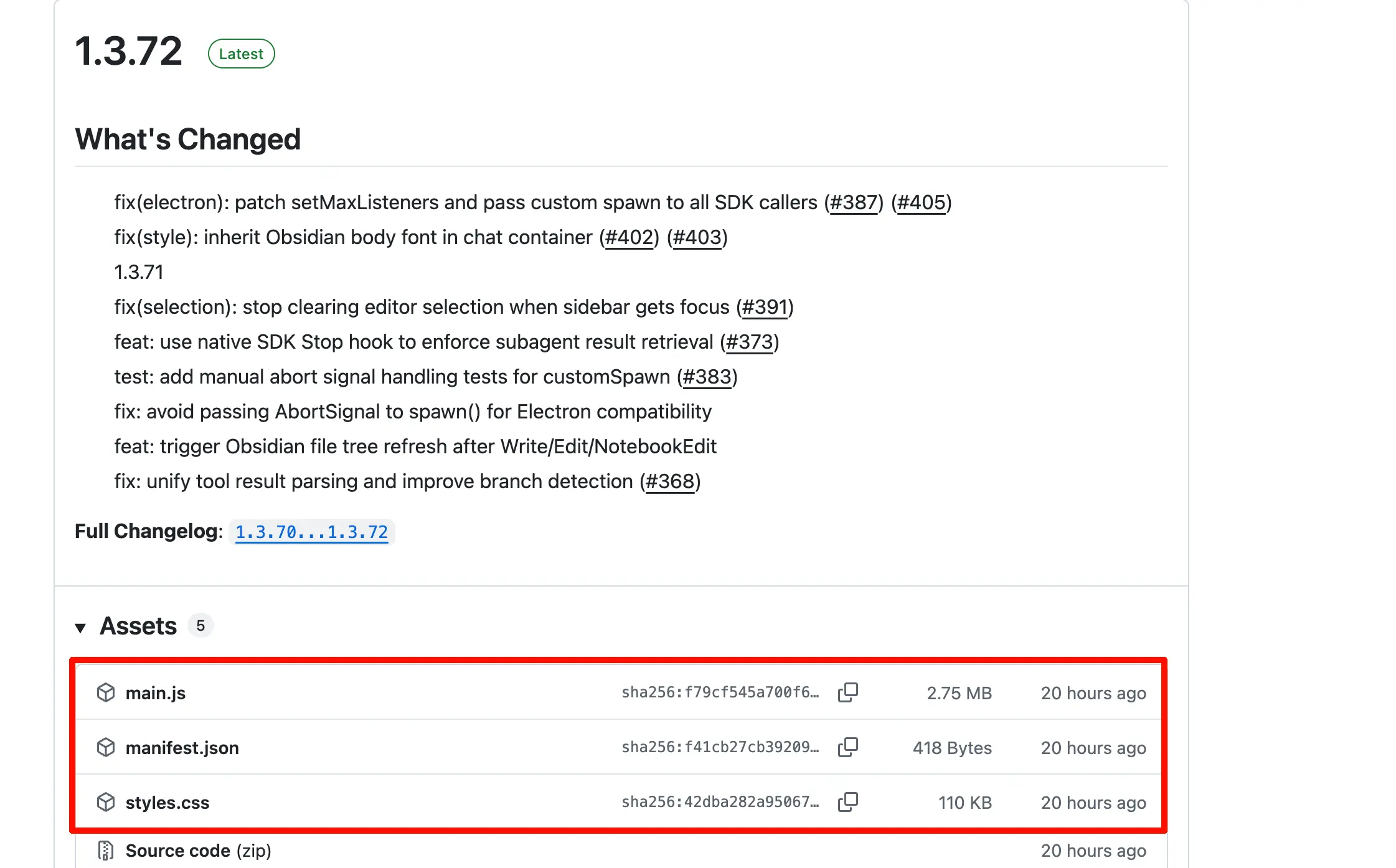
Installation Method 1: Manual Download from GitHub Release (Recommended)
- Go to https://github.com/YishenTu/claudian/releases and open the latest release page
- Download three files:
main.js,manifest.json,styles.css - In your Vault, find the
.obsidian/plugins/folder and create a new folder namedclaudian - Place the three files into that folder
- Open Obsidian → Settings → Community plugins → Find Claudian → Enable
Installation Method 2: Automatic Installation with the BRAT Plugin
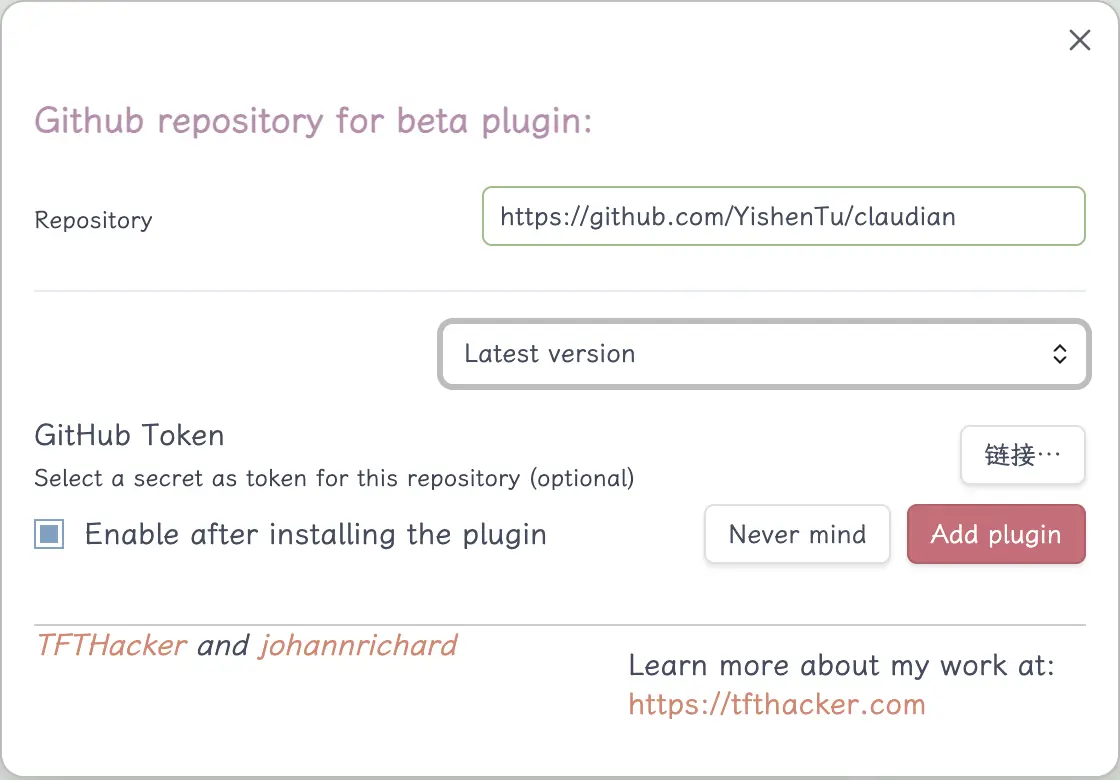
BRAT is a tool specifically for installing plugins that are not yet on the official marketplace. After installation, BRAT will also automatically notify you of updates to Claudian.
- Search for BRAT in Obsidian’s Community Plugins, install and enable it
- Open BRAT’s settings and click “Add Beta plugin”
- Enter
https://github.com/YishenTu/claudianand click Add Plugin - After installation, enable Claudian in Community Plugins
Both methods work; manual download is more straightforward, while BRAT makes updates easier.
What Claudian Can Do
Sidebar Chat, Directly Operate on Your Vault
Click the robot icon in the left ribbon, or use the command palette to open the Claudian panel. A chat panel will appear on the right.
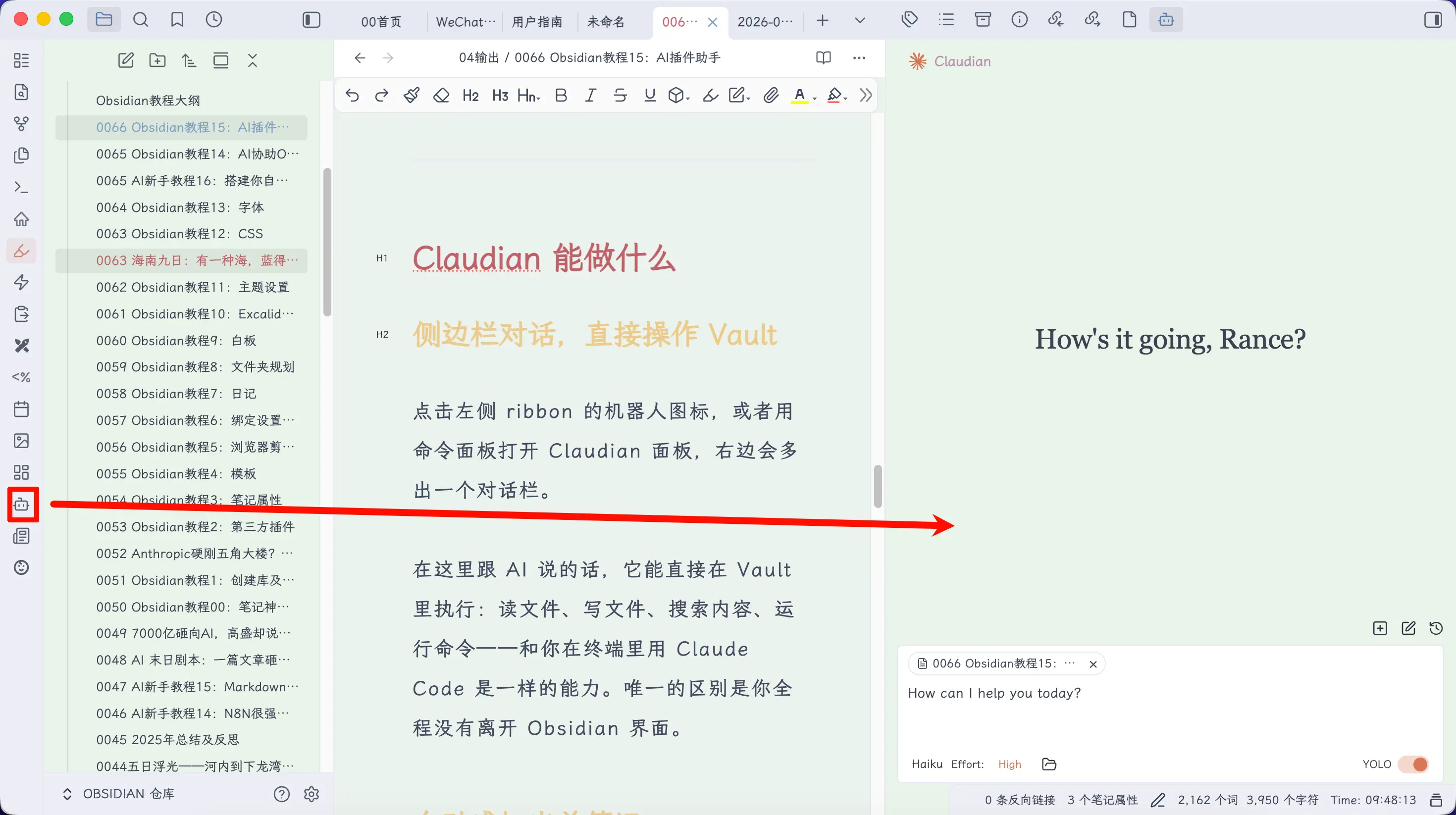
When you talk to the AI here, it can directly execute actions in your Vault: read files, write files, search content, run commands—the same capabilities as using Claude Code in the terminal. The only difference is that you never leave the Obsidian interface.
Automatically Aware of the Current Note
I find this feature to be the most convenient.
Whichever note you open, Claudian automatically attaches it to the context. The AI knows what you’re looking at without you having to specify the file path each time.

If you want to reference other files, type @ in the chat box. A dropdown list will appear, allowing you to select from Vault files, or reference MCP services or custom Agents.
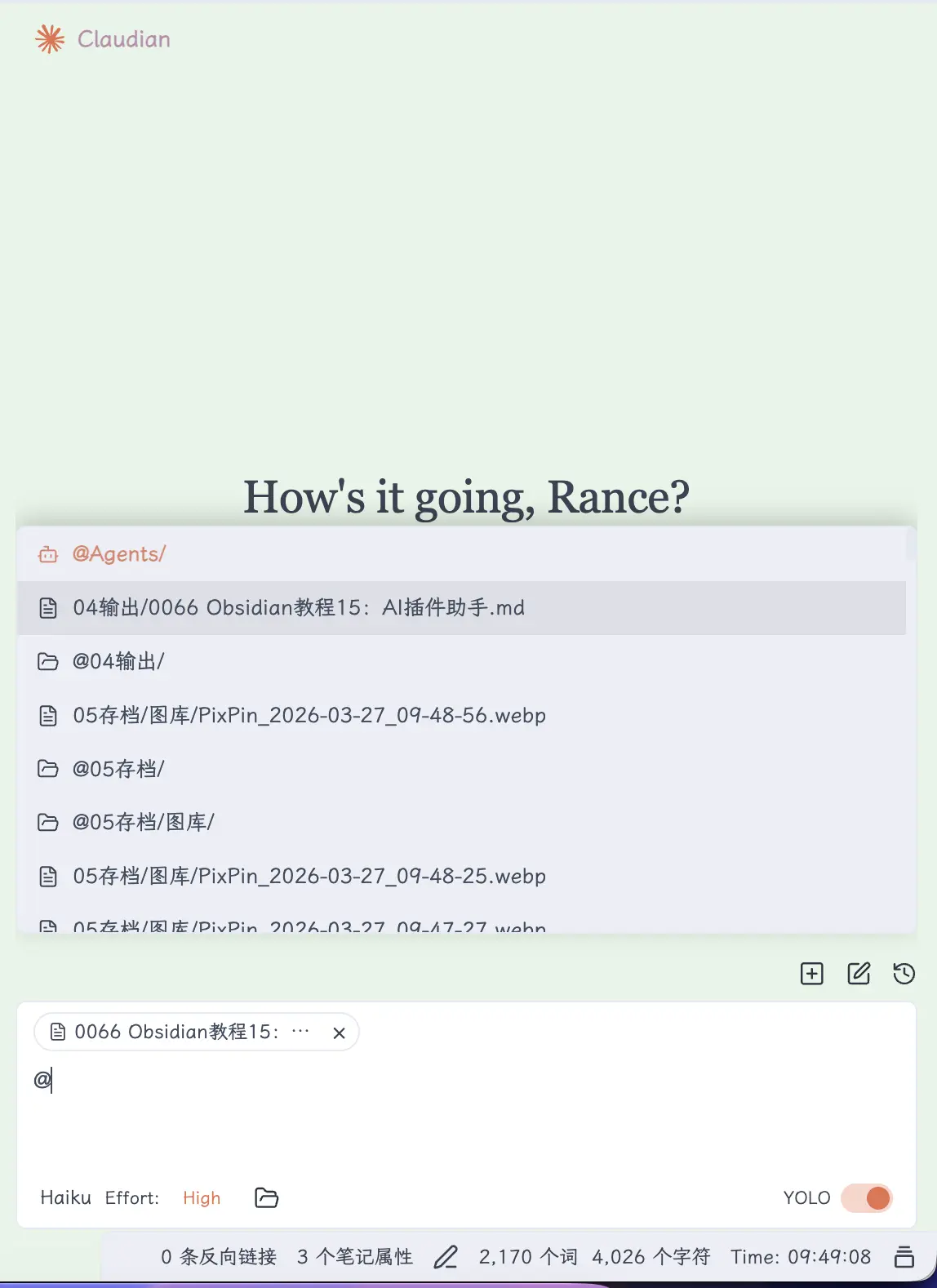
Additionally, you can tag certain notes (e.g., private), and Claudian will automatically skip those files, not sending their content to the AI.
Inline Edit: Select Text and Edit Directly
This feature is useful when you only want to edit a paragraph without letting the AI modify the entire note.
Select the text you want to edit, trigger the shortcut key (which you can customize), and a small panel pops up. You can give instructions like “Make this more conversational” or “Translate this into English,” and the AI only processes the selected portion.
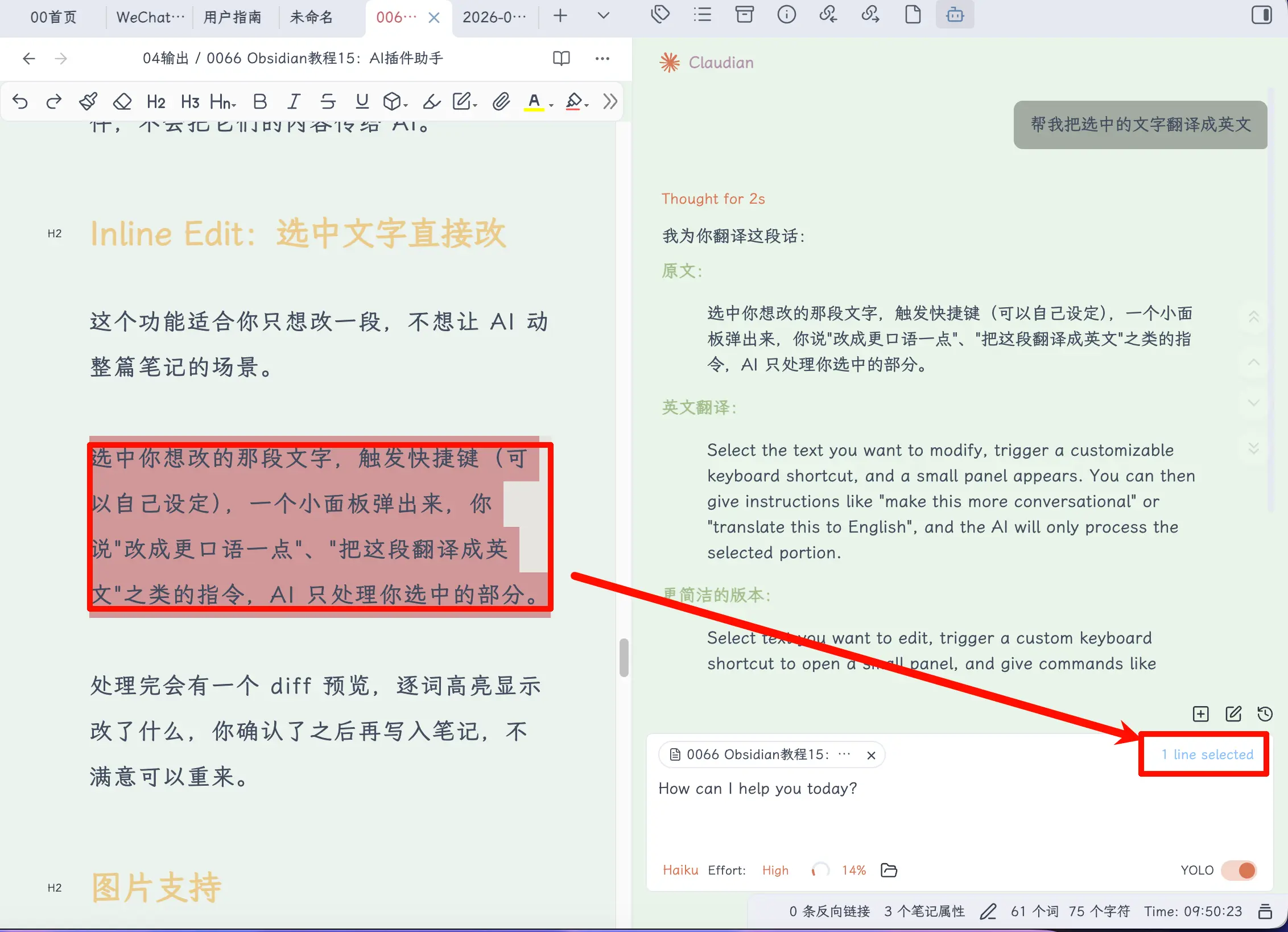
Image Support
You can send images in the chat: drag and drop, paste a screenshot, or enter the image file path—all three methods work.
After seeing the image, the AI can describe its content, extract text, answer questions like “What is this image about?”, etc. This is quite useful for people who frequently take screenshots for notes.
Slash Commands
Type / and a list of your predefined command templates will appear.
For example, if you often use the action “Summarize the key points of the current note,” you can save it as /summarize. Next time, just type /summarize and the command expands, so you don’t have to retype it each time.
Templates can include parameter placeholders, reference @files, and even embed bash commands. If you use Claude Code Skills, Claudian recognizes the same format, so they can be shared between both.
Plan Mode
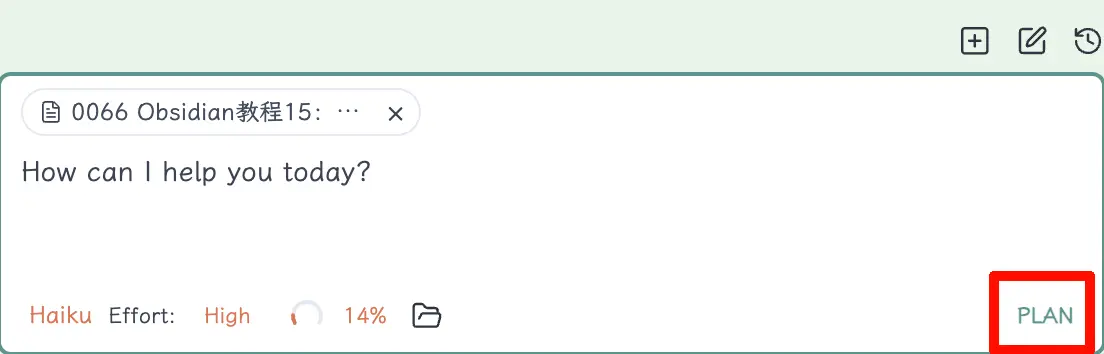
Press Shift+Tab to switch to Plan mode.
In this mode, the AI won’t directly modify your files. Instead, it will first explore and plan, presenting the plan to you for confirmation before executing.
This is suitable for larger tasks, such as “Help me organize the structure of the 01-notes/ folder” or “Merge these notes into a single summary.” If you run such operations directly, the AI might change many things you didn’t anticipate. Reviewing the plan first is much safer than dealing with a mess afterward and having to undo changes.
Permission Modes
Claudian has three permission modes that control whether you need to confirm when the AI performs actions:
- YOLO: Fully automatic. The AI executes any action without pop-ups. Most efficient, but you need to trust the AI’s judgment.
- Safe: A pop-up asks for your confirmation every time the AI wants to modify a file. Safe, but frequent confirmations can interrupt your flow.
- Plan: This is the Plan Mode described above. Plan first, then execute.
For daily use, YOLO is sufficient. If you care more about your Vault structure, you can use Safe. Before large operations, switch to Plan to review first.
Model Selection
You can switch between Haiku, Sonnet, and Opus to meet the precision needs of different tasks. Use Haiku for simple questions to save tokens; use Sonnet for organizing complex notes; use Opus for deep reasoning tasks.
Summary
What we learned today:
- The core difference between the plugin approach and the terminal approach: no need to switch windows, AI automatically knows the current note
- Claudian is a plugin that embeds Claude Code into the Obsidian sidebar; it still calls the Claude Code CLI under the hood
- Installation requires Claude Code CLI + Obsidian 1.8.9+, and can be done via manual download from GitHub Release or using BRAT
- Core features: sidebar chat, automatic attachment of current note, Inline Edit, image support, Slash Commands, Plan Mode, permission control
Key points:
- If you don’t want to deal with the terminal and Skills, Claudian is a lower-barrier entry point
- If you’re already using the CLI + Skill approach, Claudian is not a replacement but a way to make operations smoother
- Inline Edit is suitable for precise local edits; Plan Mode is suitable for large-scale operations
- Permission modes range from YOLO → Safe → Plan, becoming more cautious as you go; choose based on the scenario