Remember the Web Clipper from the previous chapter? It’s Obsidian’s official browser extension that lets you save web articles as clean local Markdown files with one click, fast and without relying on any third-party services.
Unfortunately, it used to only clip text. But recently, it quietly updated to version 1.4, adding a new feature that made my eyes light up:
It now supports clipping YouTube videos.
This isn’t a half-hearted operation like taking a screenshot or saving a link. Instead, it extracts the video’s full transcript with timestamps. You can click on any subtitle line to jump to that point in the video, and as the video plays, the subtitles scroll along automatically.
This feature solved a long-standing pain point for me—when I want to take notes while watching a video, I no longer have to keep pausing to manually type out the subtitles.
First, a Quick Refresher on Web Clipper
If this is your first time hearing about this plugin, here’s a brief background.
Web Clipper is Obsidian’s official browser extension, supporting Chrome, Edge, Firefox, and other major browsers. Its core function is to save web content as local Markdown files with one click—clean formatting, fully offline, and no third-party cloud services involved.
Installation and basic setup were covered in the previous chapter, so I won’t repeat them here.
In this post, we’ll jump straight to the new feature. But first, a heads-up: you need to upgrade the plugin to version 1.4 or later.
Entering YouTube Clipping Mode
The process is straightforward.
Open any YouTube video, click the Web Clipper icon in your browser’s toolbar, and when the plugin panel pops up, look for the “open book” icon and click it.
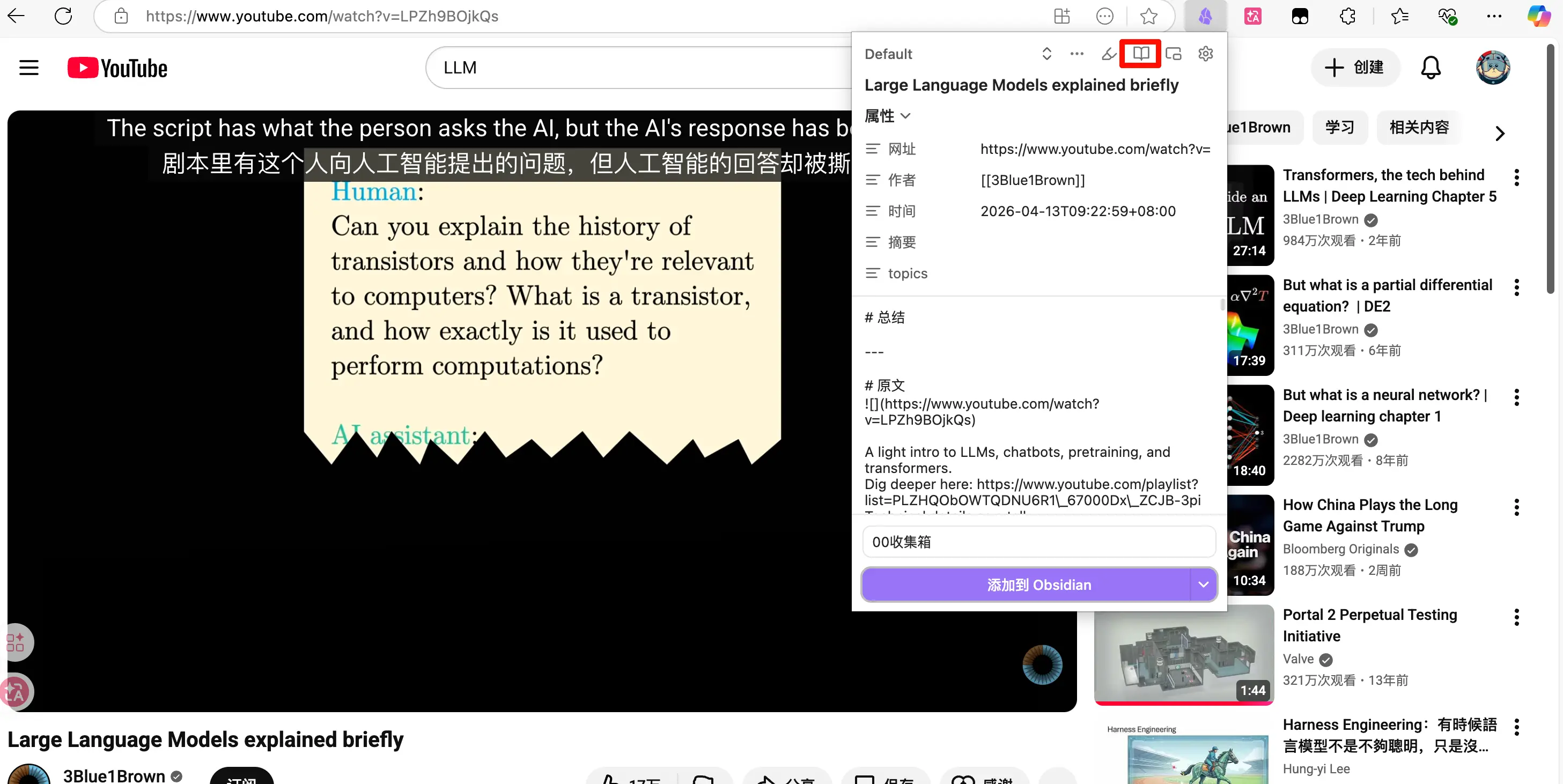
After clicking, the interface transforms completely.
You’ll see the video at the top and the full transcript below, with each line timestamped.
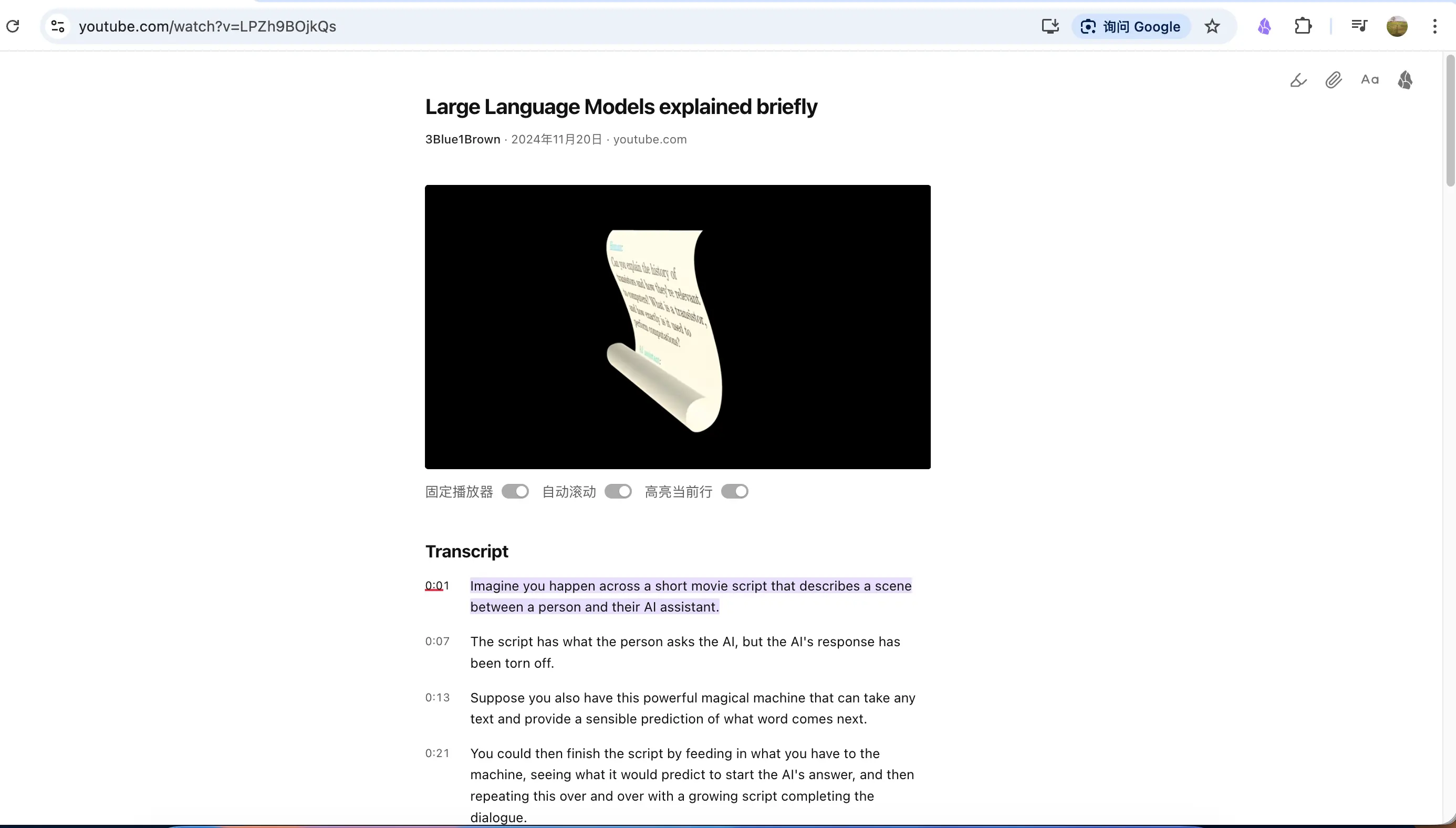
This interface isn’t static. As the video plays, the subtitles automatically scroll to match, and the current line is highlighted. It works both ways—click any subtitle line, and the video jumps to that point.
What This Interface Offers
The official description of this YouTube subtitle interface is:
Provides interactive subtitle functionality, supporting video pinning, jump-to-play via subtitles, auto-scrolling, and highlighting the current position.
In simple terms, it does four things:
Video Pinning: When you scroll through the subtitles, the video stays fixed at the top. You can browse the transcript while the video continues playing, without interference.
Click to Jump: Find a sentence you’re interested in, click it, and the video jumps there immediately. No more manually dragging the progress bar to guess the time.
Auto-Scroll: The subtitle area scrolls in real-time with the video playback, so you don’t have to follow along manually.
Highlight Current Position: The currently playing subtitle line is highlighted, so you can see at a glance where you are in the video.
There are also a few extra features in the top-right corner: you can underline subtitles, highlight text, and adjust font size.
If you think the video is worth archiving, click the Obsidian icon in the top-right corner, and the entire content will be saved locally just like a regular clip.
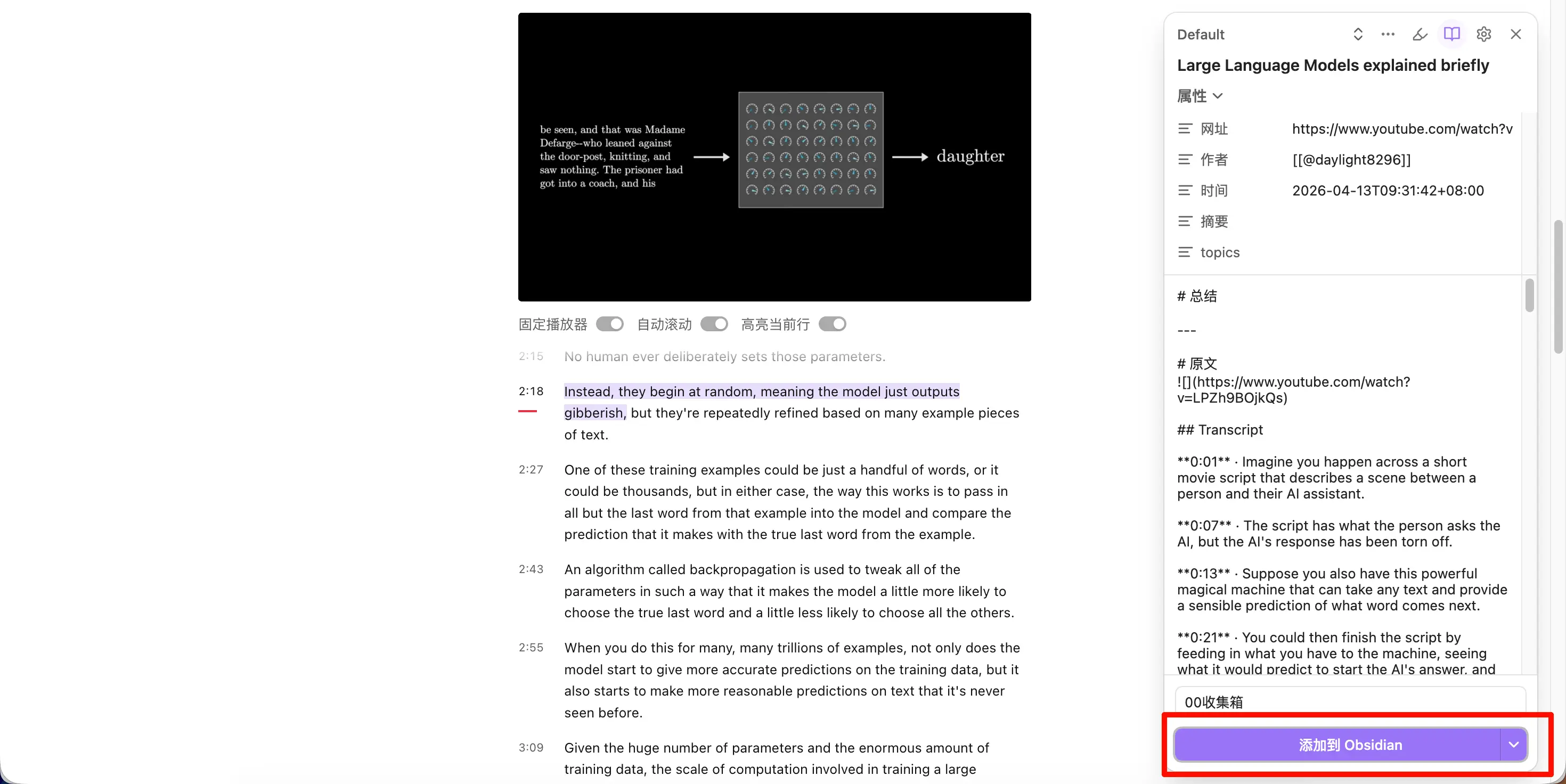
After Saving to Obsidian
After saving, open Obsidian and find the new note.
At the top, you’ll see an embedded preview of the original video that you can play directly in Obsidian; below it is the full transcript with timestamps.
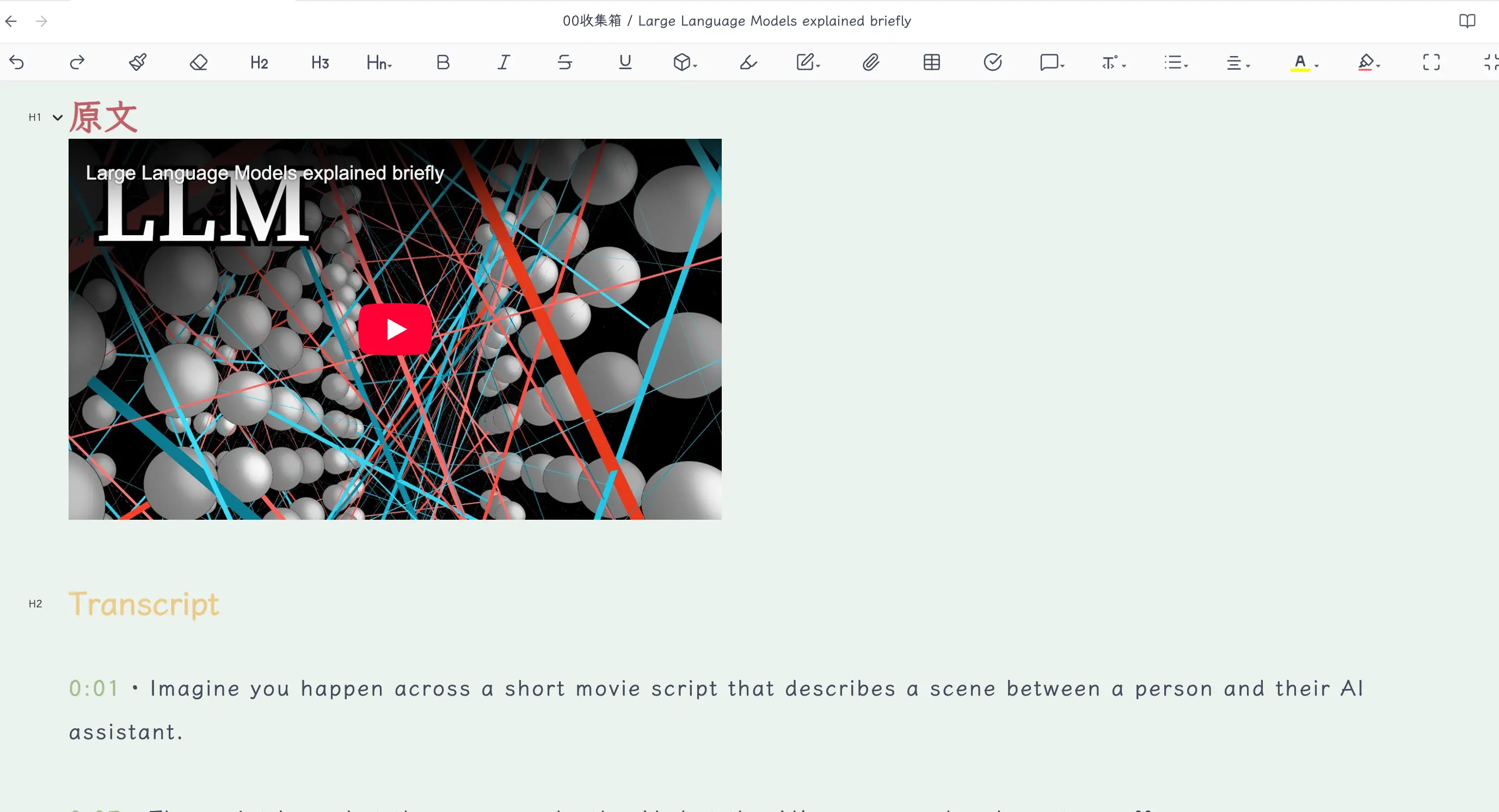
In the future, when you want to revisit this video, you don’t need to open your browser and search for it. Everything is in Obsidian—search, reference, annotation, all in one place.
What If You Don’t Understand English?
Many great videos on YouTube are in English, with English subtitles. But there’s a solution. We’ve covered three methods before, and I’ll reiterate them here:
Immersive Translate: This browser extension can directly provide bilingual translations for YouTube subtitles, displaying Chinese and English side by side. It’s the simplest to use.
Connect DeepSeek in Web Clipper: Web Clipper supports configuring an AI interface. You can set it to automatically call DeepSeek to translate the content into Chinese during clipping. Set it up once, and it’s fully automatic from then on. That means the subtitles below the video will already be translated when they arrive in your vault.
Translate with Claudian after saving: After saving the video subtitles into Obsidian, use the Claudian sidebar to translate them. The results are excellent, and you can even have it create a bilingual version, a pure Chinese version, etc.
These three methods were covered in previous articles. If you have questions, feel free to refer back to them.
Unfortunately, Bilibili Is Not Supported
It’s a real pity that this feature currently does not support Bilibili, especially since Bilibili is my go-to platform for educational videos. I hope the official team will add support in the future.
Fortunately, I previously created a free, open-source skill that can handle Bilibili video content. You can find it on the blog’s download page. If you need it, go check it out.
What We Learned Today
- Web Clipper 1.4 added YouTube video clipping. To enter this mode, click the “open book” icon in the plugin panel.
- The subtitle interface supports four features: video pinning, click-to-jump playback, auto-scroll, and highlighting the current position.
- After saving, the Obsidian note includes both an embedded preview of the original video and the full timestamped transcript.
- English videos are not a barrier. Immersive Translate, connecting DeepSeek in Web Clipper, and Claudian are three viable solutions.
- Bilibili is not currently supported, but there is a free open-source skill to fill the gap.
Key Takeaways
- Web Clipper’s YouTube clipping isn’t about taking screenshots or saving links; it extracts the full transcript and timeline.
- Subtitles and video are bidirectionally linked: click a subtitle to jump in the video, and the subtitles follow the video playback.
- Once saved into Obsidian, the video content becomes a searchable, quotable local note.
- Three translation methods are available to suit your needs; language is not a barrier.
- Bilibili is not yet supported—be aware of this limitation.