I’ve covered many operations and mentioned commands frequently, but I know you might not be used to that workflow. For common tasks, we can use the Commander plugin to add them to our context menu, making them much more convenient to access.
In simple terms: take the commands you use often and pin them directly to your context menu. Right-click anytime to access them, without needing to open the Command Palette every time.
Install the Commander Plugin
Open Settings, go to Community Plugins, search for command, find the Commander plugin, and install it.
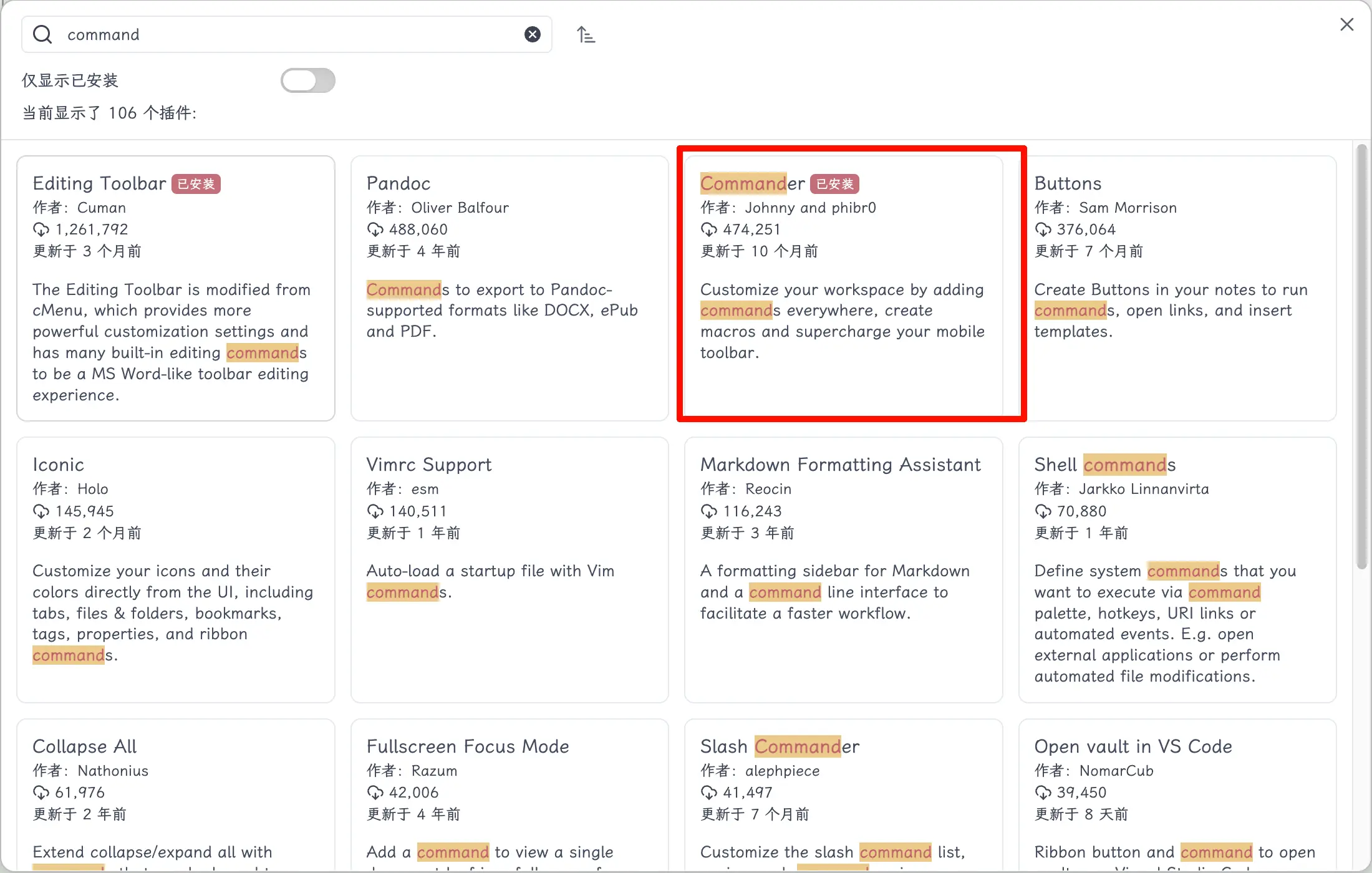
There are several plugins with “command” in their names. Look for Commander by Johnny and phibr0, with 470k+ downloads. Make sure you get the right one.
Open the Plugin Settings
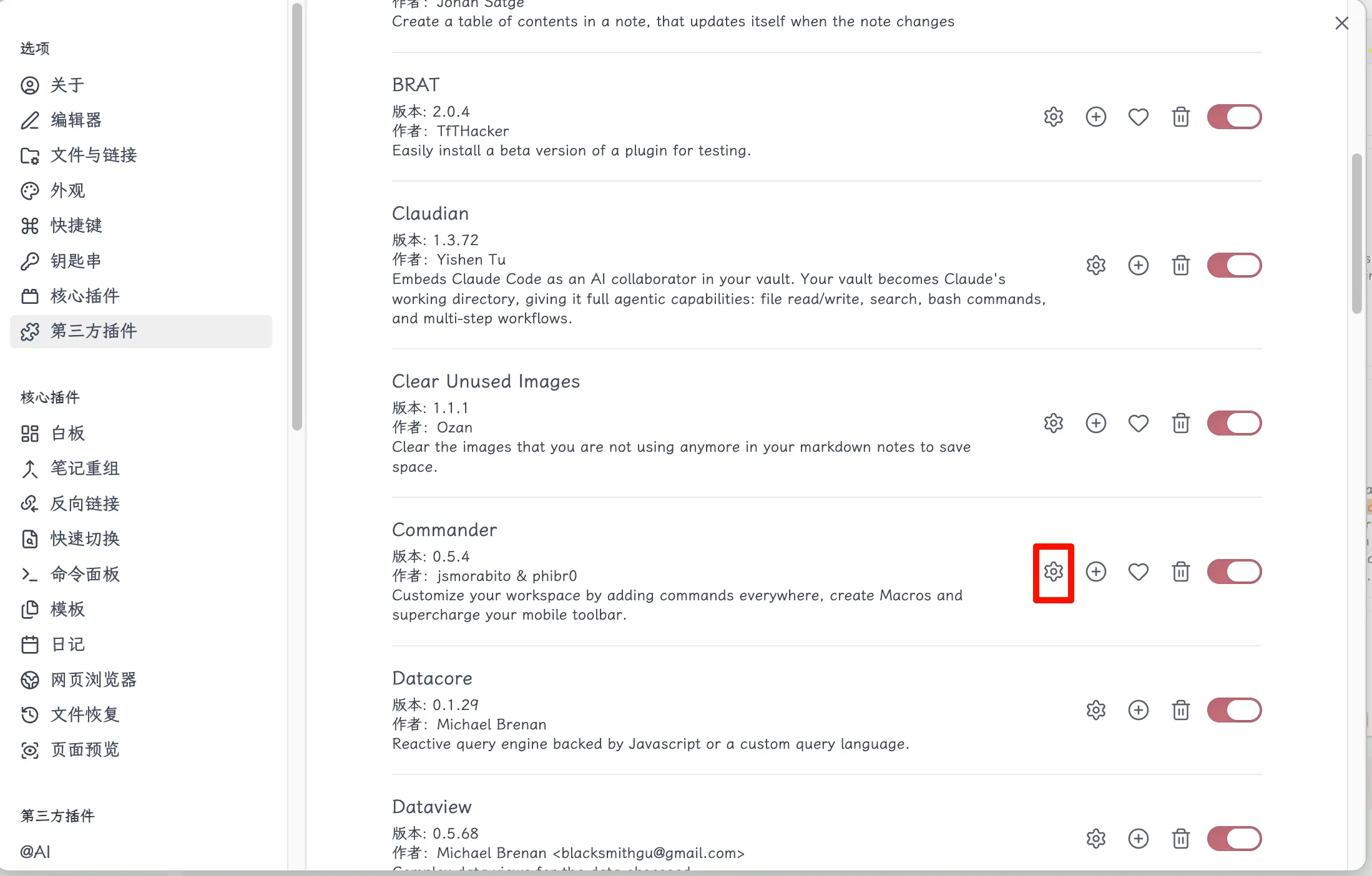
After installation, go to the Installed Plugins list, find Commander, and click the gear icon on the right to open its settings.
Access the Editor Menu
Once inside, you’ll see several tabs: General, Left Ribbon, Homepage, Status Bar, Editor Menu… We want to customize the context menu, so click the Editor Menu tab.
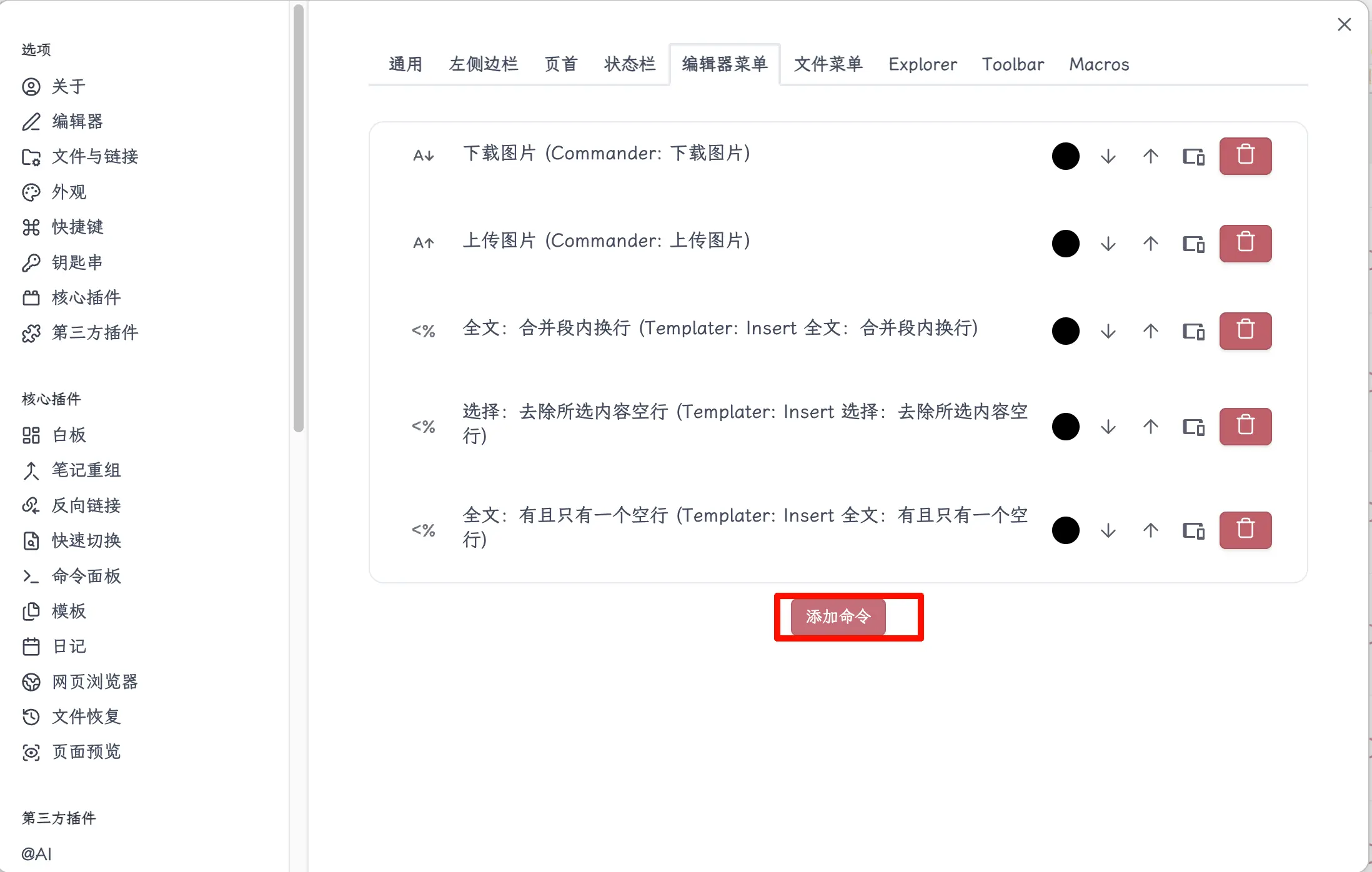
There are already some default commands. Scroll to the bottom and click the Add Command button.
Search and Select a Command
After the search box pops up, first type a keyword, then wait for the command list to appear before selecting.
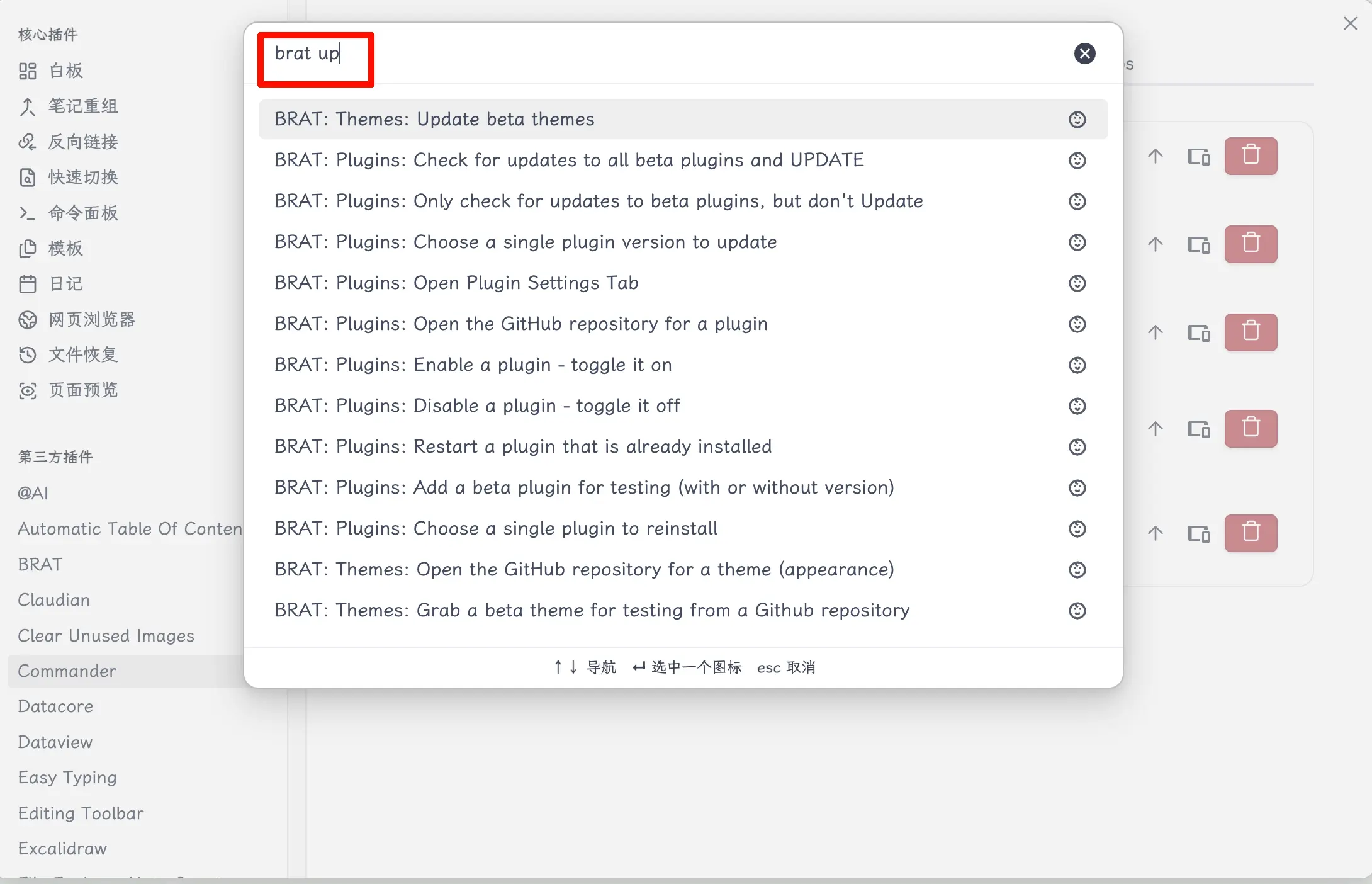
You must type a keyword first, then select from the list. Don’t click on the list while it’s empty, or you might not find the command you want—there are too many commands, and the default display is incomplete.
Name the Command
After selecting a command, a dialog will appear asking you to give it a custom name. It’s recommended to use a descriptive name so you can easily identify it in the context menu.

(Sometimes before this step, you may be asked to choose an icon. Pick any one or skip it—it doesn’t affect functionality.)
See the Result
Once done, right-click anywhere in the editor, and the newly added command will appear in the menu.
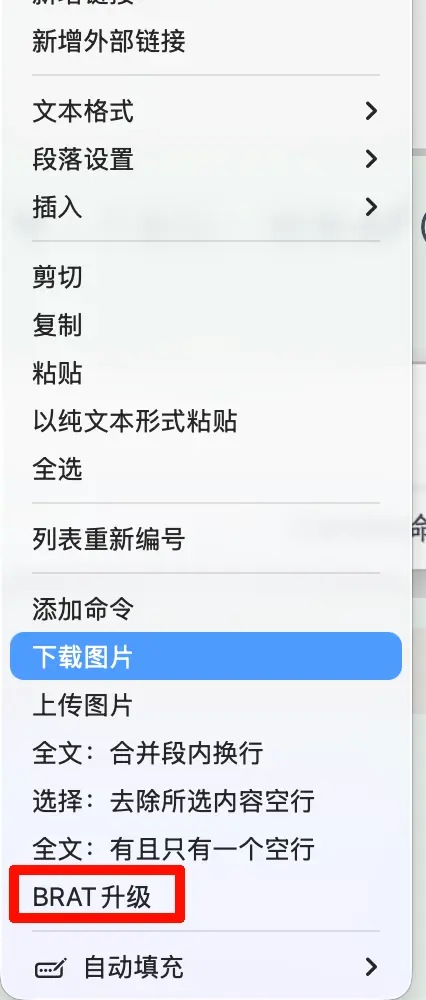
That’s it—six steps and you’re done. From now on, just right-click to use the command, much faster than opening the Command Palette.
Summary
This plugin is very simple to use, but it can significantly boost your daily efficiency. Obsidian has hundreds of commands. Pin your most frequently used ones to the context menu, and trigger them with a right-click, saving you the repetitive open-search-execute cycle.
What you learned today:
- The Commander plugin can add any Obsidian command to the context menu, sidebar, status bar, and other locations.
- When adding a command, you must type a keyword first before selecting, otherwise you might not find it.
- Give your commands descriptive names for easier identification in the context menu.
Key points:
- When searching for a command, type first, then select—the order matters.
- Commander can customize not only the context menu but also several other locations like the sidebar and status bar.
- Descriptive names are much more user-friendly than the default long English command names.