We’ve covered hotkeys—binding frequently used commands to keys to double your speed. Now let’s talk about another core plugin: Daily Notes.
The Daily Notes feature deserves its own chapter, not because it’s complicated, but because many Obsidian users never use it after installation, missing out on a valuable habit.
Why Write Daily Notes
Let’s start with a real problem: many people don’t write daily notes not because they don’t want to, but because it feels like a hassle—typing, organizing, figuring out what to write.
So let’s start with one method: voice input.
Doubao, Xunfei Input, or your system’s built-in voice keyboard all work. Open your daily note, switch to voice input, speak for a few minutes about what happened today, stop, and the text is automatically transcribed. No typing, no worrying about structure—just speak.
This lowers the barrier to writing daily notes to the minimum. After speaking a paragraph, occasionally add a line break manually, and you’re done in two or three minutes.
Don’t worry about quality. A simple log is perfectly fine. Where you went, what happened, what you thought—just jot it down.
What matters is not how well you write, but that you record your current thoughts, emotions, and events.
What can you do with your daily notes?
Besides reviewing them yourself, there’s an increasingly useful method: send your daily notes to an AI and have it review and summarize for you.
For example, paste the last week or month of daily notes and ask the AI: “What have I been mainly busy with? Are there any patterns? Any noticeable mood swings?”
The AI can help you spot patterns you might not notice yourself—which days you were in a bad state, when you were most productive, how your mindset changed around a decision. This is much more efficient than flipping through entries one by one.
A single daily note isn’t worth much, but a hundred notes are data.
Step 1: Enable the Daily Notes Core Plugin
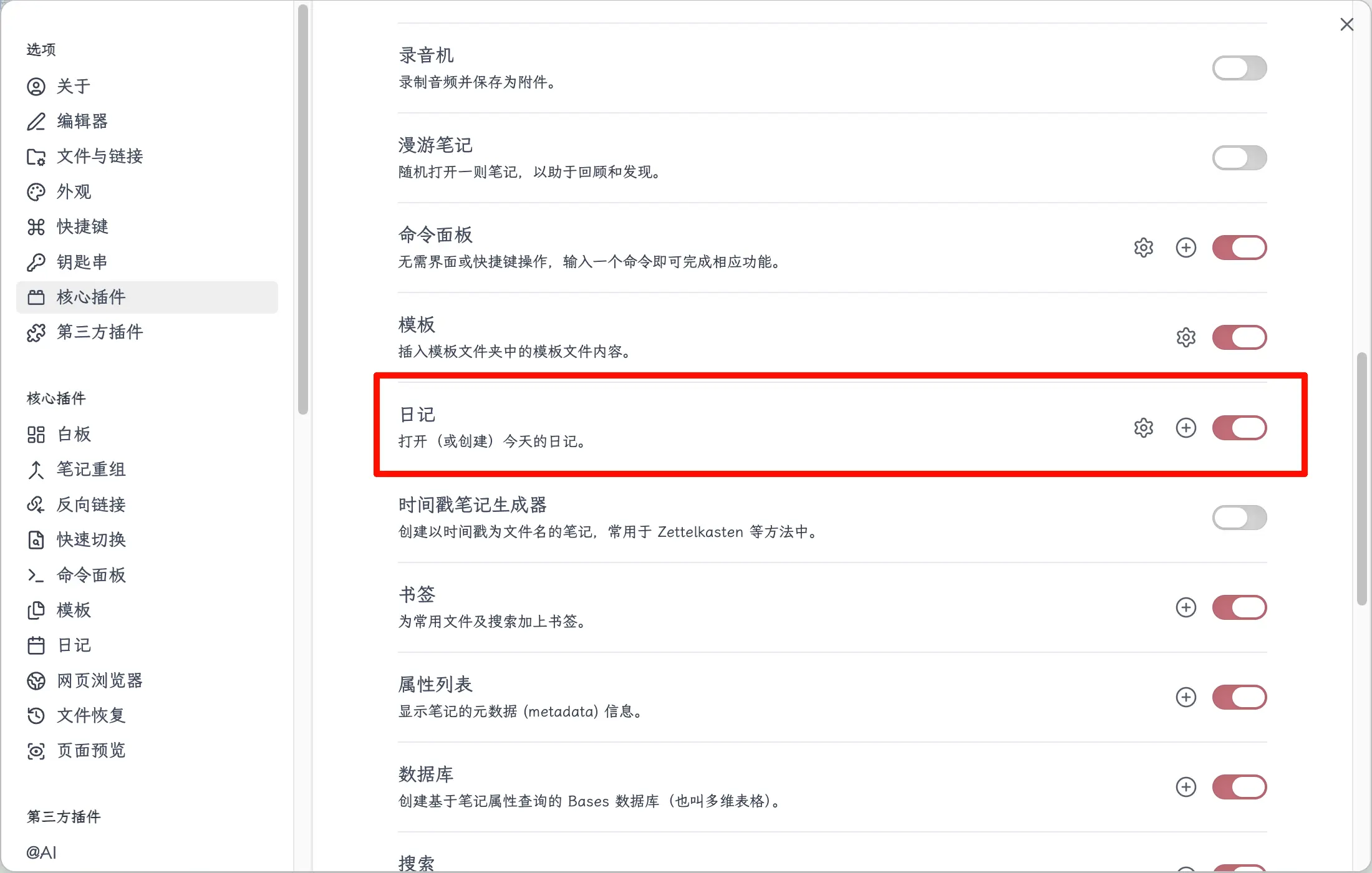
Daily Notes is a core plugin in Obsidian, disabled by default. You need to enable it manually.
Path: Settings → Core Plugins → Find “Daily Notes” → Toggle the switch on the right.
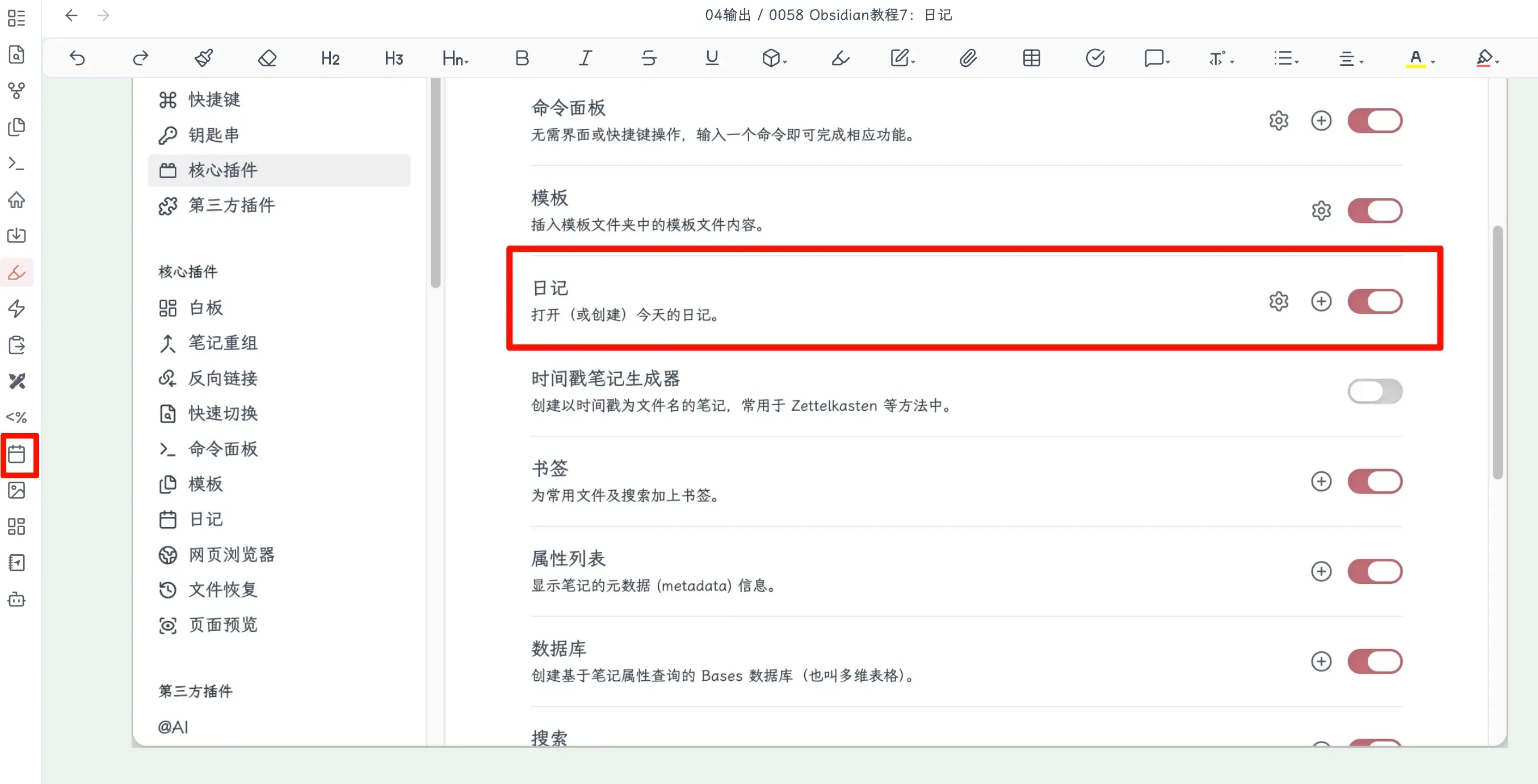
After enabling, a calendar icon will appear in the left sidebar. Click it to open today’s daily note directly.
Step 2: Configure Daily Notes
After toggling it on, a small gear icon will appear to the right of the “Daily Notes” line in Core Plugins. Click it to configure.
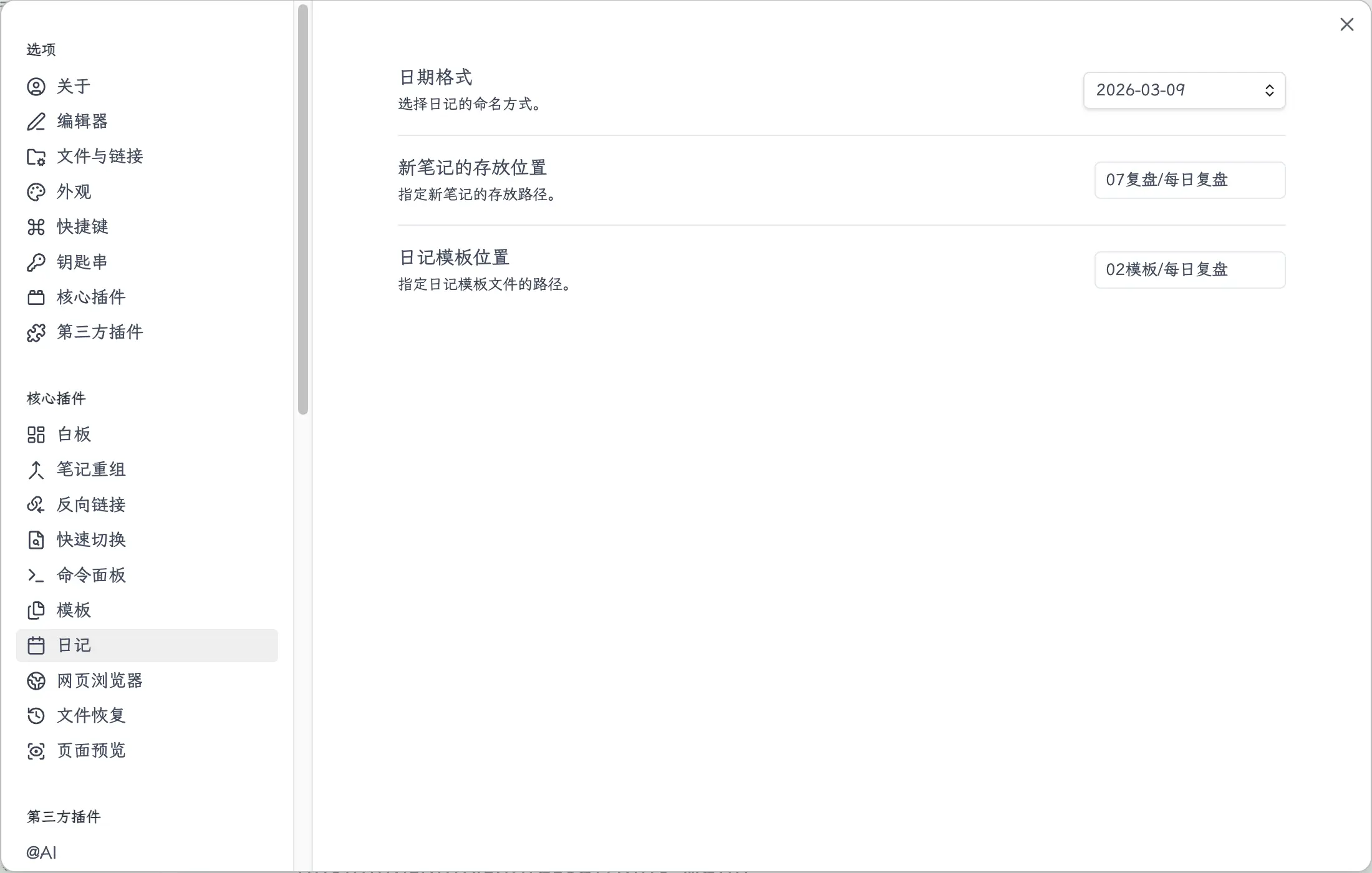
A few options to note:
Date Format
The default is YYYY-MM-DD, like 2026-03-09. Usually you don’t need to change it—this format is easy to sort and search.
If you have a preference (e.g., including the day of the week YYYY-MM-DD dddd), you can customize it here. The format rules are the same as {{date:YYYY-MM-DD}} in templates.
New File Location
Daily note files are created in the vault root by default. It’s recommended to change this to a dedicated folder, like 07 Daily Notes or 07 Review/Daily. This keeps your daily notes separate from other notes for easier management.
Template File
Enter the path to your daily note template here. Once set, each time you create today’s daily note, it will automatically apply this template—no need to invoke it manually.
This feature works with the next step: first create the template, then come back and fill in the path.
Step 3: Create a Daily Note Template
In your template folder (e.g., 02 Templates), create a new file and name it “Daily Note Template” or “Daily Record”—whatever you prefer.
Write a framework for what you want to record each day. A practical basic version:
---
date: {{date}}
---

## What I did today

## Problems encountered

## Plans for tomorrow
This is the same daily note template example from the chapter on templates. If you already created it then, just use it directly—no need to recreate.
A few notes:
{{date}}will automatically be replaced with the current date, no need to fill it in manually.- The three sections are a minimal framework. Add or remove based on your habits.
- If you use voice input, you can make the structure even simpler—for example, just keep one “## Today” section without sub-sections, and write a stream-of-consciousness log.
- Don’t make it too complex. The core reason you can stick with daily notes is one thing: low barrier.
After creating the template file, go back to the Daily Notes settings from the previous step and fill in the template file path (just the file name, e.g., 02 Templates/Daily Note Template).
Step 4: Start Writing Daily Notes
Once set up, there are three ways to open today’s daily note:
Method 1: Toolbar Icon
Click the calendar icon in the left sidebar to open today’s daily note directly. If it doesn’t exist yet, it will be created automatically.
Method 2: Command Palette
Press Cmd+P to open the command palette, type “Open today’s daily note”, and press Enter.
Method 3: Hotkey
If you think you’ll open your daily note every day, it’s worth assigning a hotkey (as described in the hotkey section). Once set, a single key press gets you there.
Choose whichever method feels comfortable. I use the toolbar icon—one click is enough.
Summary
What you learned today:
- Enable the Daily Notes plugin: Settings → Core Plugins → Daily Notes → Toggle on
- Configure three items: Date format, storage folder, template file path
- Create a daily note template: Place it in your template folder,
{{date}}auto-fills the date - Opening methods: Toolbar icon / Cmd+P search “Open today’s daily note” / Custom hotkey
Key points:
- Voice input is the lowest-effort way to write—use Doubao or other input methods, speak for a few minutes, text is transcribed automatically, no typing needed.
- Don’t make the template too complex—the fewer sections, the easier to stick with it. Just get started.
- After accumulating daily notes, you can send them to an AI to summarize patterns and review progress, which is much more efficient than flipping through them yourself.