As mentioned earlier, Canvas files are in .canvas format and exist separately from .md files—they need to be managed independently and can’t be combined with notes in the same file. This chapter introduces a tool that solves this pain point: the Excalidraw plugin.
What is Excalidraw and How is it Different from Canvas?
What is Excalidraw?
Excalidraw is a free and open-source online drawing tool with a standalone web version (excalidraw.com) that you can use directly in your browser without needing to sign up. Its hand-drawn style is perfect for flowcharts, mind maps, architecture diagrams, and similar content.
In Obsidian, we use the third-party plugin version—maintained by community developers, not officially by Obsidian, so it needs to be installed manually. The core features are the same as the web version, but with additional deep integration with Obsidian.
Differences from Canvas
Both seem like “drawing on a canvas,” but the file format is completely different, which is the core difference:
- Canvas: Generates a
.canvasfile. This is a standalone JSON file that exists separately from your.mdnotes and needs to be managed independently. - Excalidraw: The drawing data can be compressed and embedded at the end of a
.mdfile—one file, text and drawing coexist, no separate management needed.
The two screenshots below are from the same file:
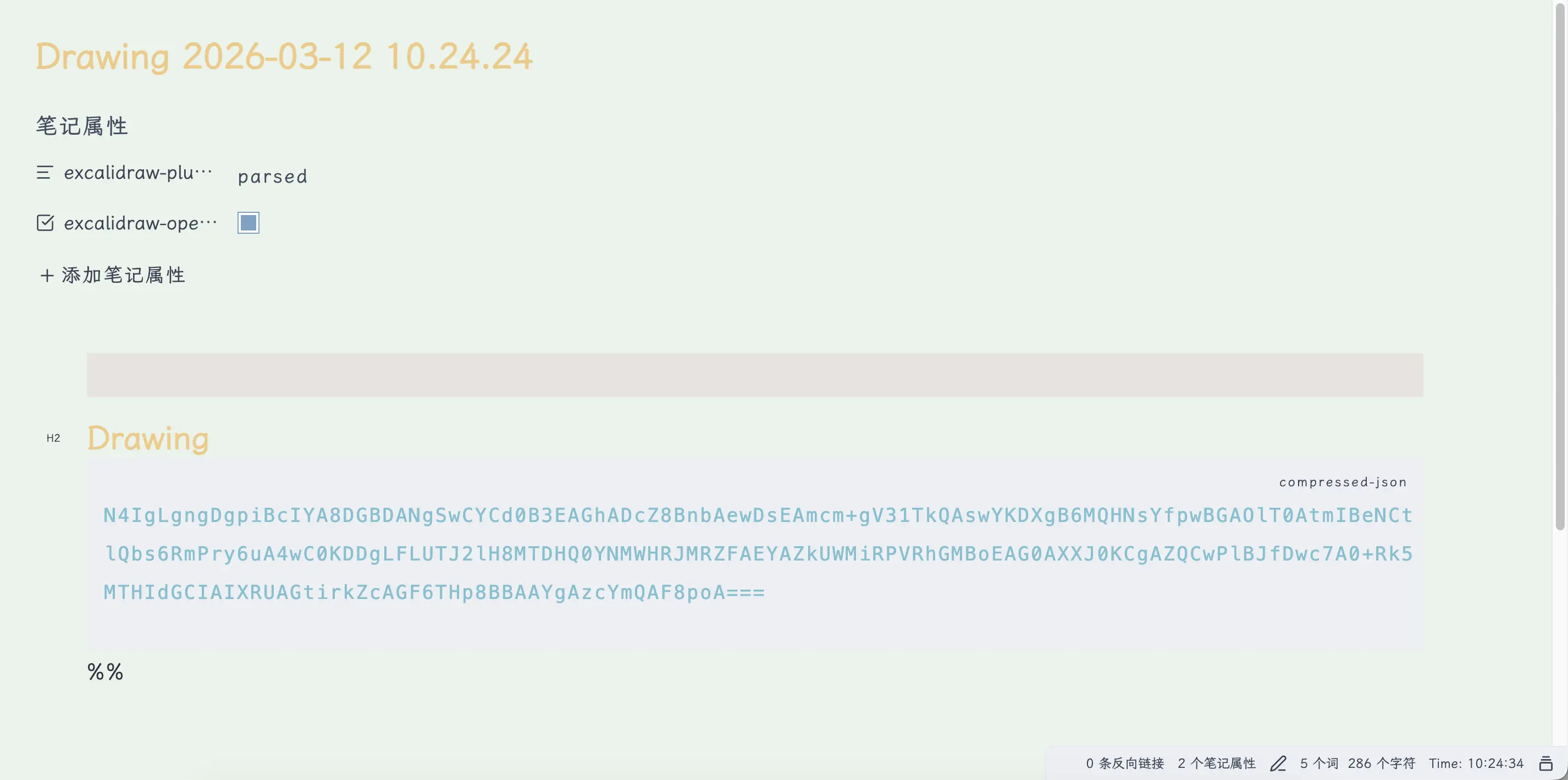
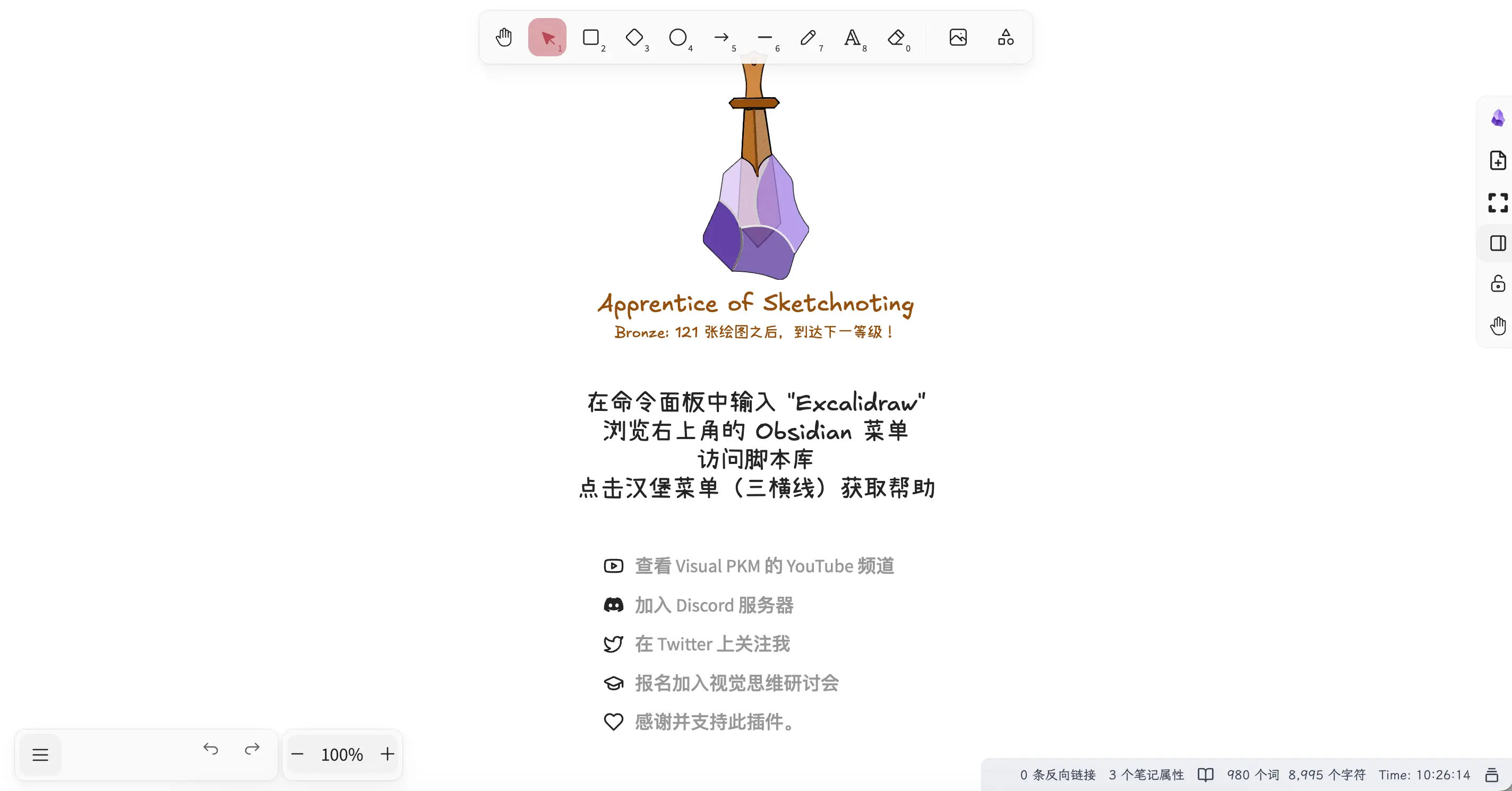
This is why I recommend Excalidraw: when you open a file, you see the text; with a switch, you see the drawing. Both types of content in one place.
Installing the Excalidraw Plugin
Excalidraw is a third-party plugin and needs to be installed manually.
Path: Settings → Third-party plugins → Community plugins → Search for “Excalidraw” → Install → Enable
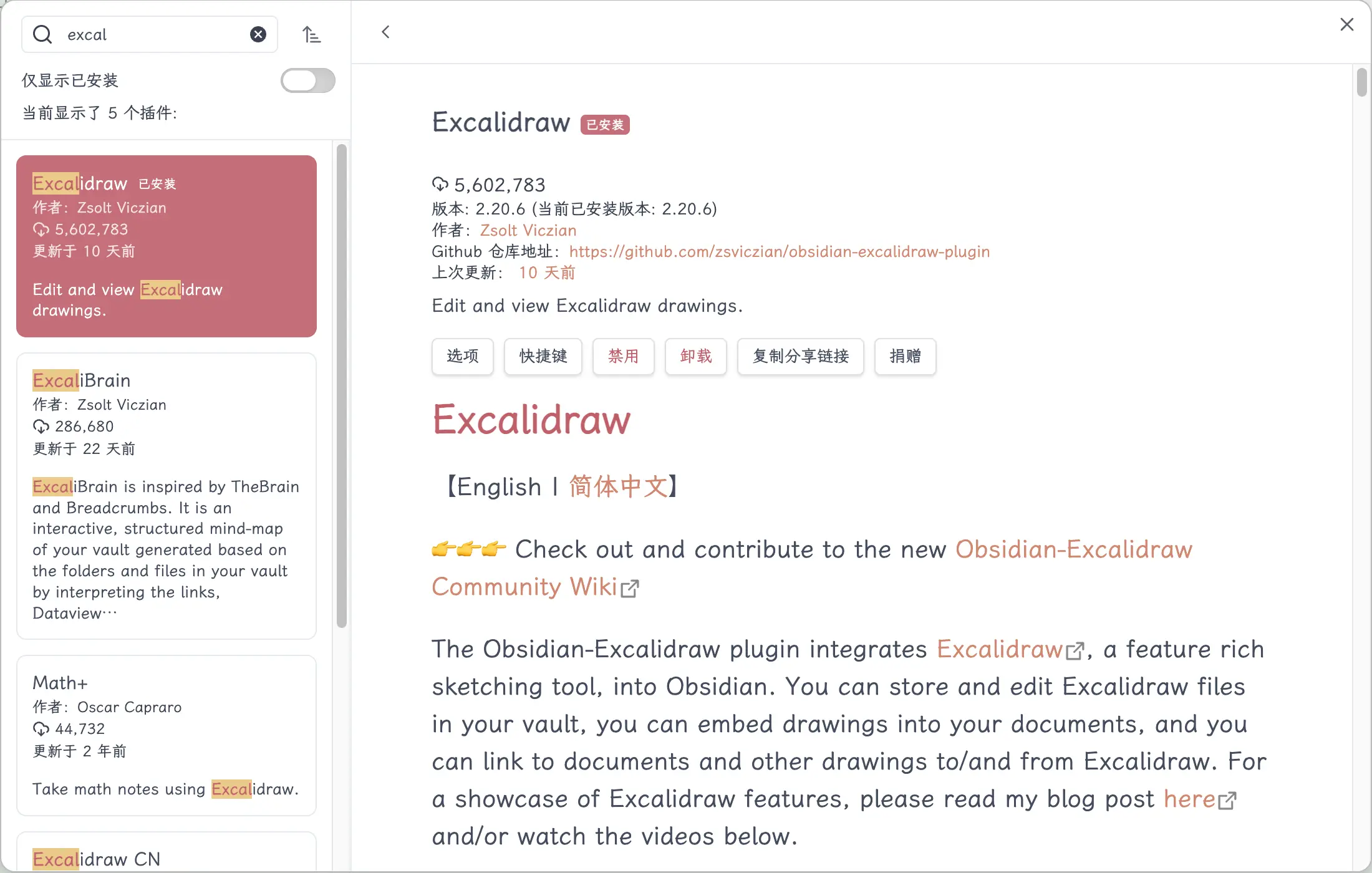
After installation, enable the plugin, and you’ll see an Excalidraw icon appear in the left sidebar.
Creating and Using Excalidraw
How to Create a New File
There are two ways:
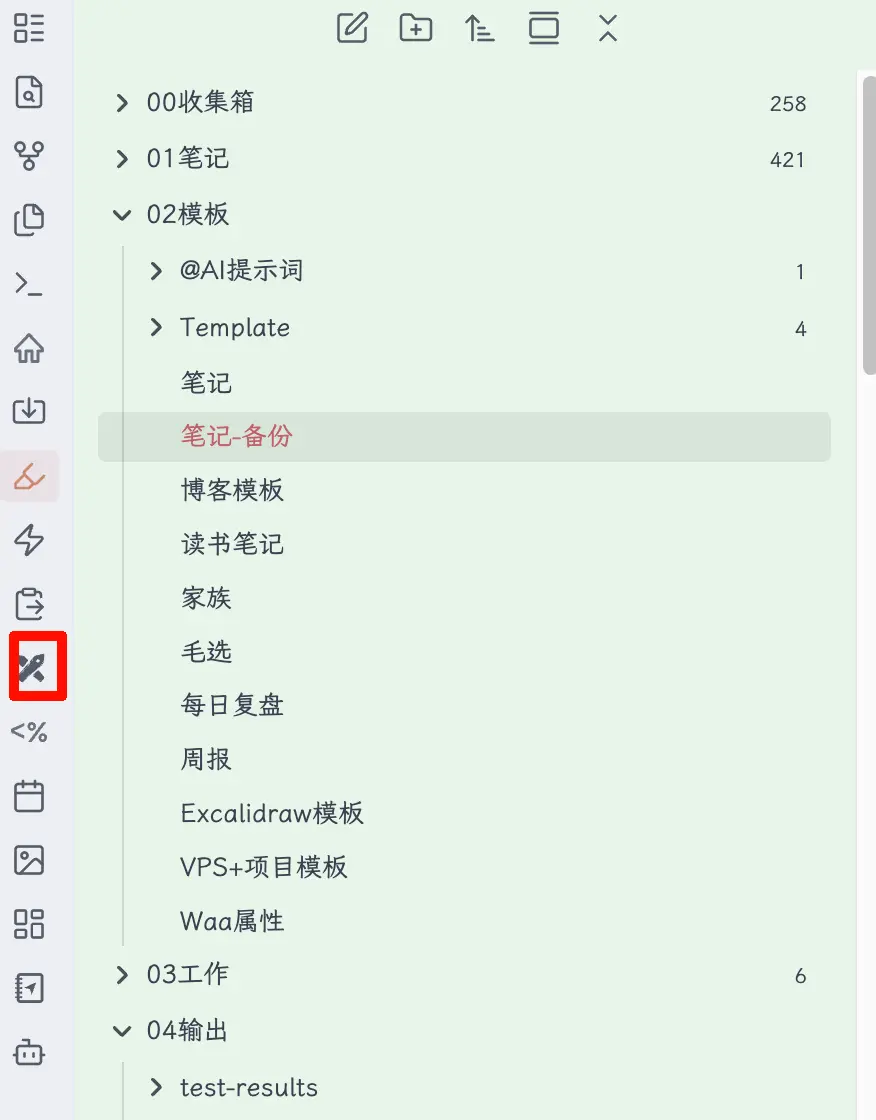
- Command Palette: Cmd+P (Mac) or Ctrl+P (Windows), search for “Excalidraw: New Drawing”, press Enter.
- Left Sidebar: Click the Excalidraw icon to create a new one directly.
By default, a new file is created as .excalidraw (not .md). Don’t worry—how to make it part of a .md file is the focus of the “Two-in-One” section later.
Common Operations and Shortcuts
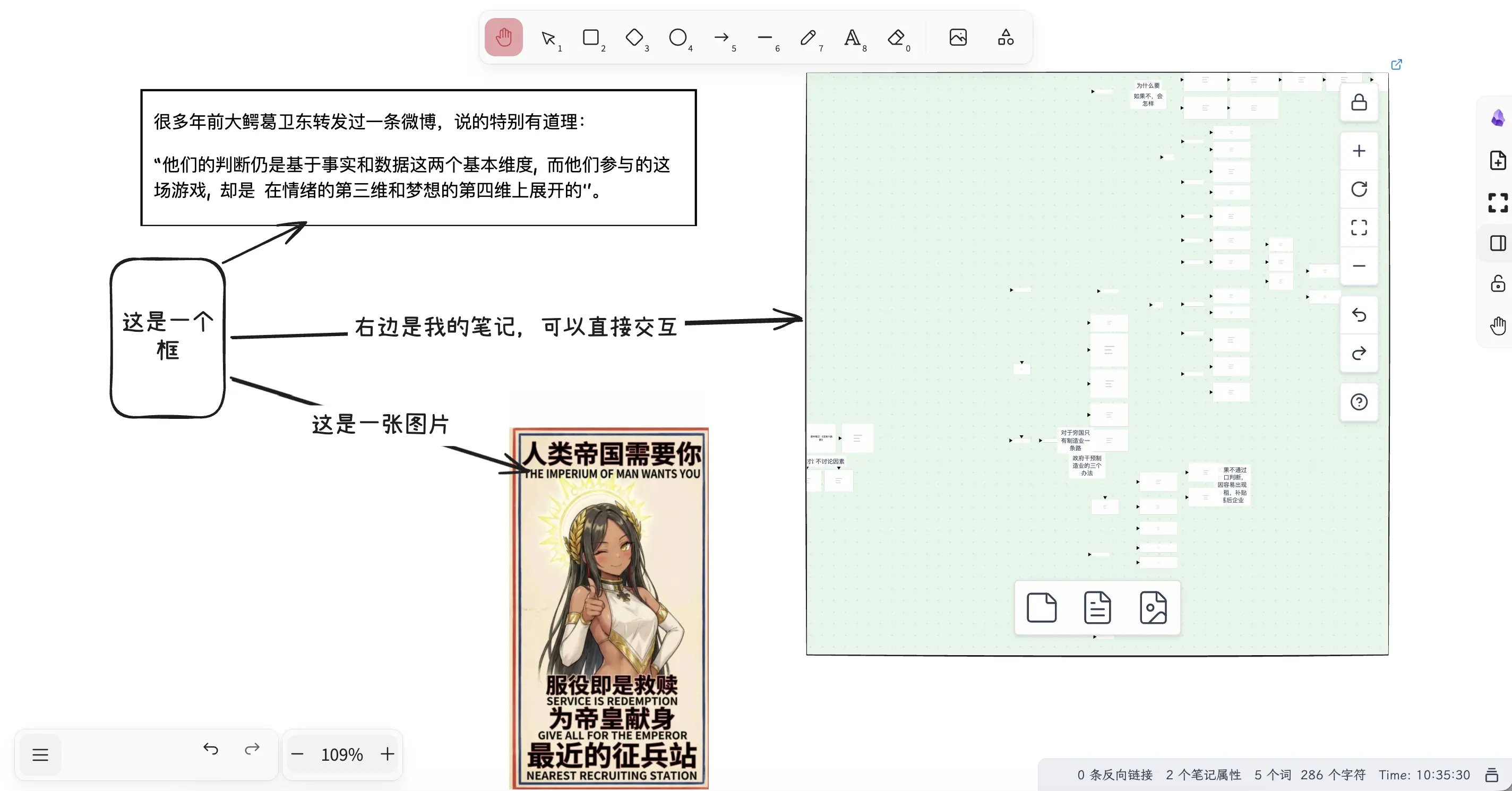
In Excalidraw’s toolbar, each tool has a number displayed below it—that’s the shortcut key. Press the number to switch tools directly without clicking the toolbar:
| Tool | Shortcut |
|---|---|
| Selection | 1 |
| Rectangle | 2 |
| Diamond | 3 |
| Ellipse | 4 |
| Arrow | 5 |
| Line | 6 |
| Freehand | 7 |
| Text | 8 |
| Eraser | 0 |
| Pan canvas | Space + drag, or middle mouse button drag |
| Zoom canvas | Ctrl/Cmd + mouse wheel |
| Fit to screen | Shift+1 |
| Select all | Ctrl/Cmd + A |
| Undo | Ctrl/Cmd + Z |
One extra feature compared to Canvas: Excalidraw has a dedicated Freehand tool (shortcut 7) that lets you draw freely with your mouse or trackpad—something Canvas can’t do.
Keyboard Workflow: Drawing Without Leaving the Keyboard
Excalidraw also supports a pure keyboard workflow, great for quickly creating nodes, connecting them, and writing content:
Basic Navigation (in Selection mode):
| Action | Shortcut |
|---|---|
| Select next/previous element | Tab / Shift+Tab |
| Move selected element | ← → ↑ ↓ |
| Enter text editing | Enter (when a text element is selected) |
| Exit editing, return to selection | Esc |
| Duplicate selected element | Ctrl/Cmd + D |
| Delete selected element | Backspace or Delete |
| Select all | Ctrl/Cmd + A |
Adding Content to the Canvas
Shapes and Text: Select a shape from the toolbar and click on the canvas to draw it. With the text tool, click and start typing—Chinese is supported.
Arrow Connections: When a rectangle is selected, hovering over its edge reveals green connection points. Drag an arrow from one of these points to another shape, and it will snap into place.
Existing Notes: Drag notes directly from the Obsidian file tree into the Excalidraw canvas—they will be embedded as note preview cards.
Images: Drag image files onto the canvas to display them directly.
Key Point! Drawing Excalidraw with AI
Similar to the “Drawing Canvas with AI” section earlier, Excalidraw can also be generated directly by Claude Code.
Background
We’ve previously introduced Claude Code and the Skill system. Canvas uses the json-canvas Skill, and Excalidraw also has a dedicated Skill: excalidraw-diagram. Of course, there are many MCPs and Skills around Excalidraw—you can choose what you need.
It’s created by axtonliu and open-sourced on GitHub:
https://github.com/axtonliu/axton-obsidian-visual-skills/tree/main/excalidraw-diagram
After downloading, place it in the ~/.claude/skills/ directory, just like other Skills.
This Skill generates standalone .excalidraw files, suitable for scenarios where you only need the drawing and don’t want it mixed with note text.
If you want to embed the drawing directly inside a .md file (the two-in-one format described later), I’ve written an extended Skill: obsidian-excalidraw, specifically for this purpose—the result is compressed and embedded at the end of the .md file, with no extra files created. The two Skills serve different purposes; choose as needed.
How to Use
In Claude Code, type /excalidraw-diagram, select this Skill, press Tab, then describe what you want to draw. Claude Code will generate the corresponding Excalidraw file.
Live Demo
I used the content of this chapter as a demo—I told Claude Code: “Draw a flowchart of the chapter structure of this Excalidraw content, showing the relationships between the sections.”
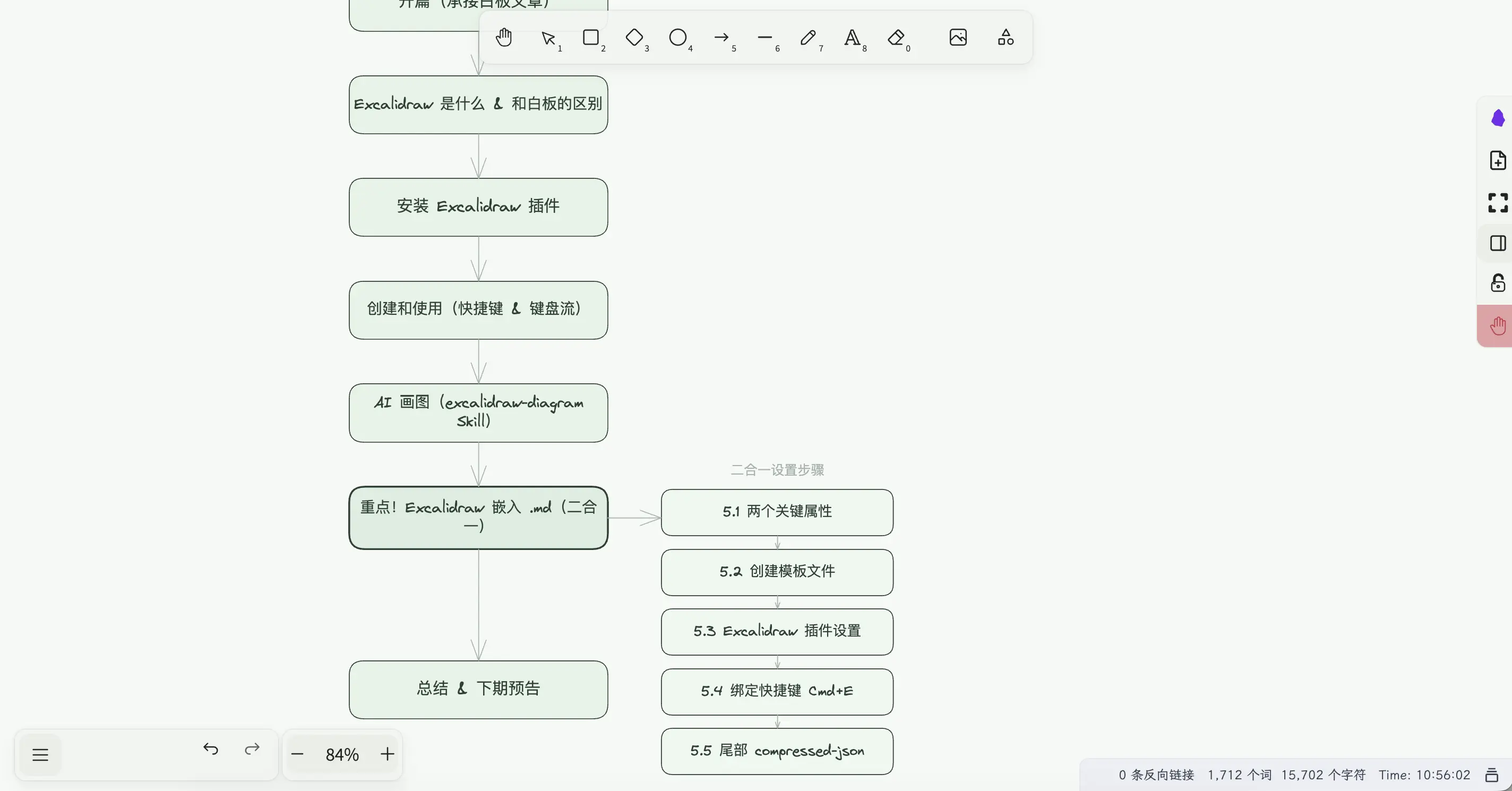
Claude Code read the content and automatically generated a structure diagram, embedded directly at the end of the .md file. Switch to Excalidraw mode to see it. No need to manually drag nodes or connect lines—much faster than drawing by hand.
Key Point! Embedding Excalidraw into .md Files (Two-in-One)
Let’s be clear: By default, the Excalidraw plugin creates .excalidraw files, which are separate from .md files and need to be managed independently, just like Canvas.
The “two-in-one” feature is not the default behavior; it requires additional configuration. Once configured, new files will be in .md format, with the drawing data compressed and stored at the end of the file, so both coexist in the same file.
Canvas can’t do this, but Excalidraw can—after configuration, the same .md file can serve as both a regular note and a drawing board, all in one file. This is the most valuable part of this article.
Below, I’ve broken it down into 5 steps.
5.1 Two Key Properties
Observant readers may have already seen these two frontmatter properties in my earlier note screenshots:
excalidraw-plugin: parsed
excalidraw-open-md: true
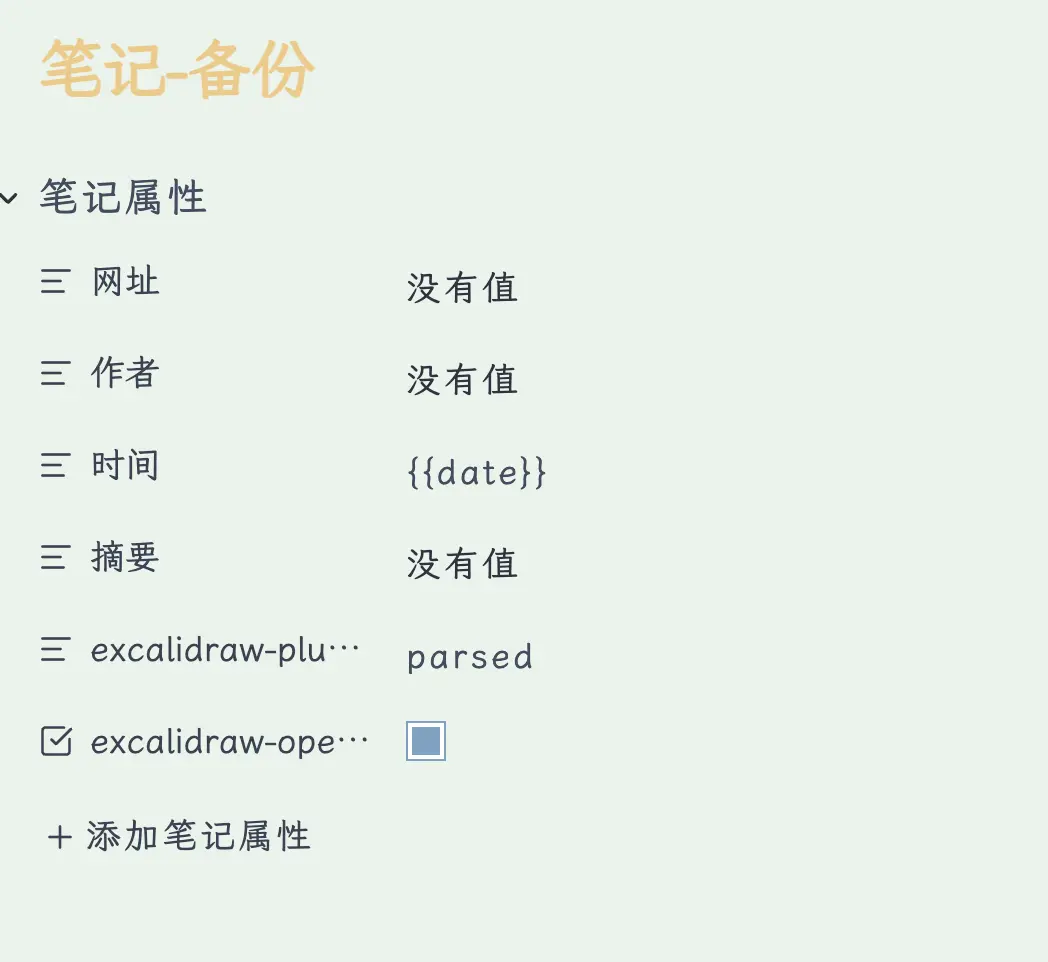
excalidraw-plugin: parsed: Tells the Excalidraw plugin that this .md file contains Excalidraw data that needs to be parsed. Without this property, the plugin won’t process the file.
excalidraw-open-md: true: Opens the file in Markdown mode by default (instead of directly entering drawing mode). Set to true, you’ll see the text first when opening the file, and manually switch when you need to draw. Without it, every time you open the file, it jumps straight to the drawing board, and you’d have to switch back to read text—annoying.
With these two properties in the frontmatter, the file gains “dual-mode” capability.
5.2 Creating a Template File
The key to the two-in-one setup is to save this configuration in a template file, so that new notes automatically include it without manual addition each time.
Steps:
- In your template folder (e.g.,
02 Templates/), create a new.mdfile and name it “Excalidraw Template”. - Copy and paste the following content into it, then save.
---
excalidraw-plugin: parsed
excalidraw-open-md: true
---

%%
### Drawing
```compressed-json
N4IgLgngDgpiBcIYA8DGBDANgSwCYCd0B3EAGhADcZ8BnbAewDsEAmcm+gV31TkQAswYKDXgB6MSgw4CxAHSp6AWzJJMMJTEZgaCANoBdcuihQAymHRg+oCthhEAQulQBrAOb4ujXAGF6mPT4CCAAxABmkVGqnnhm2ABefIycmJgAvuTh2Oq68MDp6UA
```
%%
This is an Excalidraw template with an empty canvas. The two frontmatter properties (excalidraw-plugin: parsed and excalidraw-open-md: true) tell the plugin that this file is in two-in-one format and should open in Markdown mode by default. The compressed-json at the end is the empty canvas data.
5.3 Excalidraw Plugin Settings
Having a template file alone isn’t enough—you also need to tell the Excalidraw plugin “where to find the template” and disable a setting that interferes with file management.
Path: Settings → Excalidraw
Two things to modify:
① Set the template location: In Excalidraw settings, find the “Template file” option and enter the path to your template, e.g., 02 Templates/Excalidraw Template. From then on, every time you create a new file with Excalidraw, it will automatically use this template, including the excalidraw-open-md: true property.
② Disable “Add date to new file name”: By default, Excalidraw appends the creation date to new file names, e.g., Drawing 2026-03-12. This makes file names verbose and incompatible with Obsidian’s template naming logic. Find this option and turn it off.
5.4 Binding a Shortcut Key
Switching between Markdown mode and drawing mode via the right-click menu is too slow—bind a shortcut key for instant toggling.
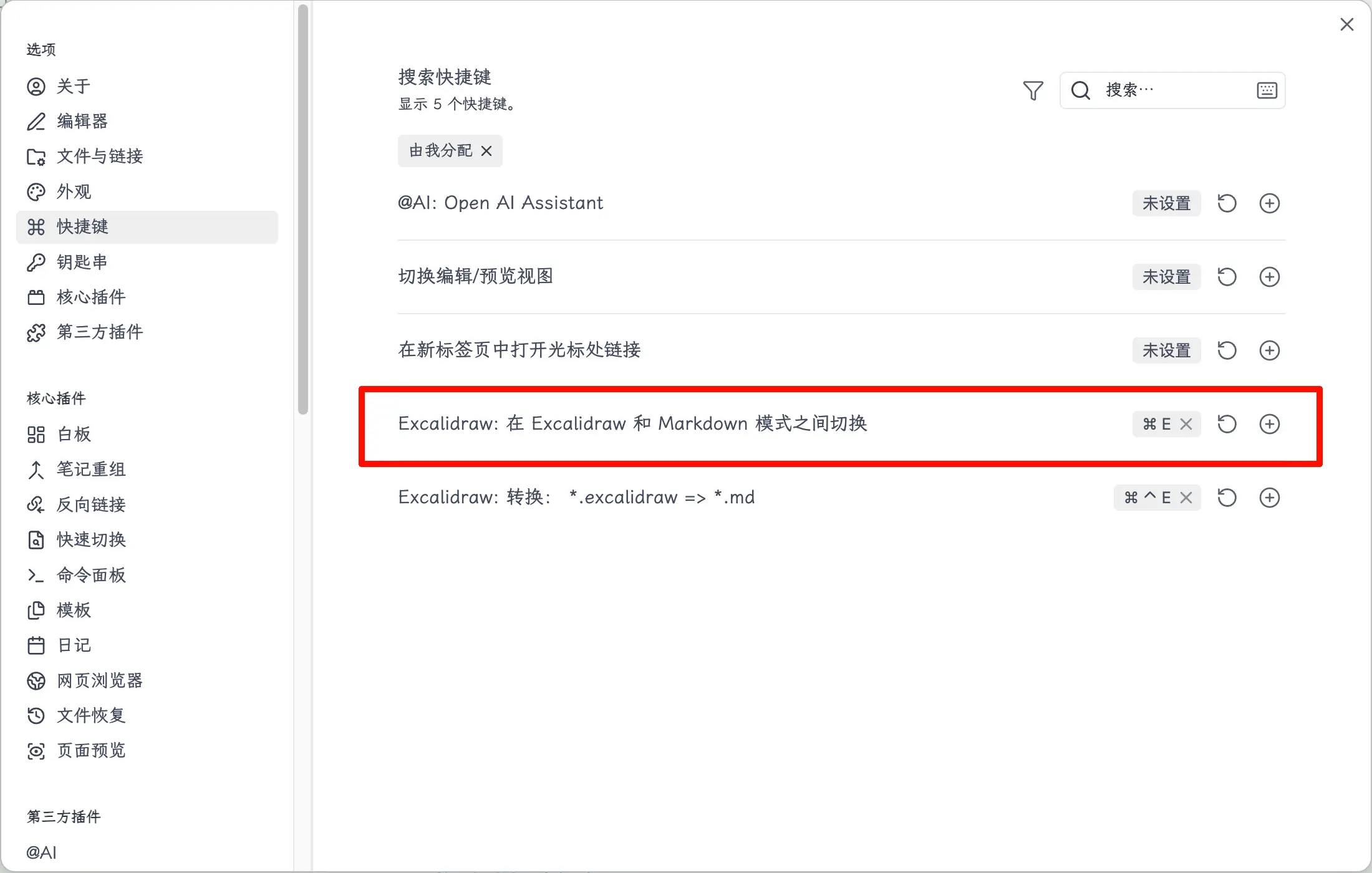
Path: Settings → Hotkeys → Search for “Excalidraw”
Find this entry: “Excalidraw: Toggle between Excalidraw and Markdown mode”
Bind it to Cmd+E (Mac) or Ctrl+E (Windows). First check if this key combination is already in use—Obsidian’s default Cmd+E is for italics. If you use italics often, choose a different key, like Cmd+Shift+E.
After binding, in a two-in-one file, press Cmd+E to toggle between “viewing text” and “viewing drawing”—very convenient.
5.5 Compressed Data at the End of the File
After setup, every time you save drawing content in a two-in-one file, a block of data is automatically generated at the end of the file:
%%
### Drawing
```compressed-json
N4IgLgngDgpiBcIYA8DGBDANgSwCYCd0B3EAGhADcZ8BnbAewDsEAmcm+gV31TkQ...
```
%%
This compressed-json code block is the result of compressing all the drawing data—coordinates, colors, text content, connection relationships—all compressed into this single line of string.
Three things to note:
- Do not manually delete this content. If you delete it, the drawing data is gone, and switching to Excalidraw mode will show an empty canvas.
%%is Obsidian’s comment syntax. In Reading view, this content is hidden and won’t be displayed, so it doesn’t affect the note’s readability.- The
compressed-jsonline must be a complete single line. If it’s broken by a line break, the file will error and fail to open.
Summary
What you learned today:
- Excalidraw = free and open-source drawing tool: Has a standalone web version; Obsidian uses the third-party plugin version, with hand-drawn style and infinite canvas.
- Core difference from Canvas: Canvas generates separate
.canvasfiles that need independent management; Excalidraw drawing data can be compressed and embedded into.mdfiles—one file, two uses. - Installation: Settings → Third-party plugins → Community plugins → Search for and install Excalidraw.
- Tool shortcuts: Number keys 1-8 and 0 to switch tools, Esc to exit editing, Tab to jump between elements, arrow keys to move—core rhythm: number keys for tools + Esc/Tab for navigation.
- AI drawing: The
/obsidian-excalidrawSkill lets Claude Code directly generate embedded drawings, much faster than manually dragging nodes. - Two-in-one setup: Add
excalidraw-plugin: parsed+excalidraw-open-md: trueto frontmatter, configure via template file, set template path in Excalidraw settings, bind Cmd+E for quick mode switching. - File tail data: The
## Drawing+compressed-jsoncode block is the compressed drawing data, wrapped in%%, invisible in Reading view—do not delete manually.
Acknowledgments: The “Two-in-One” setup in this chapter references the method by Bilibili creator Fiveth_ (video: BV1hyhPzoEcd), credited here.