We previously covered CSS Snippets, teaching you how to use a small piece of code to fine-tune various details of the Obsidian interface. This chapter is the final part of our beautification trilogy—changing fonts.
The topic of fonts is both simple and significant—it’s just changing a font, after all. But after you change it, you’ll likely have a reaction: “So I’ve been settling all along.” A good font doesn’t just make the interface flashier; it makes your eyes less tired every time you open Obsidian, reading smoother, and makes you want to write more.
This chapter covers four things:
- Fonts have copyrights—how to use them safely
- Where to download free fonts
- How to install them into Obsidian after downloading
- What font I use myself, and its confusing name
Fonts Have Copyrights
First, something many people don’t know: Fonts have copyrights.
If you search for a font name online, download it, install it, and use it for yourself, no one will bother you. But if you use that font in a commercial project—like product UI, printed promotional materials, or in released software—you could be infringing copyright.
Among Chinese fonts, there are many that “look free but actually have strict copyrights.” Companies like FounderType and Hanyi have specific licensing systems: free for personal use, paid for commercial use. Some designers and programmers, unaware of this, directly bundle fonts into projects and end up receiving legal letters.
But for taking notes in Obsidian, which is almost never a commercial use, any font is fine.
I bring this up to instill a habit: prioritize free and open-source fonts. You can use them without any legal worries, even for commercial purposes, and you can tinker with them freely.
Open-source fonts typically use the SIL Open Font License (SIL OFL) — this license means the font is free, can be used for personal and commercial purposes, and can even be modified and redistributed, with the only requirement being that modifications must also be open-sourced under the same license.
Choosing a font with SIL OFL is like choosing “permanently free and worry-free.”
Where to Download Fonts
After discussing copyright, let’s talk about download sources.
First recommendation: Maoken.com
Website: maoken.com
This is a Chinese website dedicated to cataloging free Chinese fonts. It features hundreds of free-to-use commercial Chinese fonts, each with preview images and license information. If you don’t know what to choose, just browse here and you’ll easily find something you like.
Second recommendation: GitHub
Many open-source fonts are released directly on GitHub. For example, the font I’ll recommend below, LXGW WenKai, is in the lxgw/LxgwWenKai repository on GitHub. Go to the Releases page and download the packaged font archive directly.
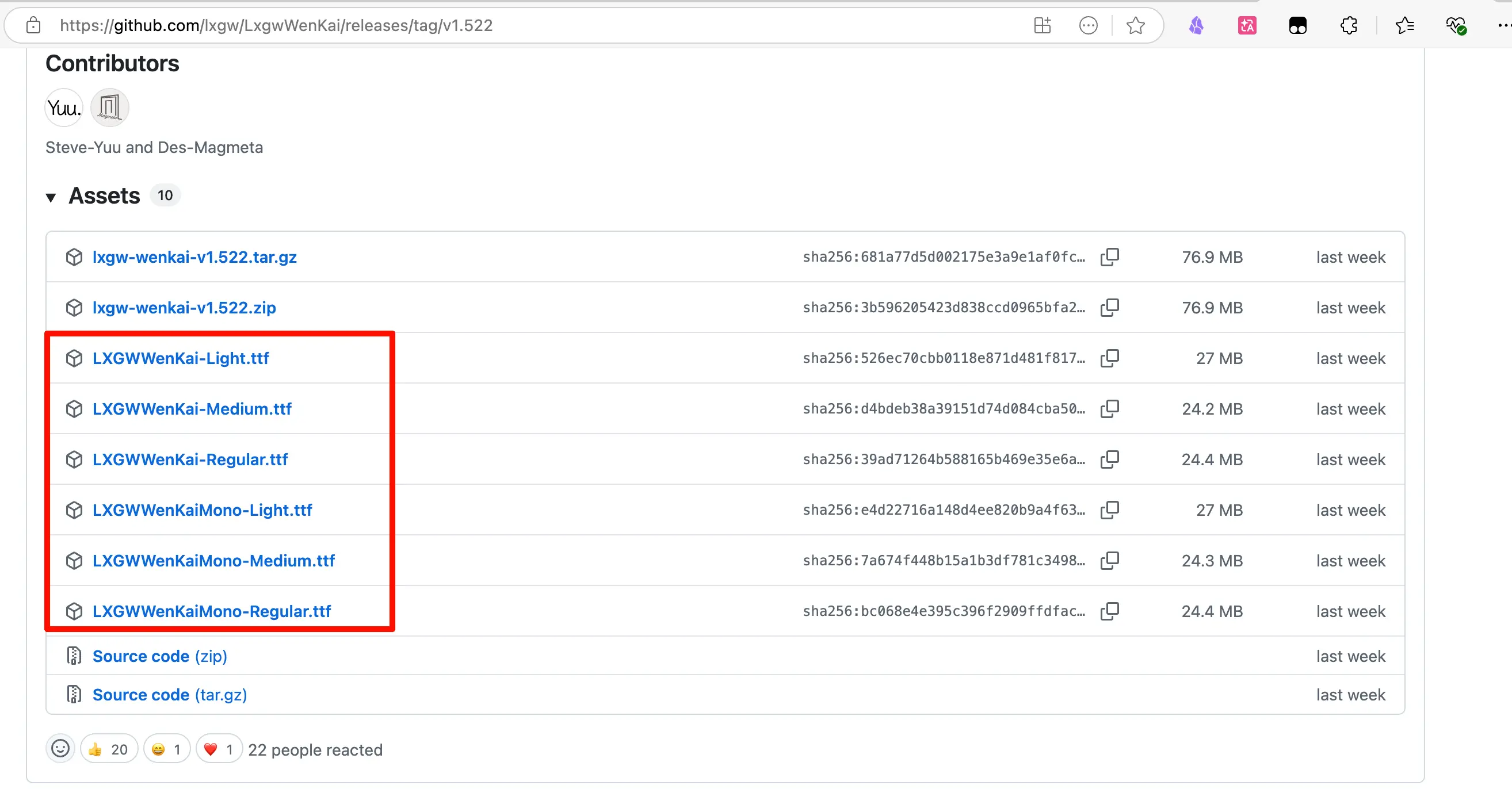
Accessing GitHub from China can sometimes be slow. You can use a Gitee mirror or go directly to Maoken.com, as many open-source fonts are also collected there.
Format Notes
Common font file formats:
.ttf(TrueType Font): Most universal, supported on both Mac and Windows.otf(OpenType Font): Newer format, slightly more features, also supported on Mac/Windows
Either works; you can use either without worry.
How to Install Fonts into Obsidian
After downloading the font, there are two steps: first install it on your system, then tell Obsidian to use it.
Step 1: Install the font on your system
On Mac, double-click the downloaded .ttf or .otf file. A font preview window will appear. Click the “Install Font” button in the top-left corner. Done.
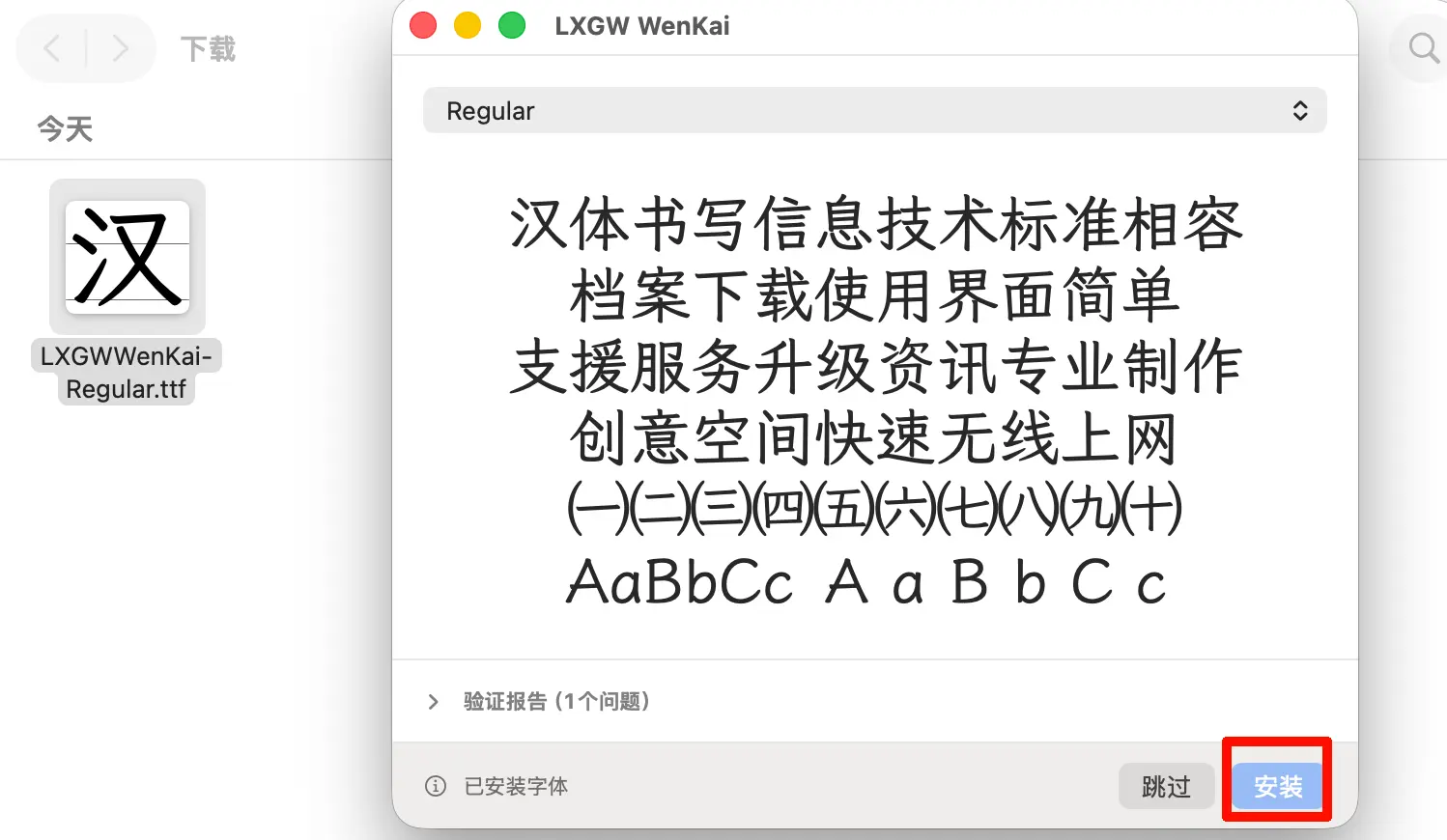
Alternatively, you can drag the font file directly into the Font Book application to install it.
On Windows, right-click the font file and select “Install” or “Install for all users”. Done.
Once installed, the font is in the system font library and can be used by all software.
Step 2: Enable the font in Obsidian
Obsidian has two ways to switch fonts: one is using the interface settings, and the other is using a CSS Snippet.
Method 1: Interface Settings (Simple, recommended to try first)
Path: Settings → Appearance → Fonts
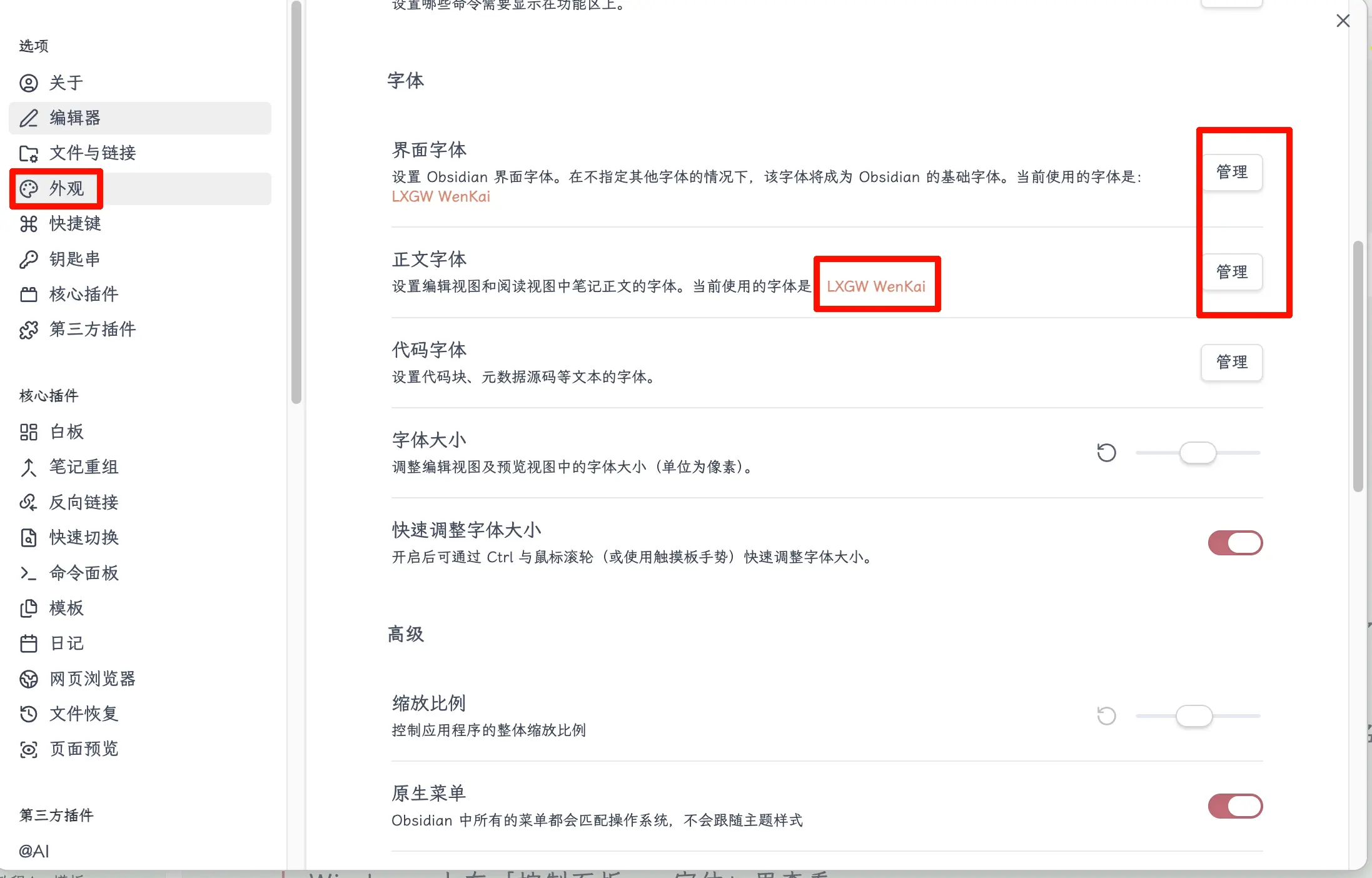
There are three input fields:
- Interface font: Font used for interface elements like sidebar, menus, title bar
- Text font: Font used for note content (this is the most commonly changed)
- Monospace font: Monospace font used for code blocks
In the “Text font” field, directly enter the font name, e.g., LXGW WenKai, press Enter, and Obsidian will immediately switch to it.
The font name must be the English name, with correct capitalization. This is the “official name” after the font is installed on the system, not the Chinese display name.
How to find the English name of a font? On Mac, open Font Book, find the font, and the displayed name is the English name. On Windows, check in Control Panel → Fonts.
Method 2: CSS Snippet (More flexible, suitable for fine control)
In your CSS Snippet file, add these lines:
/* Set fonts */
body {
  --font-text-theme: "LXGW WenKai", "LXGW WenKai CN", serif;     /* Text font */
  --font-interface-theme: "LXGW WenKai", "LXGW WenKai CN", sans-serif; /* Interface font */
}
--font-text-theme controls the text font, --font-interface-theme controls the interface font. Just combine them in one body {} block.
Put these lines into a .css file, save it to the .obsidian/snippets/ directory, and enable it in Settings → Appearance → CSS snippets.
Both methods have similar effects. Interface settings are more straightforward, while the CSS method is more flexible and can be combined with other snippets for management. For daily use, interface settings are sufficient.
My Choice: LXGW WenKai
After covering the methods, let me share my own choice: LXGW WenKai.
The name is a bit hard to remember in Chinese, but after installing it, the Chinese reading experience is quite good. It has a bit of a handwritten regular script feel, not rigid, and easy on the eyes even after long reading sessions.
License: SIL OFL 1.1, completely free for commercial use, no copyright worries.
Download: GitHub lxgw/LxgwWenKai
https://github.com/lxgw/LxgwWenKai/releases
The creator also has a Bilibili account under the same LXGW name.
Summary
What we learned today:
- Fonts have copyrights; personal note-taking in Obsidian is fine, but for commercial projects, prioritize SIL OFL free fonts.
- Recommended download sources: Maoken.com (specializing in free Chinese fonts), GitHub.
- Font installation process: double-click
.ttf/.otffile to install on system → reference in Obsidian. - Changing fonts in Obsidian: Settings → Appearance → Text font, directly enter the font’s English name.
- Advanced method: use the
--font-text-themevariable in a CSS Snippet to set the font. - Recommended font: LXGW WenKai, free for commercial use, great Chinese reading experience.
Key takeaways:
- Install on system first, then enter the font name. Two steps, no hassle.
- Make sure to enter the font’s English name correctly, paying attention to capitalization.
- If you don’t know which font to choose, browse Maoken.com first.
- LXGW WenKai is what I currently use; the name is hard to remember, but the font is beautiful.