In this chapter, we’ll talk about Obsidian’s Properties.
In the previous chapter, we covered plugins, which make Obsidian more powerful. This chapter covers something less flashy but very practical: adding metadata to each of your notes.
What Are Properties?
Open a note, click the three dots (⋯) in the top right corner, and select “Add property”.
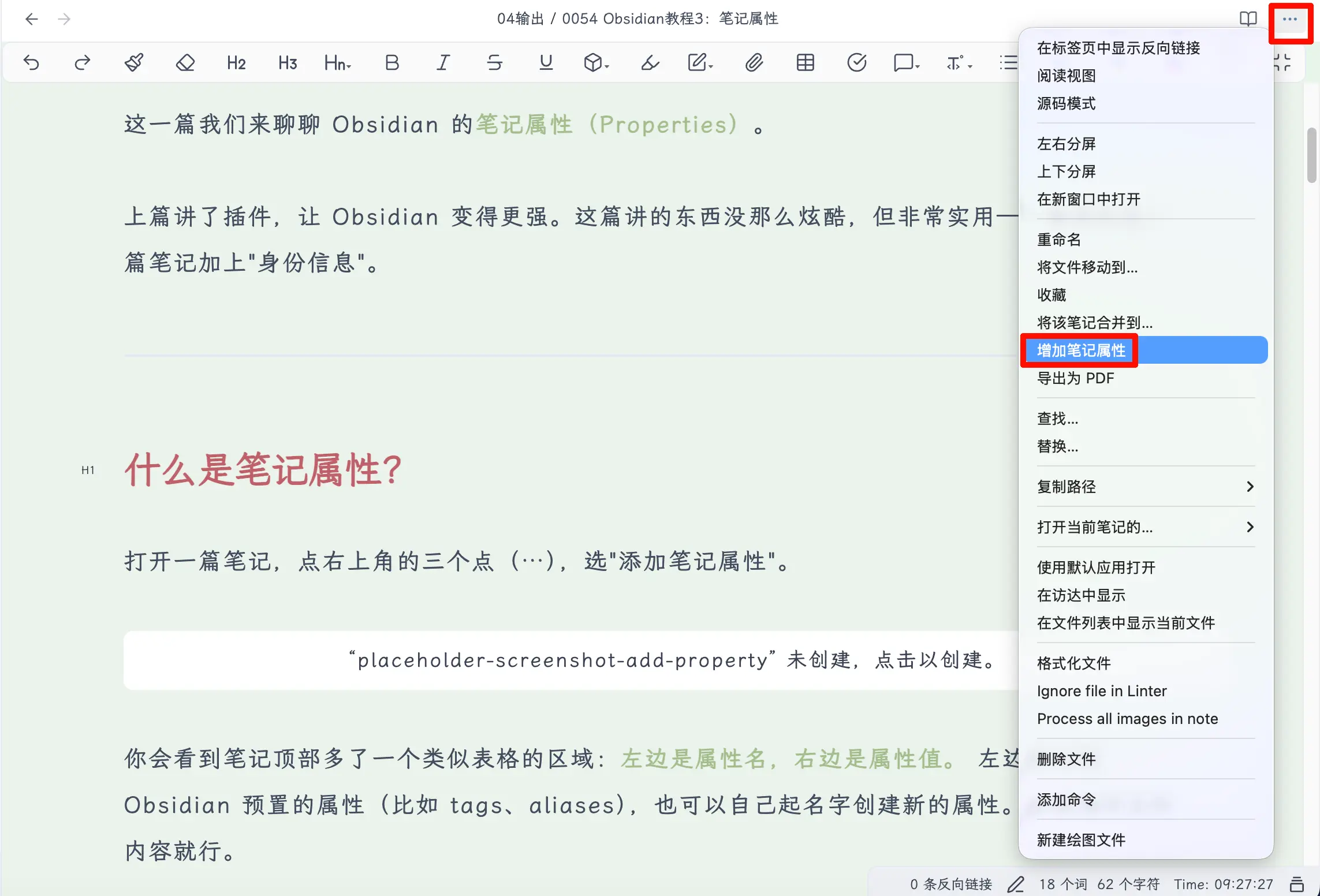
You’ll see a table-like area at the top of the note: the left side is the property name, the right side is the property value. On the left, you can choose from Obsidian’s built-in properties (like tags, aliases) or create your own by typing a name. On the right, fill in the corresponding content.
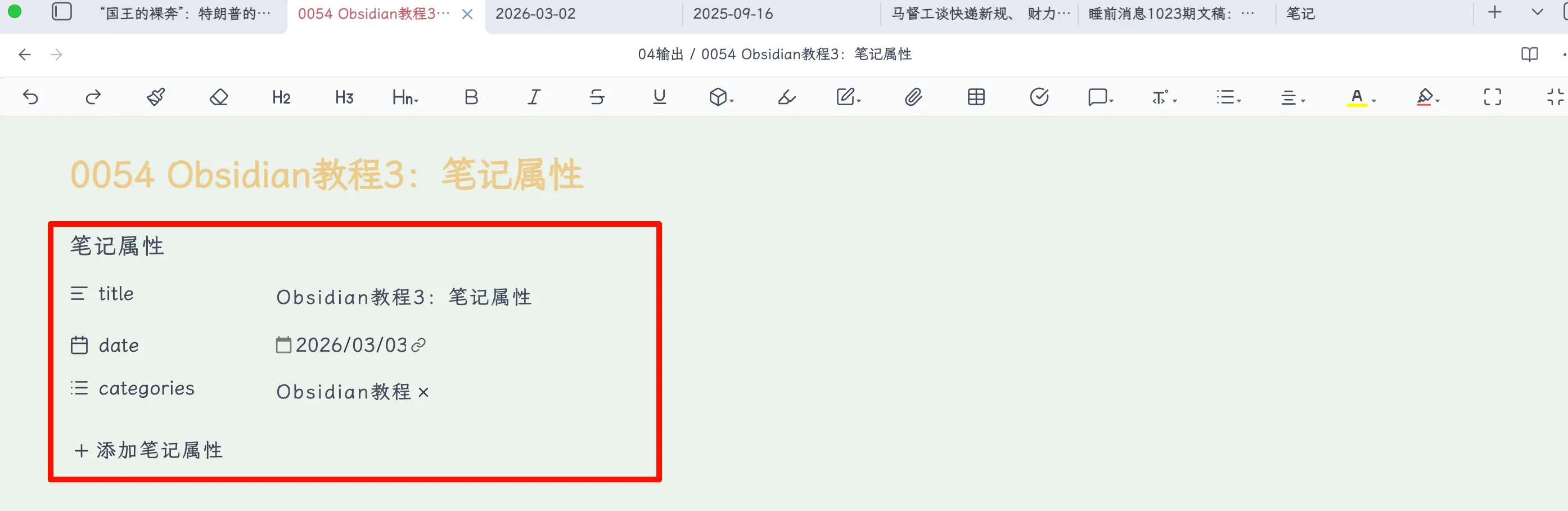
It’s that simple. No coding required.
What’s That YAML?
If you switch to Source mode (Settings → Editor → Default editing mode → Source mode), you’ll see that properties actually look like this:
---
title: My Note Title
date: 2026-03-03
tags:
  - Obsidian
  - Tutorial
---
The content between the two --- lines is called YAML frontmatter, a data format. But you don’t need to write this manually—Obsidian’s visual editor handles everything. Click and select in the properties panel, and the underlying code is generated automatically.
Just know it exists; you don’t need to touch the source code in daily use.
What Are Properties Good For?
You might ask: why not just write everything in the body? Why add an extra layer of properties?
Three benefits.
1. More Precise Search
Normal search is full-text search—if you search for “tutorial”, all notes that contain the word “tutorial” in the body will appear, potentially a huge list.
But if you set categories: Tutorial in properties, you can use Obsidian’s search syntax to filter precisely:
[categories: Tutorial]
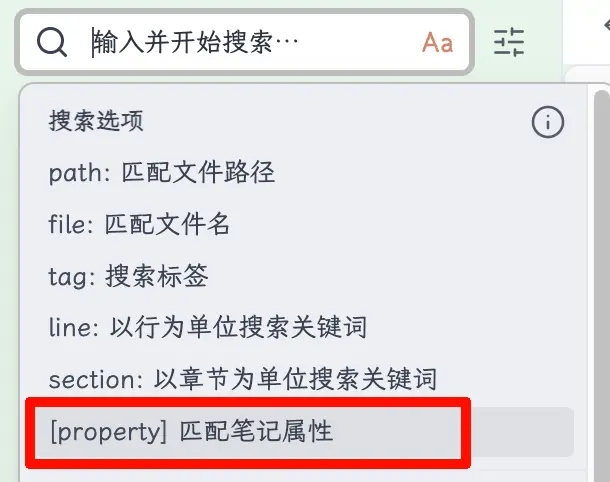
This will only return notes categorized as “Tutorial”, not notes that casually mention the word “tutorial” in the body.
Properties are structured data; the body is unstructured data. When you have hundreds of notes, this difference becomes increasingly significant.
2. Automatic Template Filling
This works together with templates. We’ll cover templates in detail in the next chapter, but here’s a sneak peek:
You can preset properties in a template, like date: {{date}}. Every time you create a new note from that template, the date is automatically filled with the current day. The same goes for repetitive properties like title and category—the template fills them in for you.
3. Automatic Metadata from Web Clipping and Imports
If you use a browser clipping plugin (like Obsidian Web Clipper) to save web articles to Obsidian, the clipped notes automatically include properties—the original title, link, save date, and other information are stored in properties, helping you keep track of where the content came from.
Commonly Used Properties
You can create any properties you like, but a few are most commonly used. It’s worth knowing about them.
1. title
As the name suggests, it’s the title of the note.
Note: The title property can be different from the file name. The file name is what you see in the file list; the title property is the note’s “official title”.
For example, I have a file named 2026-03-03 Obsidian-Properties.md, but the title property is Obsidian Properties: Make Notes Searchable—the date in the file name is for sorting, and doesn’t need to appear in the title.
My personal advice: If you don’t have special numbering needs, set the title and file name the same to avoid confusion.
2. date
Records the creation date or publication date of the note.
If filling manually, the format is YYYY-MM-DD, e.g., 2026-03-03.
But here’s a tip: If you’re setting the date property in a template, it’s recommended to write:
date: "{{date}}"
This way, every time you create a new note from the template, {{date}} is automatically replaced with the date you created the note. No manual input, no mistakes.
This feature will be covered in detail in the next chapter on templates.
3. aliases
This property is extremely useful—make sure you know it.
Aliases allow you to give a note multiple names. We often refer to the same thing by different names, and that’s where aliases come in.
For example, I have a note about Donald Trump with the file name “The Donald”. But in other notes, I might refer to him as “Trump”, “Donald Trump”, “President Trump”, or “Mr. Trump”.
Without aliases, if you use [[Trump]] to create a link, Obsidian would think you want to link to a note named “Trump”. But that note doesn’t exist—your note is named “The Donald”. The result: you’re referring to the same person, but the links point to different places.
With aliases, it’s different. In the properties of the “The Donald” note, I write:
aliases:
  - Trump
  - Donald Trump
  - President Trump
  - Mr. Trump
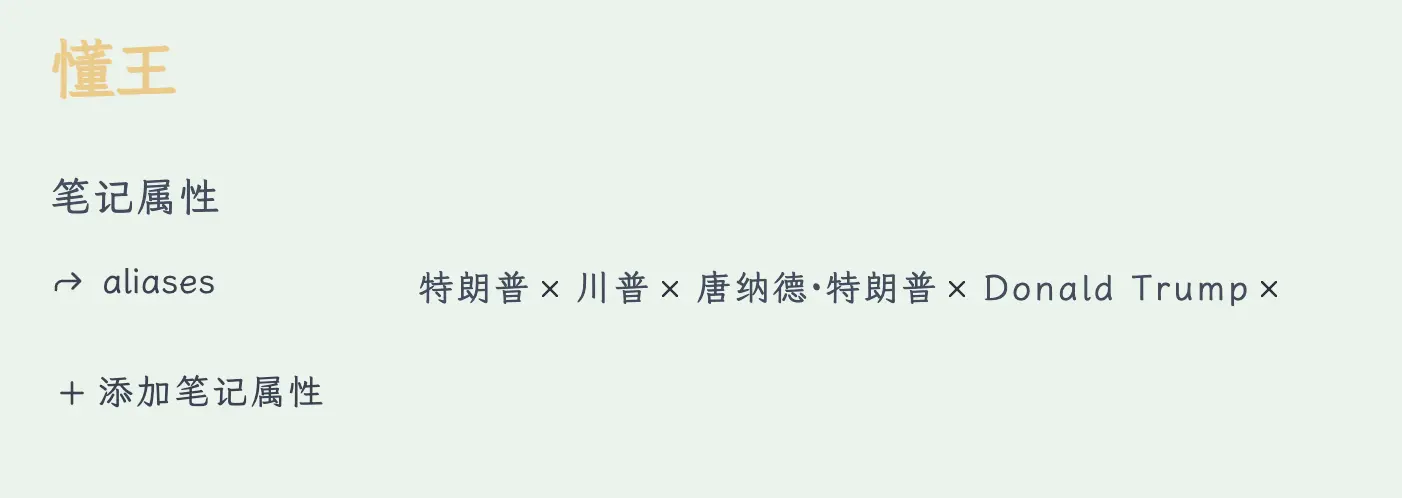
Now, no matter which note you’re in, when you type [[ and then “Trump”, “Donald Trump”, or “Mr. Trump”, Obsidian will suggest linking to the “The Donald” note. Multiple names, one entry.
This is especially useful when building a knowledge base. Many concepts have alternative names, abbreviations, or English names. Using aliases to manage them keeps your links organized.
4. categories
Mark notes with a broad category, like “Book Notes”, “Tutorial”, “Random Thoughts”, etc.
categories:
  - Obsidian Tutorial
Categories are mainly for your own reference, helping you quickly filter notes of the same type. If you later publish your notes to a blog, many blogging systems (like Hugo, Hexo) will read this property to generate category pages.
5. tags
Tags are familiar to most. In Obsidian, you can add tags in the body using #tagname, or you can write them uniformly in properties:
tags:
  - Obsidian
  - Tutorial
  - Note-taking
The advantage of writing tags in properties is centralized management—you can see at a glance which tags a note has, without searching through the body.
But to be honest, in Obsidian, the role of tags can largely be replaced by links. If you think a concept is important enough to tag, why not create a note for it and link to it? Links are more flexible and can carry more content.
Of course, if you’re used to tags, that’s perfectly fine. Tags and links don’t conflict—choose whichever works for you.
6. Other Useful Properties
Besides the five above, here are a few more you might find useful:
cssclasses — Assign special CSS styles to a single note. For example, if you want a note to use a different font or layout, you can use this property with custom CSS. Advanced feature; beginners can skip for now.
publish — If you use Obsidian’s official publishing service (Obsidian Publish), this property controls whether the note is published. true to publish, false to not publish.
description — A brief description or summary of the note. When used with a blogging system, this property often appears as preview text in article lists.
You can also create any properties you need—like author, source, status (draft/complete), etc. Properties are fully customizable; add whatever you find useful.
Summary
What we learned today:
- What are properties: Structured information at the top of a note. Add them by clicking the three dots—no coding required.
- Why use them: Precise search, automatic template filling, automatic metadata from web clippings.
- Commonly used properties:
- title — Can be different from the file name.
- date — Use
{{date}}in templates for auto-fill. - aliases — Multiple names pointing to the same note, essential for linking.
- categories — Group notes into broad categories.
- tags — Centralized management, but links can replace most use cases.
- Properties are fully customizable: Add whatever you need.
Key takeaways:
- Aliases are the most valuable property—a great companion for the linking system.
- Tags work, but in Obsidian, links are more powerful.
- Don’t set too many properties at the start; add them as needed.