Many people used to compare Obsidian and Notion, and the biggest regret was often this: Obsidian is free, but it always felt lacking in tables, cards, and databases.
In the past, if you wanted to build a decent database in Obsidian, you usually had to rely on plugins or manually cobble together properties and Dataview. It was possible, but the barrier was high. Now the official Base feature has largely filled that gap.
It hasn’t turned Obsidian into another Notion, but it’s enough to let you create tables, lists, card libraries, movie galleries, media libraries and more in your own vault.
This article will explain what Base is, how to create one, and the two most practical and beginner-friendly directions: making tables and making a movie gallery.
What is Base?
First, the most important point: Base doesn’t turn your notes into a mysterious new system; it adds a database view layer to your existing Markdown files.
Its file format is .base, which you can think of as a “database configuration file”. The file defines:
- Which notes to display
- Which view to use
- How to filter
- How to sort
- Which properties to show
That is, your data is still those Markdown files; Base just organizes them in a more intuitive way.
This is also where it differs greatly from Notion.
Notion’s database is essentially the database itself; while Obsidian’s Base is essentially still file-oriented. A row, a card, an entry you see usually corresponds to a real file.
This has pros and cons:
The benefit is that your content is still local, in your own folders, not locked into a platform.
The cost is that it’s better suited for databases, lists, reading lists, media libraries, project lists, but if you want to use it for a system that “records every second with complex structure”, you’ll need to adjust your approach a bit.
How to Create a Base?
Creating one is actually very simple. Right-click on a folder in the left file explorer, and you’ll see a new option: New database.
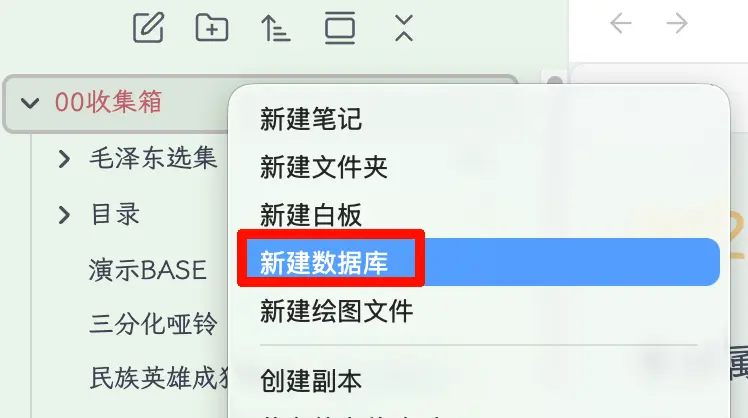
After clicking, Obsidian will generate a .base file. This file is not your data itself, but the “instruction manual” for this database view.
This step is important because many first-time users mistakenly think they are “creating a table”. Actually, you are not. You are creating a new way to view files.
For example, if you create a Base in a folder, it will often pull in many notes from the scope. Don’t panic. The next step is not to enter data, but to learn how to control it.
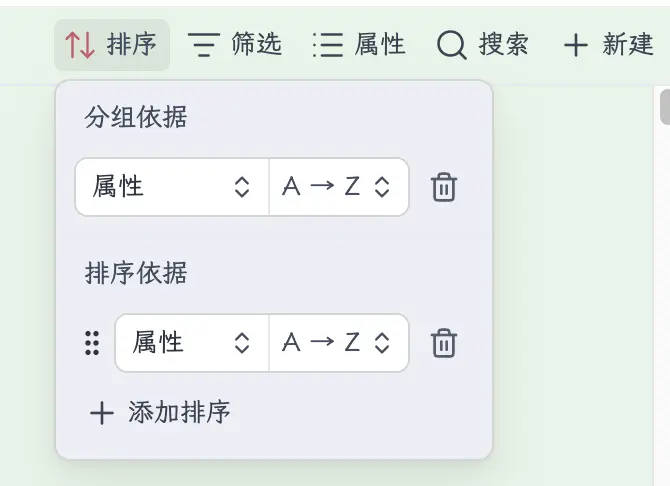
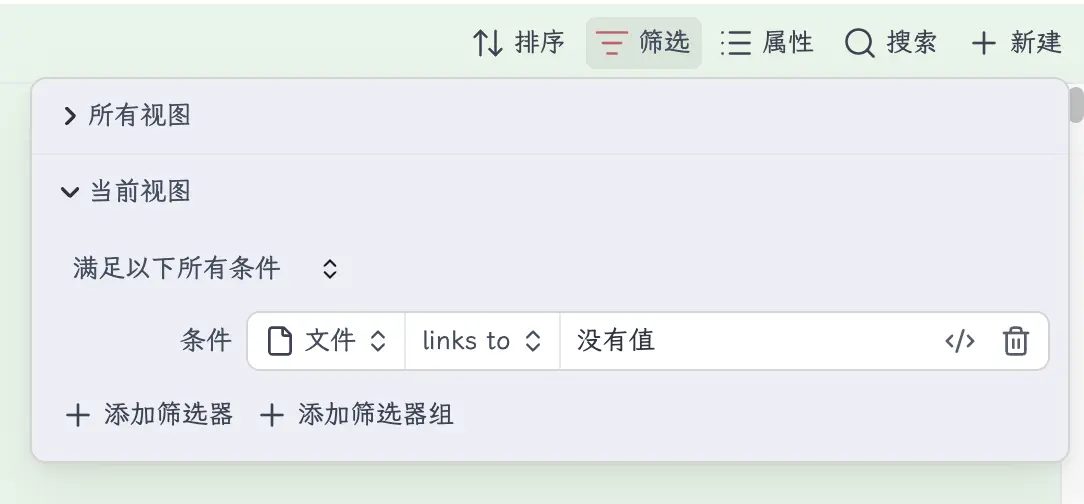
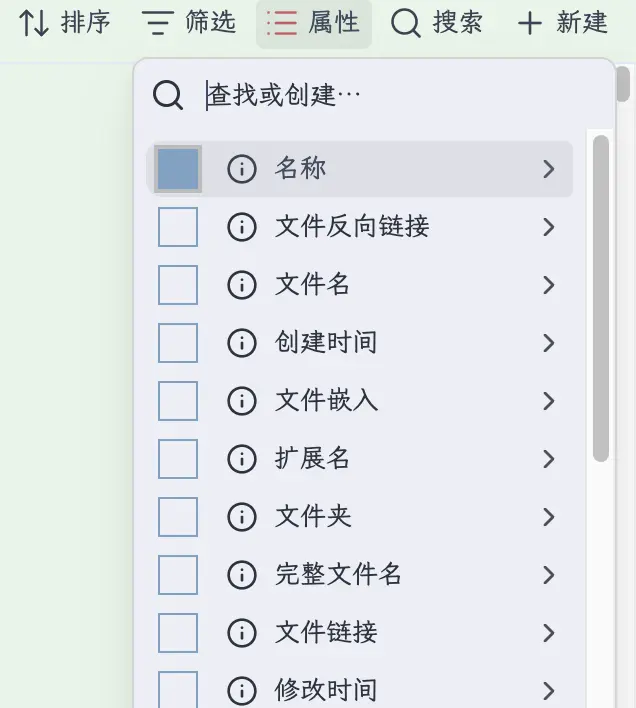
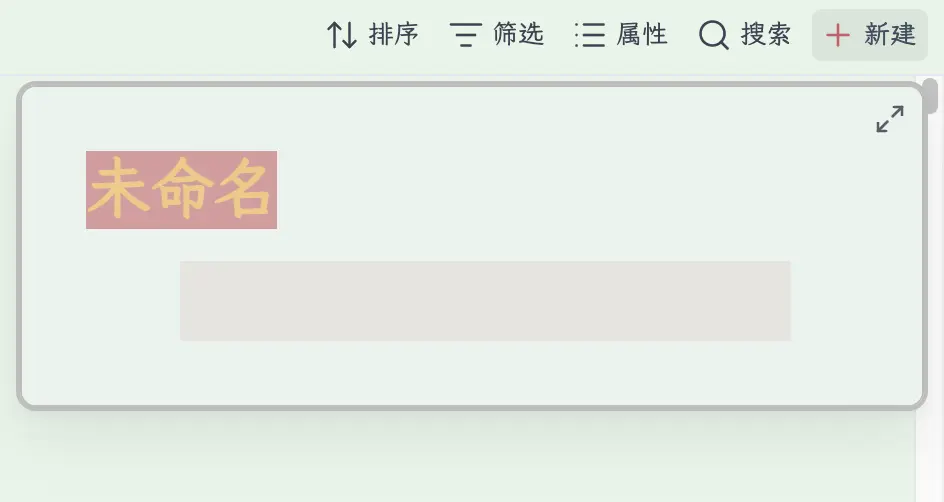
Once you understand these buttons in the top right, you’ve basically got the hang of Base:
- Sort: Decide what to see first
- Filter: Decide what enters this view. For example, which folder’s files this database displays is set here; otherwise, by default, all notes might come in.
- Properties: Decide what this column shows
- Search: Search within the current Base results
- New: Add a new entry directly to this Base
How I Use Base?
For demonstration, I created a Demo-Base.base file with three most common views:
- Table
- Card
- List
This approach is actually great for daily use. Because most of the time, we don’t need a “super complex database”; we need: the same set of content, viewed in different ways for different scenarios.
For example, when organizing article materials, tables are good for batch viewing properties; when making a media library, cards are most intuitive; when you just want to quickly scan titles, lists are fastest.
First, the Most Practical: Table View
The table view is the easiest to understand; it essentially arranges a bunch of notes in rows and columns.

It’s very similar to Excel, and also to the classic table database view in Notion.
This mode is especially good for:
- Viewing titles, dates, tags, categories of files
- Batch checking if properties are filled correctly
- Quick sorting, e.g., by date, rating, priority
- Doing lightweight data management, like book lists, project lists, expense records
If you’re new to Base, I suggest not thinking about formulas, links, complex structures yet. First, get familiar with the three functions: filter, sort, and property display.
Because the most valuable thing about Base right now is not showing off skills, but finally allowing you to manage content in a more human-friendly way in Obsidian.
List View: The Most Plain, But Also the Fastest
Many people overlook the list view because it doesn’t look as professional as a table or as fancy as cards. But it has a huge advantage: lightweight.

When you just want to quickly browse a batch of file titles, or scan through content based on filter results, the list view is actually the most convenient.
It’s especially good for:
- Scanning what you’ve written recently
- Seeing which articles are under a certain tag
- Quickly checking if a folder has unwanted content
- Using it as a “search results page”
Sometimes the simpler the tool, the more frequently it’s used. The list view is that kind of thing.
Card View: This Is Where It’s Most Like Notion
If the table view solves the “management problem”, then the card view solves the “display problem”.

Looking at this interface, you can immediately feel that it’s different from the old Obsidian. Once the cards are laid out, the entire vault’s content instantly transforms from a “file list” to a “content panel”.
This mode is especially good for:
- Movie library
- Book library
- Image library
- Project kanban-style browsing
- Article topic pool
Personally, I think the most valuable part of Base is not the table, but the card. Because many tools can do tables, but what Obsidian previously lacked most was this ability to “turn notes into a visual material library”.
If you want to make a movie gallery similar to Notion, the idea is simple:
- Each movie gets its own note
- Add a few basic properties to each note
- Specifically prepare a “Cover” property to hold the poster image
- Then in the card view, set the cover image source to this “Cover” property
The result will be very close to Notion’s gallery-style display.
Complete Hands-on Example: Build a Movie Gallery from Scratch
I’ll use the example I just made. The files are very simple, just two:
The Shawshank Redemption.mdFarewell My Concubine.md
The goal is clear: Make these two notes display as two movie cards with posters in Base.
Step 1: Prepare Two Movie Notes
The simplest way is one file per movie. For example, create two notes in 00-Inbox:
The Shawshank RedemptionFarewell My Concubine
Don’t worry about writing long content at this step; even if the file only has a title, it’s fine. For Base, the most important thing is not the body, but properties.
Step 2: Add “Cover” and “Category” Properties to the Notes
Open one of the notes, e.g., Farewell My Concubine.md, then in the “Note Properties” area at the top, add two properties:
CoverCategory
Where:
Coveris for the movie posterCategoryis to mark it as “Movie”
You can do this directly in Obsidian by clicking “Add note property”, no need to write YAML manually.
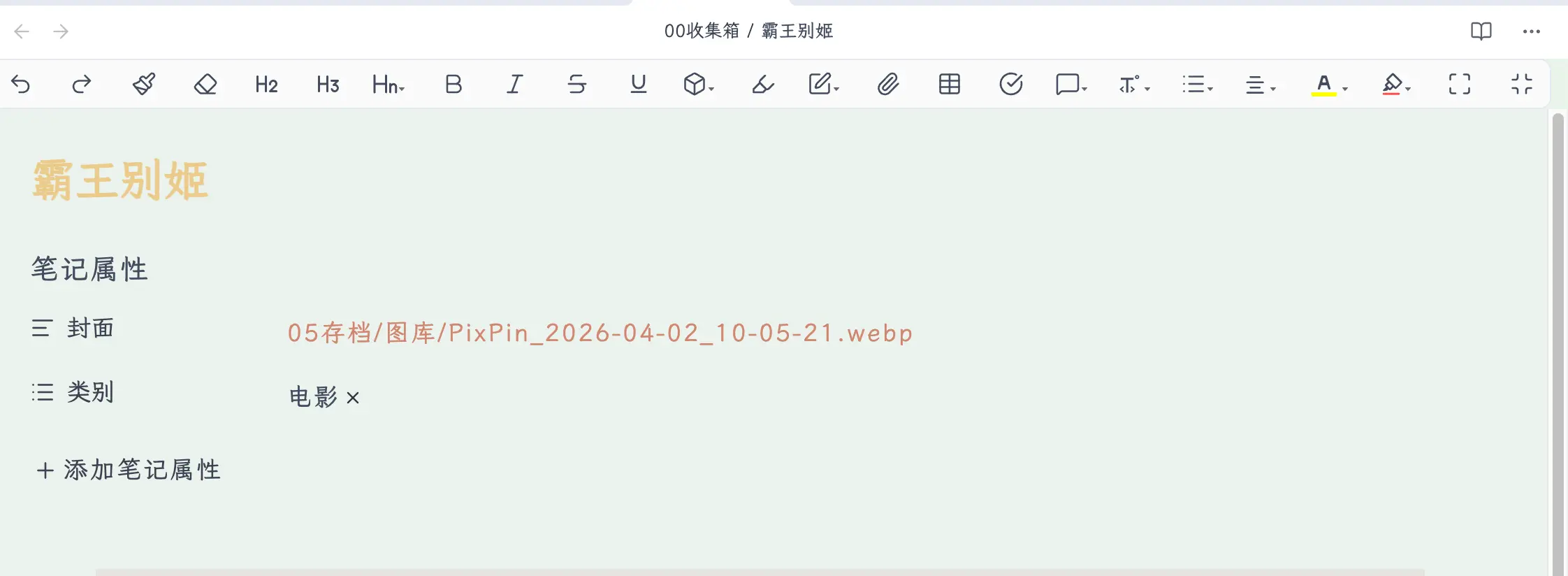
Here’s a point where beginners often get stuck, so let me be clear: The poster in the card view doesn’t look at regular images inserted in the body; it looks at the image in the property.
In other words, if you just insert the poster into the body, Base may not treat it as the card cover; but if you put the poster into the Cover property, it will reliably read it.
For example, this movie note essentially ends up with this structure:
---
Cover: "[[05-Archive/Gallery/PixPin_2026-04-02_10-05-21.webp]]"
Category:
  - Movie
---
You don’t have to write it manually like this, because Obsidian’s property panel will do it for you. But knowing what it looks like underneath will make troubleshooting easier later.
Step 3: Create a Dedicated Base File
Then right-click in the left folder, create a new database, and you’ll get a .base file. I’m using Demo-Base.base here.
You can think of this file as the “exhibition hall itself”, while the two movie notes are the “exhibits”. Base is responsible for display; the actual data is still stored in their respective Markdown notes.
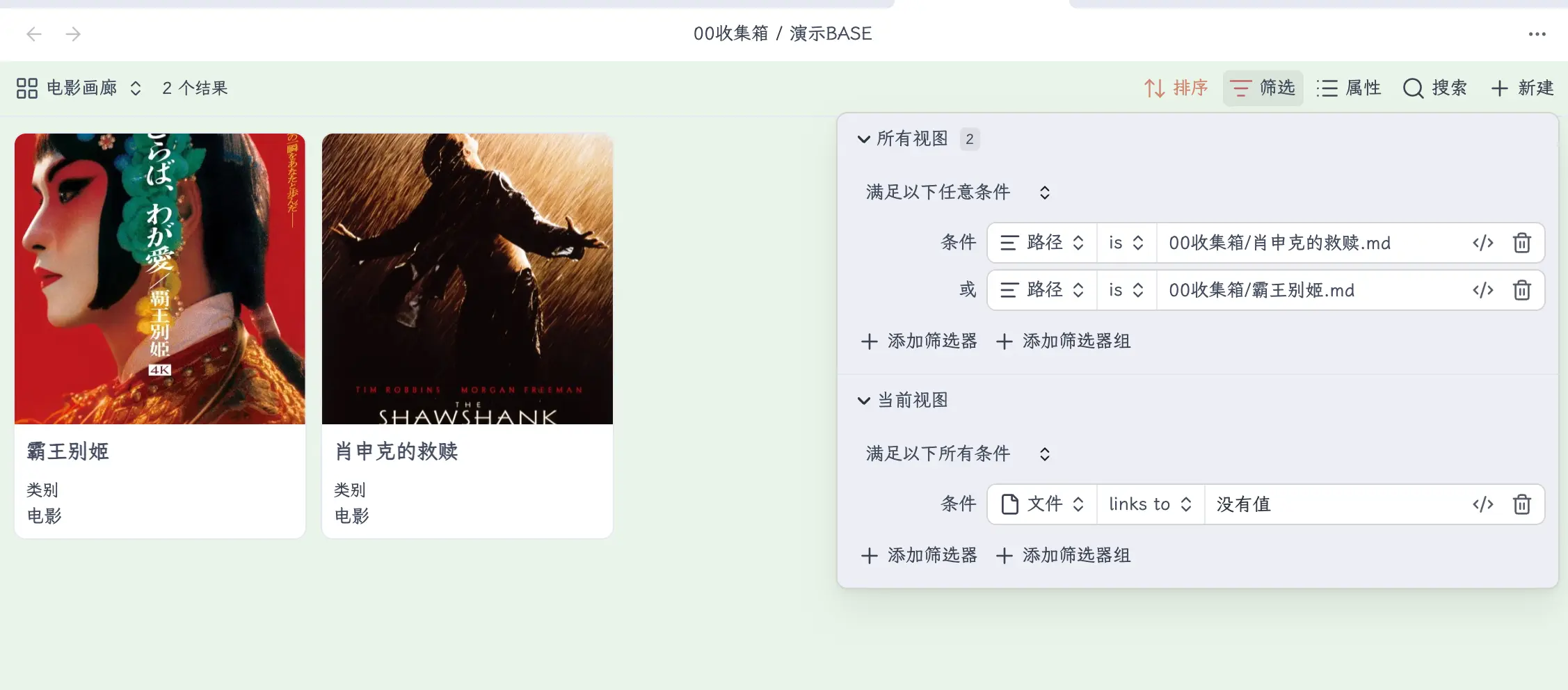
Step 4: Narrow Down the Scope to Only These Two Movies
Many people have a problem when first using Base: when they open it, all notes from the entire vault come in. So this step is essential—filter the scope first.
You can click “Filter” in the top right of Base to keep only the content you want to show. For example:
- Only notes in a certain folder
- Only notes with a certain tag
- Only notes where category equals “Movie”
- Or, like in my demo, directly only these two specific files
For beginners, I recommend using “folder scope” or “category = Movie” first, as they are more intuitive.
Step 5: Switch to Card View and Specify the Cover Source
This is the most critical step. After switching to card view, you need to tell Base: Which property’s image should be used for the card cover.
Here, select the Cover we created earlier.
As long as this step is correct, the cards will instantly transform from plain text blocks into a real movie poster gallery.
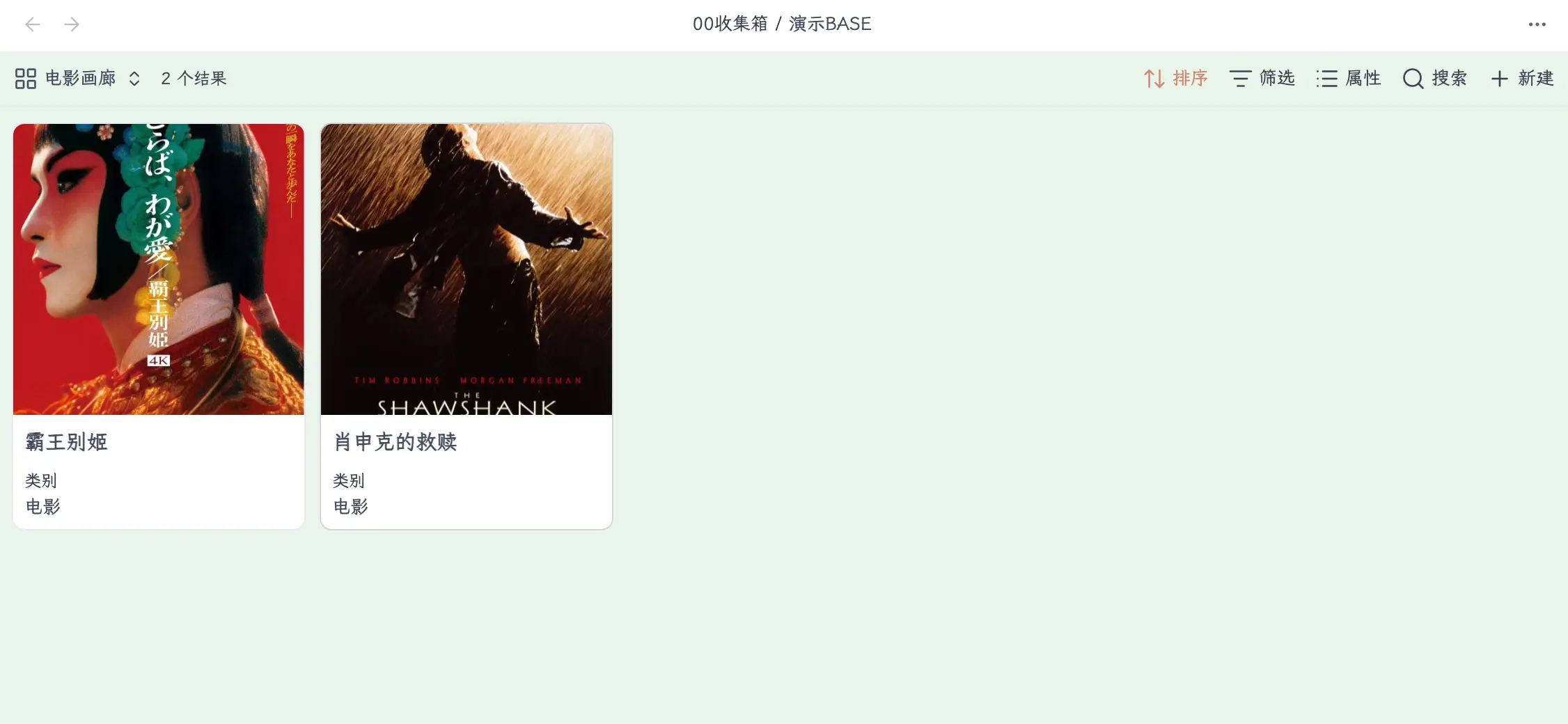
Here’s another point that can easily confuse beginners. When you click “Properties” in the top right, you’re selecting which fields to display below the card, like Name, Category, etc. But whether the poster shows or not is not controlled here.
The poster is part of the card cover, and its source is the Cover property you specified separately in the card view. So even if you don’t check Cover in the “Properties” menu, the poster above will still display normally.
In other words, there are two sets of settings:
Cover: Controls the poster at the top of the cardName,Category: Control the text information displayed below the card
See, at this point, Farewell My Concubine and The Shawshank Redemption have become a movie gallery very similar to Notion. The top of the card shows the poster, and the bottom shows the file name and properties. Even if you only have two movies now, you can already see the value of this pattern—as you add more movies later, the whole library will grow into a real media archive.
Step 6: What Else Can You Add Later?
Once you’ve got “Cover + Category” working, the rest is simple. You can continue to add these properties to each movie:
- Year
- Director
- Country/Region
- Rating
- Watched or not
- Rewatch count
- One-line review
Then:
- The card view handles “looking good”
- The table view handles “easy management”
This is the most comfortable way to use Base: Separate display and management for the same set of content.
Why Is This Example Suitable for Beginners?
Because it has almost no barrier. You don’t need to learn formulas first, don’t need to learn Dataview first, don’t need to fiddle with complex templates. You only need to understand three things:
- One movie = one note
- Don’t just put the poster in the body; put it in a property
- The card view’s poster source must be set to the “Cover” property
Once you understand these three things, movie libraries, book libraries, game libraries, travel photo libraries—they all follow the same pattern.
And because the underlying files are still Markdown, your movie library is essentially not locked in a database, but a real set of local notes. Later, if you want to migrate, back up, or hand over to AI for processing, it’s much more comfortable than a closed platform.
Filter, Sort, Properties: These Three Are the Core of Base
Many people, when first opening Base, stare at the “Table / Card / List” view switchers for a long time. But what really determines whether this thing is useful is not the view itself, but the three buttons in the top right:
- Filter: Decides who comes in
- Sort: Decides who you see first
- Properties: Decides what you see
Once you understand these three, Base will transform from a “new feature” into a “tool that really works”.
For example, in my demo, the card view is great for a content gallery, so you can use filters to exclude certain folders and keep only the content suitable for display. This makes the cards look much cleaner.
The table view, on the other hand, is better for exposing fields, making it easy to batch check and adjust.
In other words: The same set of files, different views are not duplication, but division of labor.
This is where Base is most like Notion, yet still very Obsidian.
Can You Use It for a Ledger?
Yes, but in my opinion: It can be done, but it may not be the most comfortable.
If your ledger habit is “one record equals one independent entry”, then Base is suitable. You can add properties like amount, date, category, payment method to each record, then filter, sort, and calculate in the table. The logic works.
But if you’re used to recording a continuous stream in one Markdown file, then Base is less convenient. Because many of Base’s features assume: one row of content corresponds to one file.
So for me, it’s currently better for:
- Image libraries
- Book libraries
- Movie libraries
- Article material pools
- Project lists
Rather than high-frequency transaction logs. This is also my long-standing view on Obsidian: Don’t try to go all-in-one from the start.
Base is certainly powerful, but the best way to use it is not to force it to replace everything, but to put it in its proper place.
How I Suggest You Start Using It
If you haven’t used Base yet, I suggest not building a huge system right away. The best way to get started is actually two things:
First, make a gallery. For example, movies, books, article covers, travel photos, collection materials—these are all great for card view. You’ll immediately understand Base’s value.
Second, make a lightweight table. For example, project lists, materials to organize, reading records. Then you’ll naturally use sorting, filtering, and property display.
Once you’ve run through these two scenarios, you’ll basically know Base.
Summary
With the release of Base, Obsidian is no longer just a “note-taking app that can write Markdown”; it has begun to have a bit of a real database feel. But its core advantage is not to compete with Notion on who is more like a database, but: It gives your local files, for the first time, a sufficiently convenient database view.
This is very important. Because before, many contents were not unmanageable, but hard to manage; not unviewable, but hard to view. Now with Base, many scenarios that previously required plugins can finally be done directly.
What we learned today:
- The essence of Base is adding a database view layer to existing Markdown files
- Creating one is simple: right-click a folder on the left to create a new database
- The most important thing about Base is not flashiness, but the three core operations: filter, sort, and properties
- Tables are good for management, lists for quick browsing, and cards are best for movie galleries and media libraries
- It’s great for display-oriented databases, but not necessarily for all high-frequency transaction scenarios
Key points:
- The
.basefile itself is not data, but a database view configuration - A row of content usually corresponds to a real note file
- The card view is the closest to Notion’s gallery effect
- To get started fastest, first make a movie gallery, then a lightweight table
- Don’t think about all-in-one from the start; first use Base for the scenarios it’s best suited for