Earlier, we covered browser clipping plugins—saving web content into Obsidian with one click, clean formatting, and auto-filled metadata. This chapter takes a different angle: instead of how to put things in, let’s talk about how to use Obsidian itself more efficiently.
Why Bind Keyboard Shortcuts
Let’s start with the Command Palette.
Cmd+P is one of the best features in Obsidian. Open the palette, type what you want to do, press Enter, and it’s done. No need to remember where buttons are or dig through menus.
But after using it for a while, there’s a problem: too many commands. Obsidian comes with dozens of core commands, and with community plugins, the count easily exceeds a hundred. Every time you open the Command Palette, you have to think “what’s this command called?”, type it, wait for the list to filter, and then press Enter.
For low-frequency actions, this workflow is perfectly fine. But for high-frequency actions—like inserting a template or collapsing all headings—going through this every time gets annoying.
Keyboard shortcuts solve this: bind the most common actions to convenient keys, trigger them directly, without thinking.
Once you get used to it, you’ll find these actions become pure muscle memory—your hands press the keys before you even think.
Accessing Keyboard Shortcut Settings
Path: Settings (Cmd+,) → Find “Hotkeys” in the left sidebar.
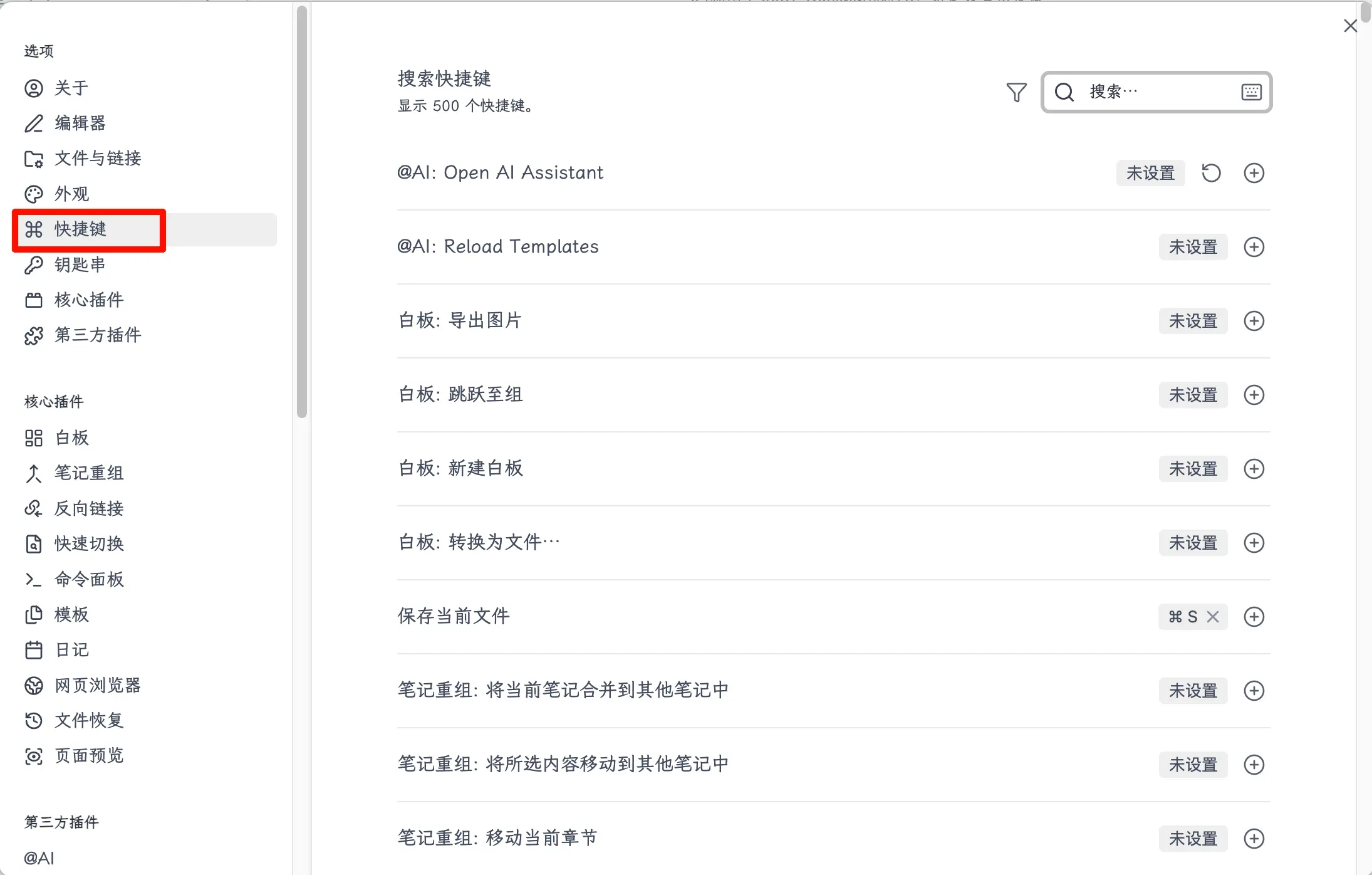
Entering the Hotkeys page, you’ll see a long list of commands. Each row is a command with three columns:
- Left column: Command name (including the source plugin)
- Middle column: Currently bound shortcut (empty if not bound)
- Right column: Action buttons
Searching and Binding
At the top of the page, there’s a search box that supports fuzzy search. For example, if you want to bind “Insert Template”, just type “template”, and the relevant commands are filtered immediately.
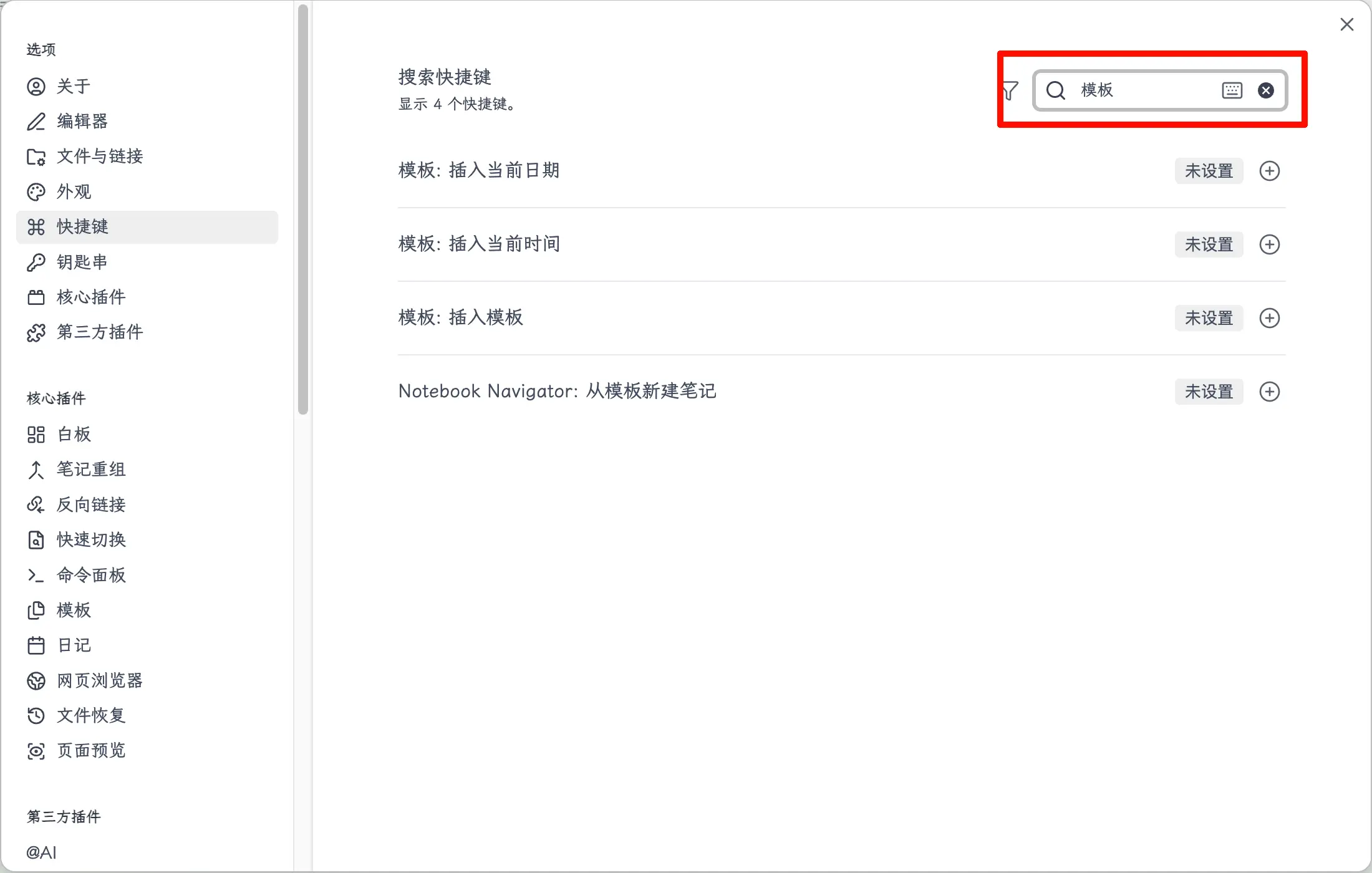
After finding the target command:
Step 1: Click the + button on the right.
Step 2: Press the key combination you want to bind, like Cmd+T. Obsidian automatically recognizes and displays it.
Step 3: Press Enter to confirm, or click elsewhere to close, and the binding is complete.
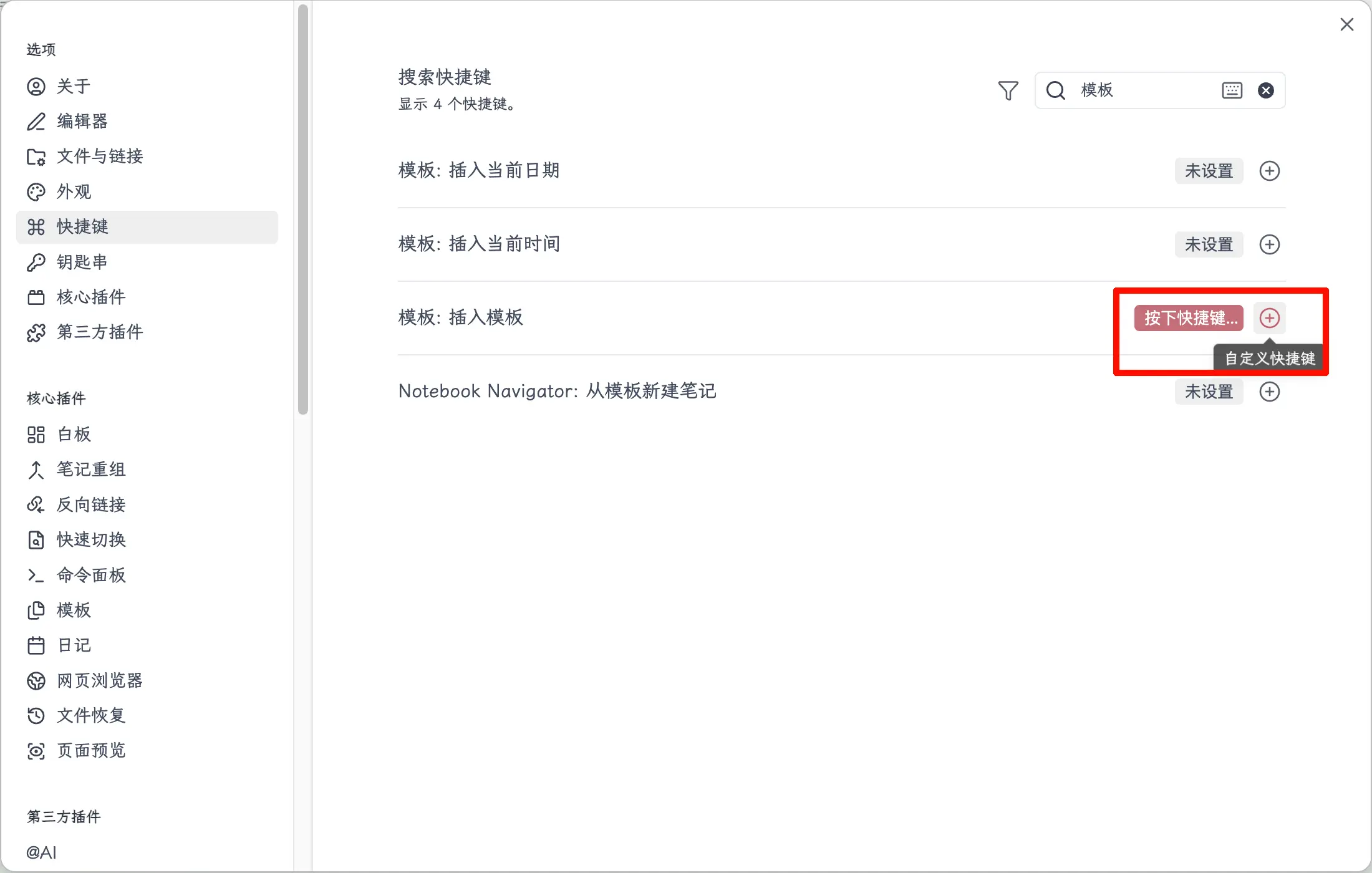
If you don’t want a shortcut anymore, click the × button on the right to unbind it, restoring it to empty.
Handling Conflicts
When binding shortcuts, you might occasionally encounter a conflict—the key you want to bind is already taken by another command. Obsidian will highlight the conflict and tell you which command currently uses that key.
The fix is straightforward:
- Note the conflicting command name.
- Search for that command, click × to unbind it.
- Go back and bind your desired command, or choose a different key combination.
A small gotcha: After Obsidian 1.6, a few key combinations can’t be bound in the GUI and will show as invalid. If you encounter this, you can directly edit the .obsidian/hotkeys.json file in your vault directory to add them manually—but most keys don’t have this issue, so using the GUI is fine.
My Recommended Binding List
Not every command is worth binding a shortcut to. The criteria are simple: high frequency + multiple steps. For commands you use occasionally, just search with Cmd+P—no need to occupy mental slots for keys.
Here are the ones I use myself:
| Command | Default Shortcut | Recommended Binding | Description |
|---|---|---|---|
| Insert Template | None | Cmd+T | One of the most frequent actions, must-bind |
| Toggle Reading/Edit Mode | Cmd+E | Use default | Default is already convenient, no need to change |
| Collapse All Headings | None | Cmd+[ | Use when note structure is long |
| Expand All Headings | None | Cmd+] | Use together with the above |
| Toggle Left Sidebar | None | Cmd+\ | Hide sidebar when focusing on writing |
| New Note | Cmd+N | Use default | Default is sufficient |
| Open Quick Switcher | Cmd+O | Use default | Quickly jump between different notes |
If you have the Templater plugin installed (more powerful than the core template plugin, to be covered separately), it also has its own command—“Templater: Open Insert Template Modal”—and I recommend binding a shortcut for it too.
I don’t recommend binding all at once. Start with two or three of the most frequent ones, and add more as you get used to them. Binding too many keys can be confusing if you can’t remember them.
Summary
What you learned today:
- Shortcut settings entry: Settings (Cmd+,) → Hotkeys, manage all shortcuts here
- Binding method: Search command name → Click + → Press key combination → Confirm
- Unbinding: Click ×, shortcut returns to empty
- Conflict handling: Obsidian highlights conflicts, unbind the old one first then reassign
Key points:
- Only bind high-frequency + multi-step actions, low-frequency commands are fine with Cmd+P
- Start with two or three most common ones, expand gradually as you get used to them, don’t bind too many at once
- Prioritize these: Insert Template (Cmd+T), Collapse/Expand All Headings (Cmd+[/]), Toggle Left Sidebar (Cmd+)