We’ve covered Excalidraw for drawing, flowcharts, and mind maps—plenty of practical content. This chapter is something lighter: changing themes to make Obsidian look great.
The last few chapters have been dense, so consider this a break. Theme settings are simple, but they deserve their own chapter because a good-looking interface genuinely makes you want to open the app and write more.
This chapter covers three things:
- Installing themes via Obsidian’s built-in marketplace
- Manually installing themes from GitHub (advanced, rarely needed)
- My personal recommendation: the Nord theme
What is a theme and why change it?
Obsidian’s default interface… how to put it, plain. It’s functional, but visually it has that “it works” feel without much appeal.
After switching themes, it’s a completely different experience. Some themes are minimal and clean, some have high information density for organizing lots of notes, some are dark and easy on the eyes for long sessions. Color schemes, font styles, sidebar layouts—everything changes.
Themes aren’t just about “looking good.” That moment when you open the app each day—if the interface feels pleasant, subconscious resistance drops significantly. When it comes to sticking with note-taking, the tool’s “feel” and “aesthetics” really do matter.
So spending half an hour picking a theme you like is well worth it.
Installing themes via the built-in marketplace
This is the most straightforward way. The marketplace has hundreds of community themes, all free, one-click install.
Path: Settings → Appearance → Themes → Browse
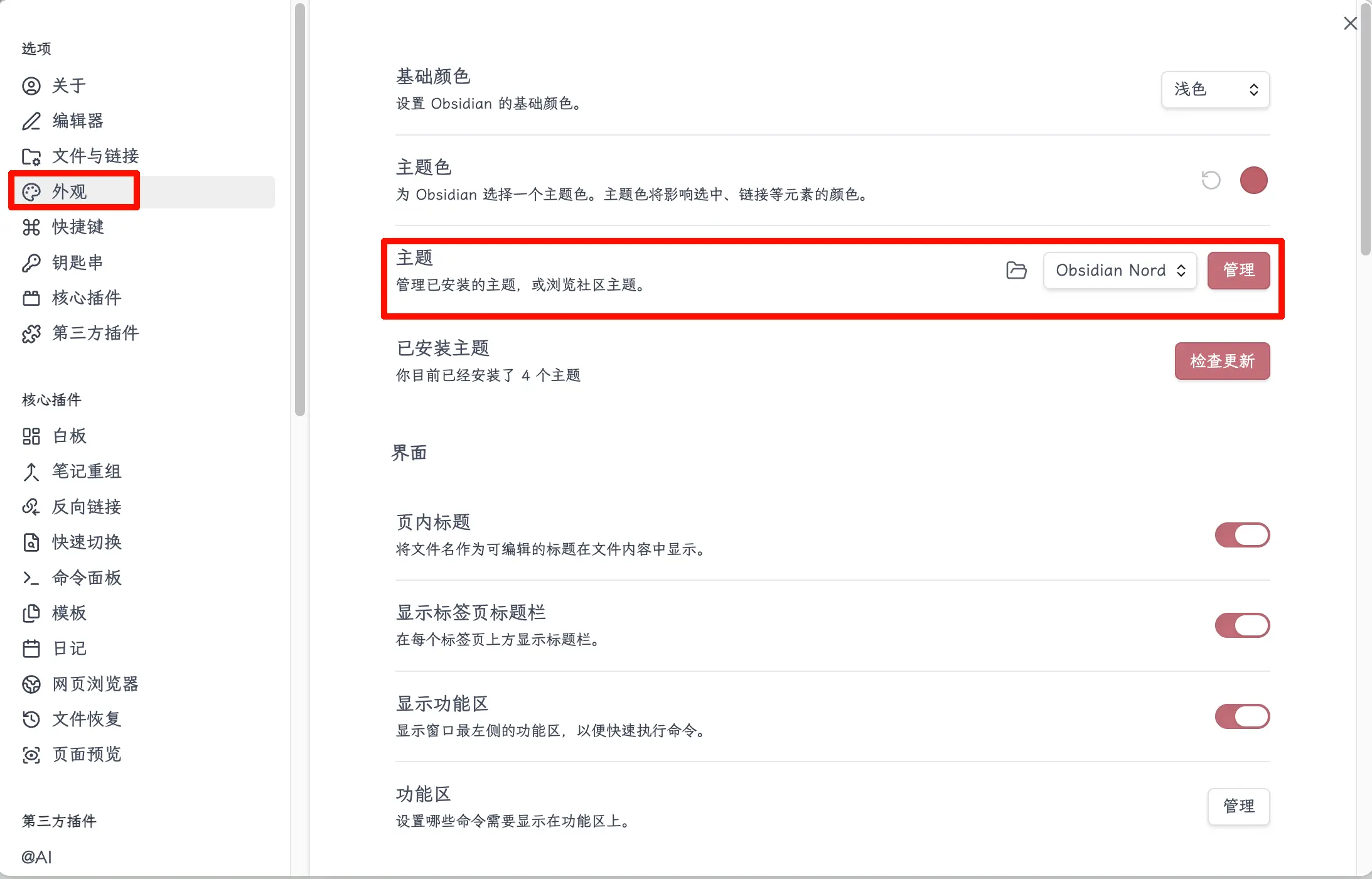
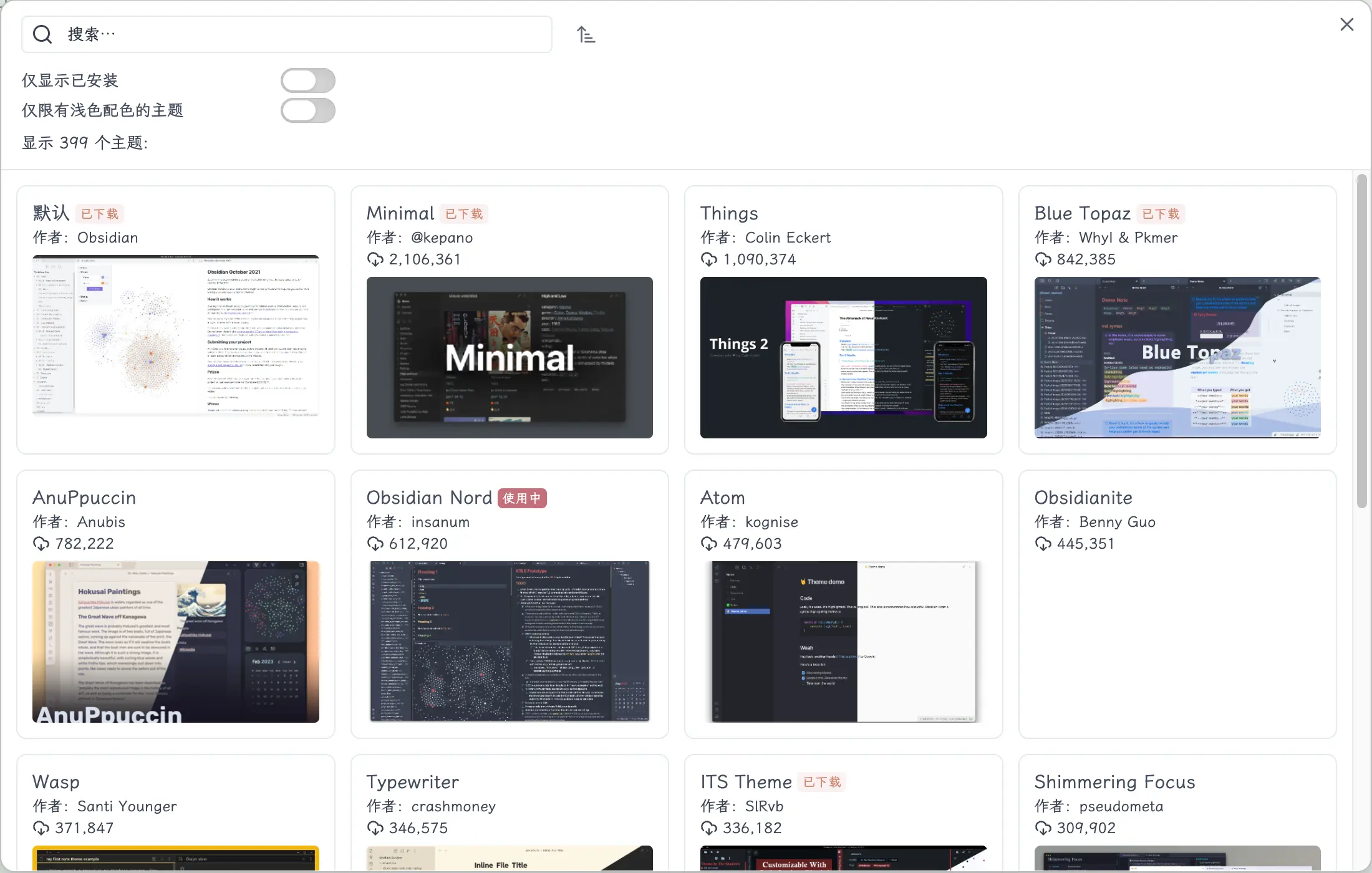
Once inside, you’ll see a list. You can sort by downloads or search for a specific theme name. Find one you like, click into it, click “Install and use,” and the theme switches. It’s that simple—no extra steps needed.
Summary of steps:
- Open Settings
- Click “Appearance” on the left
- Find the “Themes” section, click “Browse”
- Search or browse to find a theme you like
- Click “Install and use”
If you want to switch back to the default theme, do the same here and change the theme to “Default.”
Manually installing themes from GitHub
This method is unnecessary for most people, but I’ll briefly cover it in case you ever encounter a theme that’s only on GitHub and not in the marketplace.
Manual installation steps:
- Go to the corresponding GitHub repository and download the theme files (usually a folder containing
theme.cssandmanifest.json) - Place the entire folder in your vault’s
.obsidian/themes/directory - Restart Obsidian
- Then go to Settings → Appearance → Themes, and you’ll see the newly installed theme
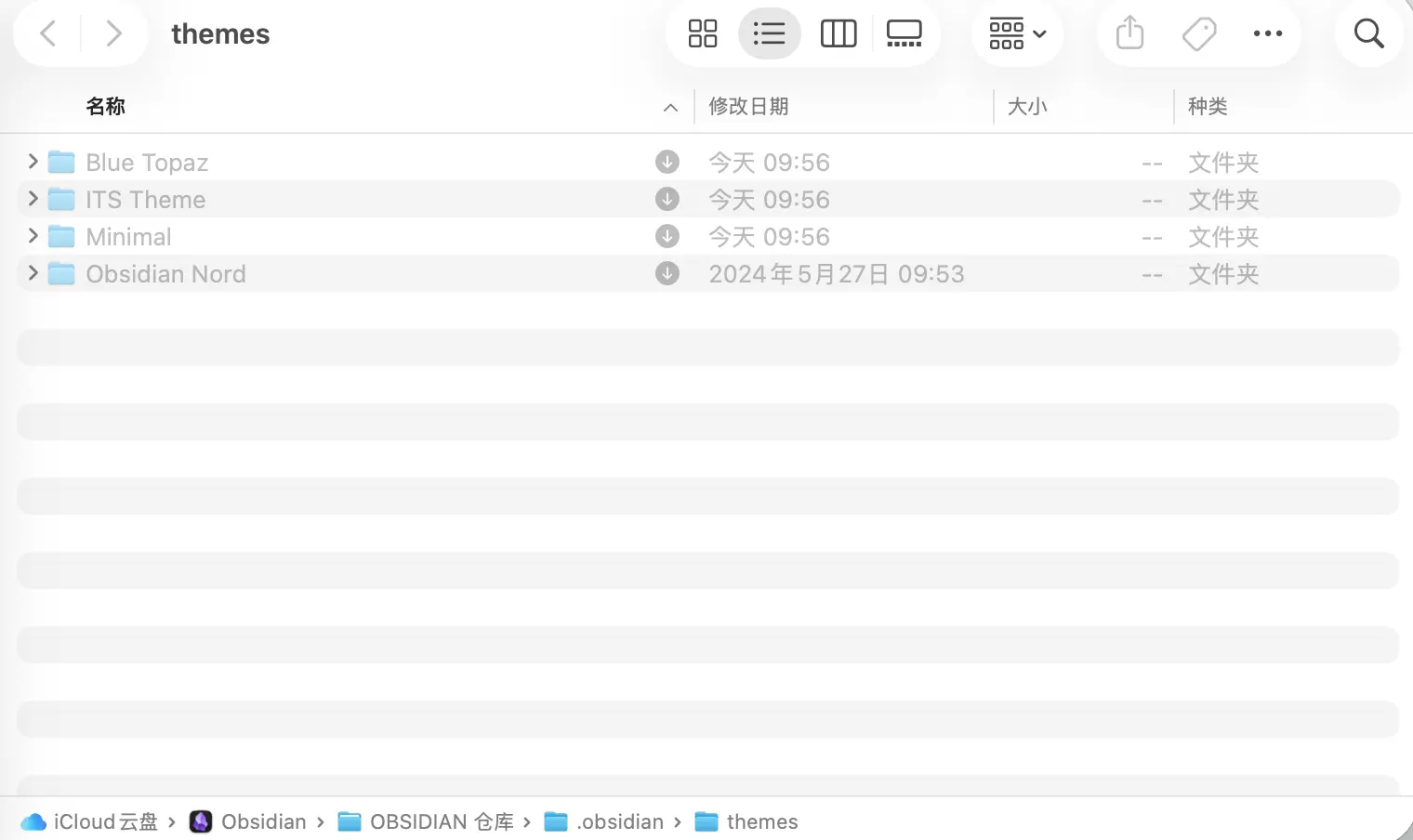
Note: The .obsidian folder is hidden by default. On Mac, press Command + Shift + . to show hidden files.
Again: Most people will never need this method. The built-in marketplace already has hundreds of themes, more than enough for daily use. Just know that this method exists.
My choice: the Nord theme
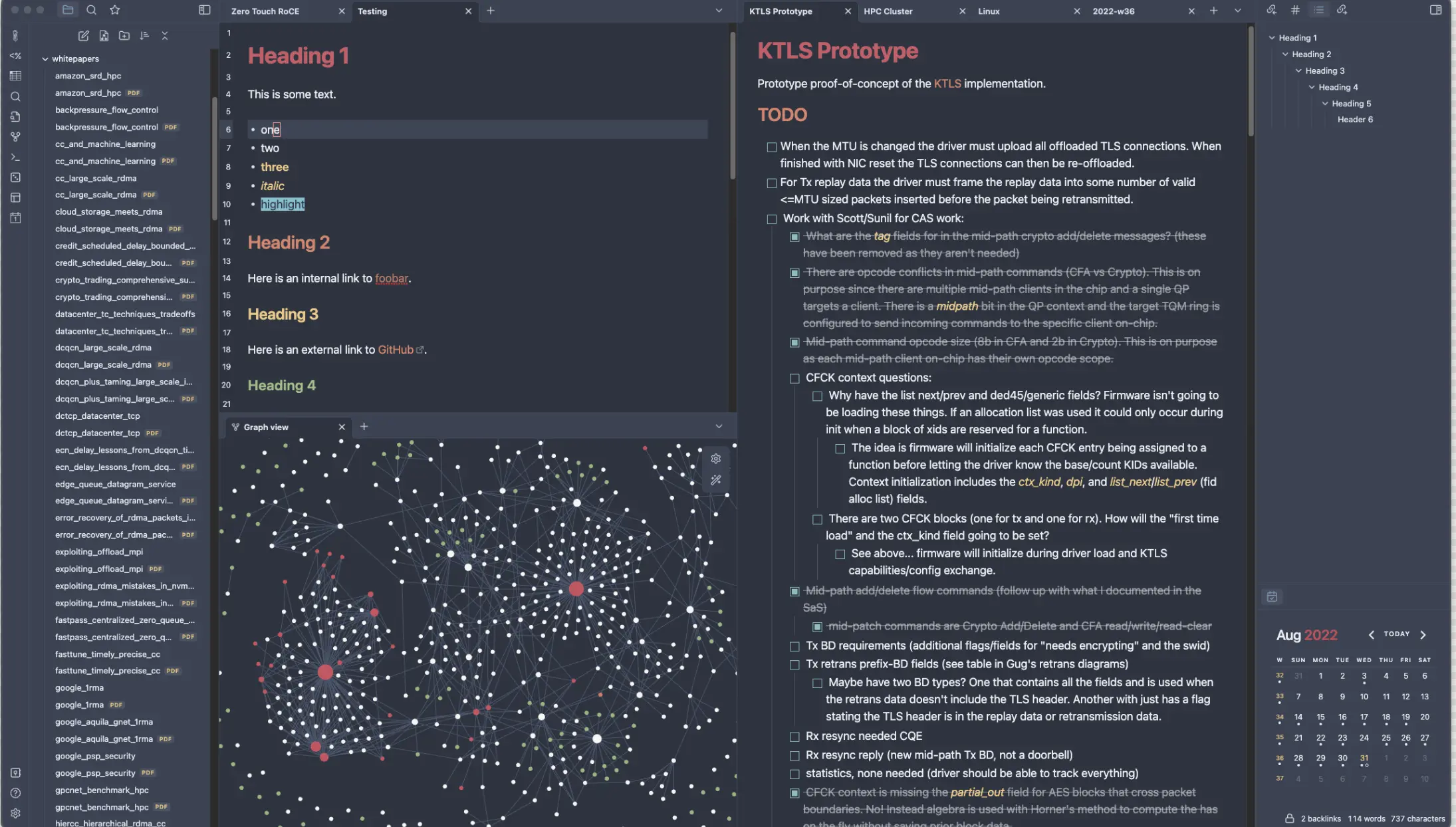
Now that we’ve covered the methods, let me share my personal choice—Obsidian Nord. It’s the theme I’ve used the longest, and I’ve barely switched since installing it.
Nord’s color palette comes from the “Nord color system,” inspired by Nordic auroras and polar ice and snow. It’s a cool-toned deep blue scheme. Not flashy or loud, but a very steady, enduring set of colors.
Why I chose it:
- Dark and easy on the eyes: Comfortable for long sessions—not a harsh pure black, but a deep color with blue-gray tones
- Soft color scheme: Highlight colors, link colors, and heading colors are all restrained, keeping the interface from looking busy
- Timeless appeal: I’ve been using it for two years, and every time I open Obsidian it still looks pleasant—no urge to switch
Installation: Just search for “Obsidian Nord” in the theme marketplace, then install and enable it.
Summary
What you learned today:
- Entry point for changing themes: Settings → Appearance → Themes → Browse
- The built-in marketplace has hundreds of free themes—find one you like and install/enable it directly
- Dark/light mode can be switched in Settings → Appearance → Base color scheme
- For the rare theme not in the marketplace, you can manually download from GitHub and place it in the
.obsidian/themes/folder - Recommended theme: Obsidian Nord
Key takeaways:
- For daily use, the built-in marketplace is sufficient—simple and convenient
- A good-looking interface reduces the mental resistance to opening your notes every day—worth choosing carefully
- Nord is the theme I’ve used for two years, great for those who prefer dark, cool tones