📌 Editor’s Note: This chapter was originally written when WeChat Publisher still had free and paid versions. Since v0.1.13, WeChat Publisher is completely free for personal users—all features (format preview, copy HTML, publish drafts, multi-account, cover system, etc.) are unlocked directly without any activation code. This chapter has been updated accordingly to remove paid/activation code references; some screenshots in the original text still show the “Purchase Activation” button, but that entry has been removed in the new version—please ignore it.
The previous chapters covered the tools you can use in Obsidian for management and operations. This final chapter shifts gears—publishing what you’ve written in Obsidian to WeChat.
You’ve written your article. Now how do you publish it to WeChat?
This step trips up many people. It’s not that they can’t write—it’s that after writing, they can’t get it published, or the formatting is completely messed up.
This chapter addresses that problem and introduces a plugin I built myself: WeChat Publisher.
To be honest, it took me several days of on-and-off work to build this plugin. I thought it wouldn’t be complicated, but once I started, I found far more pitfalls than I expected—various limitations of the WeChat API, image format conversion, compatibility issues with HTML inline styles—I hit them one by one. Fortunately, the end result is pretty good, and after using it for a while, it really saves a lot of hassle.
I never knew publishing a plugin publicly could be such a hassle!
What’s the Trouble with Writing for WeChat in Obsidian?
Let’s start with a scenario many people have encountered.
You write an article in Obsidian. It has code blocks, bold headings, tables—it looks great in Obsidian. Then you copy the content and paste it into the WeChat Official Account editor—everything is a mess. Code blocks become plain text, heading hierarchy is lost, and images have to be uploaded one by one manually.
It’s like formatting a beautiful document in Word, only for the recipient to open it and see garbled text.
There are usually two paths:
Path 1: Write directly in the WeChat editor. No formatting issues, but the editor doesn’t support Markdown, making it painful to write.
Path 2: Write in Obsidian, copy and paste into the editor, then manually fix formatting. The formatting ends up correct, but each article takes 20-30 minutes just for this step.
Is there a better way? Yes.
What is WeChat Publisher?
In a nutshell: Write in Obsidian, preview the WeChat formatting directly, and publish to your WeChat draft box with one click.
What it does for you: Renders Markdown into WeChat-compatible HTML, uploads local images to WeChat’s CDN, converts Mermaid diagrams and math formulas into images, and pushes the entire article to the draft box. You only need to do the final step in the WeChat backend: send the article.
Take a look at the results.
Code block (syntax highlighting):
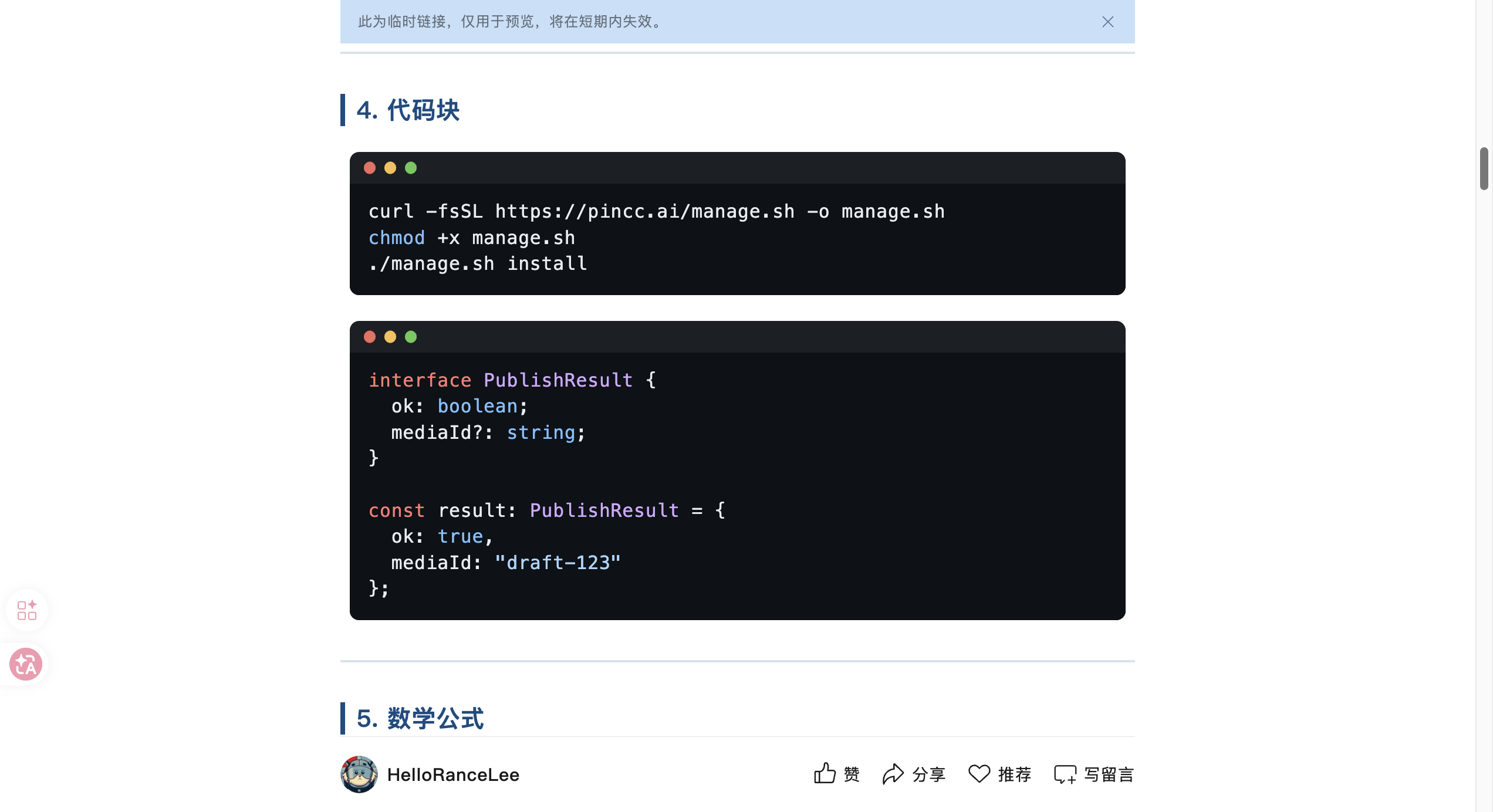
Math formulas & Mermaid diagrams:
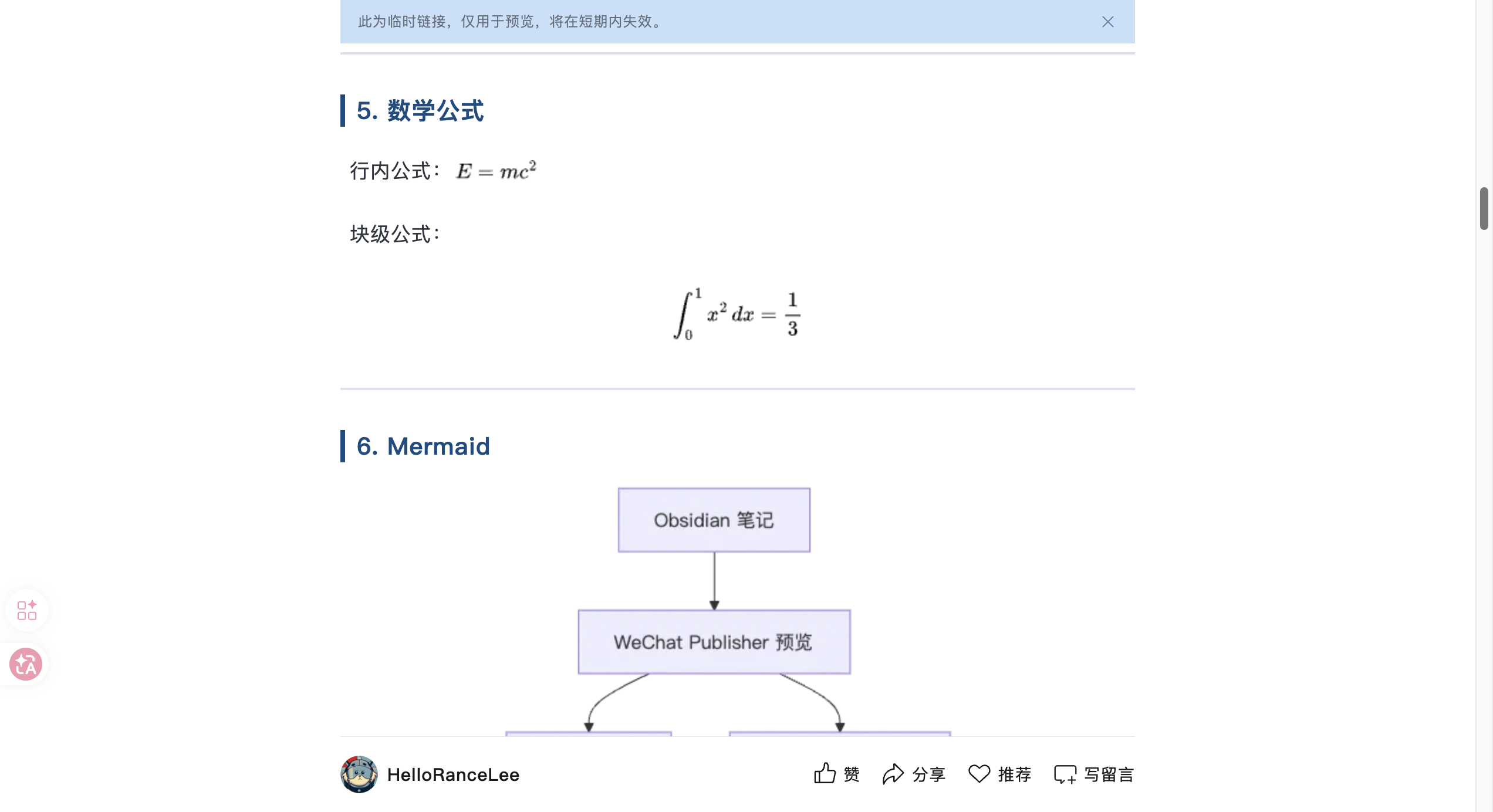
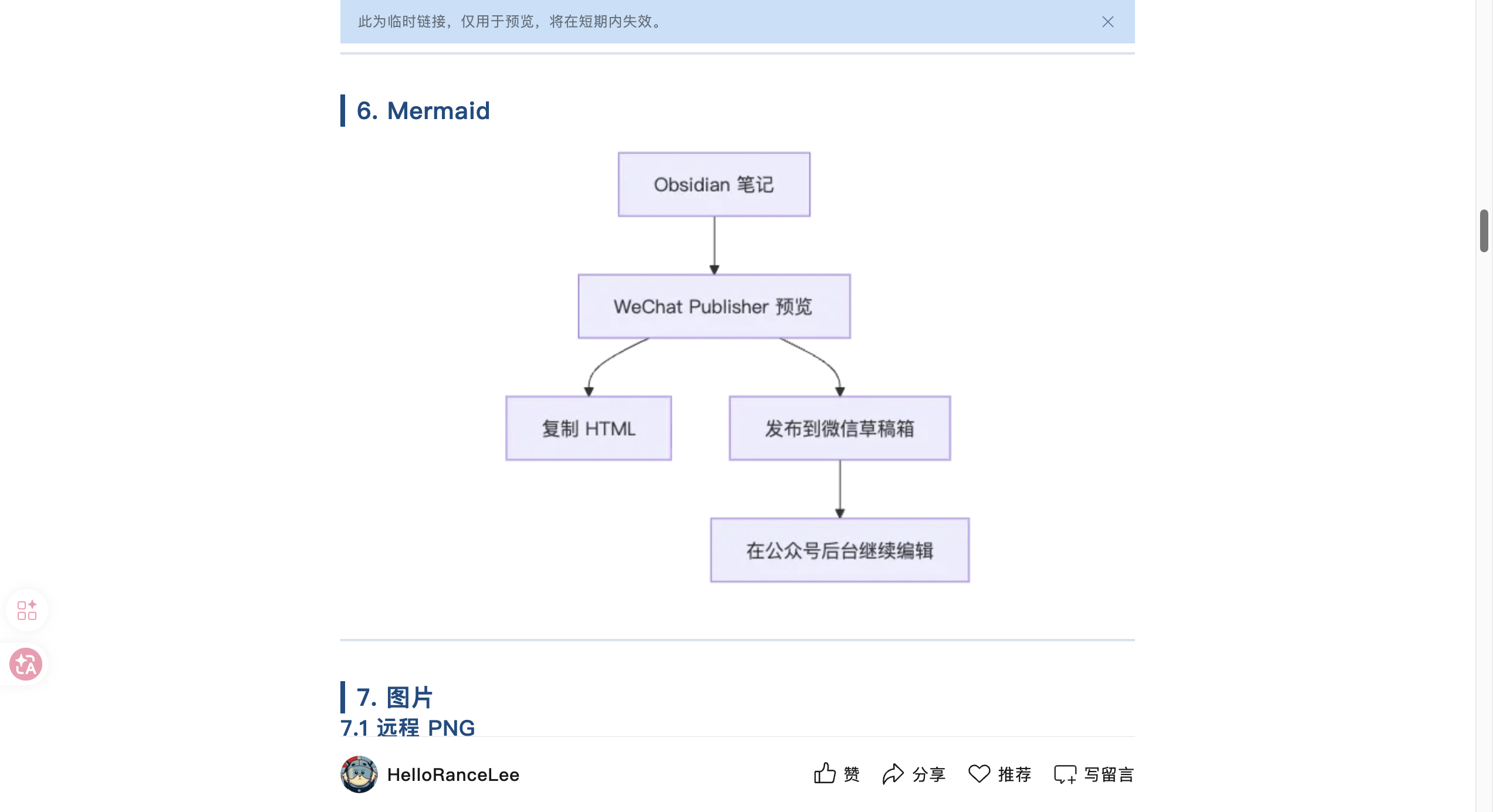
Ruby annotations & horizontal scrolling images:
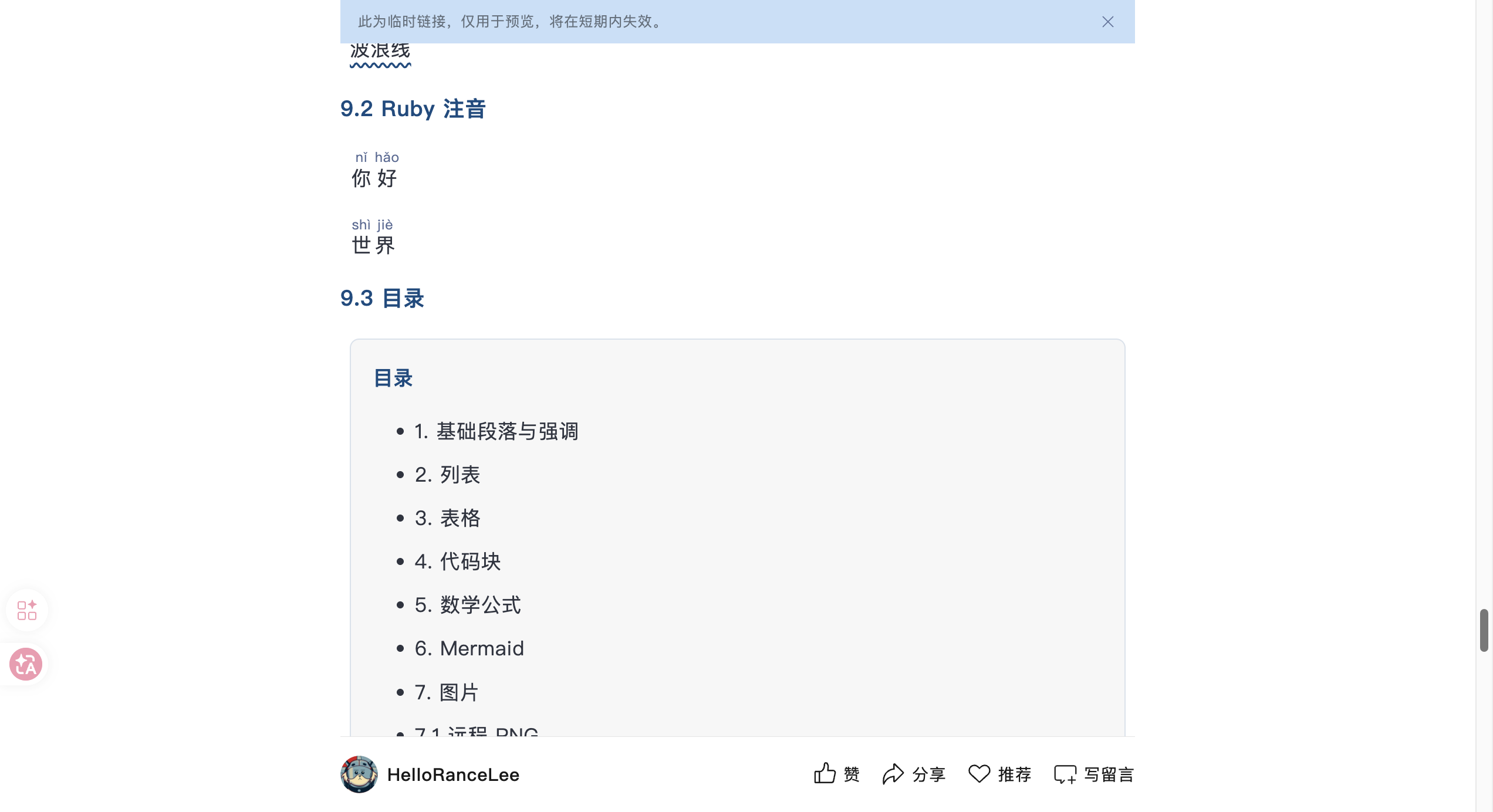
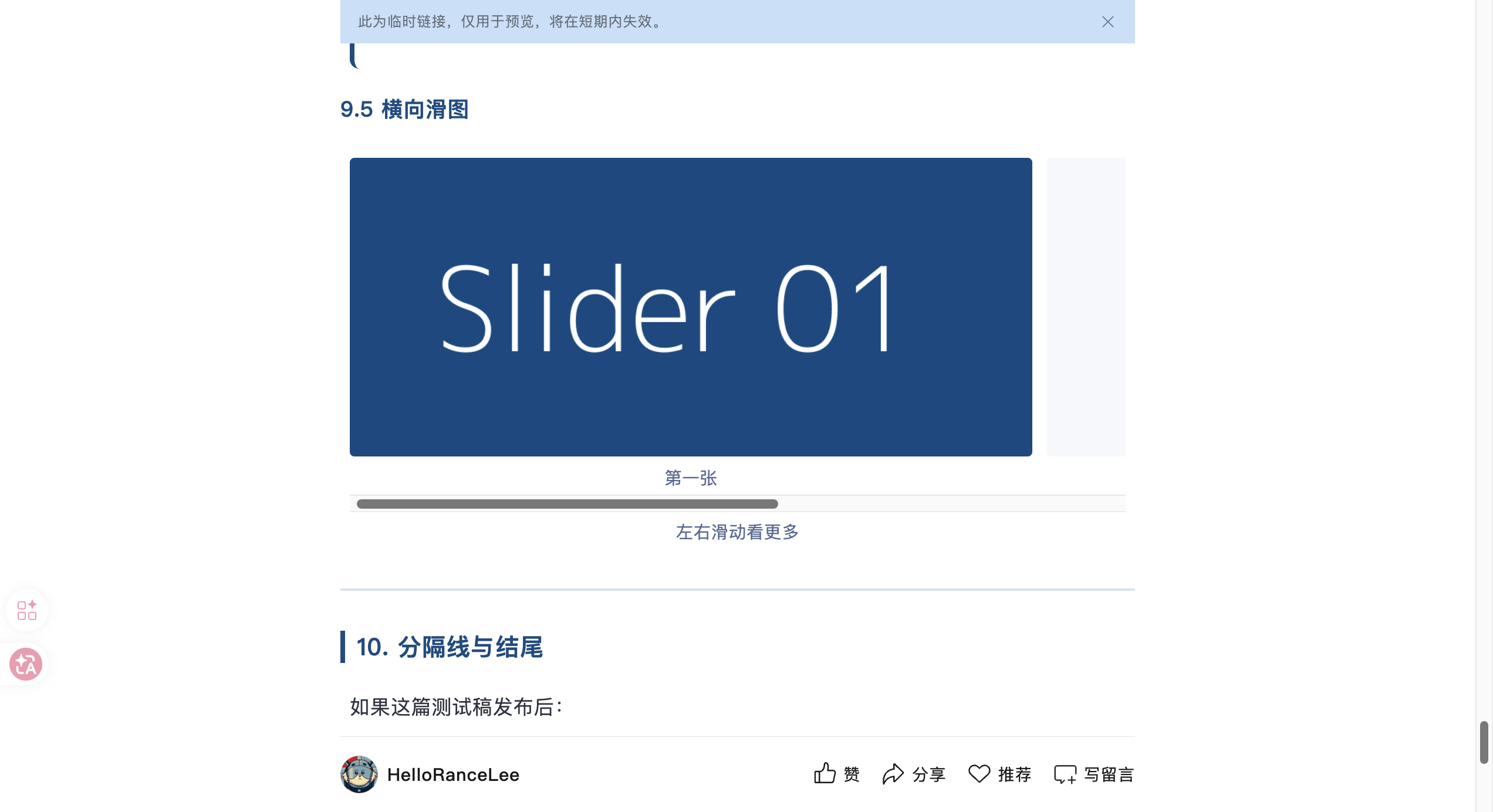
All of these were sent directly from Obsidian without any manual formatting adjustments.
Core Features at a Glance
| Feature | Description |
|---|---|
| 🎨 Format Preview | Real-time Markdown rendering in WeChat style, WYSIWYG |
| 📋 Copy HTML | One-click copy of rendered HTML, paste into WeChat editor |
| 🚀 One-Click Publish | Push directly to WeChat draft box, no browser needed |
| 🖼 Cover System | Auto-set cover from article images, supports custom covers |
| 👥 Multi-Account | Manage multiple WeChat accounts from one plugin |
| 🎨 Theme Switching | 8 built-in themes, customizable styles |
Completely free for personal users. For commercial use (companies, training institutions, redistribution, etc.), please contact the author via the WeChat account ‘HelloRanceLee’ for authorization.
How to Install
The plugin is not yet on the Obsidian official plugin marketplace. There are two installation methods.
Method 1: Install via BRAT (Recommended)
BRAT is a plugin management tool in the Obsidian community, specifically for installing plugins not yet on the marketplace, and it automatically manages updates.
Step 1: Install BRAT.
In Obsidian, go to ‘Settings’ → ‘Community plugins’ → ‘Browse’, search for BRAT, install and enable it.
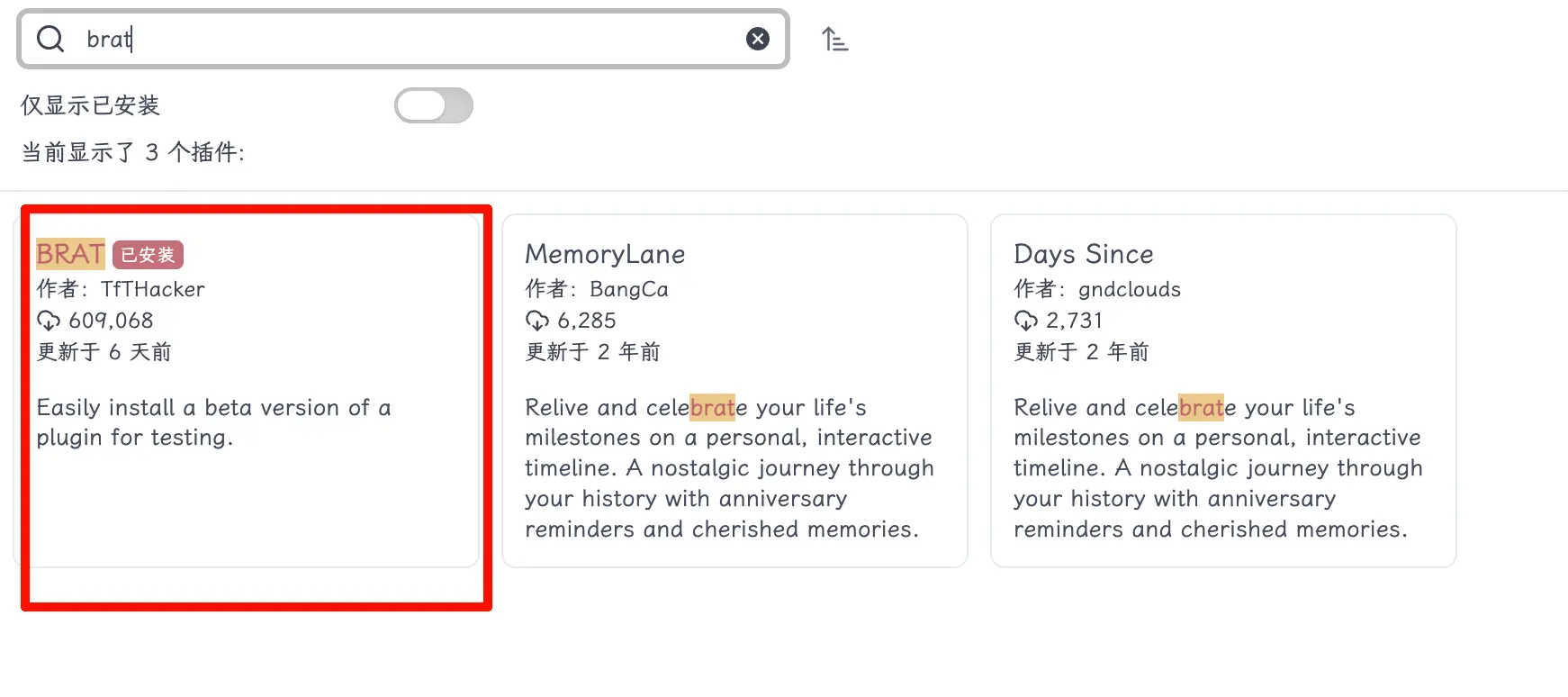
Step 2: Add WeChat Publisher.
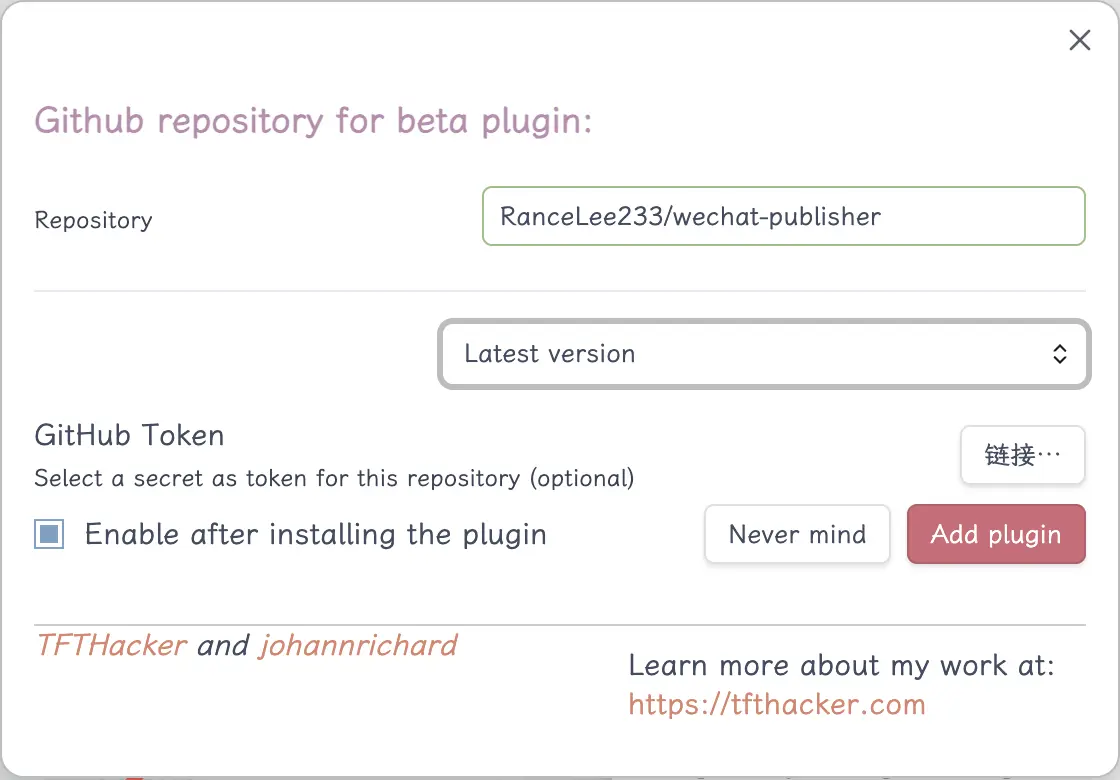
Open ‘Settings’ → ‘BRAT’, click Add Beta plugin, and enter the repository URL:
RanceLee233/wechat-publisher
Click Add Plugin, select Latest version, and BRAT will download it automatically.
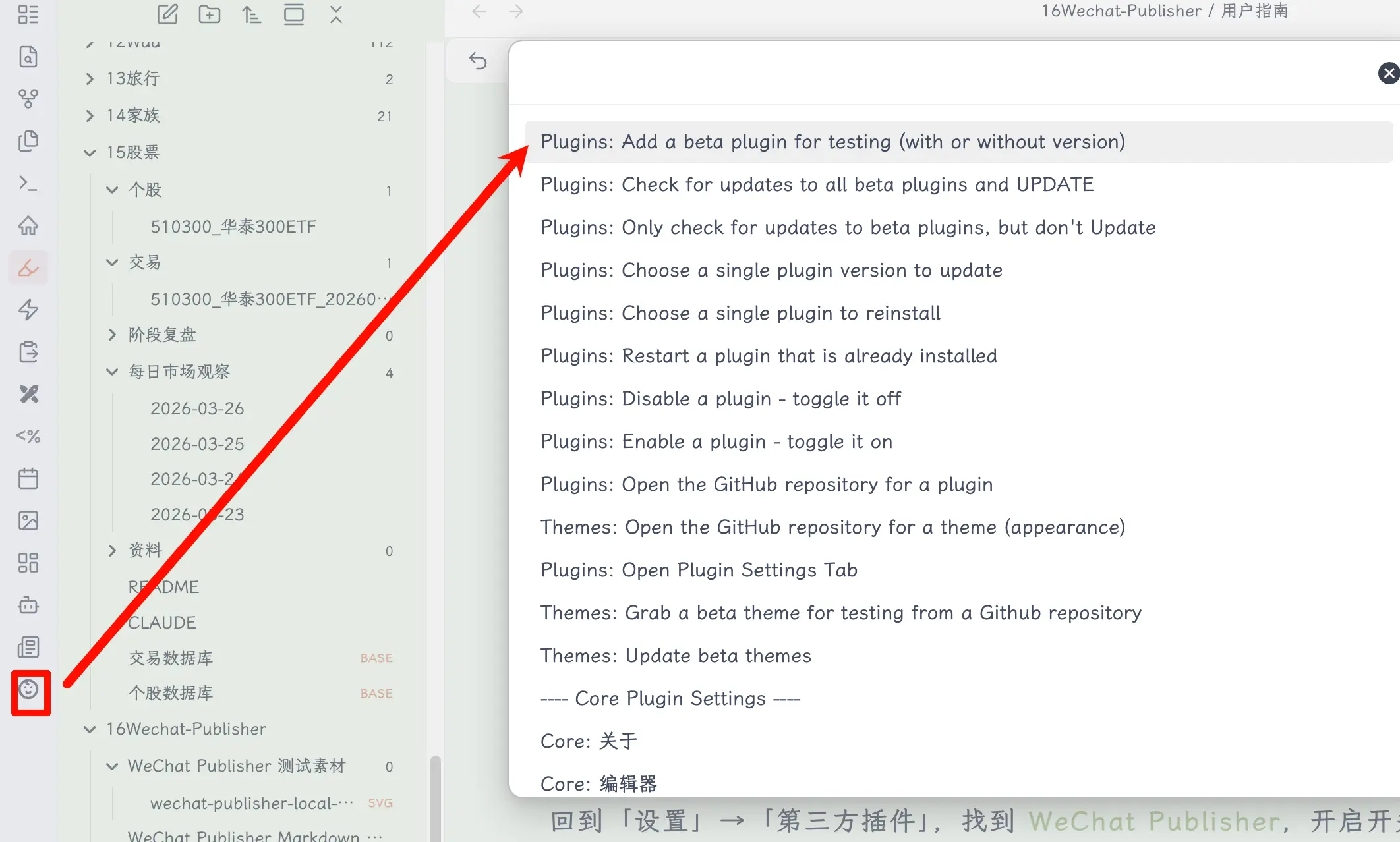
Step 3: Enable the plugin.
Go back to ‘Settings’ → ‘Community plugins’, find WeChat Publisher, and toggle it on.
When new versions are released, BRAT will detect them automatically, or you can manually click Check for updates.
Method 2: Manual Installation
If accessing GitHub is inconvenient, you can download the zip directly from my blog:
https://blog.discoverlabs.ac.cn/downloads/wechat-publisher/
After unzipping, place the folder in your Obsidian plugins directory:
your-vault-path/.obsidian/plugins/wechat-publisher/
The directory structure should look like this:
.obsidian/
  plugins/
    wechat-publisher/
      main.js
      manifest.json
      styles.css
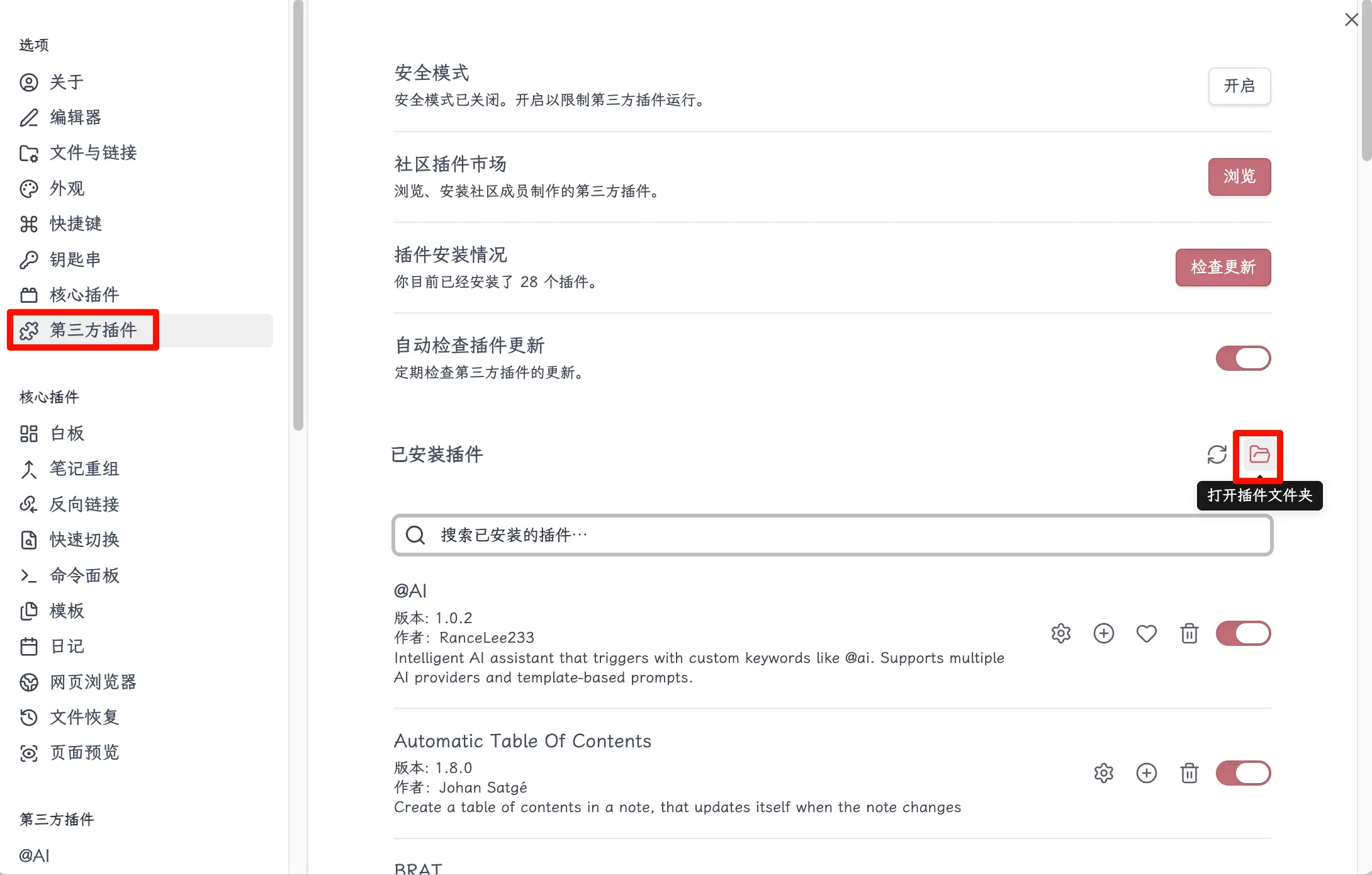
Then enable it in ‘Community plugins’ as well.
Opening the Plugin
After installation, a WeChat Publisher icon will appear in the left sidebar of Obsidian. Click it to open. You can also press Cmd+P (Windows: Ctrl+P) and search for WeChat Publisher.
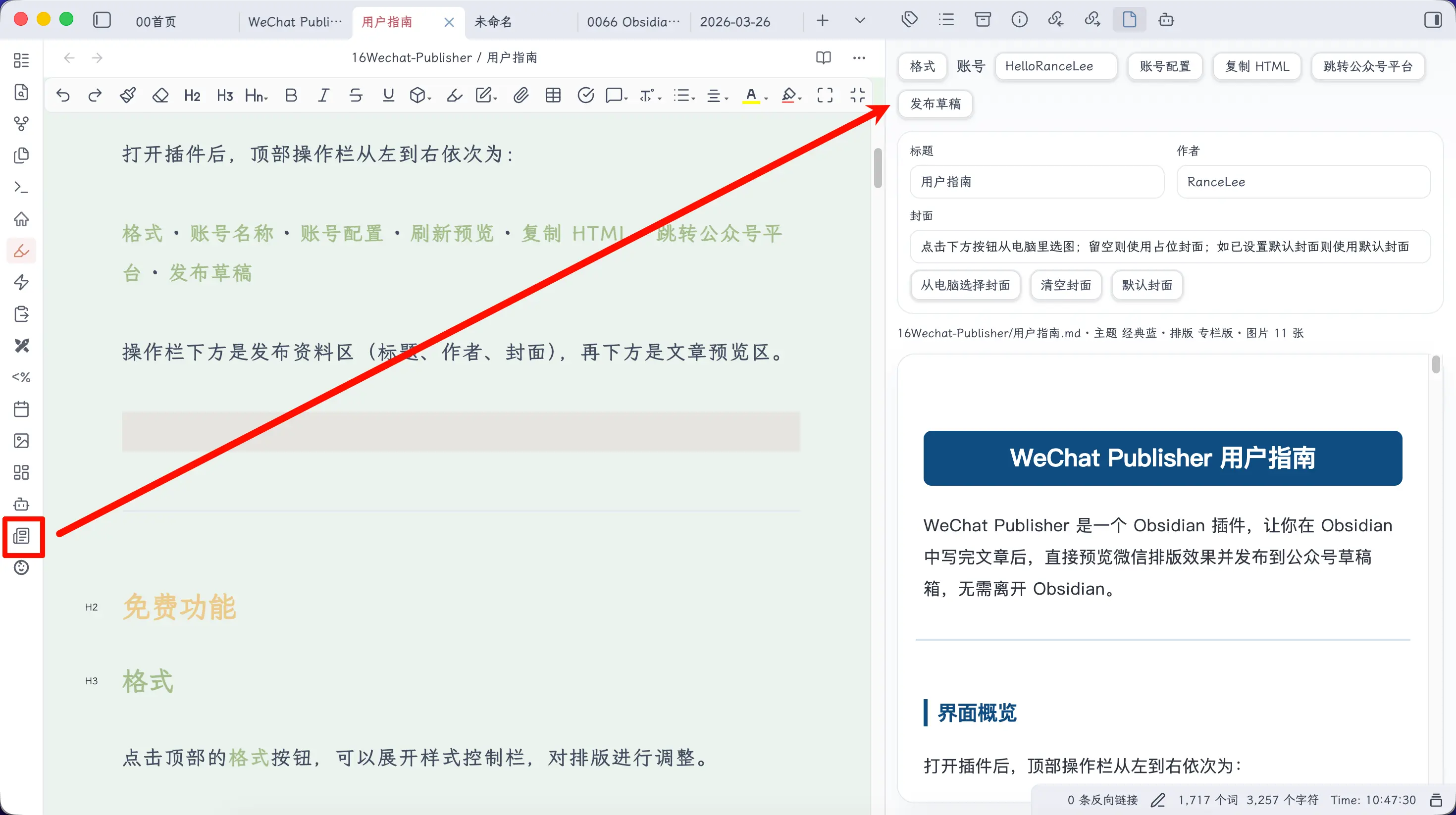
The top toolbar from left to right: Format · Account Name · Account Config · User Guide · Refresh Render · Copy HTML · Go to WeChat Paste · Publish Draft.
Below the toolbar is the publish info area (title, author, cover), and further down is the article preview area.
Screenshots from older versions may still show the ‘Purchase Activation’ button, but it has been removed in the new version—all features are directly available.
Usage 1: Copy HTML and Paste (No API Configuration Needed)
The simplest usage, no account configuration needed—write and publish directly.
Step 1: Adjust formatting (optional).
Click the Format button at the top to expand the style control bar. You can switch between built-in themes, or go into Style Config to adjust font size, line spacing, colors, and other details.
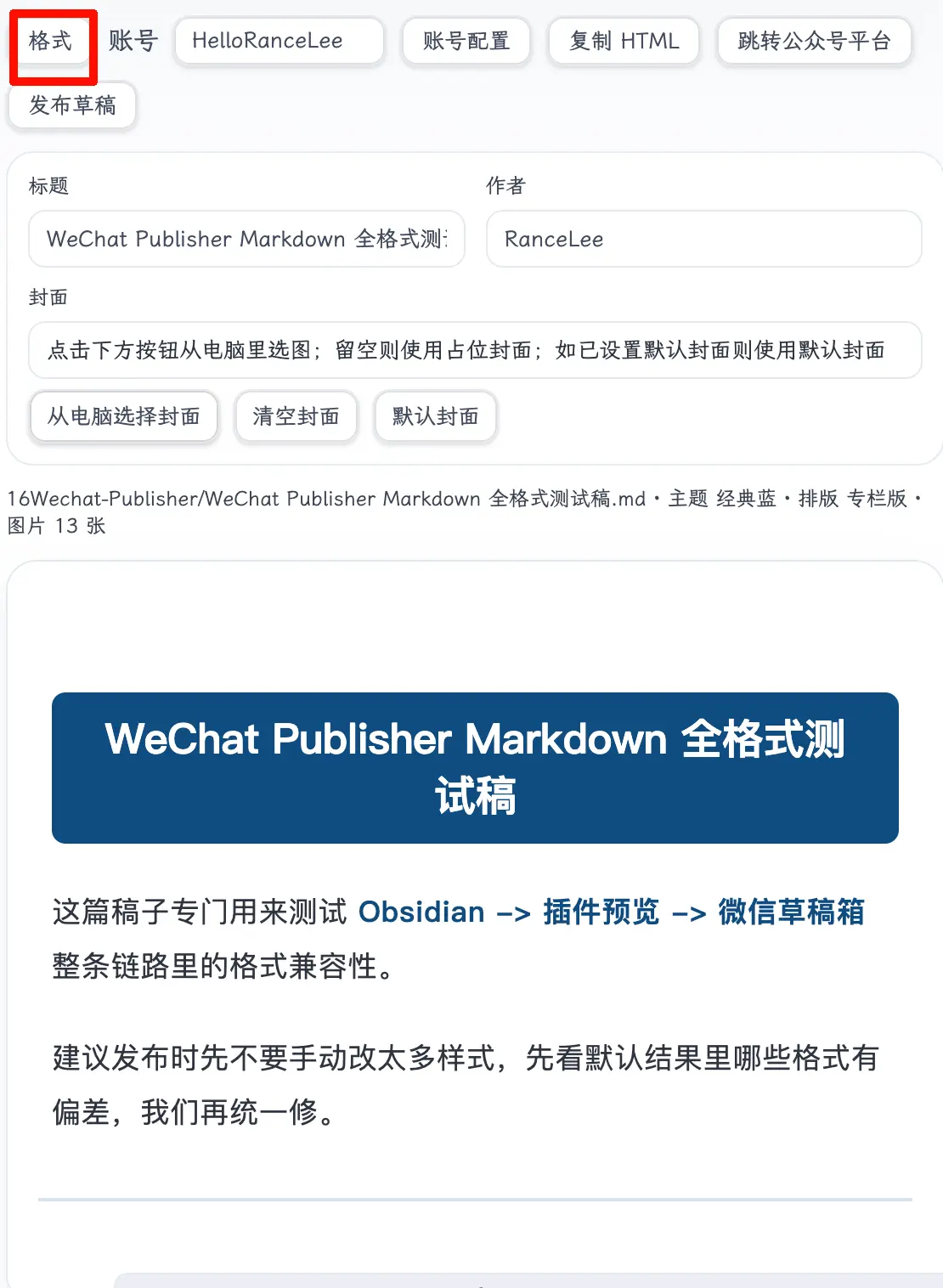
It’s recommended to set up a style you like the first time and save it. For future articles, you can directly ‘Apply Saved Style’ without reconfiguring each time.
Step 2: Click ‘Copy HTML’.
The plugin copies the rendered HTML to your clipboard with complete formatting.
Step 3: Click ‘Go to WeChat Paste’.
Your browser automatically opens the WeChat backend, and you can paste it into the editor.
The whole process takes about ten seconds, much faster than manual formatting.
Usage 2: One-Click Publish to Draft Box
If you publish articles frequently, you can configure the WeChat API so the plugin pushes articles directly to the draft box without ever opening a browser.
Step 1: Configure Your WeChat Account
Click Account Config at the top to open the configuration popup. The top of the popup lists all added accounts as tabs; click to switch.
Fields to fill in:
| Field | Description |
|---|---|
| Account Name | Any name you choose, to distinguish multiple accounts |
| AppID | Your WeChat account’s AppID, obtained from the WeChat Developer Platform |
| AppSecret | Developer secret key, must be manually enabled on the platform |
| Default Author | Optional, auto-filled when publishing |
| Default Cover | Optional, set a fixed cover for this account |
At the bottom, there are two buttons: Add Account Manually (fill in the form) and Quick Paste New Account (one-click auto-recognition from copied WeChat platform content). After filling in, click Save.
Quick Paste New Account
Don’t want to fill in forms? There’s a faster way: Open the ‘Basic Information’ page on the WeChat Official Account platform, select all and copy the content, then in the WeChat Publisher account config popup, click ‘Quick Paste New Account’, paste the content, and the plugin automatically recognizes the account name, AppID, and AppSecret—one-click addition.
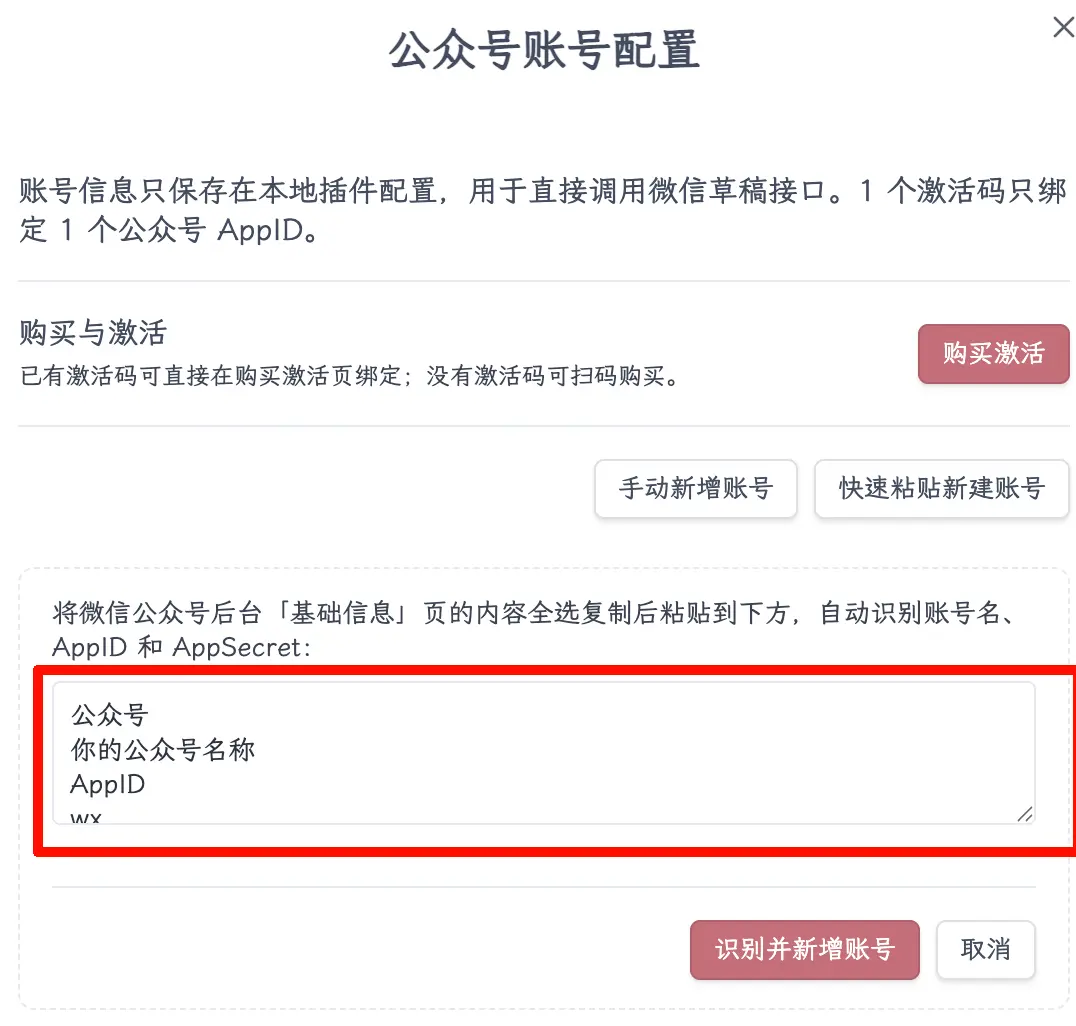
The pasted content format is roughly as follows, and the plugin parses it automatically:
Official Account
Your WeChat Account Name
AppID
wxb3f8a2e9c7d10456
AppSecret
e4a27f3c1b9d8056f2e8a3c7b4d90561
How to Get AppID and AppSecret
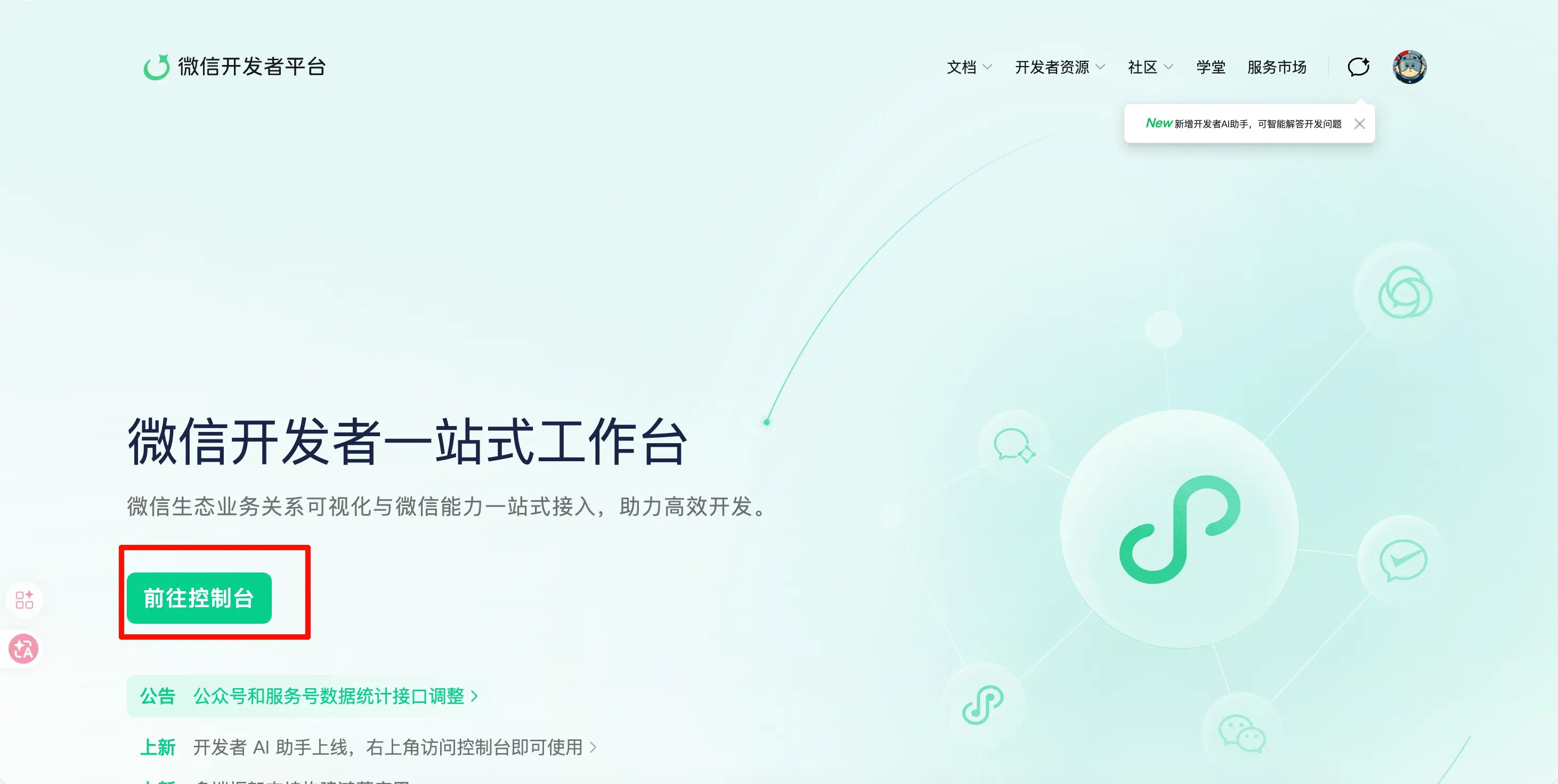
Step 1: Open developers.weixin.qq.com and click ‘Go to Console’.
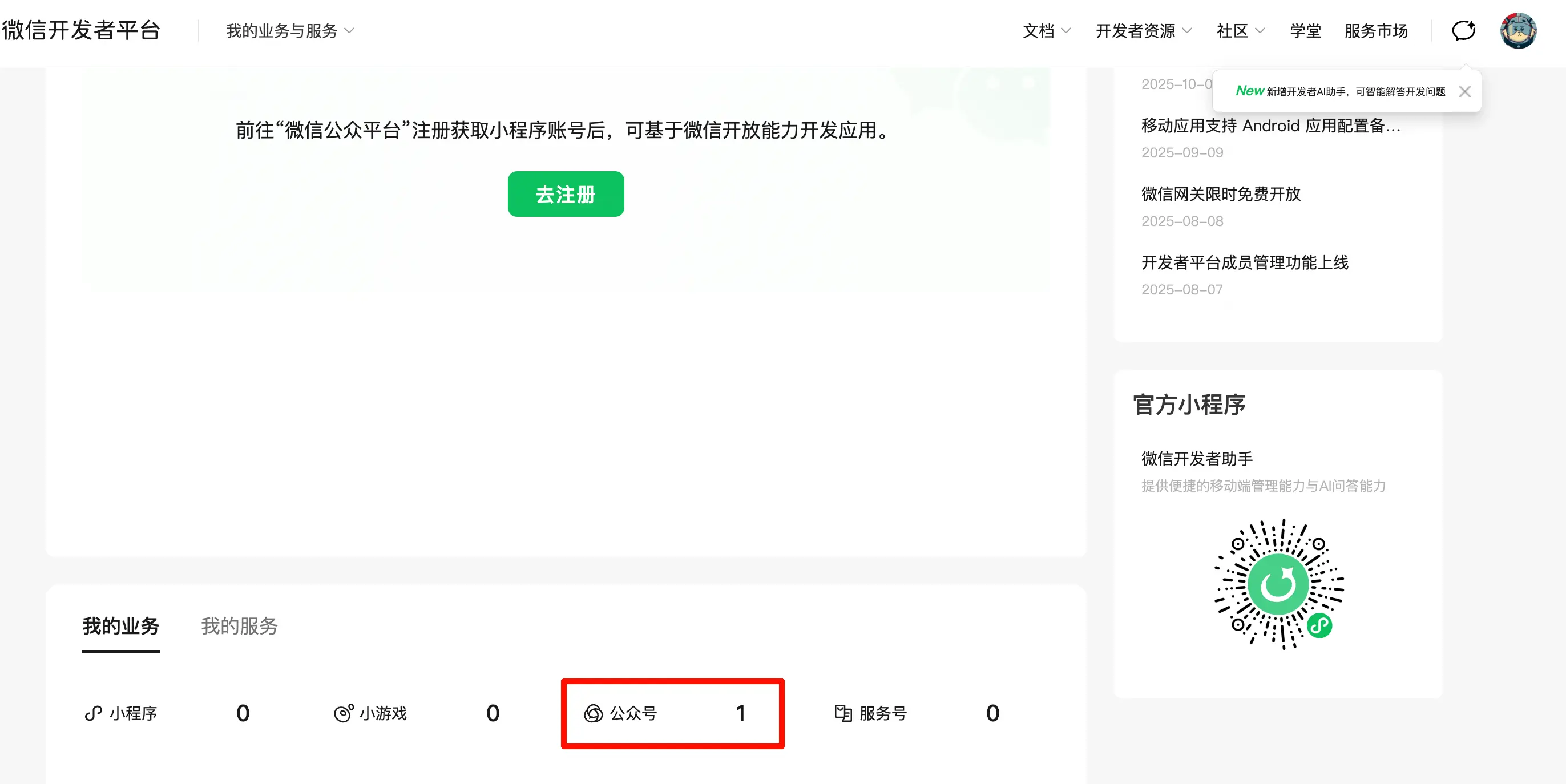
Step 2: In ‘My Business’, find your WeChat account and click into it.
Step 3: Enter the WeChat account management backend, find the AppID on the ‘Basic Information’ page (copy it directly), then click Enable next to AppSecret, scan the QR code to authorize, and you can obtain it.
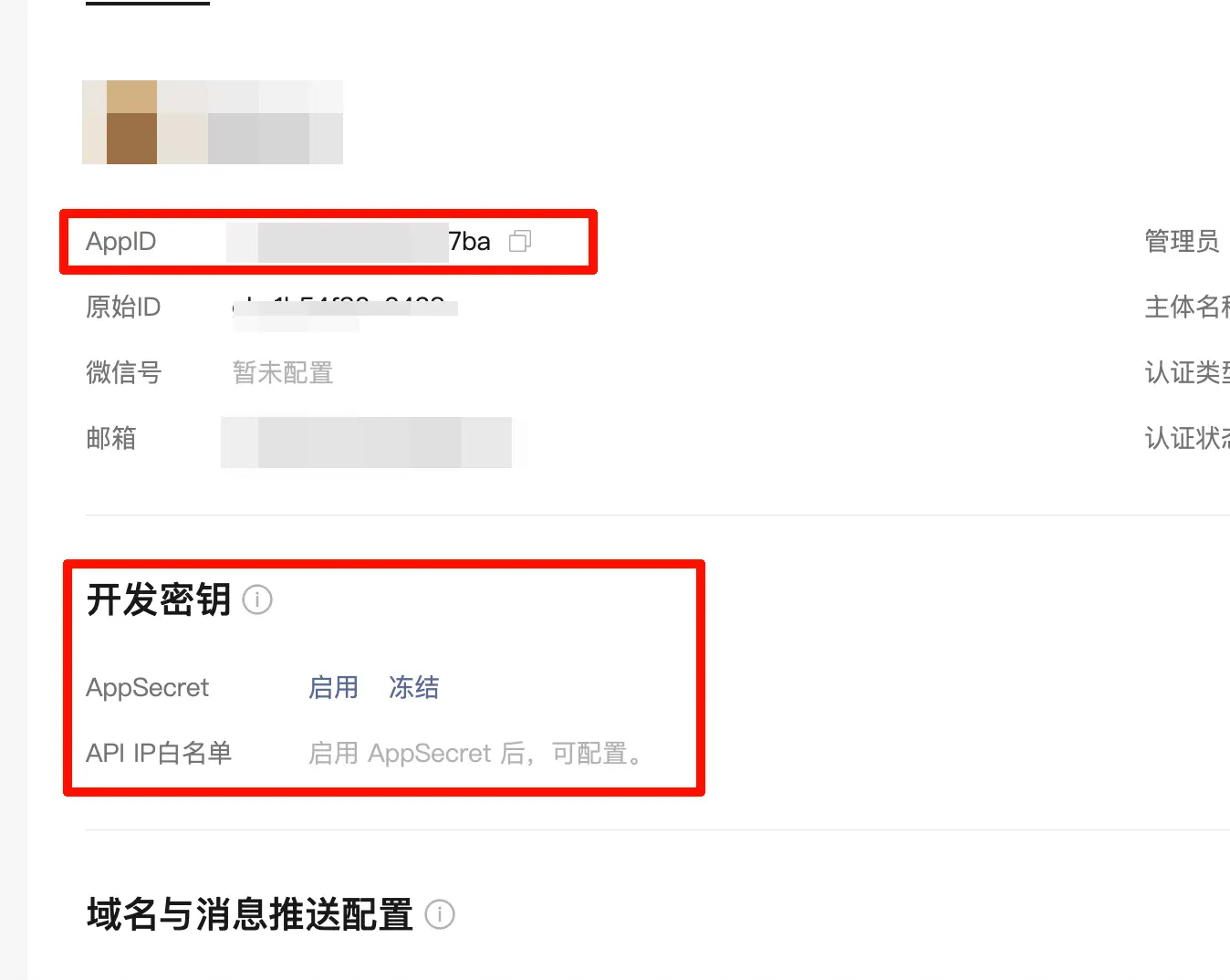
AppSecret is only displayed in full once at the moment of enabling. Copy and save it immediately, otherwise you’ll have to regenerate it.
Configure IP Whitelist
The WeChat API requires that the IP address of the machine calling the interface must be on a whitelist. WeChat Publisher calls the API directly from your computer, so you need to add your public IP to the whitelist.
The plugin has a helper feature: In the account config popup, click ‘Detect Local IP’ to automatically get your public IP, click ‘Copy’, then go to the WeChat platform’s ‘API IP Whitelist’ and paste it to save.
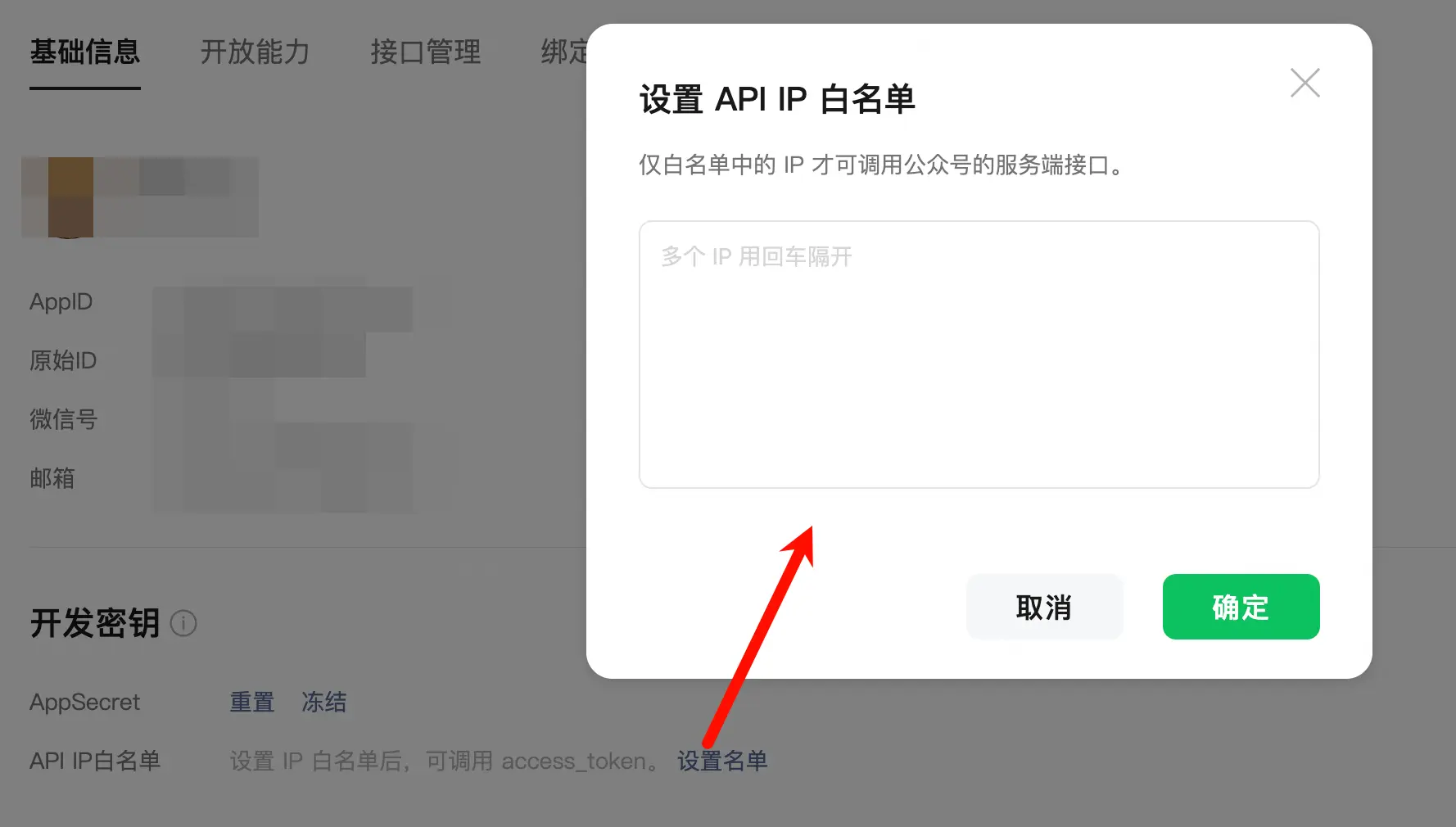
If you use it both at home and at work, the public IPs of the two networks are different, so add both.
Step 2: One-Click Publish Draft
Open the note you want to publish, fill in the title and author in the publish info area, set the cover as needed, and click Publish Draft at the top.
The plugin automatically:
- Uploads local images in the article to WeChat CDN
- Renders Mermaid diagrams and math formulas into images
- Submits the rendered HTML along with title, author, and cover to the draft box
After completion, go to the WeChat backend draft box, check it over, and if everything is fine, send it.
The draft is not sent directly; you need to manually send it from the backend.
Re-publishing automatically updates, no duplicate articles: If this note has been previously published as a draft, after making changes and clicking ‘Publish Draft’ again, the plugin will automatically find the existing draft on the WeChat platform and update it, without creating a new duplicate article.
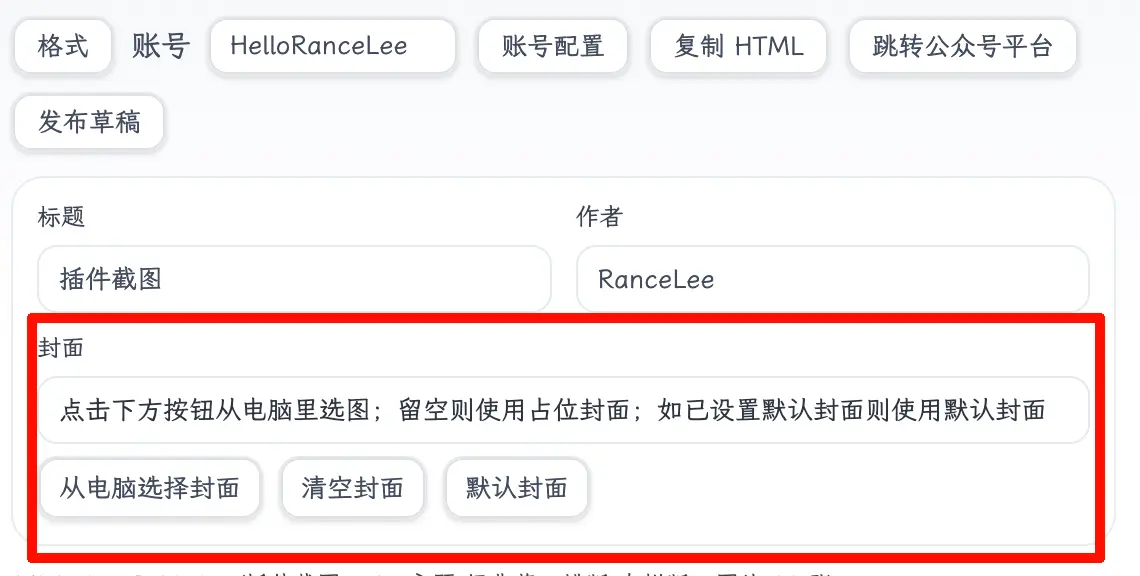
How to Set the Cover
The publish info area has three cover buttons:
| Button | Description |
|---|---|
| Select Cover from Computer | Manually choose an image from your local computer each time |
| Default Cover | Use the cover preset in the account configuration |
| Clear Cover | No cover, uses a placeholder blank image when publishing |
Cover priority: Manual selection > Account default cover > Placeholder image.
It’s recommended to set a default cover in the account configuration so you don’t have to manually select one each time you publish.
Supported Formats
| Format | Support |
|---|---|
| Code blocks | ✅ Syntax highlighting, preserves indentation and spaces |
| Math formulas | ✅ Inline and block formulas, rendered as images |
| Mermaid diagrams | ✅ Flowcharts, sequence diagrams, etc., rendered as images |
| Tables | ✅ Full style restoration |
| Local images | ✅ Auto-upload to WeChat CDN when publishing (supports ../ relative paths) |
| Remote images | ✅ Auto-processed |
| Ruby annotations | ✅ Multiple syntax formats |
| Alert blocks | ✅ > [!NOTE] / [!WARNING] etc. |
| Horizontal scrolling images | ✅ Multiple images displayed side by side |
| #Tags | ✅ Rendered as capsule style |
| Obsidian Callout | ✅ |
| Bold, italic, strikethrough, highlight | ✅ |
The more complex your article, the more time you save. If your article contains code blocks, math formulas, or Mermaid diagrams, the time spent handling them manually adds up to a significant amount.
Summary
What you learned today:
- The biggest problem with writing for WeChat in Obsidian is format conversion—WeChat Publisher solves this
- Two usage methods: Copy HTML and paste into WeChat backend (no configuration, 10 seconds); or configure the API for one-click publish to draft box (even more convenient)
- Configuring the API requires AppID + AppSecret + IP whitelist, a one-time setup
- Supports complex formats like code block highlighting, Mermaid, math formulas, automatic local image upload, etc.
- Completely free for personal users since v0.1.13, all features unlocked directly, no activation code needed
Key points:
- Completely free for personal users, feel free to download and use
- For commercial use (companies, training, redistribution), please contact the author via the WeChat account ‘HelloRanceLee’
- Configuring the WeChat API is a one-time task, not difficult if you follow the tutorial
- Remember to configure the IP whitelist before publishing, otherwise API calls will error
- It’s recommended to set up and save your style the first time, then apply it directly for each article
Get the latest version of the plugin:
- GitHub:
https://github.com/RanceLee233/wechat-publisher - Direct download:
https://blog.discoverlabs.ac.cn/downloads/wechat-publisher/